Keep AI in the flow of work
Traditional productivity tools often require employees to switch between applications, monitor multiple windows, and repeatedly check for updates as they work. Each interruption can break focus and slow progress. A third principle for AI-powered productivity is keeping intelligence within the flow of work so employees can stay focused on what they're trying to accomplish.
Windows 11 helps support this approach by bringing AI experiences closer to where work happens. Rather than requiring users to stop what they're doing and seek out AI assistance, intelligent experiences can remain available within familiar workflows and desktop interactions.
Reduce context switching
Context switching occurs when employees must leave one task to perform another. This might include opening a different application, checking the status of an ongoing process, reviewing a lengthy email thread, or searching for information needed to complete a task.
While each interruption might seem small, the cumulative effect can reduce productivity and make it harder to maintain focus throughout the workday. AI experiences that help users access relevant information at the right time can help reduce the need for these interruptions.
Emerging AI experiences
Windows continues to evolve with new AI-powered experiences designed to help users stay informed and access assistance without disrupting their work. Depending on feature release status, device requirements, and market availability, organizations might encounter emerging capabilities such as taskbar-integrated Copilot experiences and AI-powered status updates for long-running activities, including Ask Copilot on the taskbar and Agents on the taskbar. Refer to Microsoft documentation for current feature availability, requirements, and supported scenarios.
Quickly understand and respond to information
AI can also help employees stay in the flow of work by reducing the effort required to process information.
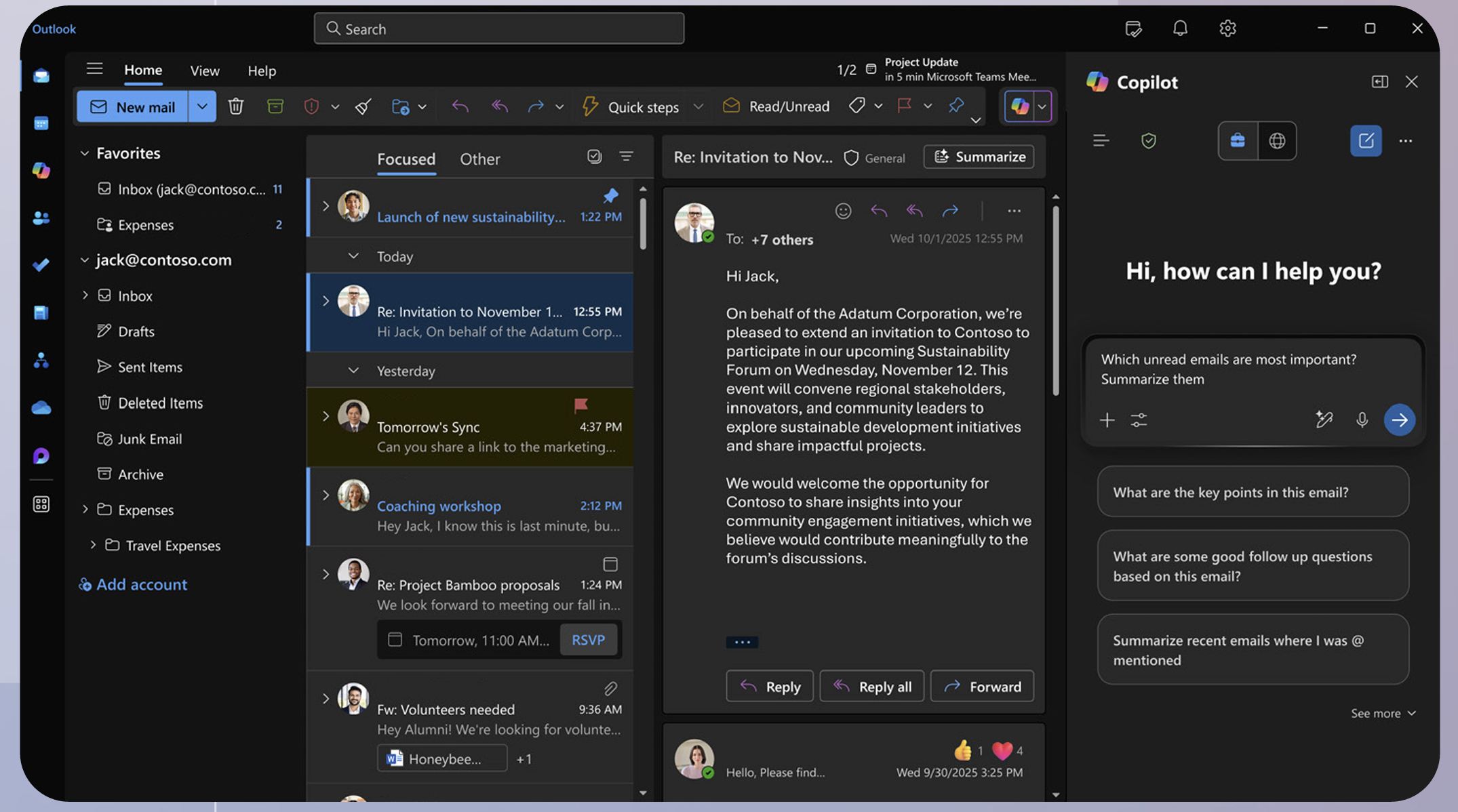
For example, Outlook summary can help users quickly understand lengthy email conversations by pulling together key updates, decisions, questions, and action items. Rather than reading every message in a long thread, employees can select Summary by Copilot (or Summarize) to generate a summary at the top of the email. The summary might also include citations that link directly to the corresponding emails in the thread, making it easier to review supporting details and understand the context behind key decisions.
If the conversation includes Word, PowerPoint, or PDF attachments, users can also generate summaries of those files to get a quick overview of the information they contain. This allows employees to quickly understand both the discussion and related documents before determining what action is needed.
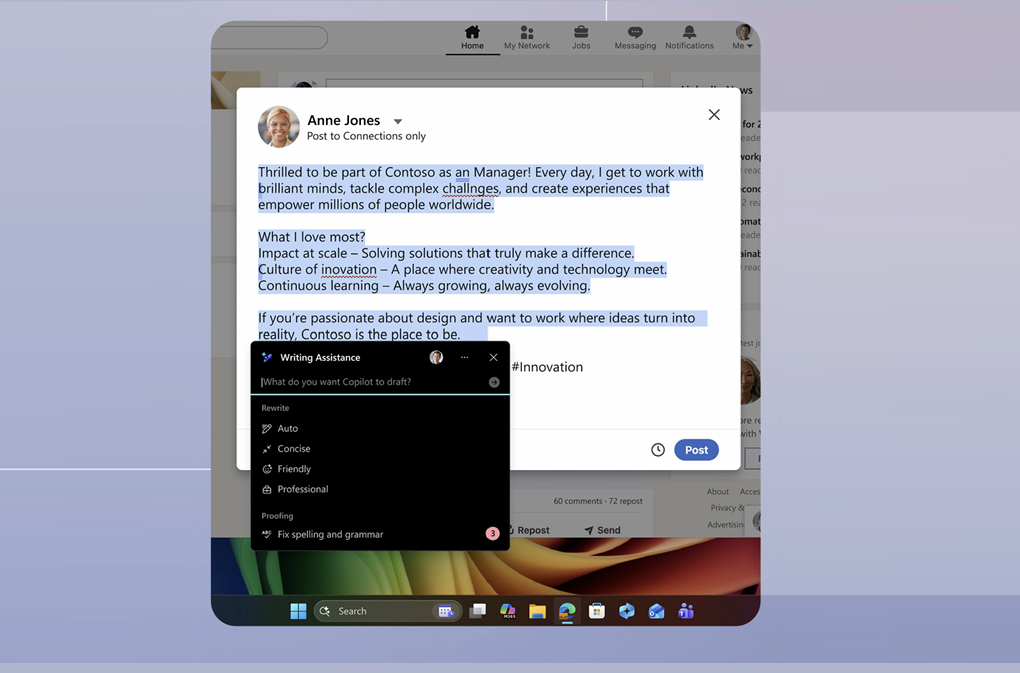
Similarly, Writing assistance with Microsoft 365 Copilot can help users refine existing content without switching applications or interrupting their workflow. Employees can improve clarity, adjust tone, or strengthen communication while remaining focused on the task they're performing.
Note
At the time of this writing, Writing assistance might be available only through select release channels, preview programs, or markets. Writing assistance is available only in supported languages. Microsoft 365 Copilot requires a separate subscription. Availability, release timing, language support, and licensing requirements are subject to change. Refer to the product documentation for the latest availability information.
At the time of this writing, Outlook summary is available on select Copilot+ PCs, including devices with Snapdragon® X Series processors. Availability, capabilities, device requirements, and licensing requirements are subject to change. Refer to the product documentation for the latest availability information.
AI as part of the work experience
Across these examples, the common goal is not simply to add more AI features. Instead, the goal is to make AI available where employees already work.
Whether users are reviewing information, monitoring AI-generated results, responding to emails, or drafting content, AI remains integrated into familiar Windows experiences. This helps reduce interruptions and supports a more continuous workflow.
How Windows 11 helps support AI-powered productivity
The following table summarizes how the AI experiences explored throughout this module help support productivity in Windows 11.
| Productivity goal | Example experience | Benefit |
|---|---|---|
| Interact with AI naturally | Microsoft 365 Copilot Voice, Fluid dictation | Helps users communicate with AI using natural language and voice. |
| Get to what matters faster | Improved Windows search, Ask Copilot in File Explorer | Helps users find information and understand content more quickly. |
| Reduce friction between information and action | Click to Do | Helps users act on information without unnecessary manual steps. |
| Keep AI in the flow of work | Ask Copilot on the taskbar, Agents on the taskbar, Outlook summary, Writing assistance | Helps users stay focused while accessing information and assistance where they work. |
Example scenario
An engagement manager begins the day by using an AI-powered agent from the Agents on the taskbar experience to research a prospective client's industry, recent business challenges, and competitive landscape for an upcoming project. Rather than pausing other work while the research is performed, the manager continues preparing a presentation and reviewing project documents while research is performed in the background by the agent.
Throughout the day, updates from the agent are provided through Windows, allowing the manager to monitor progress without repeatedly switching applications or checking for updates manually. When additional information is needed, the manager uses Ask Copilot on the taskbar and enters prompts such as "Summarize the key trends affecting the manufacturing industry" and "What risks should we address in our client proposal?" Insights are highlighted directly within the workflow, helping the manager quickly gather context and refine recommendations.
Later in the day, the manager returns to a lengthy email thread containing dozens of responses. Instead of reading every message, Outlook summary highlights key decisions, status updates, and action items from the conversation. Before sending a project update to stakeholders, the manager uses Writing assistance to improve clarity, adjust the tone for an executive audience, and ensure the message clearly communicates next steps.
By combining agents, Ask Copilot, Outlook summary, and Writing assistance within familiar workflows, the manager can spend less time gathering information, reviewing communications, and switching between tools, while remaining focused on project execution and stakeholder engagement.
Reflect
Think about the activities that interrupt your focus most often.
How might integrated AI experiences help reduce context switching and allow you to spend more time on your primary tasks?
Key takeaway
Organizations can embed intelligence directly into everyday work. Windows 11 helps support this approach by bringing AI experiences into familiar workflows, reducing context switching, finding relevant information when needed, and helping employees stay focused as they complete their work.