Integrate Intune with Microsoft Defender for proactive threat signals
In a modern Zero Trust architecture, IT operations and security operations can no longer exist in silos. Microsoft Intune excels at managing device configurations and enforcing compliance, but it relies on static checks. Microsoft Defender provides the dynamic side of the picture — continuously hunting threats, analyzing behavior, and correlating signals across endpoints, identities, email, and cloud.
In this unit, you'll learn how to integrate Intune with Defender so configuration and threat protection work as one. By sharing signals between the two, you can transform static compliance policies into dynamic, risk-based access controls and proactively remediate vulnerabilities before they're exploited.
The power of shared signals
When you integrate Intune with Defender, you create a continuous, bidirectional flow of information.
The following diagram shows this bidirectional flow and the signals each service sends the other.
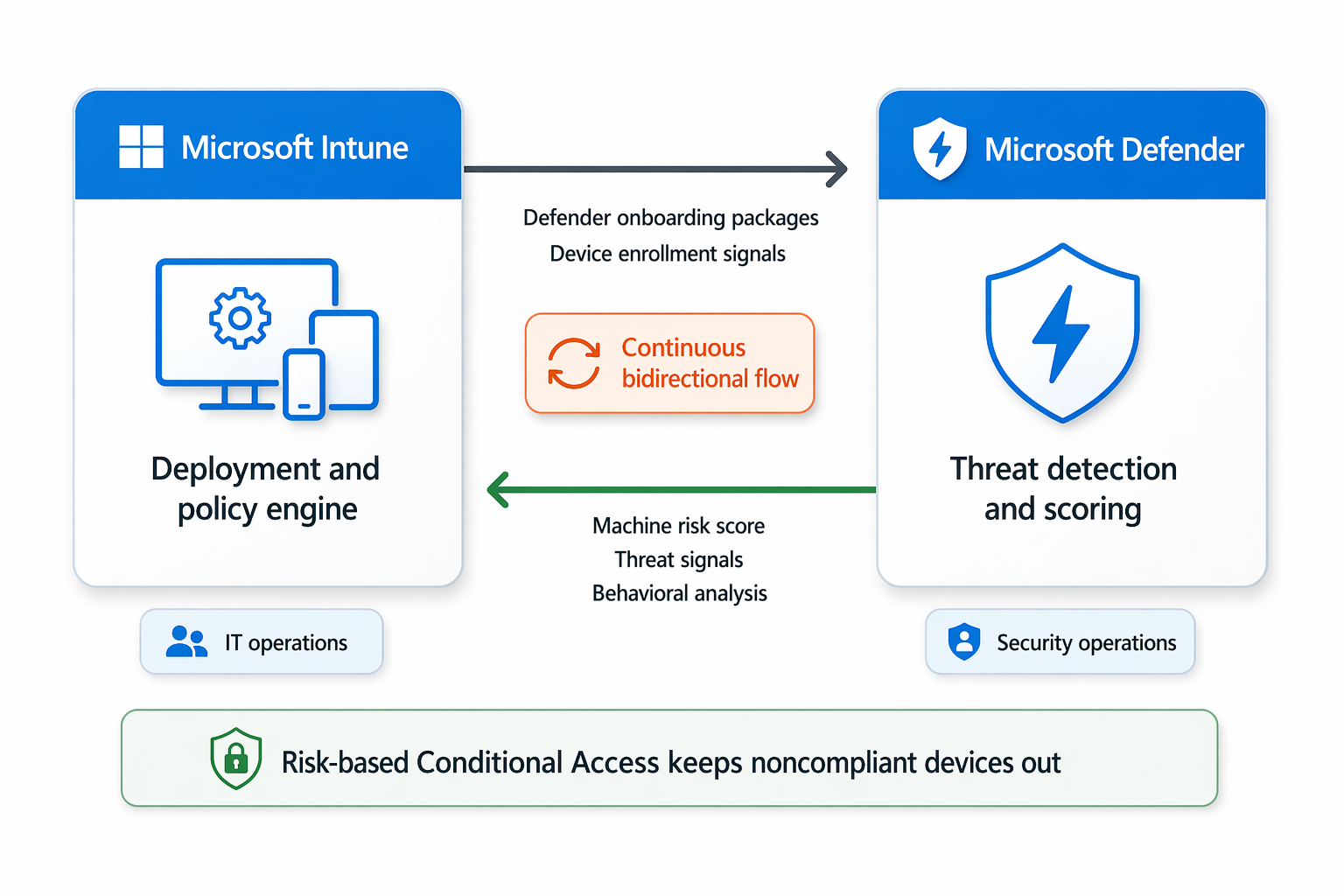
- From Intune to Defender: Intune is the deployment mechanism. It pushes Defender onboarding packages to Windows, macOS, iOS, and Android devices, so your entire fleet is monitored without manual agent installs.
- From Defender to Intune: Defender continuously analyzes each device for malicious behavior, network threats, and OS vulnerabilities. It calculates a dynamic Machine Risk Score and feeds that signal back to Intune in real time.
This integration bridges the gap between SecOps (who identify the threats) and IT Ops (who manage the devices).
Risk-based compliance and Conditional Access
The most critical feature of this integration is the ability to enforce Risk-based Compliance.
Traditional compliance policies check if a device should be secure (e.g., "Is the firewall turned on?"). Risk-based compliance checks if a device is currently secure based on live threat intelligence.
- Threat Detection: A user inadvertently downloads a malicious file. Defender detects the behavioral anomaly and elevates the device's Machine Risk Score to High.
- Signal Sharing: Defender instantly shares the updated risk score with Intune.
- Compliance Evaluation: Your Intune Compliance Policy is configured to require a risk score of Clear or Low. Because the device is now High risk, Intune immediately marks the device as Noncompliant.
- Access Revocation: Microsoft Entra Conditional Access sees the noncompliant status and instantly blocks the user's access to corporate resources, containing the threat from spreading to the network.
Once Defender automatically remediates the file (or a security analyst intervenes), the risk score returns to Clear, Intune marks the device Compliant, and access is restored.
Proactive vulnerability management (Security Tasks)
Beyond active malware infections, the integration extends to vulnerability management. Defender continuously scans enrolled endpoints for outdated software and known vulnerabilities (CVEs). Instead of the security team emailing a spreadsheet of vulnerabilities to the IT team, they can use Security Tasks.
- The SecOps workflow: A security analyst sees in the Microsoft Defender portal that 50 devices are running an outdated, vulnerable version of an application (for example, Adobe Acrobat). The analyst clicks Send remediation request to Intune.
- The IT Ops workflow: The endpoint administrator opens the Intune admin center and navigates to Endpoint security > Security tasks. They see a new, prioritized ticket detailing the vulnerability, the affected devices, and the required remediation steps.
- The remediation: The IT admin uses Intune to deploy the updated application package, closing the vulnerability. Once Intune pushes the update, Defender detects the patched software and automatically closes the Security Task, verifying the fix.
Configure the Intune connector for endpoint security
Establishing this integration requires administrative access to both the Microsoft Intune admin center and the Microsoft Defender portal.
- Sign in to the Microsoft Intune admin center.
- Navigate to Tenant administration > Connectors and tokens > Microsoft Defender for Endpoint.
- Under Connection status, configure the integration switches:
- Turn on Connect Windows 10 (1809 or later) and Windows 11 devices to Microsoft Defender for Endpoint.
- Turn on the connector for iOS/iPadOS and Android devices to enable Mobile Threat Defense (MTD) capabilities.
- Set Allow Microsoft Defender for Endpoint to enforce Endpoint Security Configurations to On. This lets Defender pull security policies directly from Intune.
- In your Compliance policies, add a rule under the Microsoft Defender for Endpoint category to require the device to be at or under your preferred Machine Risk Score (typically Clear or Low).
Important
Enabling the connector establishes the communication pipeline. You must still create and assign an Endpoint Detection and Response (EDR) policy in Intune to onboard your devices to Defender.