Root cause analysis
Root cause analysis (RCA) helps you locate difficult-to-find connections in your data. For example, it helps you understand why some cases take longer to complete than others or why some cases get stuck in reworks while others run smoothly. RCA shows you the key differences between such cases.
RCA can use all your case level attributes, metrics, and custom metrics to find connections among them and a metric of your choosing.
When you enter the RCA module, the first task that you should complete is to set up the Metric field and the Influenced by field on the Settings tab based on what you want to analyze. The Metric field includes what you want to investigate the root cause analysis for. Below the Metric dropdown menu is a distribution graph for the selected field. The Influenced by field includes case level attributes that you can select from to understand which field role is influencing the metric.
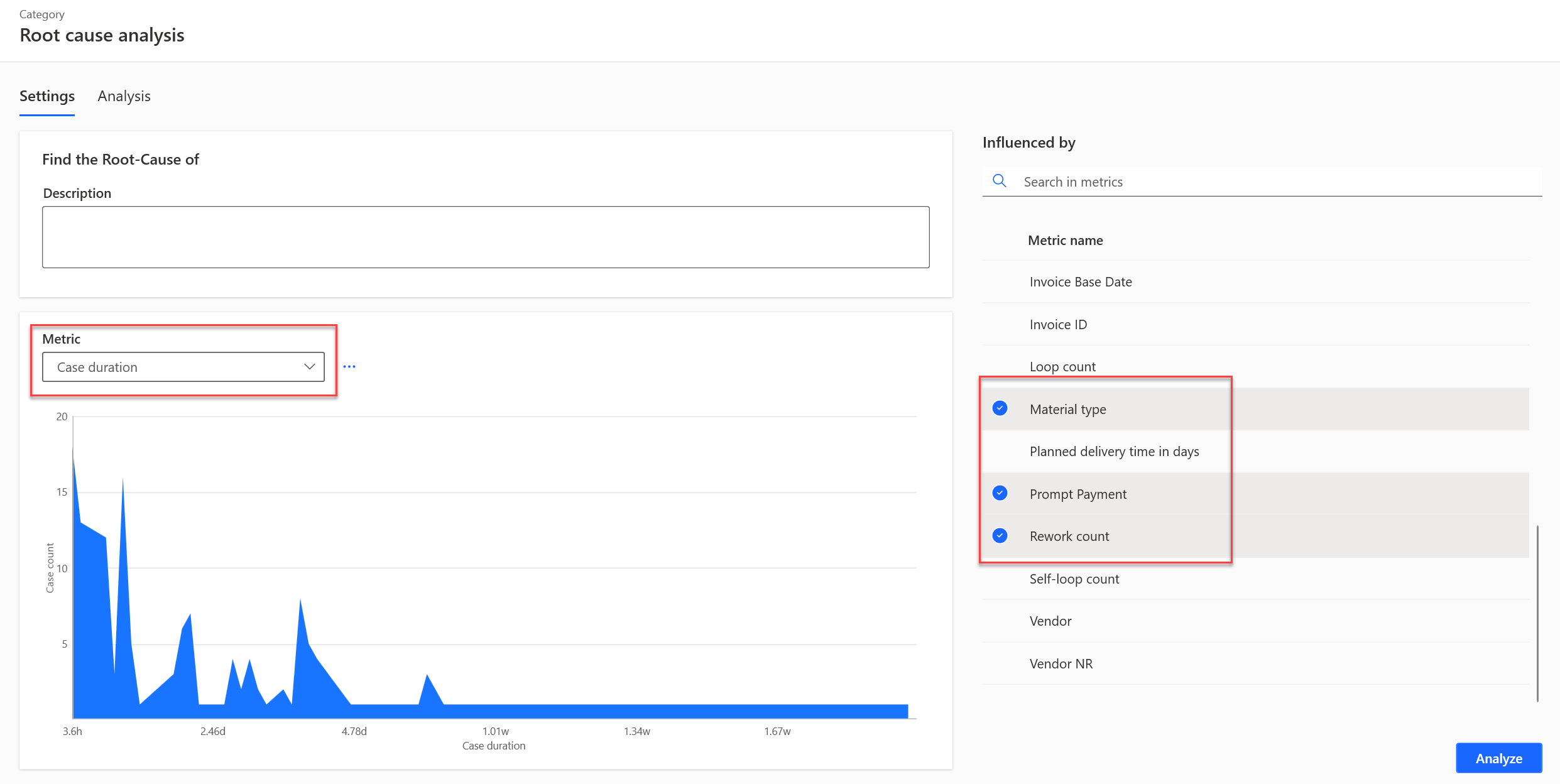
The preceding example shows Case duration selected for the metric to perform the root cause analysis on. In this example, you want to know how material type, prompt payment, and rework count influence your case duration. It's best to select multiple Influenced by fields that could be applicable and then allow the RCA analysis engine to determine which are most impactful by influencing the metric that you select. If you want an idea of which case fields are most influential, review the case influencers in the Statistics module. Generally, it's best to select fewer than 20 fields so that you avoid over-feeding the analysis engine. When you're done setting up the fields, select Analyze, which redirects you to the Analysis tab with a tree node diagram.
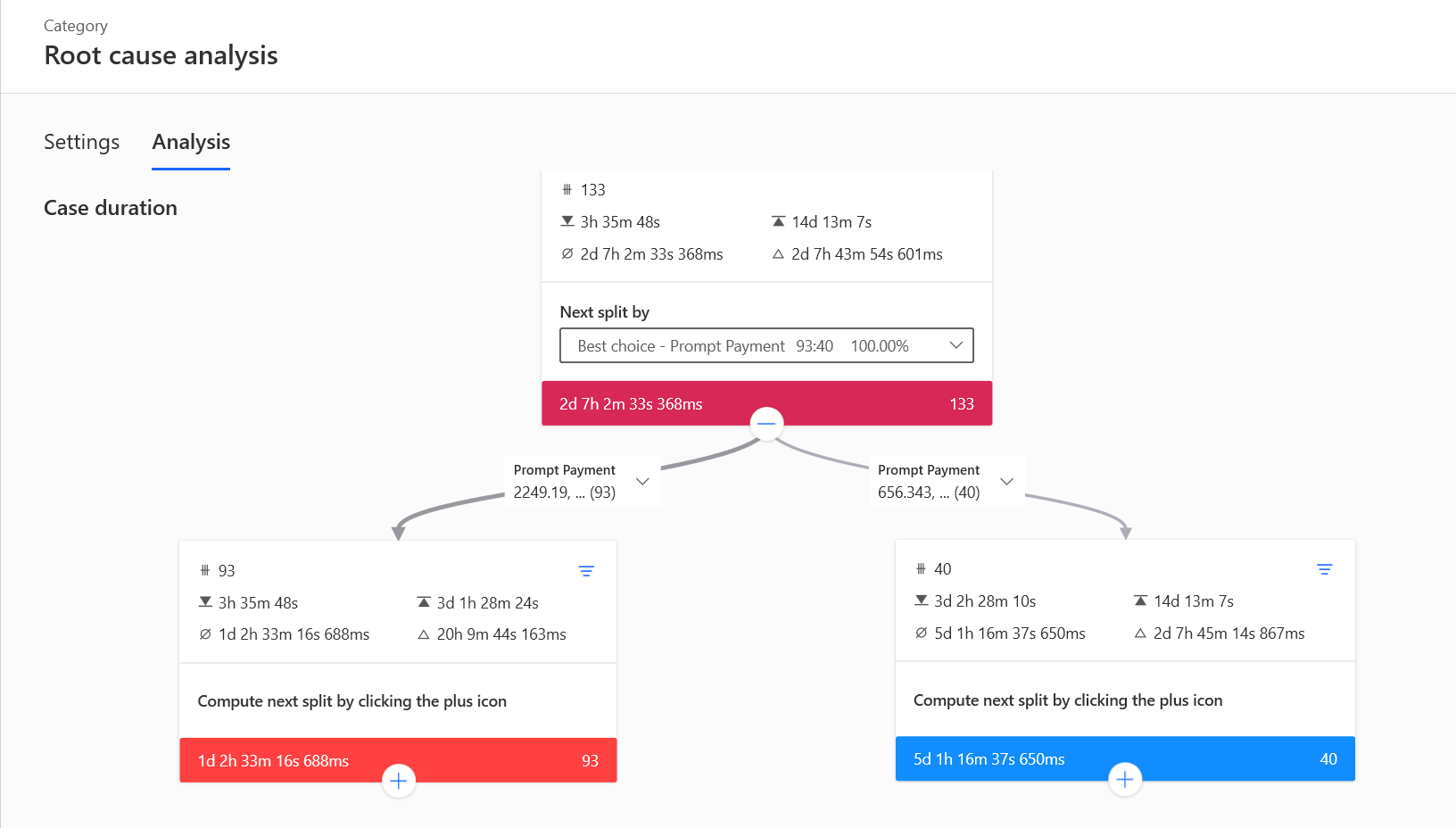
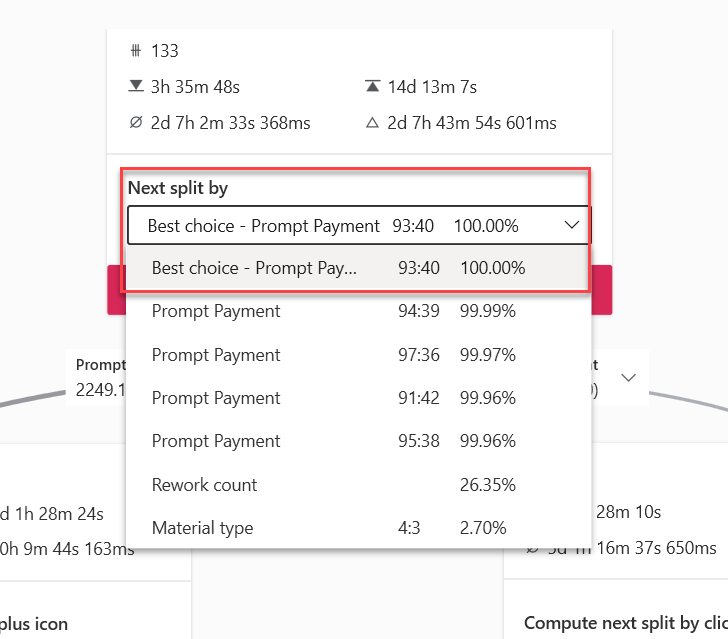
The upper node in the tree shows the Next split by selection. By default, the system selects the best choice. You can review How RCA finds the best split if you want to know how this process works. This selection determines how the next level of two nodes is split so that you can continue to drill down in your analysis of the root cause. You can select an alternate Next split by field to use, as shown in the following image. In this example, you could also choose Rework count or Material type, but their influence is much less significant than the Prompt Payment field.
On either lower node in the tree, you can choose to have the system compute the next split by selecting the plus (+) icon.
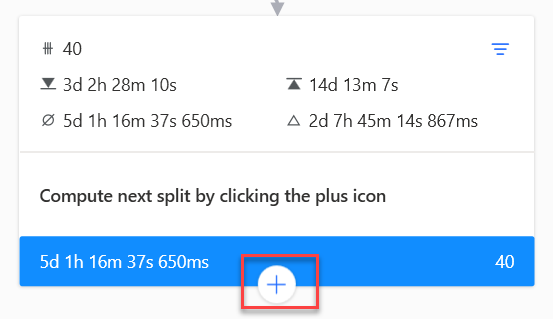
This action causes the system to determine the next best split and to show you the next level of nodes in the process tree.
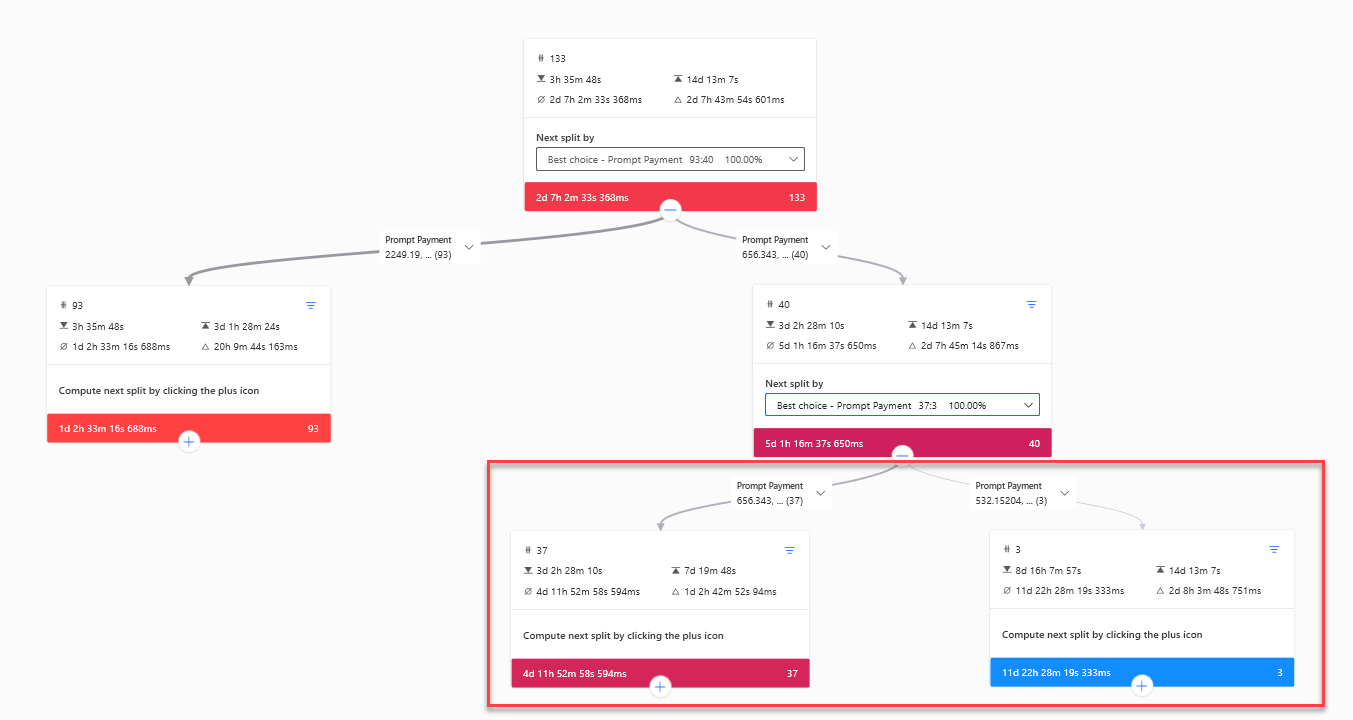
As previously shown, the node that you expanded now shows the Next split by selection list, which allows you to change from the best choice that the system determined. The list of attributes on this list and their order can change as you drill down into the tree.
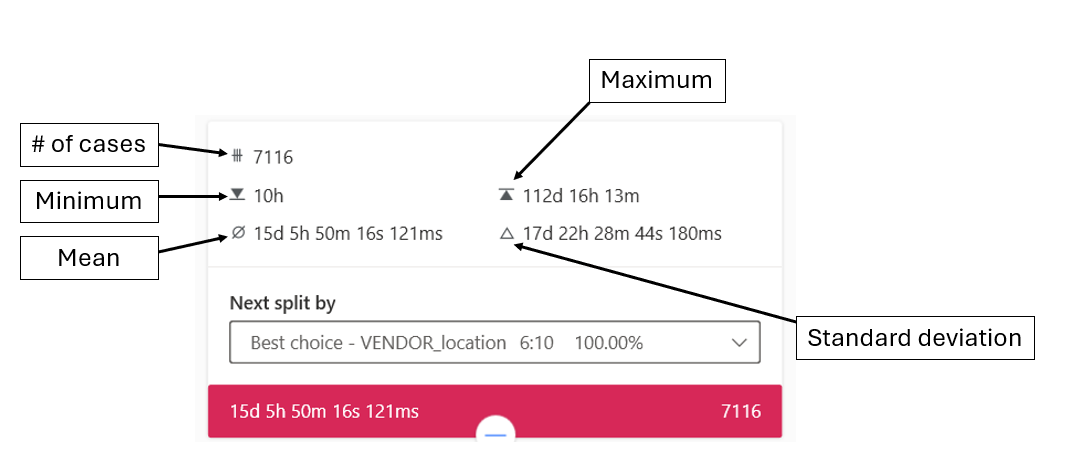
Each node in the tree provides the number of cases, minimum and maximum duration, and the mean and standard deviation for all cases that the tree node represents.
From any node, you can select the filter icon in the upper-right corner, as shown in the following image.
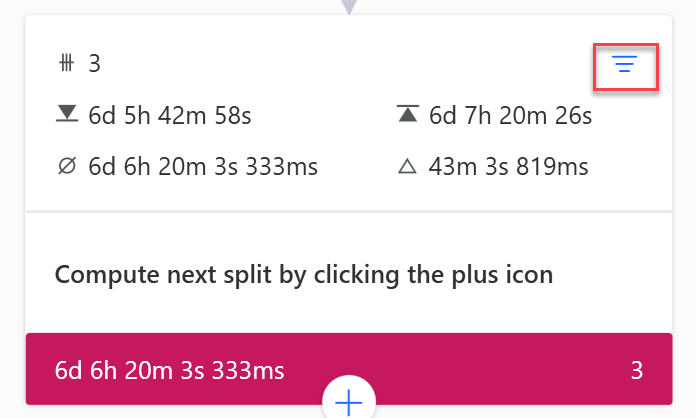
Selecting the filter icon takes you to the filter creation screen with the filter configured to match what the tree node represents. For example, if the tree node represents three cases with a case duration time of six days, the system configures the filter the same way. This approach helps you save the filter and use it in other parts of the desktop application to analyze only those tree node cases.
Go to the Statistics and Case influence modules and select Case duration for Metric type.
Notice that the vendor payment term is the highest influencer, followed by the vendor location.
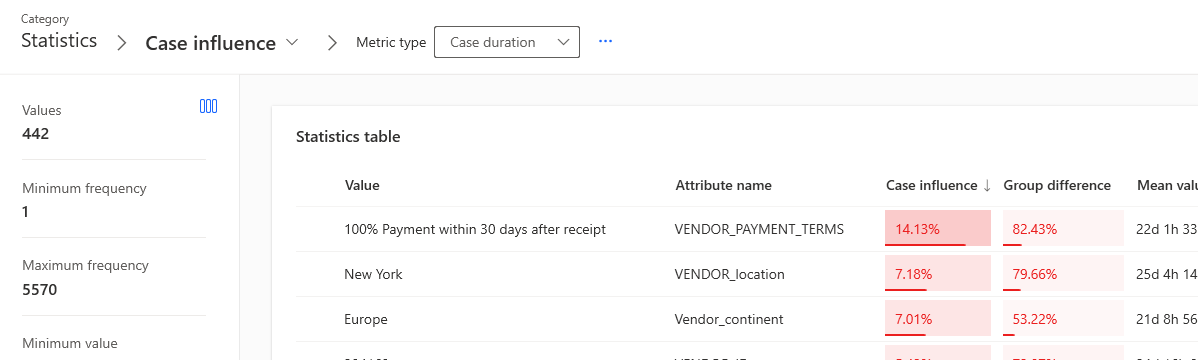
If you want to know how vendor payment term and vendor location can influence case duration, you might need to filter out cases without vendor payment term values before you run the root cause analysis.
After splitting nodes a few times, you should get a tree that resembles the following image. This tree reduces the locations that take the longest down to two locations: Ankara and Mumbai.
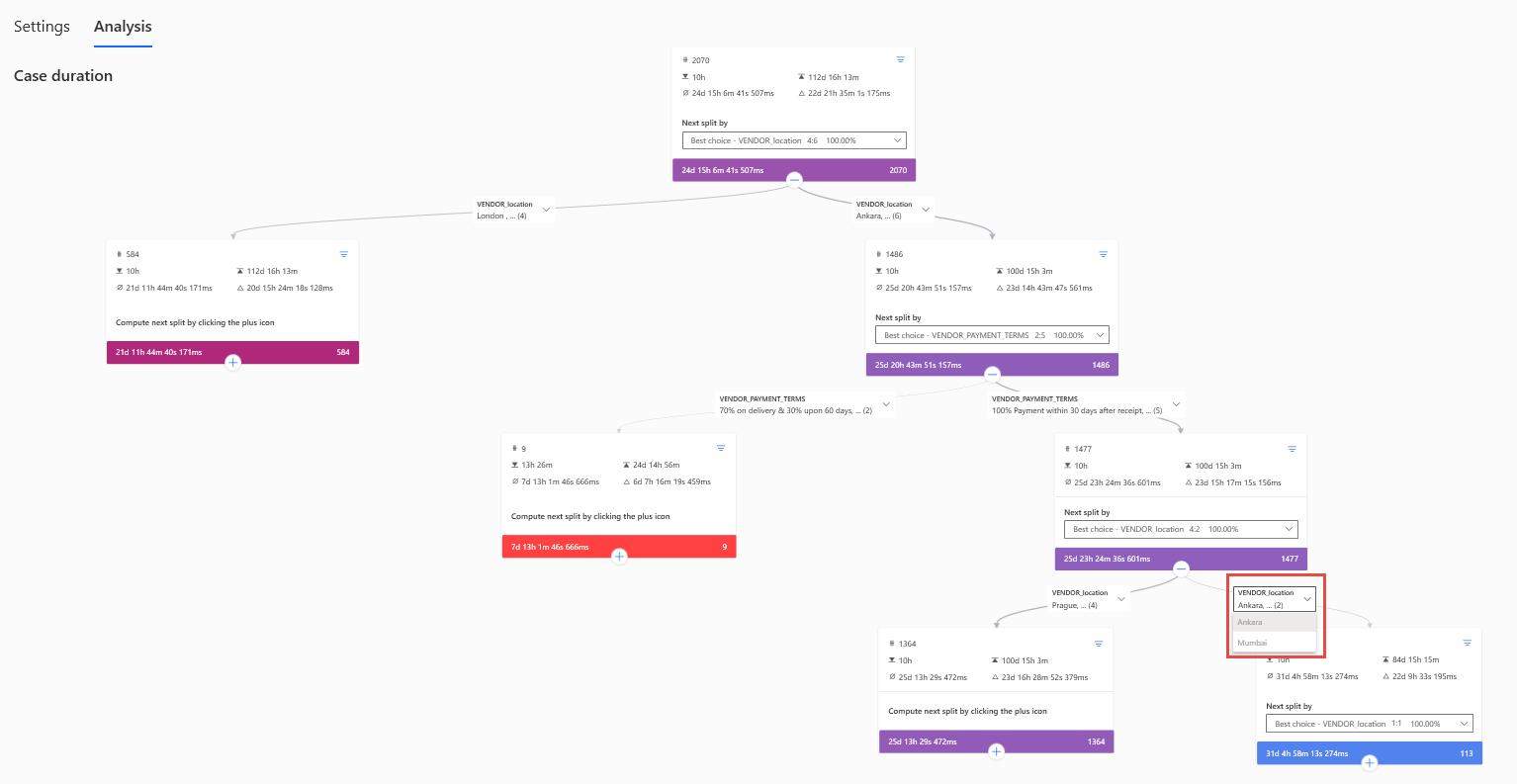
After this analysis, the organization can copy how other locations handle vendor payment terms and then apply their processes to these two locations.
The following image shows the stats on the decision tree.