Apply AI-powered motion smoothing to an animated sequence
Objective
Use OpenAI's Sora to transform a static 2D image into a cinematic video sequence by simulating motion, lighting, and depth.
Materials needed
- Laptop or desktop computer with internet access
- Access to OpenAI's Sora (via ChatGPT Plus or Pro)
- A high-quality 2D image (created in module 1 or provided by the instructor)
Step-by-step instructions
Visit Sora
- Go to sora.com.
Log in
- Click the Login button in the top-right corner.
- Enter your ChatGPT Plus credentials.
Access the storyboard feature
- Once logged in, go to the Storyboard tab.
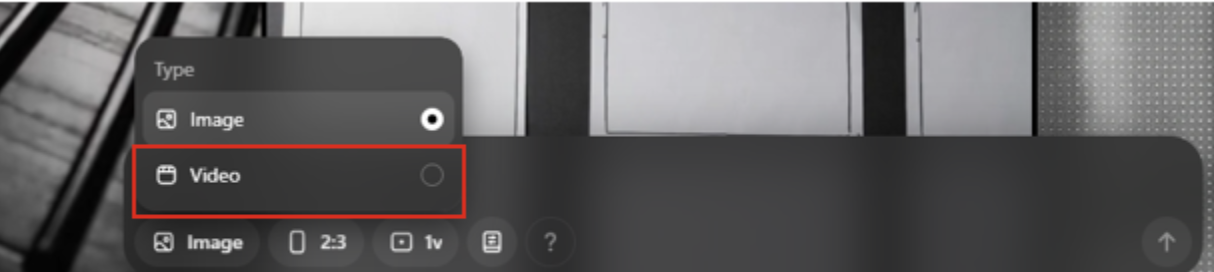
- Scroll to the Image section at the bottom of the screen and click on it.
- Select the Video option.
Open the storyboard timeline
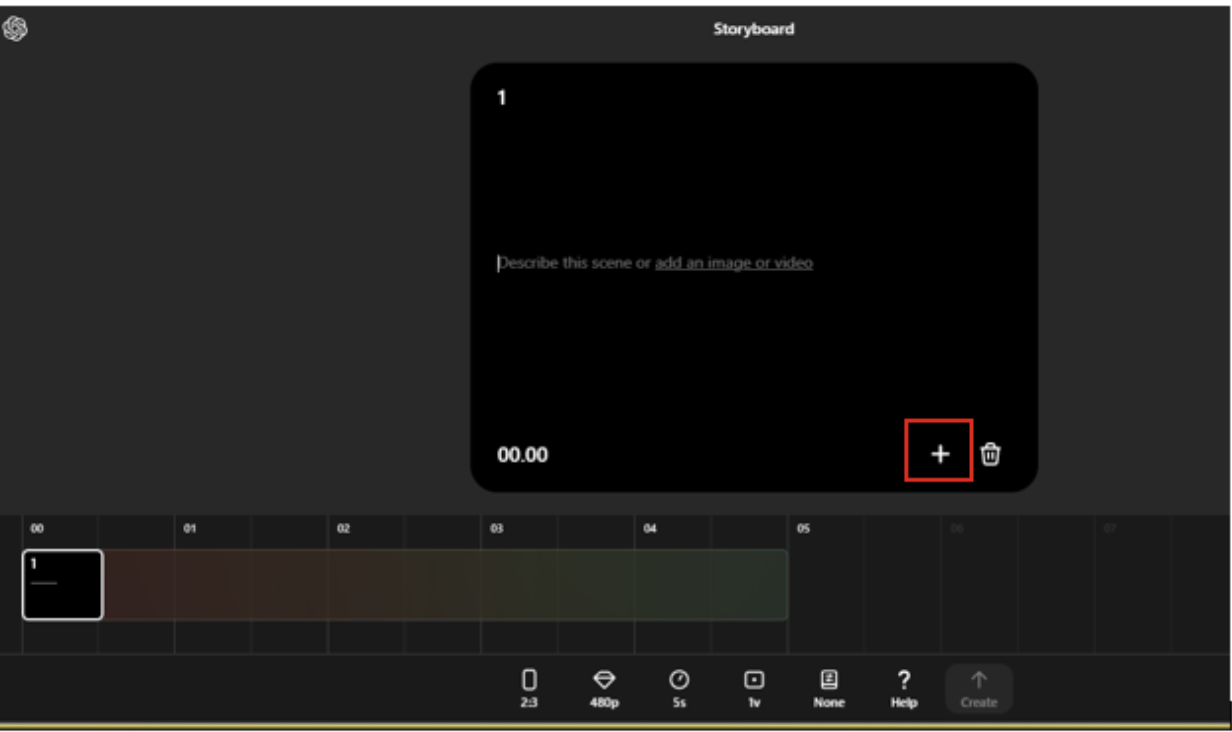
- After selecting "Video," click the Storyboard tab.
- A timeline will appear where you'll begin placing your images.

Add your first image
- Click the Plus (+) button on the first tile of the timeline to add your image.
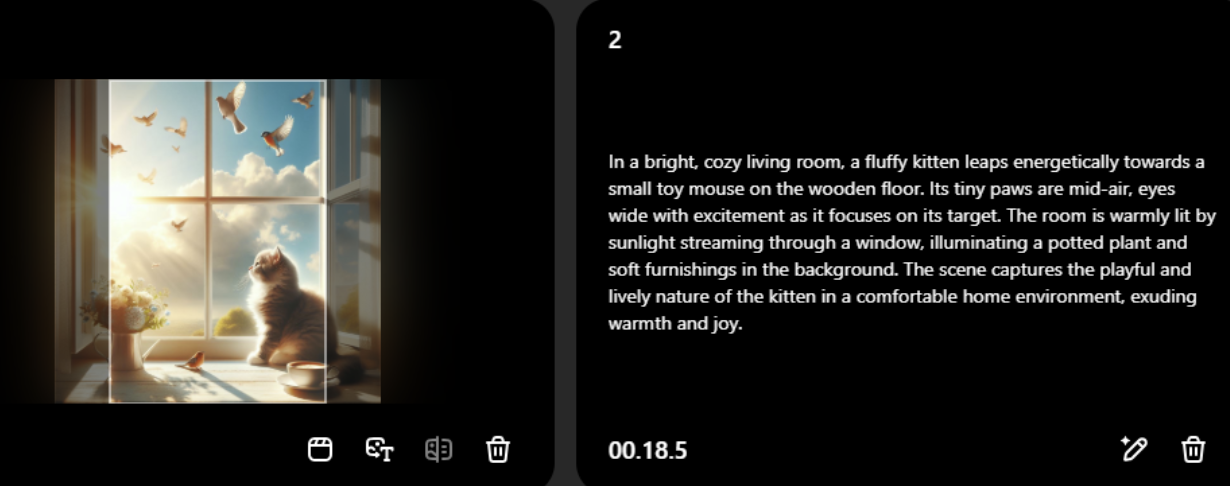
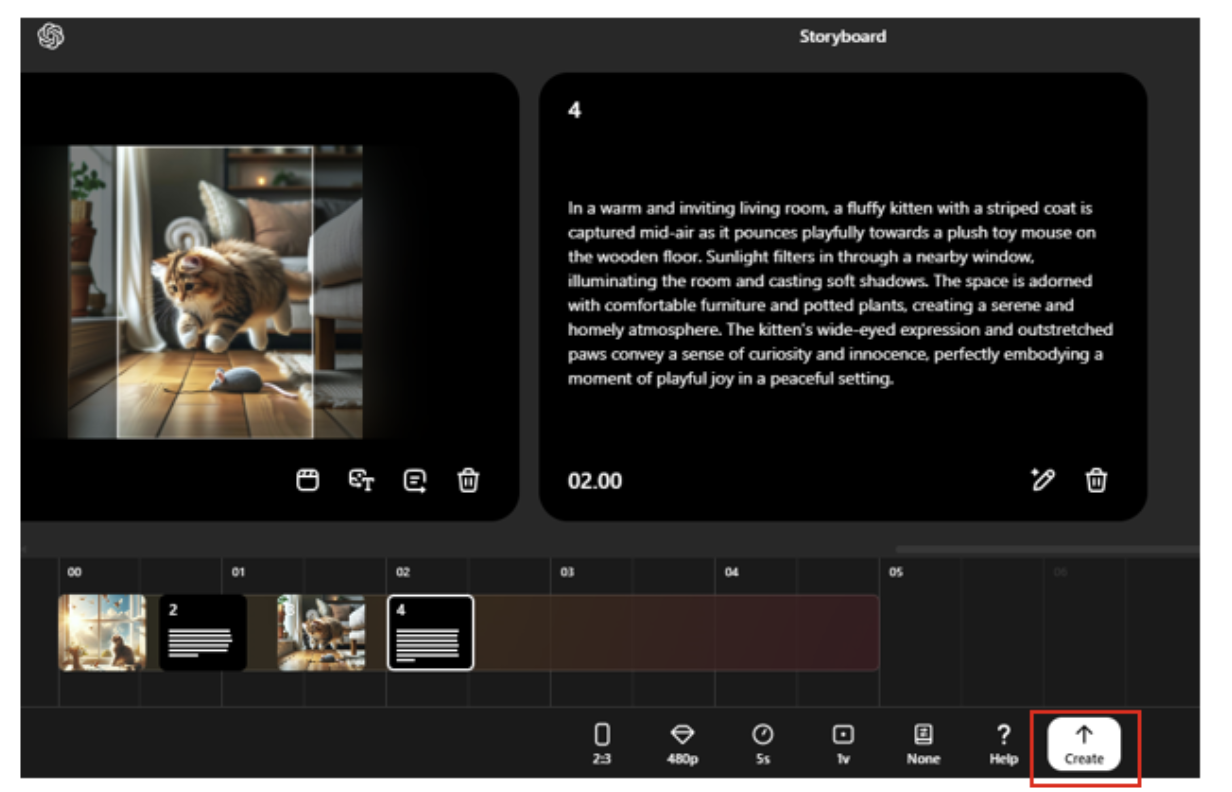
Review the auto-generated prompt frame
- Sora automatically generates a prompt frame based on the contents of your uploaded image.
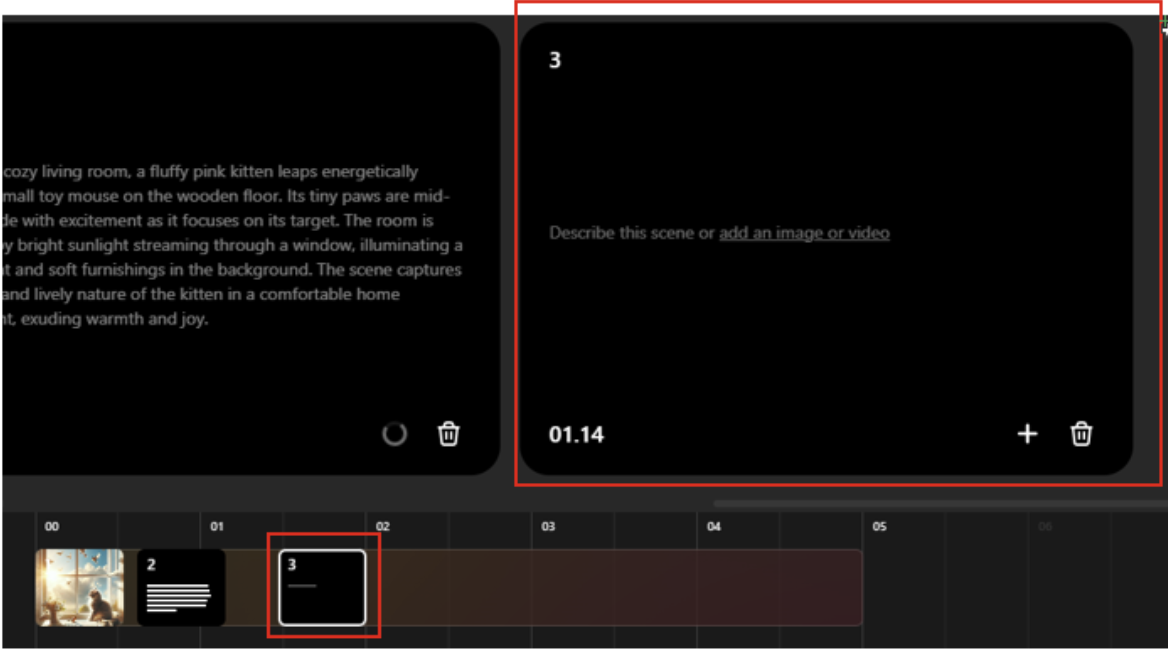
Add additional frames
- Click on other parts of the timeline to add more images at different time points.
Adjust frame timing
- Drag frames on the timeline to set their exact duration and position.
Customize settings
- Choose your video resolution, aspect ratio, visual variations, and total time duration.
- Once satisfied, click Create to generate your cinematic video.
Wait for processing
- Your video will be added to the rendering queue.
- When complete, a notification appears in the top-right corner.

View and celebrate your creation
- Play the video to review your animated scene.
- You've successfully brought your 2D image to life with cinematic motion.
Download your video
- Click the Download button at the top of the screen.
- Choose whether to download it as a video or GIF.