Deploy or validate secure collaboration for Microsoft Teams
Microsoft provides guidance for protecting your Microsoft Teams data at three different levels – baseline, sensitive, and highly sensitive. Introducing Copilot is a good time to review your environment and ensure that appropriate protection is configured.
Baseline protection includes public and private teams. Anybody in an organization can discover and access public teams. However, only members of a private team can discover and access that team. They can't access other private teams unless they're also a member of those teams. This restriction ensures that private teams remain exclusive to their members, providing a higher level of privacy and security for the content shared within those teams. Both of these configurations restrict sharing of the associated SharePoint site to team owners to help with permissions management.
Teams for sensitive and highly sensitive protection are private teams in which:
- Sharing is limited.
- Requesting access for the associated site is limited.
- Sensitivity labels set policies around guest sharing, device access, and content encryption.
Keep in mind that not every organization requires every tier of protection. For example:
- Small businesses. Small businesses or startups might not handle highly sensitive data. In those scenarios, they might only need baseline protection. They may prioritize ease of collaboration and accessibility over stringent security measures.
- Educational institutions. Schools and universities often need to share information widely among students and staff. They might use baseline protection for general communications and sensitive protection for administrative or research data.
- Nonprofit organizations. Nonprofits might not deal with highly sensitive information and could find baseline or sensitive protection sufficient for their needs. They often focus on collaboration and outreach, which might not require the highest level of security.
- Public sector organizations. Some public sector entities might only need baseline protection for general public communications and sensitive protection for internal communications. Highly sensitive protection might be reserved for specific departments dealing with confidential information.
- Retail businesses. Retail companies might use baseline protection for general operations and sensitive protection for customer data. Highly sensitive protection might not be necessary unless they handle a significant amount of sensitive financial information.
The following table summarizes the configurations for each of these three tiers (where the Baseline tier is broken down into Public and Private) Use these configurations as starting point recommendations and adjust the configurations to meet the collaboration needs of your organization.
| Configuration | Baseline (Public) | Baseline (Private) | Sensitive | Highly sensitive |
|---|---|---|---|---|
| Private or public team | Public | Private | Private | Private |
| Who has access? | Everybody in the organization, including B2B guests | Only members of the team. Others can request access to the associated site | Only members of the team | Only members of the team |
| Private channels | Owners and members can create private channels | Owners and members can create private channels | Only owners can create private channels | Only owners can create private channels |
| Site-level guest access | New and existing guests (default) | New and existing guests (default) | New and existing guests or Only people in your organization depending on team needs | New and existing guests or Only people in your organization depending on team needs |
| Site-level conditional access | Full access from desktop apps, mobile apps, and the web (default) | Full access from desktop apps, mobile apps, and the web (default) | Allow limited, web-only access | Custom conditional access policy |
| Default sharing link type | Only people in your organization | Only people in your organization | Specific people | People with existing access |
| Sensitivity labels | None | None | Sensitivity label used to classify the team and control guest sharing and unmanaged device access. | Sensitivity label used to classify the team, control guest sharing, and specify a conditional access policy. Default file label is used on files to encrypt them. |
| Site sharing settings | Site owners and members, and people with Edit permissions can share files and folders, but only site owners can share the site. | Site owners and members, and people with Edit permissions can share files and folders, but only site owners can share the site. | Site owners and members, and people with Edit permissions can share files and folders, but only site owners can share the site. | N/A (Controlled by site-level restricted access control policy.) |
| Site-level restricted access control policy | None | None | None | Team members only |
Set up secure file sharing and collaboration with Microsoft Teams
If versatile and easy-to-use file collaboration tools aren't available, users often collaborate by emailing documents. Unfortunately, this method of collaboration is both tedious and error-prone. It can also increase the risk of inappropriate sharing of information. If people find sharing files too difficult, they could revert to using consumer products that their IT department doesn't govern. However, this practice can pose an even greater risk.
With Microsoft 365, you can deploy Teams with various configurations that help:
- Protect your intellectual property.
- Enable easy collaboration with documents and other files.
- Create a balance between security and usability that increases user satisfaction and reduces the risk of shadow IT.
Most organizations have various types of information with different levels of sensitivity. The business impact can vary significantly if this information is inappropriately shared. Depending on the sensitivity of a given piece of information, you might want to allow sharing with:
- Anyone (unauthenticated)
- People inside the organization
- Specific people inside the organization
- Specific people inside and outside the organization
Information such as marketing brochures are meant for sharing broadly outside the organization. Information such as cafeteria menus aren't meant for external sharing, but would have no business impact if they were shared externally. These types of information need little or no protection.
Those same marketing brochures, while under development, might only be shared inside the organization. In this case, the default sharing settings in Teams might be sufficient.
Information about a new product that is under development might be considered sensitive, even within the organization. A greater degree of protection might be appropriate in this case. You could restrict access to this information to members of a specific team, for example. Depending on the project, you might need to collaborate with people outside your organization, such as a vendor or partner organization.
Information that is critical to your organization's success, or has stringent security or compliance requirements might require even greater levels of protection.
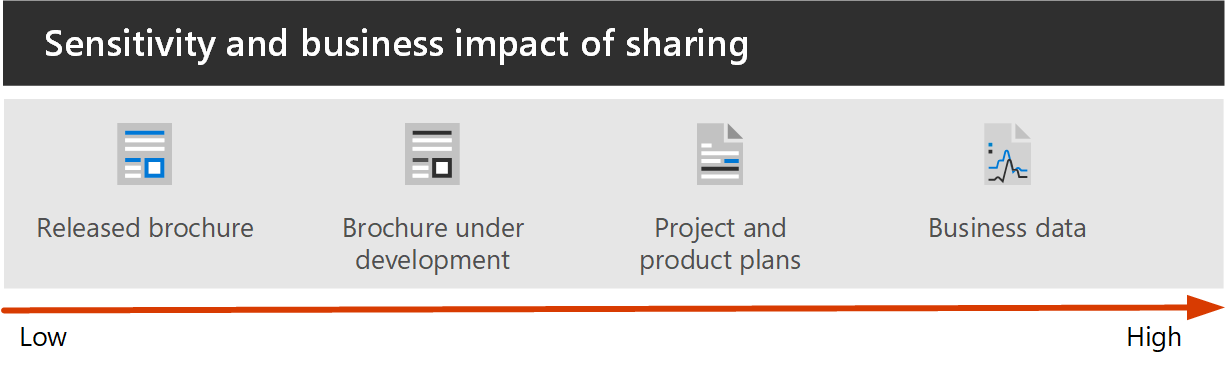
For all the scenarios noted in this diagram, you can use Microsoft Teams to store, share, and collaborate on the information. To configure secure collaboration, use the Microsoft 365 capabilities and features that are outlined in the following table.
| Product or component | Capability or feature | Licensing |
|---|---|---|
| Microsoft Defender for Office 365 | Safe Attachments for SharePoint, OneDrive, and Microsoft Teams; Safe Documents; Safe Links for Teams | Microsoft 365 E1, E3, and E5 |
| SharePoint | Site and file sharing policies, Site sharing permissions, Sharing links, Access requests, Site guest sharing settings | Microsoft 365 E1, E3, and E5 |
| Microsoft Teams | Guest access, private teams, private channels, shared channels | Microsoft 365 E3 and E5 with a Microsoft Teams Enterprise license |
| Microsoft Purview | Sensitivity labels | Microsoft 365 E3 and E5 |
| Microsoft Syntex - SharePoint Advanced Management | Site access restrictions, conditional access policies for sites, default sensitivity labels for libraries | Microsoft Syntex - SharePoint Advanced Management |
Sensitivity labels
The sensitive and highly sensitive tiers use sensitivity labels to help secure the team and its files. To implement these tiers, you must enable sensitivity labels to protect content in Microsoft Teams, Microsoft 365 Groups, and SharePoint sites.
- While the baseline tier doesn't require sensitivity labels, you should consider creating a "general" label and then requiring that all teams be labeled. This practice helps ensure that users make a conscious choice about sensitivity when they create a team.
- If you plan to deploy the sensitive or highly sensitive tiers, Microsoft recommends creating a 'general' label. This label can be used for baseline teams and for files that aren't sensitive. For the highly sensitive tier, Microsoft specifies a default sensitivity label for document libraries. This label ensures that Office files and other compatible files have that label automatically applied when they're uploaded.
Tip
If your organization has already rolled out sensitivity labels, consider how the labels used in the sensitive and highly sensitive tiers fit with your overall label strategy.
Sharing a team's SharePoint site
Each team has an associated SharePoint site where documents are stored. This site is the Files tab in a team's channel. This SharePoint site retains its own permission management and is also linked to team permissions. Team owners are included as site owners, and team members are included as site members in the associated site.
The resulting permissions allow:
- Team owners to administer the site and have full control over the site contents.
- Team members to create and edit files on the site.
By default, team owners and members can share the team's site with people outside the team, and they can do so without actually adding them to the team. However, keep in mind that this default configuration might complicate user management. It might also lead to people who aren't team members having access to team files without team owners realizing it. To help prevent this situation, starting in the baseline level of protection, Microsoft recommends that only owners be allowed to directly share the team's site.
While teams don't have a Read-only permission option, the SharePoint site does. If you have stakeholders or partner groups who must be able to view team files but not edit them, consider adding them directly to the team's SharePoint site with View permissions.
For the highly sensitive tier, Microsoft restricts access to the site to just the members of the team. This restriction also prevents sharing files with people outside the team.
Sharing files and folders
Being able to easily share files and documents with the right people while preventing oversharing is key to an organization's success. This ability includes being able to share confidential or other sensitive data safely with only those persons who should have access to it. Depending on the project, this practice might include sharing sensitive data with people outside your organization.
By default, both owners and members of the team can share files and folders with people outside the team - even with people who are outside your organization, if you allow guest sharing. In all three tiers, Microsoft updates the default sharing link type to help avoid accidental oversharing. As noted earlier, in the highly sensitive tier, file access is limited to team members only.
Sharing with people outside your organization
Sometimes, you might need to share information of any sensitivity with people outside your organization. This scenario could range from sharing a single document with a single person to collaborating on a major project with a large partner organization or freelancers from around the world. In Microsoft 365, this range of external sharing can be done easily and with the appropriate safeguards to help protect your sensitive information.
If you need to share Teams content with people outside your organization, there are two options:
- Guest sharing. Guest sharing uses Microsoft Entra B2B collaboration, which allows users to share files, folders, sites, groups, and teams with people from outside your organization. These people access shared resources by using guest accounts in your directory.
- Shared channels. Shared channels use Microsoft Entra B2B direct connect, which allows users to share resources in your organization with people from other Microsoft Entra organizations. These people access the shared channels in Teams by using their own work or school account. No guest account is created in your organization.
Both guest sharing and shared channels are useful depending on the situation. See Plan external collaboration for details on each and how to decide which to use for a given scenario.
If you plan to use guest sharing, Microsoft recommends configuring SharePoint and OneDrive integration with Microsoft Entra B2B for the best sharing and administration experience.
You can prevent Teams guest sharing if needed in the sensitive and highly sensitive tiers by using a sensitivity label. Shared channels are on by default. However, they require setting up cross-organizational relationships for each organization you want to collaborate with. See Collaborate with external participants in a channel for details.
In the highly sensitive tier, Microsoft configured the default library sensitivity label to encrypt files to which it's applied. If you need guests to have access to these files, you must give them permissions when you create the label. External participants in shared channels can't be given permissions to sensitivity labels and can't access content encrypted by a sensitivity label.
Tip
Microsoft recommends that you leave guest sharing on for the baseline tier and for the sensitive or highly sensitive tiers if you need to collaborate with people outside your organization. The guest sharing features in Microsoft 365 provide a much more secure and governable sharing experience than sending files as attachments in email messages. It also reduces the risk of shadow IT where users use ungoverned consumer products to share with legitimate external collaborators.
If you regularly collaborate with other organizations that use Microsoft Entra ID, shared channels might be a good option. Shared channels appear seamlessly in the other organization's Teams client. They allow external participants to use their regular user account for their organization rather than having to log in separately using a guest account.
Additional reading. See the following references to create a secure and productive guest sharing environment for your organization:
- Best practices for sharing files and folders with unauthenticated users
- Limit accidental exposure to files when sharing with people outside your organization
- Create a secure guest sharing environment
Securing Teams for sensitive and highly sensitive data
To manage access to information with different sensitivities, Microsoft developed three different tiers of protection for Teams. You can customize any of these tiers to better address the needs or your business.

These tiers - baseline, sensitive, and highly sensitive- gradually increase the protections that help prevent oversharing and potential information leakage, as shown in the following table.
| - | Baseline tier | Sensitive tier | Highly sensitive tier |
|---|---|---|---|
| Public or private team | Either | Private | Private |
| Unauthenticated sharing | Allowed | Blocked | Blocked |
| File sharing | Allowed | Allowed | Limited to people in the team. |
| Team membership | Anyone can join public teams. Team owner approval required to join private teams. |
Team owner approval required to join. | Team owner approval required to join. |
| Document encryption | Available with sensitivity label | ||
| Guest sharing | Allowed | Can be allowed or blocked | Can be allowed or blocked |
| Unmanaged devices | No restriction | Web-only access | Blocked |
Configuring these tiers involves:
- Configuring settings in Teams for guest access and private and shared channels.
- Configuring settings in a team's associated SharePoint site for internal and guest sharing, site access, and sharing links.
- Configuring sensitivity labels to classify the teams and control guest sharing and access from unmanaged devices for the sensitive and highly sensitive tiers.
- Configuring a sensitivity label to encrypt the documents to which it's applied for the highly sensitive tier.
Start with the baseline tier, and then add teams that use the sensitive and highly sensitive tiers as needed to help protect the information in your organization.
Additional reading. For more information on how to get started, see the following resources: