Apply Zero Trust principles to your Microsoft Copilot deployment
Let's take a look at how Zero Trust security principles are applied to your Microsoft Copilot and Microsoft 365 Copilot deployments. To begin, here's a short summarization of the two Copilot offerings that are the focus of this training, and the data they access:
- Microsoft Copilot is a generative AI service that provides assistance based on data from the public web in the Bing search index. It's an AI assistant that helps with tasks such as coding, writing, generating images, and answering general questions. Microsoft Copilot is available for free, although a premium tier called Copilot Pro is available that offers extra perks. Microsoft Copilot doesn't have access to organizational resources or content within the Microsoft 365 Graph, such as documents in OneDrive, emails, or other data.
- Microsoft 365 Copilot is integrated into the Microsoft 365 productivity software family, including Teams, Word, Outlook, Excel, and PowerPoint. Given this integration, which is designed specifically for business contexts, it provides more relevant and up-to-date responses. For example, Microsoft 365 Copilot can optimize workflows, such as generating text and tables in Word, summarize and draft emails in Outlook, and generate visualizations in Excel. In doing so, it uses an organization’s data that's stored in the company's Microsoft 365 ecosystem.
When organizations implement these Copilot solutions, it's essential they implement Microsoft's recommended security protections to keep their organization and data safe. Organizations that implement these protections build upon a foundation of Zero Trust.
Security, especially data protection, is often a top concern when introducing AI tools into an organization. Zero Trust security recommendations for Copilot focus on protection for user accounts, user devices, and the data that's in scope for the way you configure Copilot. These recommendations for Copilot provide a security strategy that verifies every user, device, and resource request to ensure they're all allowed. The term "Zero Trust" refers to the strategy of treating each connection and resource request as though it originated from an uncontrolled network and a bad actor. Regardless of where the request originates or what resource it accesses, Zero Trust teaches us to “never trust, always verify.”
Microsoft’s set of Copilots are built on top of existing platforms, which inherit the protections applied to those platforms. When you implement these protections, you're building a foundation of Zero Trust security. For the details of applying Zero Trust to Microsoft’s platforms, see the Zero Trust Guidance Center.
You can introduce Microsoft Copilot and Microsoft 365 Copilot in stages, from allowing Web-grounded prompts to the Internet, to allowing both Web-grounded and Microsoft 365 Graph-grounded prompts to both the Internet and to your organization data. The following sections examine each of these stages in greater detail.
Stage 1. Start with security recommendations for web-grounded prompts to the Internet
The simplest configuration of Microsoft Copilot provides AI assistance with web-grounded prompts to the Internet. This stage secures basic security hygiene for users and devices by using identity and access policies.
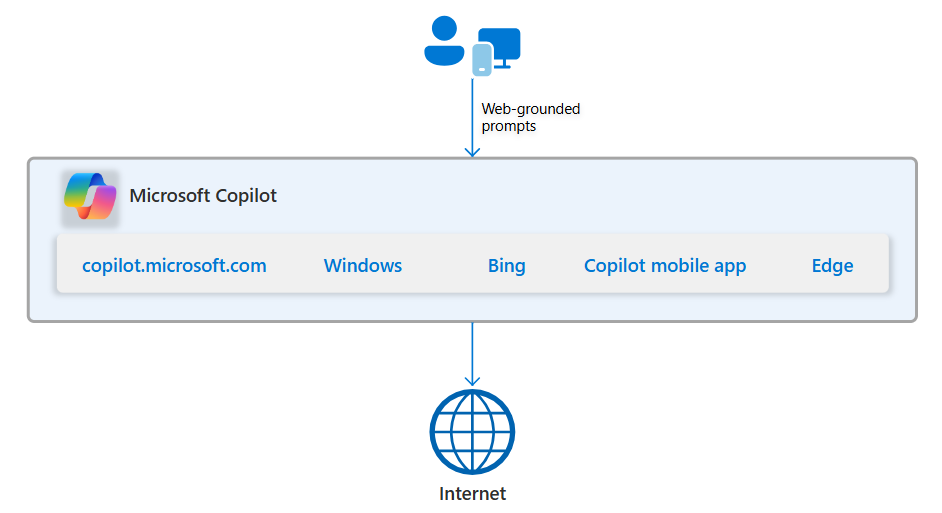
The following diagram illustrates how users can interact with Copilot through copilot.microsoft.com, Windows, Bing, the Microsoft Edge browser, and the Copilot mobile app. It also shows that prompts are Web-grounded, and that Copilot only uses publicly available data to respond to prompts.
Note
With this configuration, your organization data isn’t included in the scope of data that Copilot references.
In this stage, organizations should implement identity and access policies for users and devices to prevent bad actors from using Copilot. At a minimum, you must configure Conditional Access policies that require:
- Multifactor authentication for all users
- Trusted and healthy devices
For user account authentication and access, organizations should also:
- Block clients that don’t support modern authentication.
- Use Windows protection capabilities.
- Require MFA when sign-in risk is medium or high.
- Require high risk users change their password.
Stage 2. Add security protections for Microsoft Edge browser summarization
This stage secures your organization data on local, intranet, and cloud locations that Copilot can summarize in Microsoft Edge. From the Microsoft Edge sidebar, Copilot helps you get answers and inspirations from across the web and, if enabled, from some types of information displayed in open browser tabs.
Examples of private and organization web pages and document types that Copilot can summarize include:
- Intranet sites such as SharePoint, except embedded Office documents
- Outlook Web App
- PDFs, including those files that are stored on the local device
- Sites not protected by Microsoft Purview Data Loss Prevention (DLP) policies, Mobile Application Management (MAM) policies, or Mobile Device Management (MDM) policies
Note
For the current list of document types supported by Copilot in Microsoft Edge, see Copilot in Edge webpage summarization behavior.
Potentially sensitive organization sites and documents that Copilot can summarize could be stored in local, intranet, or cloud locations. This organization data can be exposed to an attacker who has access to the device and uses Copilot to quickly produce summarizations of documents and sites. The organization data that Copilot can summarize includes:
- Local resources on the user’s computer, such as PDFs or information displayed in a Microsoft Edge browser tab by local apps that aren't protected with MAM policies.
- Intranet resources, such as PDFs or sites for internal apps and services that aren't protected by Microsoft Purview DLP policies, MAM policies, or MDM policies.
- Microsoft 365 sites that aren't protected by Microsoft Purview DLP policies, MAM policies, or MDM policies.
- Microsoft Azure resources, such as PDFs on virtual machines or sites for SaaS apps that aren't protected by Microsoft Purview DLP policies, MAM policies, or MDM policies.
- Third-party cloud product sites for cloud-based SaaS apps and services that aren't protected by Microsoft Purview DLP policies, MAM policies, or Microsoft Defender for Cloud Apps (MDA) policies.
Organizations should use this stage to implement levels of security that prevent bad actors from using Copilot to more quickly discover and access sensitive data. At a minimum, you must:
- Deploy data security and compliance protections with Microsoft Purview
- Configure minimum user permissions to data
- Deploy threat protection for cloud apps with Microsoft Defender for Cloud Apps
Organizations with E3 or E5 deployments should also:
- Implement Intune app protection policies for data protection. App protection policies can prevent the inadvertent or intentional copying of Copilot-generated content to apps on a device that aren’t included in the list of permitted apps. These policies can also limit the blast radius of an attacker using a compromised device.
- Turn on Microsoft Defender for Office 363 Plan 1, which includes Exchange Online Protection (EOP) for Safe Attachments, Safe Links, advanced phishing thresholds and impersonation protection, and real-time detections.
Stage 3. Complete security protections recommended for Microsoft 365 Copilot
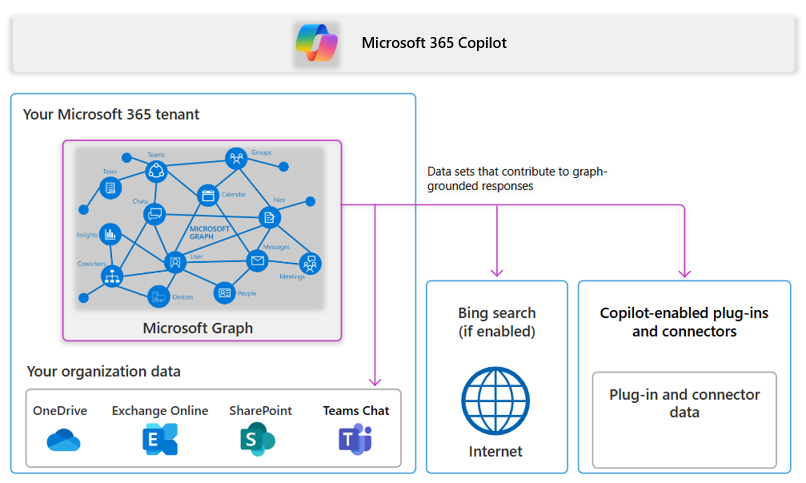
This stage secures all components affected by Microsoft 365 Copilot, which can use the following data sets to process Graph-grounded prompts:
- Your Microsoft 365 tenant data
- Internet data through Bing search (if enabled)
- The data used by Copilot-enabled plug-ins and connectors
Organizations should use this stage to implement the following security features:
- Intune device management and device compliance requirement policies
- Data protection in your Microsoft 365 tenant
- Sensitivity labels
- DLP policies
- Retention policies
- Turn on Microsoft Defender for Endpoint
Organizations with E3 or E5 deployments should also:
- Use a greater range of classifiers to find sensitive information.
- Automate their retention labels.
- Try out the Plan 2 capabilities in Defender for Office 365, which include post-breach investigation, hunting, and response, automation, and simulation.
- Turn on Microsoft Defender for Cloud Apps.
- Configure Defender for Cloud Apps to discover cloud apps and monitor and audit their behavior.
Stage 4. Maintain security protections while you use Microsoft Copilot and Microsoft 365 Copilot together
This stage secures all the components covered in the previous three stages. It provides security protections when organizations have a Microsoft 365 Copilot subscription. In this scenario, users see a Work/Web toggle control in their Microsoft Edge browsers, Windows, and Bing search that allows them to switch between using Microsoft Copilot and Microsoft 365 Copilot.
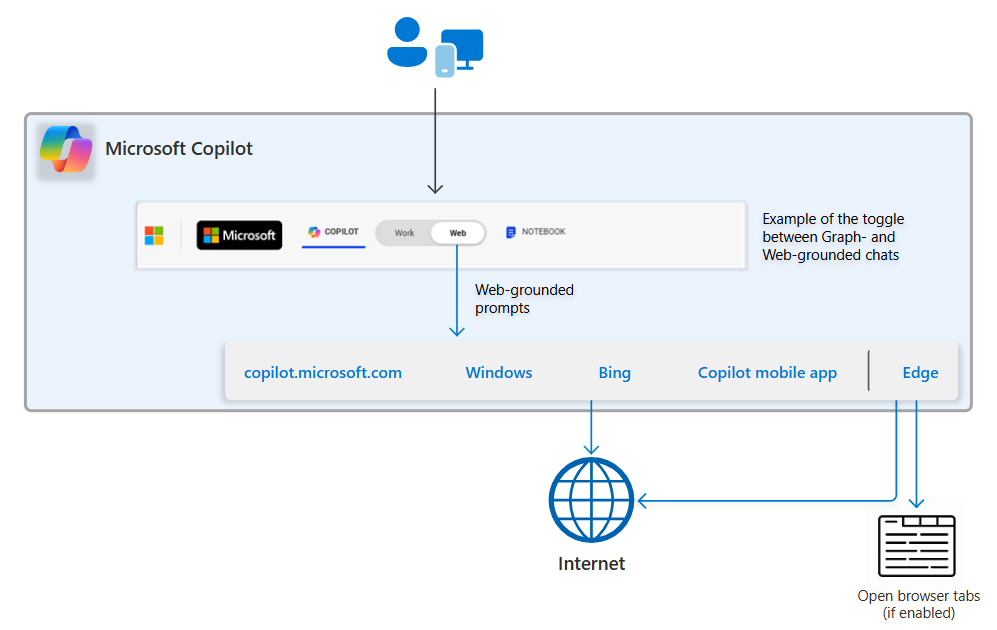
The following illustration shows the flow of Graph- and Web-grounded prompts.
In this diagram:
- Users on devices with a license for Microsoft 365 Copilot can choose Work or Web mode for Microsoft Copilot prompts.
- If Work is chosen, Graph-grounded prompts are sent to Microsoft 365 Copilot for processing.
- If Web is chosen, Web-grounded prompts entered through Windows, Bing, or Microsoft Edge use internet data in their processing.
- When Microsoft Edge is enabled, Windows Copilot might include in its processing some data types that appear in open Microsoft Edge tabs.
Note
If the user doesn't have a license for Microsoft 365 Copilot, the Work/Web toggle isn't displayed and all prompts are Web-grounded.
The following illustration shows the sets of accessible organization data for Microsoft Copilot, which include both Graph- and Web-grounded prompts.
In this diagram, the yellow shaded blocks are for your organization data that's accessible through Copilot. Access to this data by a user through Copilot depends on the permissions to the data assigned to the user account. It can also depend on the status of the user’s device if conditional access is configured for either the user or for access to the environment where the data resides. Following the principles of Zero Trust, this data is information that you want to protect in case an attacker compromises a user account or device.
- For Graph-grounded prompts (toggle set to Work), this data includes:
- Your Microsoft 365 tenant data
- Data for Copilot-enabled plug-ins and connectors
- Internet data (if the web plug-in is enabled)
- For Web-grounded prompts from the Microsoft Edge browser with open browser tab summarization enabled (toggle set to Web), this information can include organization data that Copilot can summarize from local, intranet, and cloud locations.
Organizations should use this stage to verify their implementation of the following levels of security to prevent bad actors from using Copilot to access their sensitive data:
- Deploy data security and compliance protections with Microsoft Purview
- Configure minimum user permissions to data
- Deploy threat protection for cloud apps with Microsoft Defender for Cloud Apps
Organizations with E3 deployments should also:
- Review their configuration and the features of Defender for Office 365 Plan 1 and Defender for Endpoint Plan 1 and implement other capabilities as needed.
- Set up appropriate levels of protection for Microsoft Teams.
Organizations with E5 deployments should begin by implementing the recommendations for E3 in their Microsoft 365 tenant. They should then implement the extended detection and response (XDR) capabilities in Microsoft Defender XDR:
- Turn on Microsoft Defender for Identity.
- Review their configuration and implement other capabilities as needed to increase their threat protection with the full Microsoft Defender XDR suite, such as:
- Defender for Endpoint
- Defender for Office 365
- Defender for Identity
- Defender for Cloud Apps
- Configure session policies for Defender for Cloud Apps