Deploy or validate your device management protection
A core component of enterprise-level security includes managing and protecting devices. Whether you’re building a Zero Trust security architecture, hardening your environment against ransomware, or building in protections to support remote workers, managing devices is part of the strategy. While Microsoft 365 includes several tools and methodologies for managing and protecting devices, this training walks through Microsoft’s recommendations using Microsoft Intune. This training provides the right guidance for you if you:
- Plan to enroll devices into Intune through Microsoft Entra join (including Microsoft Entra hybrid join).
- Plan to manually enroll devices into Intune.
- Allow personal devices with plans to implement protection for apps and data and/or enroll these devices to Intune.
On the other hand, if your environment includes plans for co-management including Microsoft Configuration Manager, see Co-management documentation to develop the best path for your organization. If your environment includes plans for Windows 365 Cloud PC, see Windows 365 Enterprise documentation to develop the best path for your organization.
Why manage endpoint protection?
The modern enterprise has an incredible diversity of endpoints accessing their data. This setup creates a massive attack surface, and as a result, endpoints can easily become the weakest link in your Zero Trust security strategy.
As the world shifts to a remote or hybrid work model, users are working from anywhere and from any device, more than anytime in history. In turn, attackers are quickly adjusting their tactics to take advantage of this change. To navigate these new business challenges, many organizations that faced constrained resources accelerated their digital transformation. As a result, many people changed the way they work. Most organizations no longer expect their employees to access the myriad of corporate resources only from the office and on company-owned devices.
Gaining visibility into the endpoints accessing your corporate resources is the first step in your Zero Trust device strategy. Typically, companies are proactive in protecting PCs from vulnerabilities and attack while mobile devices often go unmonitored and without protections. To ensure you’re not exposing your data to risk, you must monitor every endpoint for risks and employ granular access controls to deliver the appropriate level of access based on organizational policy. For example, if a personal device is jailbroken, you can block access to ensure that enterprise applications aren't exposed to known vulnerabilities.
Implementing the layers of protection on and for devices
Protecting the data and apps on devices and the devices themselves is a multilayer process. There are some protections you can gain on unmanaged devices. After enrolling devices into management, you can implement more sophisticated controls. When threat protection is deployed across your endpoints, you gain even more insights and the ability to automatically remediate some attacks. If your organization identifies sensitive data, applies classification and labels, and configures Microsoft Purview Data Loss Prevention (DLP) policies, you can obtain even more granular protection for data on your endpoints.
The following diagram illustrates building blocks to achieve a Zero Trust security posture for Microsoft 365 and other SaaS apps that you introduce to this environment. The elements related to devices are numbered 1 through 7. Device administrators should coordinate with other administrators to accomplish these layers of protection.
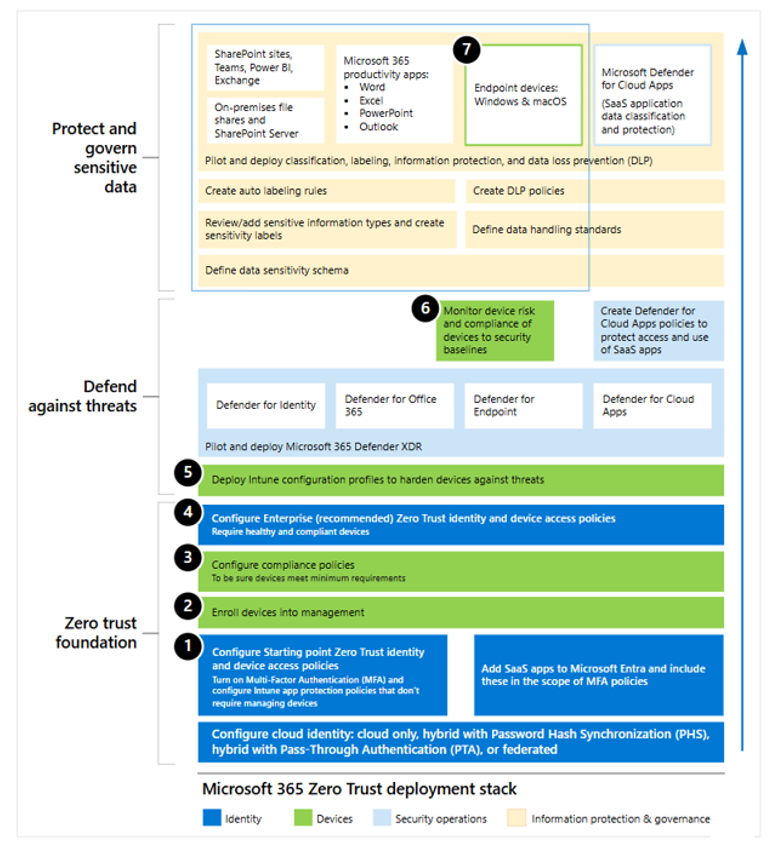
In this illustration:
- Devices are enrolled into management with Intune.
- Intune onboards devices to Microsoft Defender for Endpoint.
- Devices that are onboarded to Defender for Endpoint are also onboarded for Microsoft Purview features, including Endpoint DLP.
Note
Only Intune is managing devices. Onboarding refers to the ability for a device to share information with a specific service.
The following table summarizes the seven steps related to device protection that were highlighted in the previous diagram. It identifies the differences between enrolling devices into management and onboarding devices for a specific service.
| Step | Description | Licensing requirements |
|---|---|---|
| 1. Configure starting-point Zero Trust identity and device access policies | Work with your identity administrator to Implement Level 2 App Protection Policies (APP) data protection. These policies don't require that you manage devices. You configure the APP policies in Intune. Your identity admin configures a Conditional Access policy to require approved apps. | E3, E5, F1, F3, F5 |
| 2. Enroll devices to Intune | This task requires more planning and time to implement. Microsoft recommends using Intune to enroll devices because this tool provides optimal integration. There are several options for enrolling devices, depending on the platform. For example, Windows devices can be enrolled by using Microsoft Entra join or by using Autopilot. You need to review the options for each platform and decide which enrollment option is best for your environment. See Step 2. Enroll devices to Intune for more information. | E3, E5, F1, F3, F5 |
| 3. Configure compliance policies | You want to ensure devices that access your apps and data meet minimum requirements. For example, devices are password or pin-protected and the operating system is up to date. Compliance policies are the way to define the requirements that devices must meet. Step 3. Set up compliance policies helps you configure these policies. | E3, E5, F3, F5 |
| 4. Configure Enterprise (recommended) Zero Trust identity and device access policies | Now that your devices are enrolled, you can work with your identity admin to tune Conditional Access policies to require healthy and compliant devices. | E3, E5, F3, F5 |
| 5. Deploy configuration profiles | As opposed to device compliance policies that just mark a device as compliant or not based on criteria you configure, configuration profiles actually change the configuration of settings on a device. You can use configuration policies to harden devices against cyberthreats. See Step 5. Deploy configuration profiles. | E3, E5, F3, F5 |
| 6. Monitor device risk and compliance with security baselines | In this step, you connect Intune to Microsoft Defender for Endpoint. With this integration, you can then monitor device risk as a condition for access. Devices that are found to be in a risky state are blocked. You can also monitor compliance with security baselines. See Step 6. Monitor device risk and compliance to security baselines. | E5, F5 |
| 7. Implement DLP with information protection capabilities | If your organization identified sensitive data and labeled documents, you can work with your information protection admin to protect sensitive information and documents on your devices. | E5, F5 compliance add-on |