Build the approval process
Orders above 1,000 USD require manager approval, and orders above 10,000 USD also require executive approval. A rejection at either tier must stop the flow: no further approvals and no invoice.
First, confirm you are in the correct environment, then open Order Automation from My flows.
Select (+) below the Calculate Order Value loop, search for
Condition, and add it. Rename it toManager Approval Required.Configure the condition: in the left value, select the Order Value dynamic value; choose is greater than; in the right value, enter
1000.Select (+) inside the True container, search for
approval, and add Start and wait for an approval. Rename it toManager Approval.🔧 Setup check: The first time you use the Approvals connector, you are prompted to create a connection. Select Create to continue.
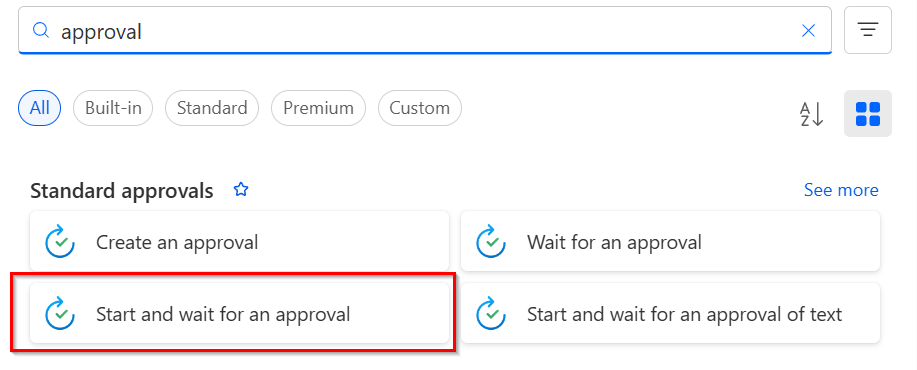
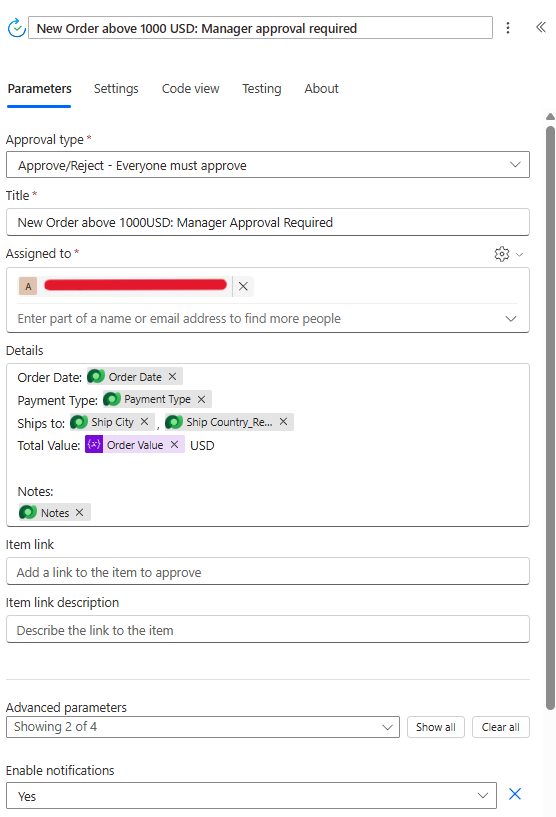
Configure the approval:
- Approval type: Approve/Reject - Everyone must approve
- Title:
New Order above 1000 USD: Manager approval required- Assigned to: the email address of the account acting as Manager.
Note
💡 Tip: With one account, enter your own address here and in the Executive approval later. With multiple approvers, Everyone must approve requires unanimous consent; choose First to respond if any one approver should suffice.
In Details, build this template, replacing each bracketed placeholder with the matching dynamic value from the lightning-bolt picker (all come from the trigger except Order Value, which is your variable):
Order Date: [Order Date]
Payment Type: [Payment Type]
Ships to: [Ship City], [Ship Country/Region]
Total value: [Order Value] USD
Notes:
[Notes]
Note
💡 Tip: To show the value as tidy currency instead of a raw number, you can replace the Order Value dynamic value with the expression formatNumber(variables('Order Value'), 'C2').
Select (+) below Manager Approval (still inside the True container), add a Condition, and rename it to
Check Manager Outcome.Configure it: in the left value, select the Outcome dynamic value from Manager Approval; choose is equal to; in the right value, enter
Approve.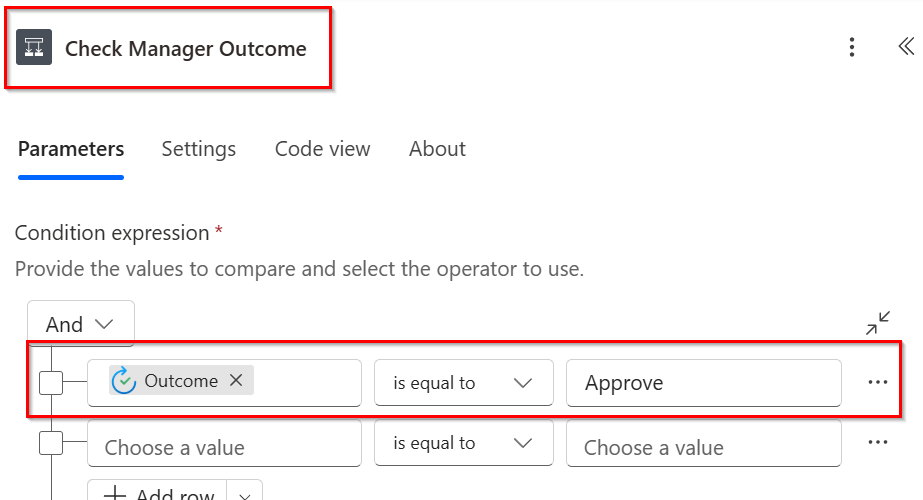
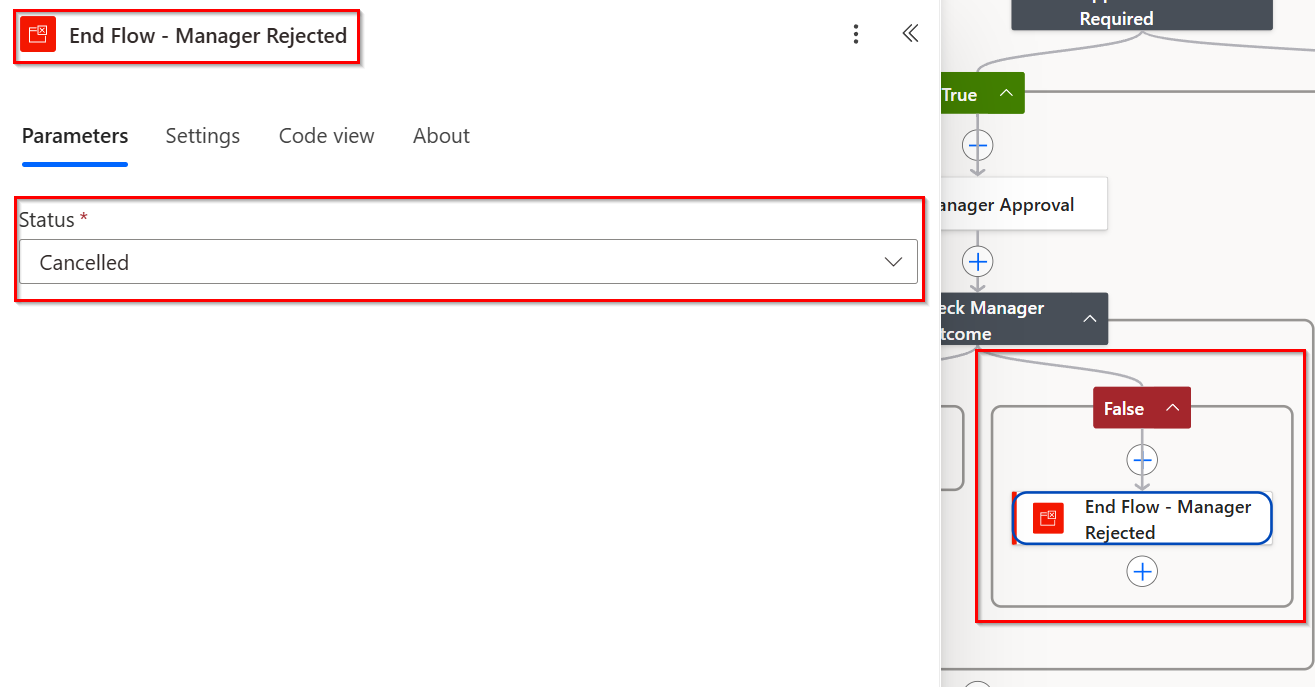
Select (+) inside the False container of Check Manager Outcome, search for
Terminate, and add it. Rename it toEnd Flow - Manager Rejectedand set Status to Cancelled. Leave the True container empty.This is what makes a rejection final: Terminate cancels the run immediately, so no executive request goes out and no invoice is created.
Select (+) below Check Manager Outcome (still inside the True container of Manager Approval Required), add a Condition, and rename it to
Executive Approval Required. Configure it: Order Value is greater than10000.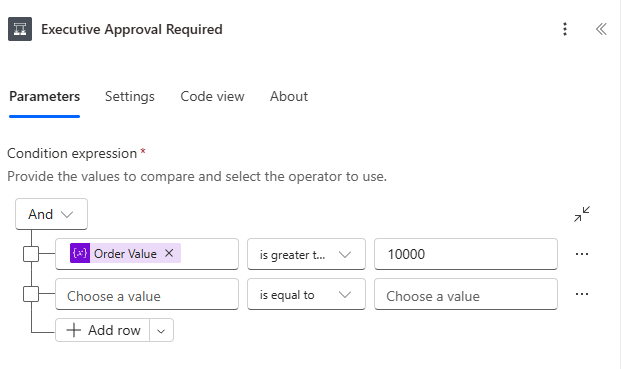
Inside its True container, add another Start and wait for an approval named
Executive Approval, configured like the manager approval but with the Executive's email address and this title:New Order above 10000 USD: Executive approval requiredUse the same Details template as in action 5.
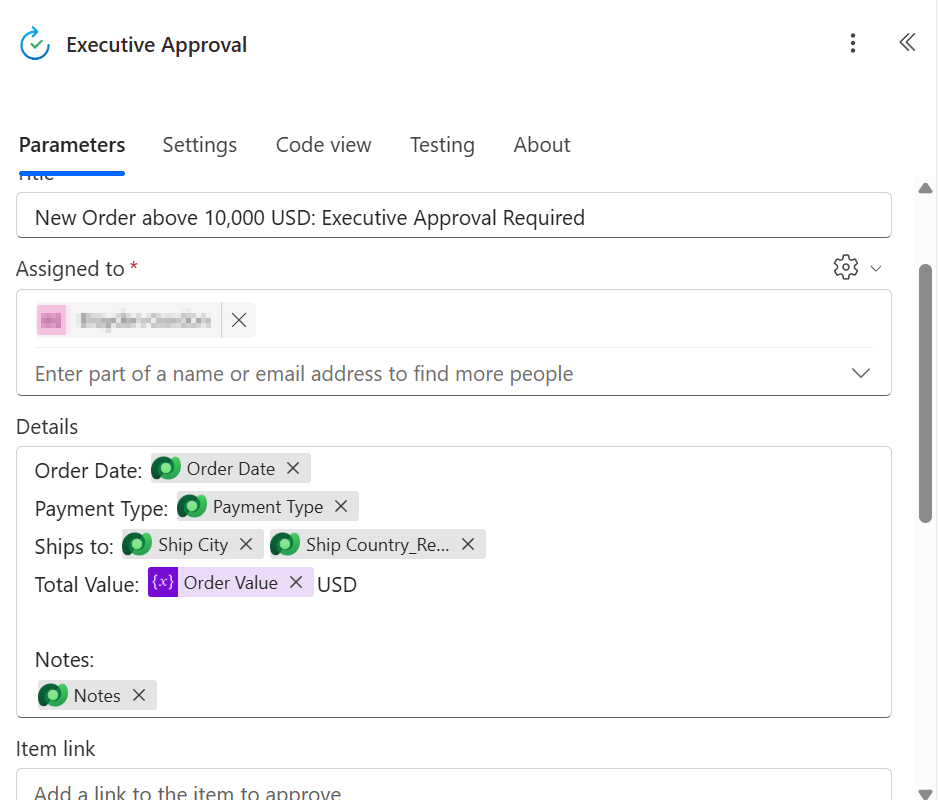
Below Executive Approval, repeat the outcome pattern: add a Condition named
Check Executive Outcome(Outcome from Executive Approval is equal toApprove), and in its False container add a Terminate namedEnd Flow - Executive Rejectedwith Status set to Cancelled.Select Save draft.
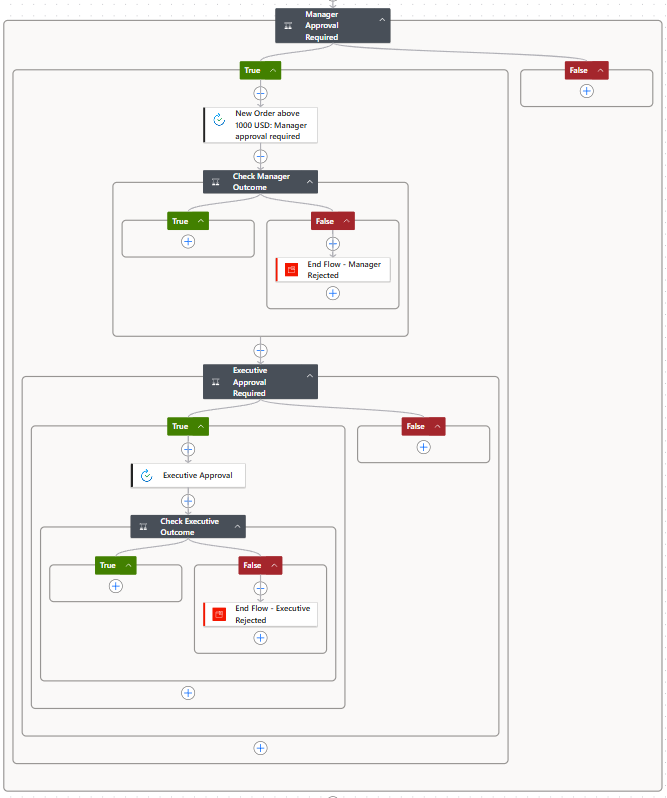
✅ Checkpoint: Inside Manager Approval Required > True, you have in order: Manager Approval, Check Manager Outcome (with Terminate in False), and Executive Approval Required, whose True container holds Executive Approval and Check Executive Outcome (with Terminate in False).
Note
Power Automate approvals wait for a response for a maximum of 28 days.