Organize the flow into a solution
Solutions group your components so they can be managed, exported, and deployed together. The foundation of application lifecycle management on Power Platform. Your flow works without one, but bringing it into a solution is how real projects stay deployable.
Go to https://make.powerapps.com.
🔧 Setup check: Confirm the environment in the upper-right corner is the same one where you built the flow.
Select Solutions in the left navigation, then New solution.
Enter a Display name of
Order Automationand keep the default publisher.The publisher stamps its customization prefix on components created in the solution. The default publisher is fine for this lab; real projects create their own publisher so components carry the organization's prefix.
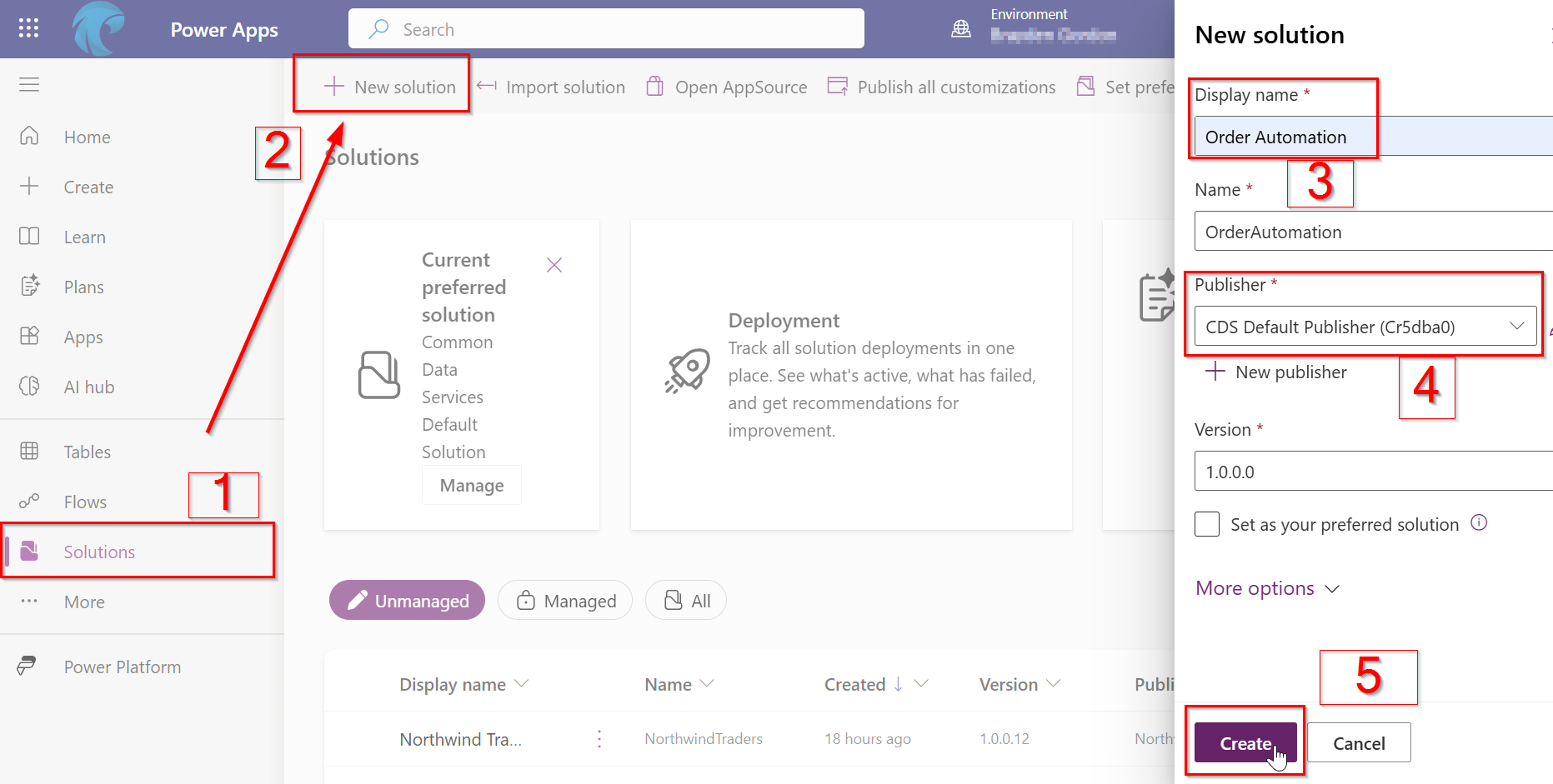
Select Create, and open the new solution.
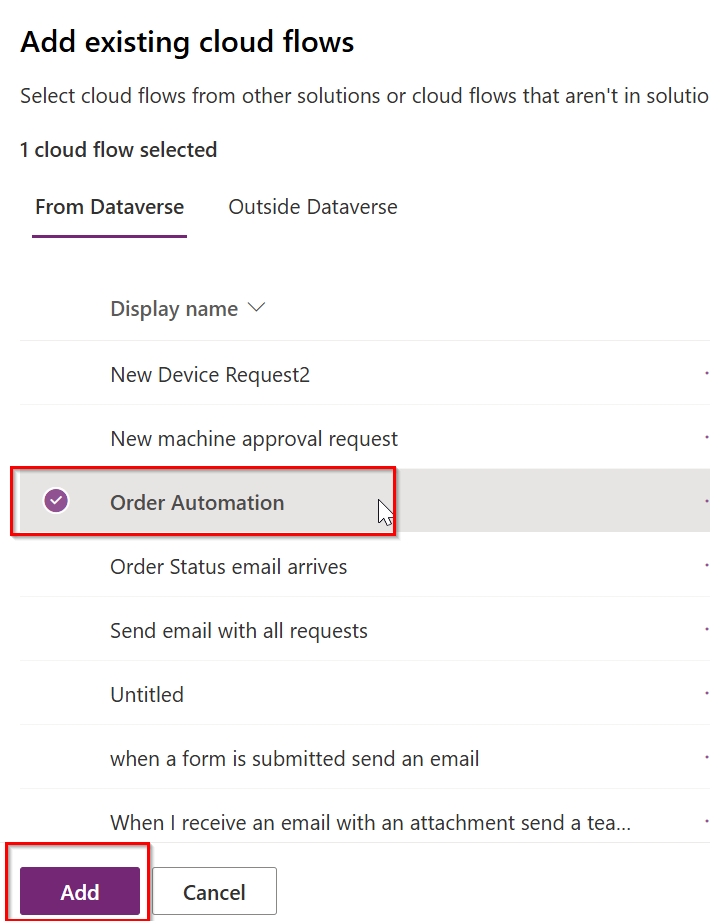
Select Add existing > Automation > Cloud flow. If you don't see your flow, check the Outside Dataverse tab. Select Order Automation and select Add.
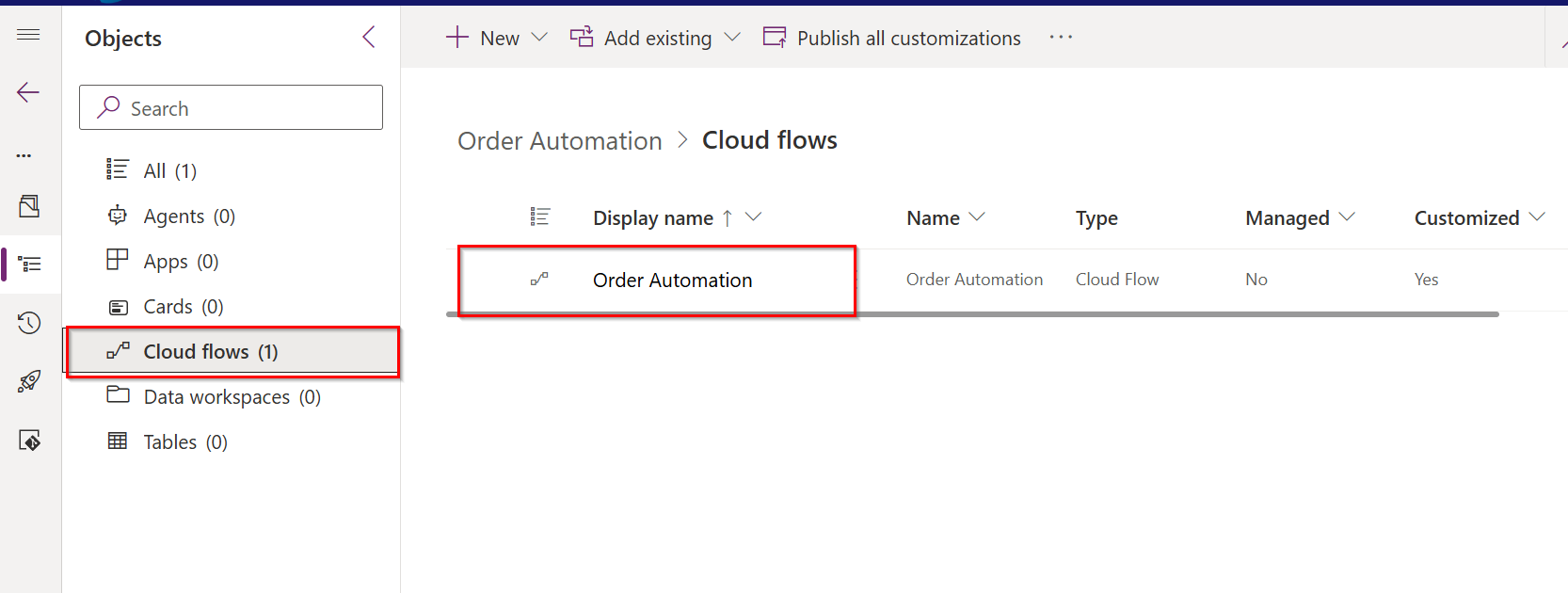
✅ Checkpoint: Order Automation appears in the solution's objects. Open the flow's details page and confirm the connection is listed under Connection references, and that Edit opens the modern designer.
Note
⚠️ Opening a flow for editing from inside a solution currently opens the classic designer since the modern designer isn't yet available in that surface. To edit with the modern designer and Copilot, always open the flow from My flows in the Power Automate portal.