Manage auditing with Dataverse and Microsoft Purview
Dataverse auditing creates a time-stamped record of changes to your data, providing the "who, what, and when" trail that compliance teams and security auditors require. For regulated environments like Zava Pay, this audit trail isn't optional - it's a regulatory obligation.
Understand what Dataverse audits
Dataverse auditing captures changes at the record and column level:
| Operation | What's logged | Example at Zava |
|---|---|---|
| Create | New record values | New customer account created |
| Update | Old value → new value | Payment status changed from Pending to Complete |
| Delete | Deleted record values | Transaction record removed |
| Share/Unshare | Sharing privilege changes | Record shared with compliance team |
| N:N associate/disassociate | Relationship changes | Contact linked to new account |
| Security role changes | Role assignment/removal | User granted Zava Pay Analyst role |
| User access | Sign-in events | Admin signed in to environment |
Auditing doesn't capture table or column definition changes, retrieve (read) operations, or export operations. However, you can send read and export activity to Microsoft Purview by enabling the Read logs setting.
Note
Not all tables support auditing. Tables with CanModifyAuditSettings = false (like Calendar, Notification, and WorkflowLog) can't be audited. Custom tables and most customizable standard tables support auditing.
Enable auditing at the environment level
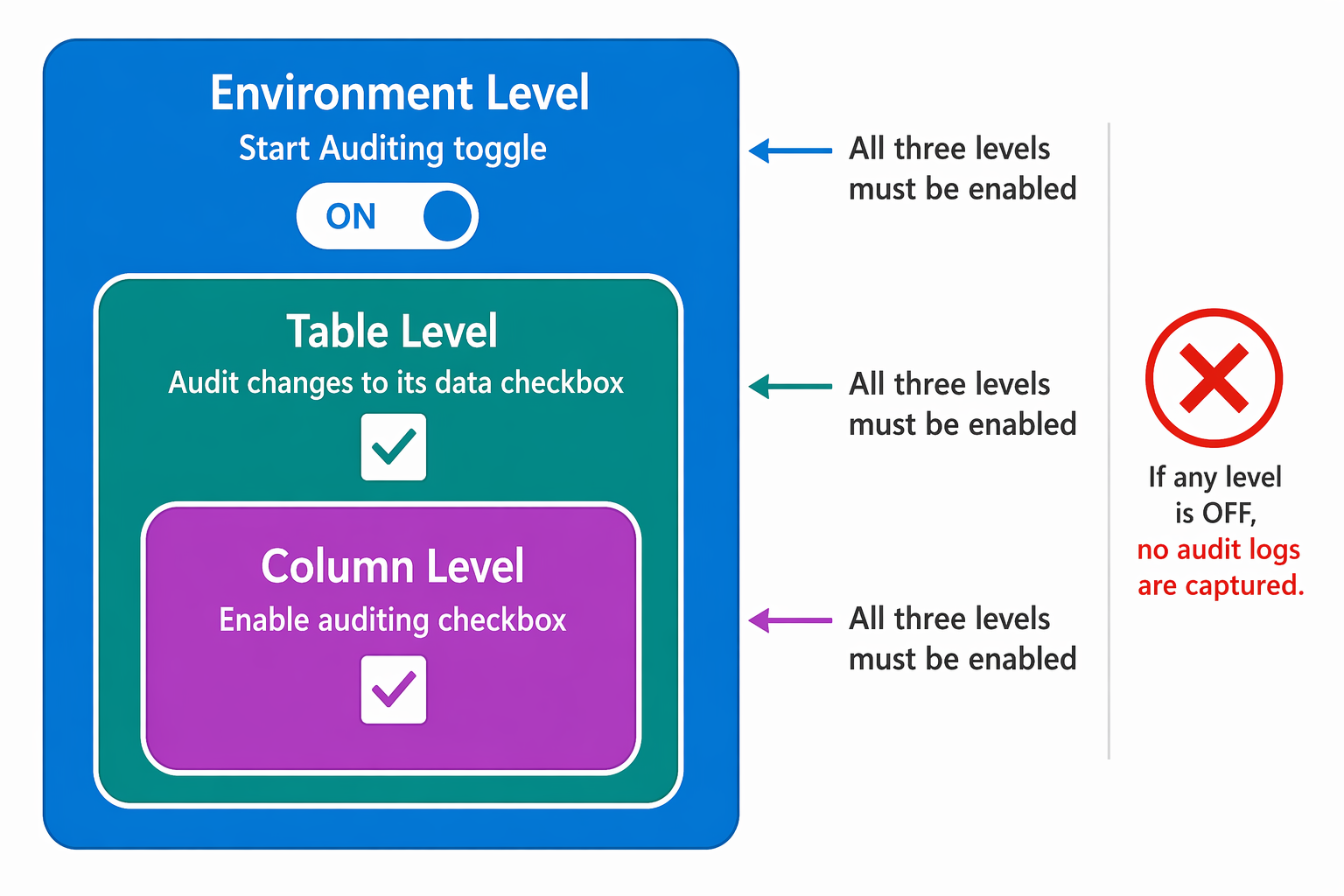
You must enable auditing at three levels: environment, table, and column. Start with the environment:
- In the Power Platform admin center, select the environment.
- Go to Settings > Audit and logs > Audit settings.
- Turn on Start Auditing to activate auditing for the environment.
- Optionally, turn on Log access to capture user sign-in events.
- Optionally, turn on Read logs to send read and export activity to Microsoft Purview.
- Select Save.
Alternatively, you can go to Security > Compliance > Auditing tile for a simplified compliance-focused view.
Important
Enabling auditing at the environment level doesn't automatically audit all tables. You must also enable auditing on each table and column you want to track.
Enable auditing on tables and columns
After you activate environment-level auditing, enable it for specific tables:
- In Power Apps (make.powerapps.com), go to Dataverse > Tables.
- Select the target table and choose Edit table properties.
- Expand Advanced options and check Audit changes to its data.
- Select Save.
For column-level auditing, open the specific column, expand Advanced options, and check Enable auditing. This setting creates detailed change logs that show old and new values for that column.
For Dynamics 365 environments, use the Common entities across Dynamics 365 apps checkbox to enable auditing across more than 30 standard tables spanning Sales, Marketing, Customer Service, and Security categories.
Configure audit retention
Audit logs consume log storage capacity. Configure retention to control how long logs are kept:
- Go to Security > Compliance > Auditing.
- Set the Retain these logs for value (default: Forever, maximum: 24,855 days).
- Select Save.
Important
Changing the retention period only applies to new audit records created after the change. Existing records keep their original retention stamp. To apply new retention to existing logs, use the Security page auditing option rather than the Settings page.
Manage audit log storage
Audit logs can grow significantly in high-transaction environments. Monitor and manage storage proactively:
View audit storage by table:
Use the GetAuditStorageDetails Web API action to identify which tables consume the most audit storage:
POST [Organization Uri]/api/data/v9.2/GetAuditStorageDetails
This action returns table names, sizes in bytes, and ObjectTypeCodes - useful for identifying where to focus retention or deletion efforts.
Delete audit logs:
- In the Power Platform admin center, select the environment.
- Go to the Auditing section and select Delete audit logs.
- Choose a deletion method:
- By table - select specific tables to clear
- Access logs, by people and systems - remove all sign-in logs
- All logs up to and including a selected date - date-range deletion
- Confirm the deletion.
Deletion runs asynchronously as a background job at approximately 100 million records per day. Monitor job status in Settings > Data management > Bulk deletion.
Important
You can't recover deleted audit logs. You can't view audit history for the covered period after deletion. If you need long-term access, consider exporting to Azure Synapse Link before deleting.
Route audit data to Microsoft Purview
Microsoft Purview extends Dataverse auditing by providing long-term compliance retention, advanced search, and cross-service activity correlation. When you enable Read logs, Dataverse sends activity data to the Microsoft Purview portal.
What flows to Microsoft Purview:
- Create, read, update, and delete operations on records
- Multiple-record views and Excel exports
- SDK calls and support activities
- Report views
Enable Microsoft Purview integration:
- In the Power Platform admin center, select a production environment.
- Go to Settings > Product > Privacy and Security.
- Toggle Enable SAS Logging in Purview to On.
- Add
https://*.api.powerplatformusercontent.comto your allow list if network policies require it.
Access audit data in Microsoft Purview:
- Sign in to the Microsoft Purview portal (purview.microsoft.com).
- Go to Solutions > Audit > Search.
- Filter by Power Platform activities, date range, users, or specific operations.
Note
Microsoft Purview audit logging works only for production environments. To access Microsoft Purview audit data, users need the Audit Logs or View-Only Audit Logs role assigned in Microsoft Purview.
Combine Dataverse and Microsoft Purview retention strategies
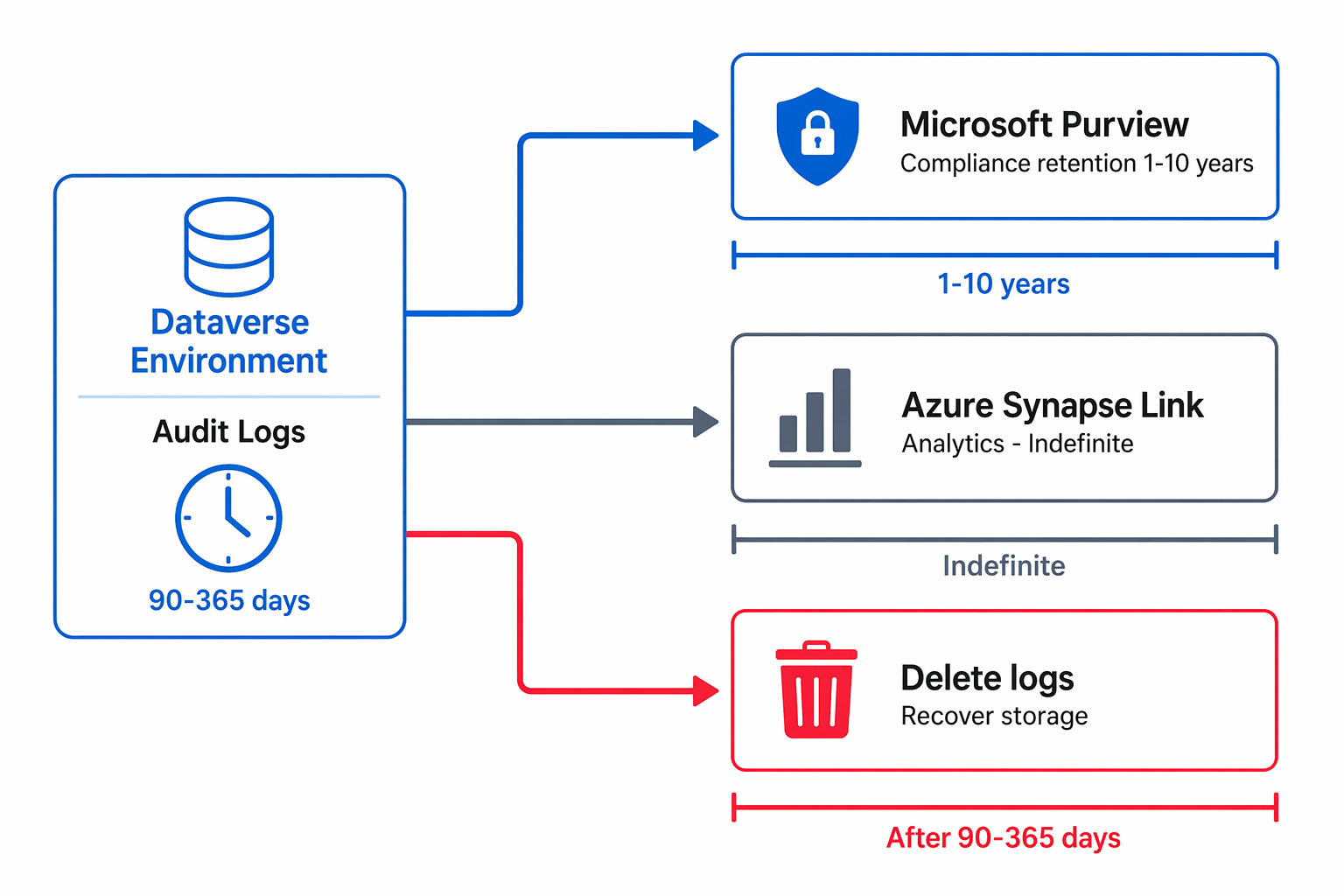
For regulated environments such as Zava Pay, use a layered retention approach:
| Layer | Purpose | Retention |
|---|---|---|
| Dataverse audit logs | Operational investigation, per-record history | 90–365 days (then delete to manage storage) |
| Microsoft Purview | Compliance holds, regulatory evidence, cross-service correlation | 1–10 years (per regulatory requirements) |
| Azure Synapse Link | Custom reporting, trend analysis | Indefinite (managed in your data lake) |
This layered approach lets you keep Dataverse log storage lean while maintaining full compliance coverage through Microsoft Purview's longer-term retention policies.
At Zava, the compliance team configures 180-day retention in Dataverse (sufficient for operational reviews) and 7-year retention in Microsoft Purview (satisfying PCI-DSS record-keeping requirements). Azure Synapse Link provides the analytics team with audit data for fraud detection patterns.