Manage duplicate detection
Duplicate records create confusion for business users, inflate marketing costs, and degrade reporting accuracy. Dataverse provides built-in duplicate detection that identifies potential matches before they're saved. It can also scan existing records in bulk to surface duplicates that already exist.
Understand how duplicate detection works
Duplicate detection uses published rules to compare records against match criteria. When a user creates or updates a record, the system checks existing records against all published rules for that table and flags potential matches.
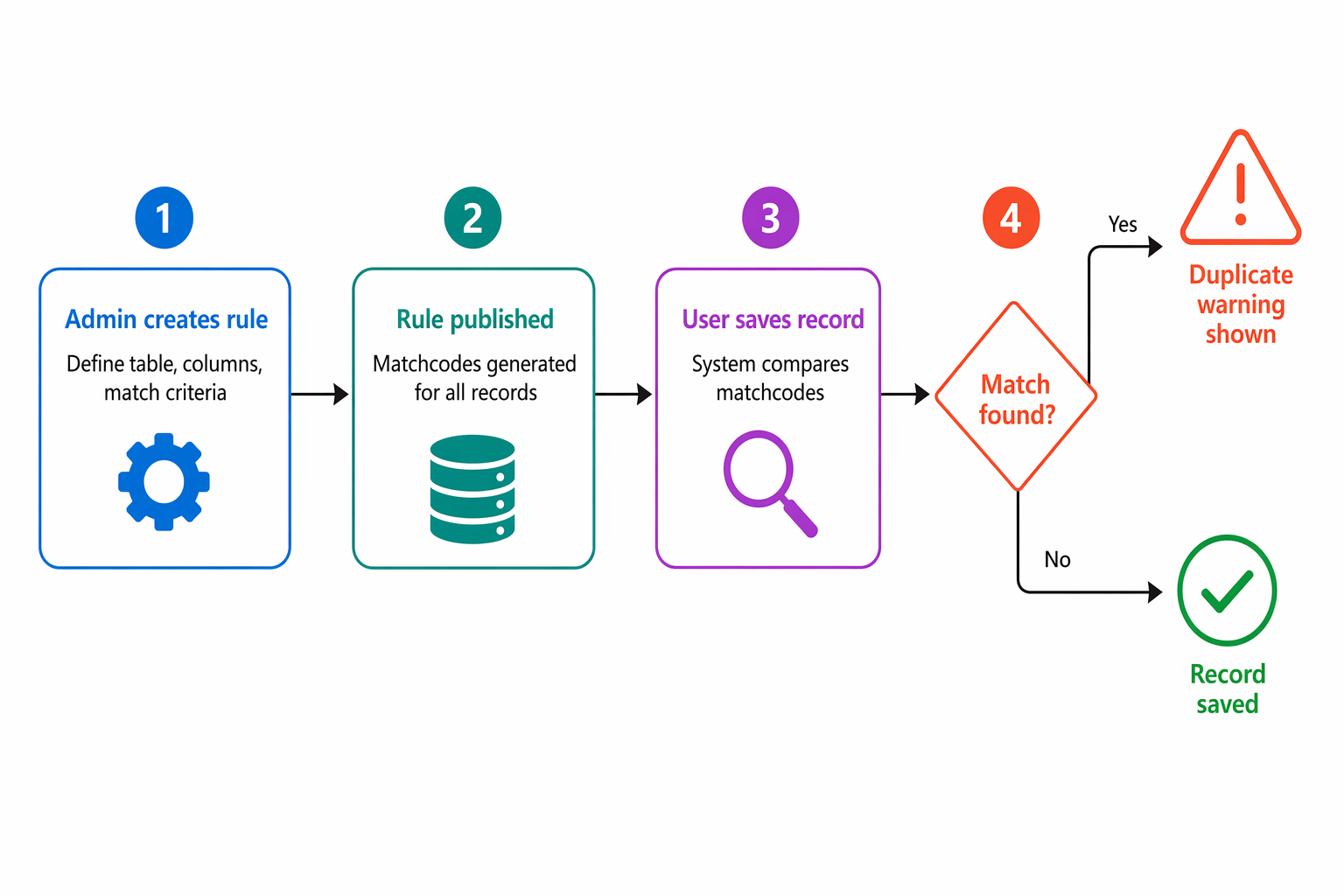
The detection process:
- An administrator creates a duplicate detection rule specifying which tables and columns to compare.
- The administrator publishes the rule, which generates matchcodes for all existing records of that type.
- When a user creates or updates a record, the system compares its matchcode against existing records.
- If the system finds matches, the user sees a duplicate warning and can choose to save anyway or cancel.
Note
Duplicate detection during programmatic creation or update (Web API, SDK) is suppressed by default. You must explicitly enable it by setting the MSCRM.SuppressDuplicateDetection: false header in your API request.
Create duplicate detection rules
To create a rule:
- In the Power Platform admin center, select the environment.
- Go to Settings > Data management > Duplicate detection rules.
- Select + New.
- Enter a rule name that describes what it detects (for example, "Customers - Duplicate email address").
- Select the Base Record Type - the table that triggers detection when records are created or updated.
- Select the Matching Record Type - the table to compare against (can be the same table or different, like comparing Contact emails against Lead emails).
- Add one or more conditions specifying which columns to compare.
Match criteria operators
| Operator | Behavior | Example |
|---|---|---|
| Exact Match | Values must be identical | Email = Email |
| Same First Characters | First N characters must match | First 5 chars of Company Name |
| Same Last Characters | Last N characters must match | Last 7 chars of Phone Number |
Condition options
- Case-sensitive - Whether comparison is case-sensitive
- Ignore Blank Values - Skip comparison if either value is empty
- Exclude inactive matching records - Only compare against active records
Combine multiple conditions on the same rule by using logical AND. All conditions must match for a record to be flagged as a duplicate.
Publish and manage rules
You must publish rules before they take effect:
- Select the completed rule and choose Publish.
- Wait for the system to generate matchcodes for all existing records.
Limits and constraints
- You can publish up to five rules per base record type at any time.
- Publishing generates matchcodes for every existing record of the matching type. This process can take time for large tables.
- To temporarily disable a rule without deleting it, unpublish the rule.
Default rules exist for Accounts (matching on account name) and Contacts (matching on full name plus email). You can edit these default rules but you must first unpublish them. All other tables require custom rules.
Configure when detection runs
Control when the system checks for duplicates at the organization level:
- Go to Settings > Data management > Duplicate detection.
- Configure which scenarios trigger detection:
| Setting | Behavior |
|---|---|
| When a record is created or updated | Checks for duplicates on save in model-driven apps |
| When Dynamics 365 for Outlook goes from offline to online | Checks on sync |
| During data import | Checks during Import Data wizard when "Check for duplicates" is selected |
Note
Detection doesn't run when merging records, activating or deactivating records, or saving completed activities. Plan your merge strategy separately from duplicate detection.
Run bulk duplicate detection jobs
For environments with existing data, run bulk detection to find duplicates that predate your rules:
- Go to Settings > Data management > Duplicate detection jobs.
- Select New to launch the Check for Duplicates wizard.
- Select the record type to scan and optionally use a saved view to limit scope.
- Configure job options:
- Notification email - receive results when complete
- Schedule - run once or set a recurring daily schedule
- Submit the job.
Results appear in the duplicate detection job list. Select a completed job to review detected duplicates and merge or delete them.
At Zava, the admin team schedules nightly duplicate detection for the Customer table across all retail store business units. This process catches duplicates created by different store associates who don't see each other's records due to business unit scoping.
Design duplicate detection for Zava
For Zava's customer data quality issues, configure rules targeting the most common duplicate patterns:
| Rule | Base/Match Table | Conditions |
|---|---|---|
| Customer email match | Contact / Contact | Email (Exact Match), Ignore Blanks |
| Customer phone match | Contact / Contact | Phone Last 7 chars, First Name First 3 chars |
| Account name match | Account / Account | Account Name First 10 chars |
| Cross-entity email | Contact / Lead | Email (Exact Match) |
Tip
Focus duplicate detection on columns with genuinely unique values such as email addresses and phone numbers. Rules that match on name alone generate too many false positives, especially with common names.
Package rules in solutions
Duplicate detection rules are solution-aware, so you can deploy them through ALM:
- Create the rule in a development environment.
- Add the rule to a solution (Add existing > More > Other > Duplicate Detection Rules).
- Export the solution as managed.
- Import the managed solution to the target environment.
- Publish the rule in the target environment (rules import unpublished).
You can't change the base or matching table of an existing rule through solution import. To modify tables, create a new rule and delete the old one.