Test and troubleshoot workflow behavior
Testing a workflow tool requires more than verifying that the happy path works. You also need to confirm that the agent handles missing information correctly, respects user cancellation, and provides enough workflow activity to diagnose a failure. In this unit, you learn how to run each test path and use the Activity panel to investigate problems.
Priya tests her task notification agent against four scenarios: a successful notification, a missing required input, the user cancelling at the confirmation prompt, and a controlled failure that she inspects in the Activity panel.
Define success criteria before testing
Before you run any test, write down what you expect to observe. Testing against defined criteria is more reliable than testing until the result "feels right."
For the notification workflow, success criteria include:
- The agent asks for any missing inputs before presenting the confirmation prompt.
- The confirmation prompt shows the user what is about to happen.
- After approval, the email arrives in the recipient's inbox with the correct subject, body, and formatting.
- The agent's response uses the workflow outputs to confirm the action.
- When the user cancels, no email is sent.
Test the success path
Open Preview in Copilot Studio and start a new conversation. Submit a message that provides all required details:
Send a task notification to
<your email address>for the task "Server Patch Update." The task involves applying monthly security patches to production servers. It's due October 15, 2027.
Observe the agent's behavior at each stage:
- Tool selection: The agent identifies that a notification workflow is needed and begins collecting inputs.
- Input collection: The agent extracts the recipient email, task title, task details, and due date from the message.
- Confirmation prompt: The agent presents the confirmation message and waits for approval.
- Workflow execution: After you approve, the agent calls the workflow. The workflow runs and returns the
StatusandConfirmationoutputs. - Response: The agent uses the outputs to confirm the action in a natural response.
Verify that the email arrives in the recipient's inbox with the correct subject line, the task details in the body, and the due date as specified.
Test the missing-information path
Start a new conversation and submit a message that omits required inputs:
Send a task notification for "Backup Validation."
The agent should recognize that required inputs are missing, including the recipient email and due date, and ask for them before presenting the confirmation prompt. Verify that:
- The agent asks for the missing information rather than guessing or skipping it.
- After you provide the missing details, the agent presents the confirmation prompt with complete information.
- After you approve, the workflow runs successfully.
If the agent skips the missing-information check and calls the workflow with an empty or incorrect input, review the input descriptions in the tool configuration. A more specific description helps the agent recognize when a required value is absent.
Test cancellation at the confirmation prompt
Start a new conversation and provide complete task details. When the agent presents the confirmation prompt, decline it:
No, don't send it.
Verify that:
- The agent acknowledges the cancellation without running the workflow.
- No email is sent.
- The agent remains ready for the next request in the same conversation.
Cancellation should be a clean exit. If the agent restarts the confirmation loop or sends the email despite the cancellation, inspect the Ask the end user before running setting in the tool configuration.
Test a controlled failure path
A controlled failure helps you understand how the workflow handles errors and how to use the Activity panel to diagnose them.
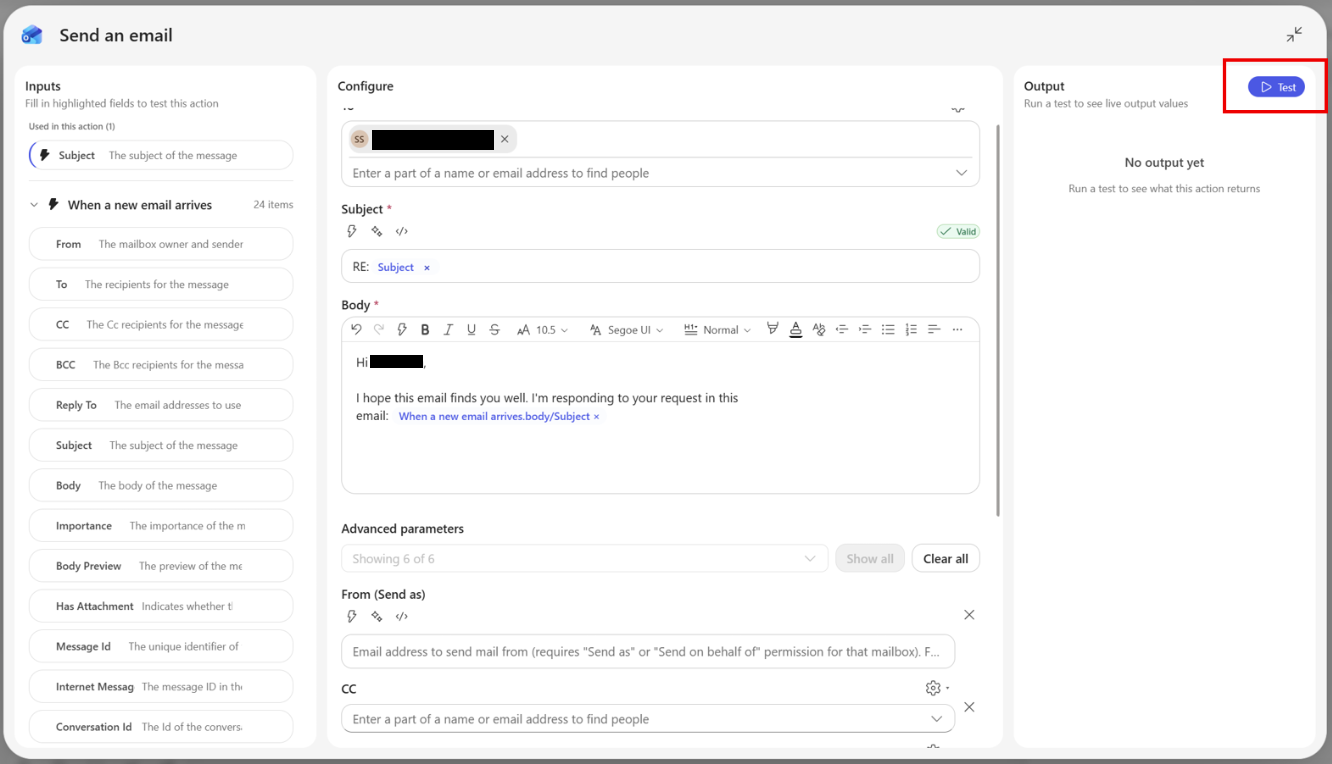
Create a controlled failure by testing the workflow directly in the designer with a deliberately malformed recipient value. This isolates connector error handling without teaching the agent to accept an invalid address.
- Open the workflow and select Test.
- Enter valid sample values for the task title, details, and due date.
- For Recipient Email, enter
not-an-email-address. - Select Run.
The Send an email (V2) action rejects the malformed address, and the workflow doesn't complete successfully.
After the test, review the workflow activity to understand what happened:
- In Copilot Studio, select Workflows in the left navigation.
- Select the workflow to open the designer.
- In the Activity panel, filter the runs by Failed.
- Select the failed run to load its step-by-step details on the canvas.
- Identify which step failed and read the error message.
The selected run shows the step that encountered the error, the inputs that step received, and the error returned by the connector. Use this information to:
- Confirm that the input the agent passed matches what you expected.
- Identify whether the failure was caused by an invalid input, a connection error, or a connector service issue.
- Decide whether to tighten the input description so the agent is less likely to pass a malformed address.
After inspecting the failed run, restore normal operation by starting a new conversation with a valid email address and verifying that the success path works again.
Diagnose common problems
Use the following table to map observed behavior to a likely cause and starting point:
| Observed behavior | Likely cause | Where to look |
|---|---|---|
| Agent doesn't select the workflow | Tool name or description is too vague or conflicts with another tool | Tool description in the configuration panel |
| Agent calls the workflow with a missing or incorrect input | Input description doesn't help the agent extract the correct value | Input description in the tool configuration |
| Agent skips the confirmation prompt | Confirmation is not enabled for this tool | Ask the end user before running setting |
| Workflow runs but email doesn't arrive | Connection error, invalid recipient, or connector service issue | Activity panel and connector action details |
| Workflow status shows Error | Publishing or connector authentication issue | Workflow Overview tab, connection settings |
Use activity details in Preview
In Preview, expand the activity details for a completed conversation turn to see which tools the agent selected, the inputs it sent, and the outputs it received. This view helps you verify tool selection and input values without opening the workflow designer.
If the agent selects the wrong tool, compare the tool's description with the user's message and with the descriptions of other available tools. The most common cause is a description that is too broad, causing it to match requests that belong to a different tool.
Note
After completing all four test paths, review what you learned. Did any input description need to be more specific? Did the confirmation prompt give the user enough context? The answers inform how you tune the agent and workflow before releasing them to users.