Understand automation options for managing Microsoft Intune
Automation helps you manage devices, apps, and policies at scale. This unit explains the main automation approaches you can use with Microsoft Intune, when to choose each option, and practical examples you can adopt immediately. By the end you should be able to pick an approach that fits your scenario—ad-hoc scripting, scheduled jobs, event-driven workflows, or fully integrated platform automation.
Why automation matters for endpoint management
Manual device management becomes slow and error-prone as inventory grows. Automation reduces repetitive tasks, enforces consistency, and speeds incident response. With automation you can: enforce configuration drift detection, onboard or retire devices automatically, trigger remediation for compliance failures, and integrate Intune operations into broader IT workflows.
With this in mind, the remainder of the unit compares the available tools and patterns so you can match them to your requirements.
Core automation approaches
There are four common automation approaches you’ll use with Intune:
- Scripting and command-line tools: ad-hoc or scheduled PowerShell scripts that call Microsoft Graph.
- Platform SDKs and APIs: Microsoft Graph API and SDKs for building custom services and integrations.
- Event-driven integrations: Logic Apps, Power Automate, or Azure Functions responding to Graph change notifications or platform events.
- Managed automation services: Azure Automation, runbooks, or third-party orchestration platforms that coordinate tasks across systems.
The following matrix compares these four approaches by execution model, complexity, best use, and control level.
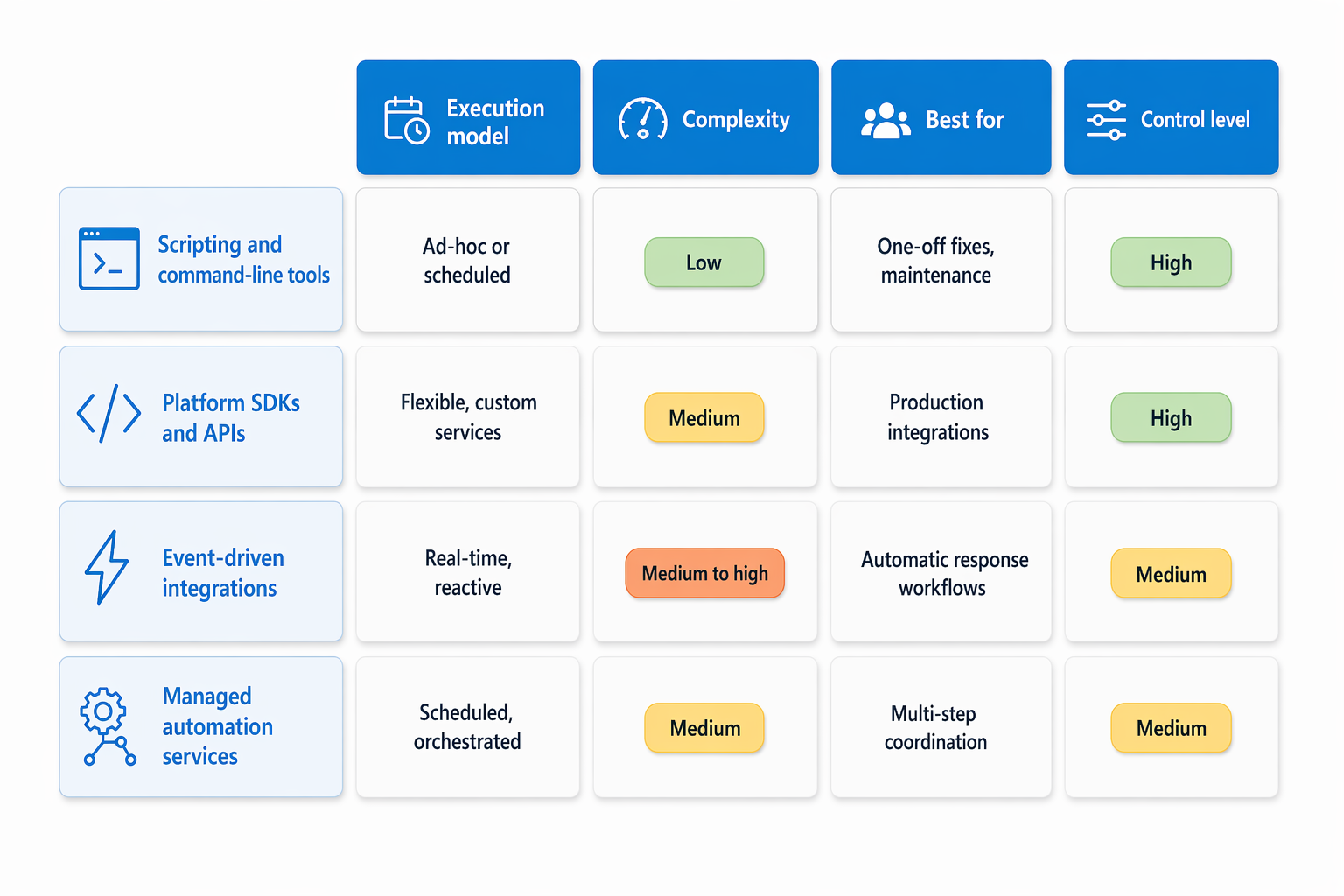
Each approach balances control, complexity, and operational overhead. For example, PowerShell is ideal for one-off fixes and scheduled maintenance, while an event-driven Logic App is better for automatic response to device enrollment events.
Microsoft Graph and the recommended APIs
Microsoft Graph is the primary API surface for Intune automation. It exposes endpoints for devices, device configuration, app lifecycle, and more. Use Graph when you need fine-grained control, transactional operations, or integration with other Microsoft 365 services.
Start with these patterns:
- Direct REST calls to Microsoft Graph for lightweight services or cross-platform scripts.
- Microsoft Graph PowerShell SDK for administrators who prefer PowerShell cmdlets and pipelines.
- Microsoft Graph SDKs (C#, JavaScript, Python, etc.) for building production-grade services or automation microservices.
Practical tip: prefer the Microsoft Graph PowerShell SDK over older Intune-specific modules—Microsoft consolidates endpoint management operations under Graph, and the SDK receives active updates.
Note
Device Query (Intune Advanced Device Inventory) Device Query provides a complementary option for ad-hoc device inventory lookups using KQL-based queries with near real-time results. It is available only with Intune Plan 2, so it may not be accessible in all environments or tenant licenses. This capability is covered in more detail in Unit 6, where Graph-based and advanced device query scenarios are explained in depth.
PowerShell: quick wins and scheduled tasks
PowerShell is the fastest way to automate common admin tasks. Use it for inventory exports, bulk assignments, or daily health checks. Typical workflow:
- Install and authenticate the Microsoft Graph PowerShell SDK.
- Run scripts locally, in scheduled Windows tasks, or in Azure Automation runbooks.
Example use cases:
- Bulk-assign a policy to a group after a new onboarding event.
- Export noncompliant devices to a CSV for reporting.
If you want to learn more about sample cmdlets and auth patterns, see the Microsoft Graph PowerShell documentation.
Event-driven automation: respond in real time
Event-driven automation reduces latency between an event and a response. Use Graph change notifications (webhooks) or connectors in Power Automate and Logic Apps to trigger workflows when devices enroll, compliance state changes, or apps are installed.
Typical architecture:
- Intune event → Graph change notification → Azure Function or Logic App → remediation action (e.g., reassign profile, create ticket).
Benefits: immediate response, reduced polling costs, and straightforward integration with ticketing, CMDBs, or configuration management systems.
Considerations: you’ll need to manage webhook subscriptions, secure endpoints that receive notifications, and handle delivery retries.
Scheduled and orchestrated runbooks
For regular maintenance tasks—like nightly compliance scans or monthly reports—use scheduled runbooks in Azure Automation or orchestrators such as Azure Logic Apps. These platforms provide scheduling, logging, and retry behavior so you don’t have to build those features yourself.
When to use runbooks:
- Tasks that run at a fixed cadence (nightly inventory, weekly cleanup).
- Multi-step operations that require orchestration and state tracking.
Runbooks work well when combined with Graph API calls or PowerShell scripts packaged as modules.
Practical scenario: auto-remediate noncompliant devices
Consider a common scenario: you want to detect noncompliant devices and trigger an automated remediation.
The following diagram shows how this scenario flows from detection through evaluation to remediation.
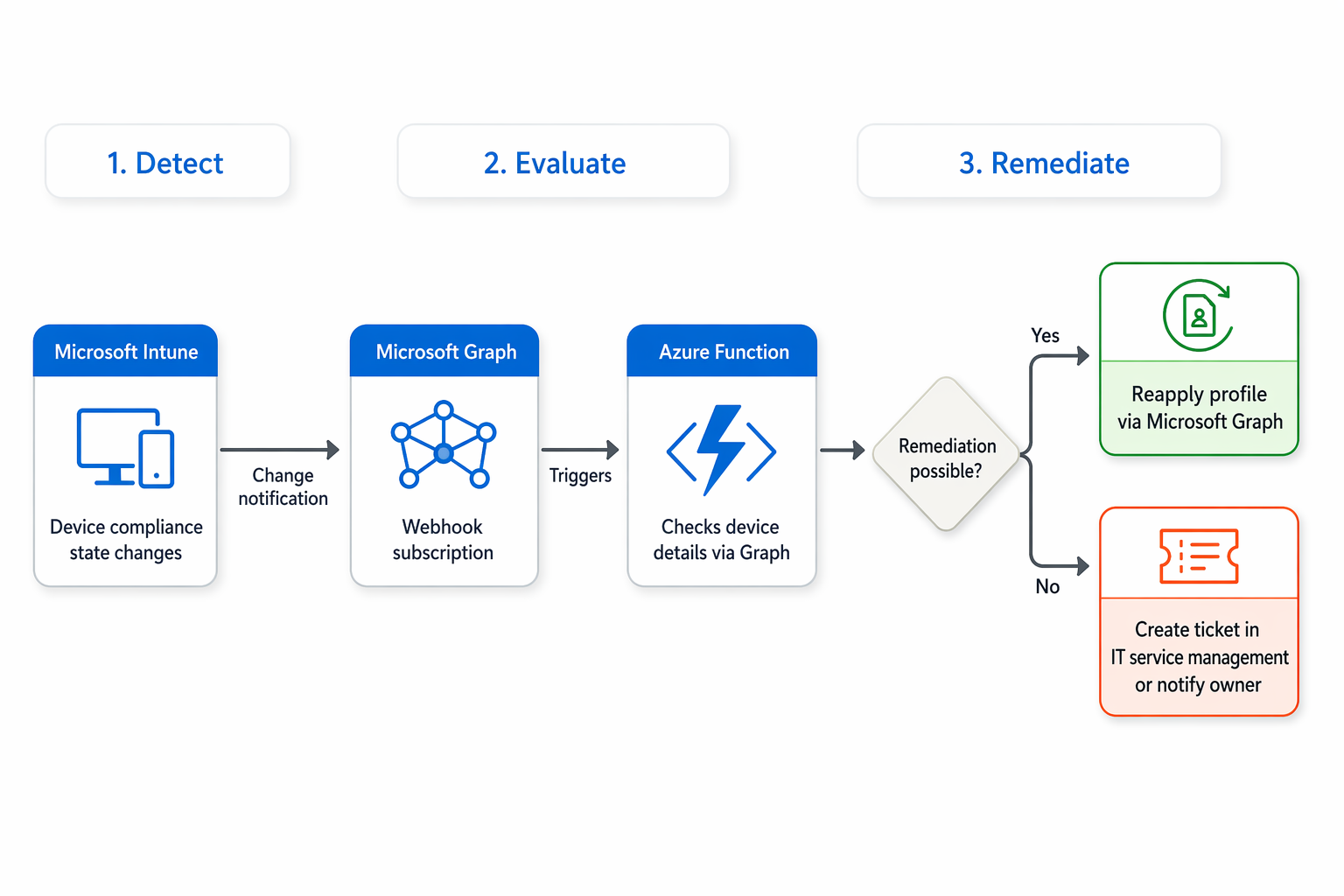
- Detect: subscribe to compliance state change notifications via Microsoft Graph.
- Evaluate: an Azure Function receives the notification and checks device details.
- Remediate: if remediation is possible, the function calls Graph to reapply a profile or notify the owner; otherwise it creates a ticket in your ITSM.
This pattern reduces mean time to remediation and ensures consistent handling of compliance incidents across your tenant.
Security, permissions, and governance
Automation needs least-privilege access. Use application permissions for unattended services and delegated permissions for interactive scripts. Apply these guardrails:
- Use dedicated Entra ID app registrations with narrowly scoped Graph permissions.
- Store credentials and secrets in Azure Key Vault or managed identities—avoid embedding secrets in scripts.
- Implement logging and alerting for automation actions so you can audit changes and troubleshoot failures.
Remember to plan for consent and admin approval when registering apps that require tenant-wide Graph access.
Choose the right approach
- If you need immediate, one-off fixes or scheduled admin tasks: use PowerShell with Graph cmdlets.
- If you’re building a production integration or service: use Microsoft Graph SDKs and app registrations.
- If you want simple no-code/low-code workflows: use Power Automate or Logic Apps with Graph connectors.
- If you require reliable orchestration, retries, and scheduling: use Azure Automation runbooks or an orchestration platform.
Building on this foundation, the next unit shows concrete examples of Graph queries and PowerShell scripts you can run immediately to automate common Intune tasks.