Authenticate and use the Microsoft Graph API for Intune
This unit shows how to authenticate to Microsoft Graph for Intune automation and how to validate access through both the Graph REST surface and the Microsoft Graph PowerShell SDK. You learn when to use direct Graph API access and when the SDK is the better choice for PowerShell automation.
Graph API vs Microsoft Graph PowerShell SDK
Microsoft Graph is the REST API surface for Intune. Every PowerShell SDK cmdlet ultimately calls Graph endpoints on your behalf. The SDK is a PowerShell wrapper that simplifies authentication, formatting, and paging.
Use the Graph API directly when:
- you need HTTP-level control over headers, query parameters, or custom endpoint combinations.
- you are building a service or application in a language other than PowerShell.
- you need the widest set of query options and direct URI navigation.
Use the Microsoft Graph PowerShell SDK when:
- you want object-based output and PowerShell pipeline support.
- you prefer cmdlets instead of manually constructing REST requests.
- you need a faster path to automation with fewer authentication details.
Example comparison:
- Graph API endpoint:
https://graph.microsoft.com/v1.0/deviceManagement/managedDevices - SDK cmdlet:
Get-MgDeviceManagementManagedDevice
Authentication flows for Intune automation
Intune automation uses Microsoft Graph authentication in two main ways:
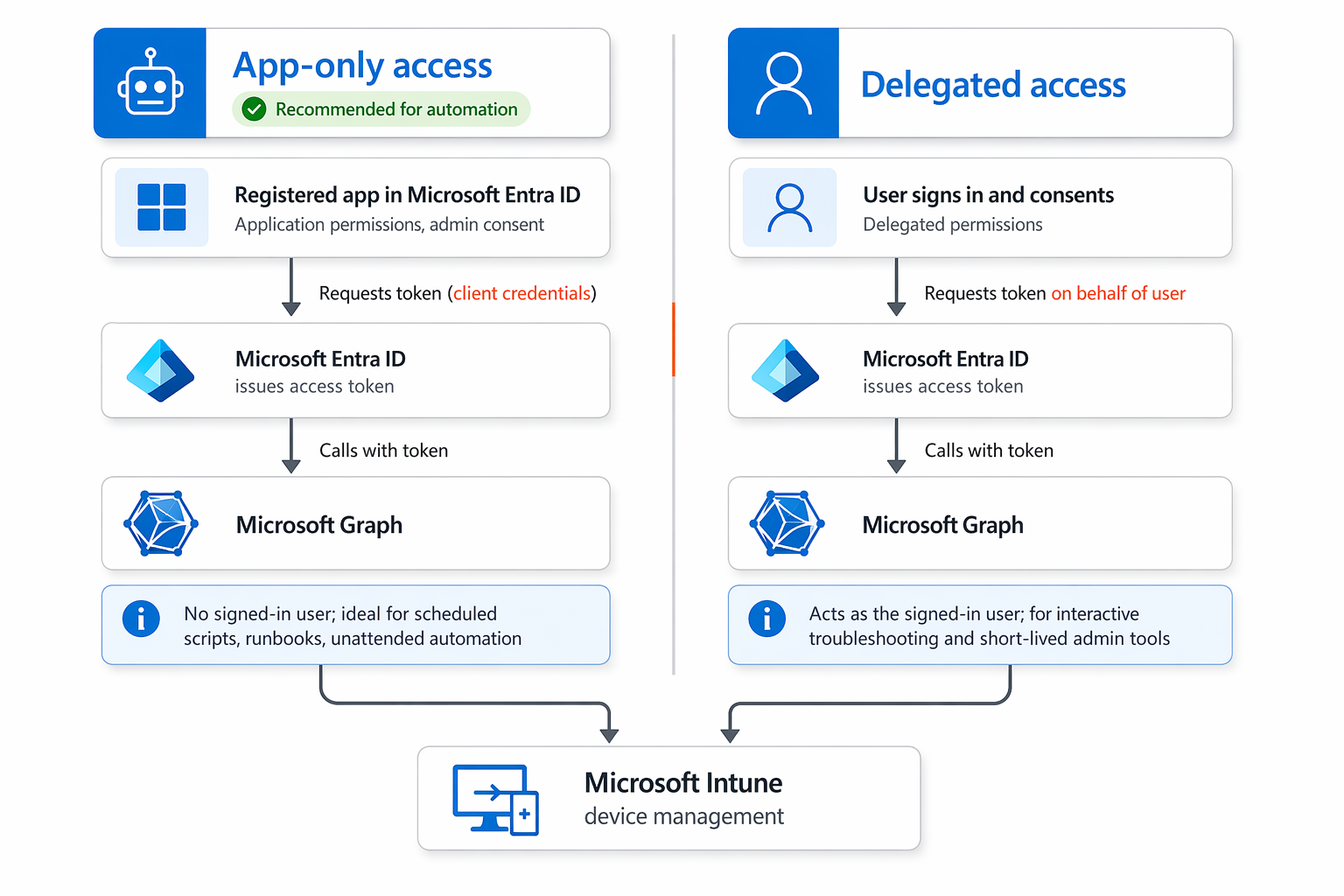
- App-only access: A registered app uses application permissions to call Graph without a signed-in user. This is the recommended pattern for scheduled scripts, runbooks, and unattended automation.
- Delegated access: A signed-in user consents to delegated permissions. Use this for interactive troubleshooting or short-lived admin tools, not for unattended service automation.
The following diagram compares the two authentication models and how each obtains a token to call Microsoft Graph.
Important
For automation scenarios in this module, choose app-only access whenever possible. It enables predictable, service-driven operations and avoids relying on user sign-in.
Install and prepare the Microsoft Graph PowerShell SDK
The SDK is the recommended way to manage Microsoft Graph from PowerShell.
Install-Module Microsoft.Graph -Scope CurrentUser
If you only want the Intune device management cmdlets, install the module for device management:
Install-Module Microsoft.Graph.DeviceManagement -Scope CurrentUser
Note
Microsoft Graph PowerShell SDK version and authentication notes The current major version of the Microsoft Graph PowerShell SDK is v2.x, and fresh installs from the PowerShell Gallery will install v2 by default. v1.x and v2.x are not fully backward-compatible, so cmdlets, parameters, and authentication behavior may differ. Teams upgrading existing scripts should follow the official migration guide. For app-only authentication (certificate or client secret), the -Scopes parameter in Connect-MgGraph is not required, because permissions are based on admin-consented application permissions in Entra ID. The SDK uses the implicit .default scope in these scenarios. Cmdlets used in this unit, such as Get-MgDeviceManagementManagedDevice, are fully supported and valid in v2.x of the SDK.
Authenticate using the SDK
Use app-only access for unattended automation. Make sure your app registration has the correct Intune application permissions and admin consent.
Authenticate with a certificate
$TenantId = 'YOUR_TENANT_ID'
$ClientId = 'YOUR_APP_CLIENT_ID'
$Thumbprint = 'YOUR_CERTIFICATE_THUMBPRINT'

Connect-MgGraph -ClientId $ClientId -TenantId $TenantId -CertificateThumbprint $Thumbprint -Scopes 'https://graph.microsoft.com/.default'
Authenticate with a client secret
# Define the Application (Client) ID and Secret
$ApplicationClientId = '<application(client)ID>'
$ApplicationClientSecret = '<secret.value>' # Application Secret Value
$TenantId = 'Tenant_Id'

# Convert the Client Secret to a Secure String
$SecureClientSecret = ConvertTo-SecureString -String $ApplicationClientSecret -AsPlainText -Force

# Create a PSCredential Object Using the Client ID and Secure Client Secret
$ClientSecretCredential = New-Object -TypeName System.Management.Automation.PSCredential -ArgumentList $ApplicationClientId, $SecureClientSecret
# Connect to Microsoft Graph Using the Tenant ID and Client Secret Credential
Connect-MgGraph -TenantId $TenantId -ClientSecretCredential $ClientSecretCredential -Scopes 'https://graph.microsoft.com/.default'
Note
The https://graph.microsoft.com/.default scope tells Microsoft Graph to use the application permissions granted to the registered app.
Authenticate using delegated access
For interactive sessions where a user signs in:
Connect-MgGraph -Scopes 'DeviceManagementManagedDevices.Read.All'
Delegated access is useful for ad-hoc troubleshooting, but it is not ideal for unattended production automation.
Test Graph access with the SDK
After authentication, validate your Intune access with simple SDK commands. These cmdlets call the same Graph endpoints but return PowerShell objects.
Verify managed device access
Get-MgDeviceManagementManagedDevice -Top 5
Verify configuration profile access
Get-MgDeviceManagementDeviceConfiguration -Top 5
Verify mobile app access
Get-MgDeviceManagementMobileApp -Top 5
If these commands return data, your authentication and permissions are configured correctly.
Understand the underlying Graph endpoint
Each SDK cmdlet maps to a Graph endpoint. For example, Get-MgDeviceManagementManagedDevice accesses the deviceManagement/managedDevices Graph resource. Use the SDK for PowerShell workflows and the REST URI for application-level or cross-platform solutions.
Validate permissions and tenant access
If the commands fail with Insufficient privileges or Forbidden, check these items:
- The app has the required
DeviceManagement...application permission scopes. - Admin consent was granted for the tenant.
- The app is using app-only authentication for unattended automation.
- The correct tenant ID and client ID were used.
If you receive a token error, verify that the client secret or certificate is valid and not expired.
Secure your Graph auth configuration
Use these guardrails for production automation:
- Prefer certificates or federated credentials over client secrets.
- Store secrets and certificates in Azure Key Vault or a secure vault.
- Use a dedicated service principal for automation, not a shared admin account.
- Monitor and rotate credentials regularly.
Tip
For Azure Automation or Azure Functions, consider using a managed identity where possible. If that is not available, use a certificate-based app registration with the smallest required permissions.
Once you are authenticated and have verified your access to the Microsoft Graph API you can start implementing your first workloads.