Create an agent flow
You've seen what makes a business process a good candidate for automation, and why a scenario like the IT support ticket process fits the criteria. Now it's time to learn how to create one. Copilot Studio gives you two ways to create an agent flow: using natural language or using the visual designer. Both paths lead to the same designer view. The difference is in how you get there.
Choose an approach
Copilot Studio offers two ways to create an agent flow:
- Natural language: Describe what you want in plain language. Copilot Studio interprets your intent and proposes a trigger and actions to match. This is the lower-barrier starting point, useful when you know your goal but aren't sure which connectors or steps you'll need.
- Visual designer: Build the flow directly by selecting a trigger and adding action cards one at a time. This approach gives you precise control over every component from the start, and works well when you already have a clear picture of the flow structure.
A common pattern is to use natural language to scaffold the flow quickly, then refine it in the designer. These approaches complement each other rather than compete.
Create an agent flow with natural language
When you know the goal but don't yet have a clear picture of every connector and action you'll need, start with a natural language prompt. The walkthrough below uses a simple example (When an email from my manager arrives, post the email subject in Teams) to show how Copilot Studio interprets a description and proposes a flow. The same process applies when building more complex flows, like the end-to-end IT support scenario from the previous unit.
To create an agent flow with natural language:
Navigate to Copilot Studio.
Select an environment with assigned Copilot Studio capacity.
Select Flows in the left navigation.
In the Copilot text box, enter a prompt describing what you want the flow to do. For example: When an email from my manager arrives, post the email subject in Teams.

Select the Send icon.
Copilot Studio proposes a trigger and actions. Review the proposal to confirm the steps match your intent.
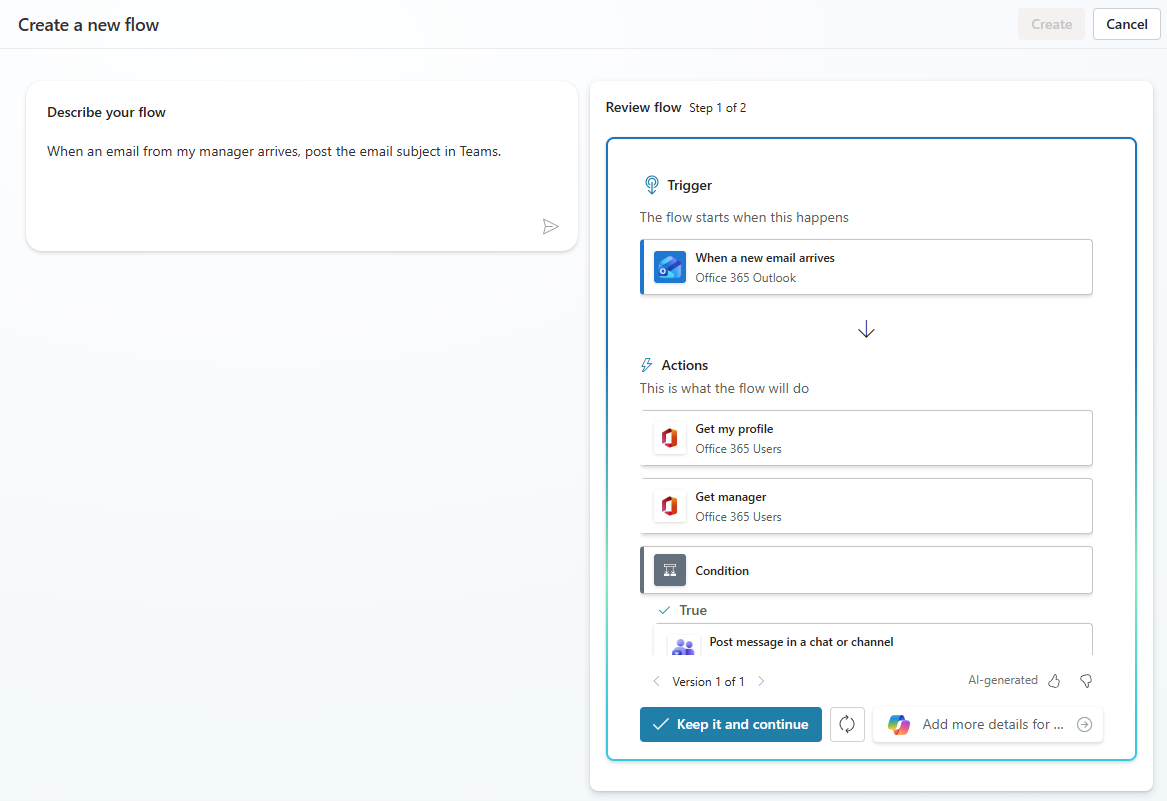
If changes are needed, enter additional details in Add more details for Copilot to work with and select Add. When you're satisfied with the proposal, select Keep it and continue.
Next, review the connections and create the flow:
Copilot Studio shows the proposed connections. Under Review connections, check each service. A green checkmark indicates the connection is active.
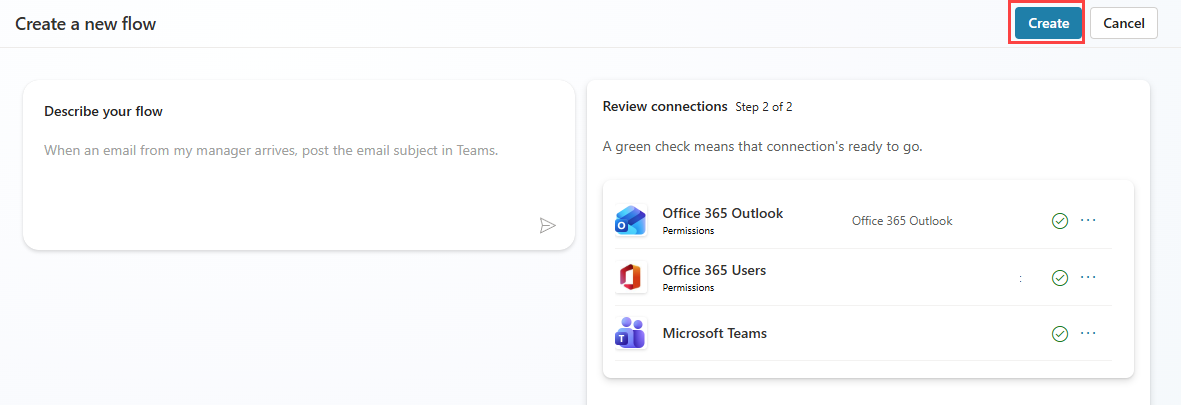
Select Create to create the flow and open it in the designer.
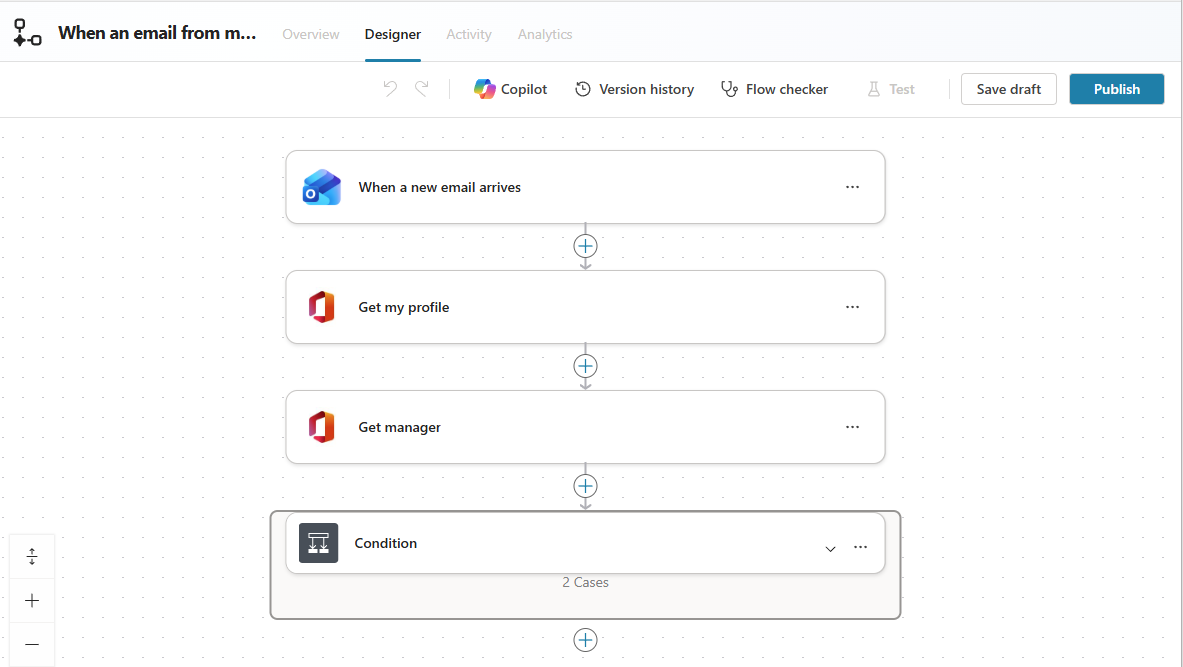
Select Save draft, then select Publish.
Write effective prompts
The flow Copilot generates depends on the quality of your prompt. These habits make a significant difference:
- Use When X happens, do Y format, which maps directly to the trigger-and-action structure of agent flows.
- Be specific: include the connector name and the exact channel or destination. When an email arrives in the IT support mailbox, post the subject to the 'IT Support' channel in Teams produces better results than process an email.
- Name connectors explicitly: Outlook, Teams, SharePoint, ServiceNow.
- Use plain, everyday language and avoid technical jargon.
- If the first proposal isn't quite right, add more context in follow-up messages and iterate.
For real-world prompt examples, visit the Sample Solution Gallery and filter by Copilot Studio in the Products list.
Edit the agent flow's name
Copilot Studio generates a default name from your prompt. Rename it to something that clearly describes the trigger and purpose. This makes flows easier to find and manage as your environment grows.
To rename a flow:
In the Designer tab, select Save draft to preserve the steps in your flow.
Select the Overview tab.
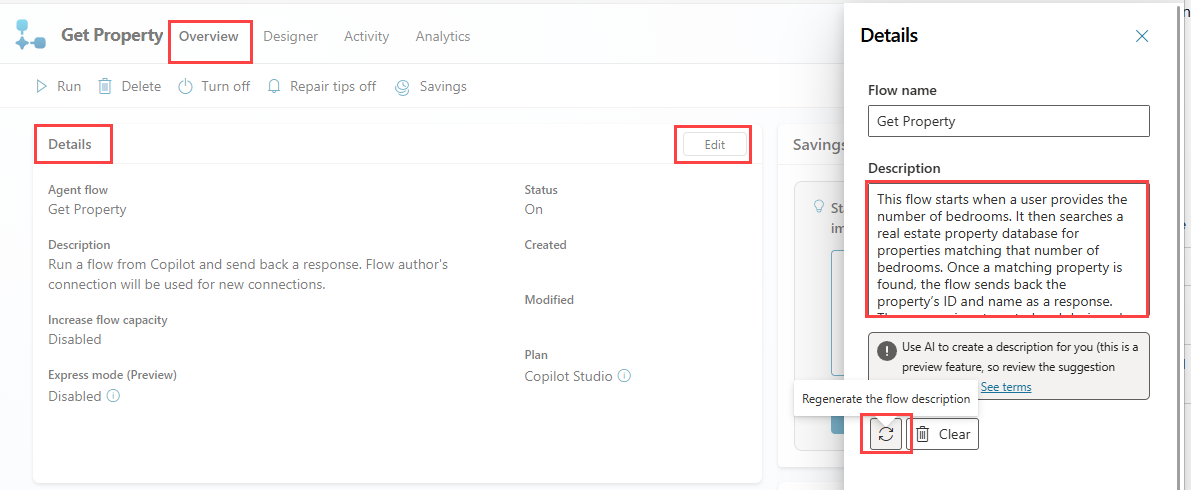
Select Edit in the Details section.
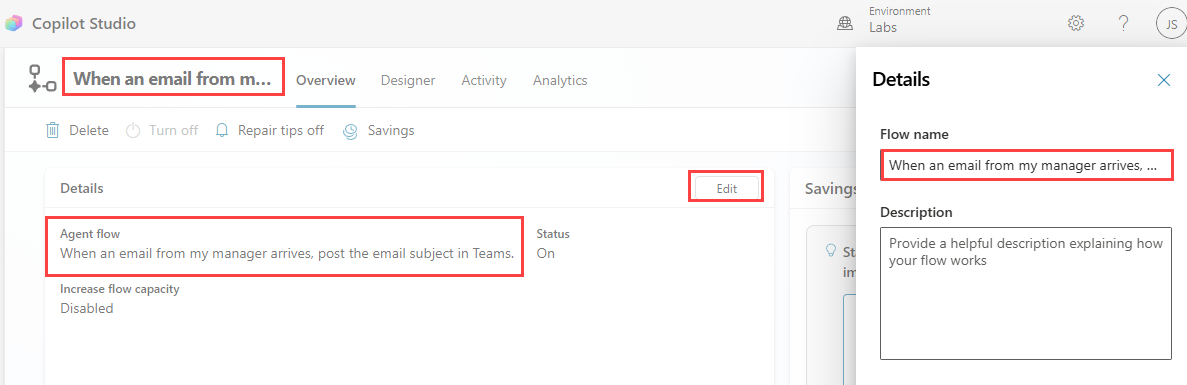
Enter a descriptive name, then select Save.
Try to capture the trigger and the purpose to make the name self-explanatory. For example, IT Support - Create ticket from email immediately communicates what the flow does and when it runs.
Tip
If you add this flow as a tool to a Copilot Studio agent, the flow name becomes the default tool name. The agent orchestrator uses the name to determine when to invoke the flow, so a clear, specific name directly affects how accurately the agent routes requests.
Generate a description
You can also use Copilot to generate a description from the same Overview tab. In the Edit section, select the Refresh icon next to the description field, and Copilot suggests a description based on the flow's structure.
Create an agent flow with the visual designer
When you have a clear picture of the flow from the start, or you need precise control over each connector and configuration, build the flow directly in the visual designer. The designer is an authoring canvas where you build and edit flows by placing and connecting components.
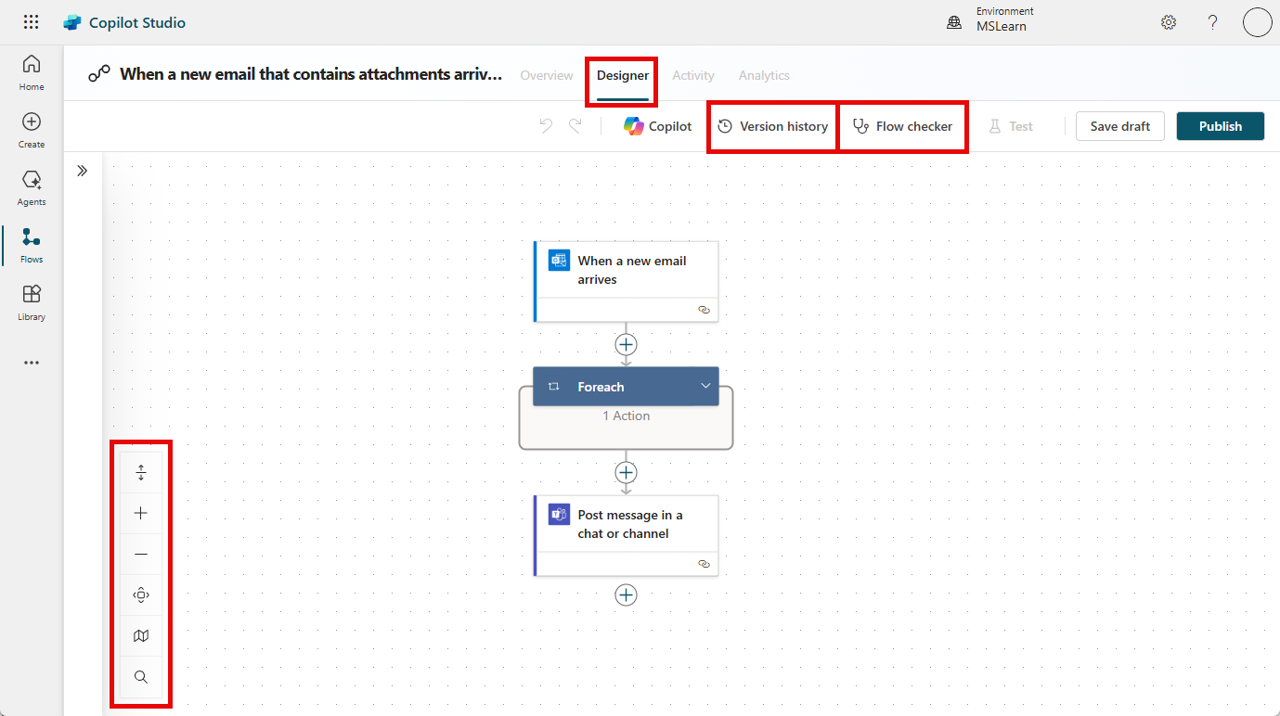
The designer includes the following key areas:
- Visual canvas: Your entire flow is laid out as a diagram. Use the visual display controls to zoom in or out, fit the view, or navigate large flows with the minimap.
- Copilot pane: Open the Copilot pane at any time to request changes or ask questions about your flow in plain language.
- Add and remove actions: Select the + button to add an action. Search for actions from connectors and configure them through the action's settings. To remove an action, select it, then select More actions (...) > Delete.
- Parameters: Select any action to view and edit its inputs. You can enter values manually or use expressions to make them dynamic.
- Version history: Every time you save your flow, a version is recorded. You can view or restore previous versions if needed.
- Flow Checker: Highlights any configuration errors. All errors must be resolved before you can publish.
- Test pane: Run your flow manually or automatically to verify it works as expected.
- Publish: Once the flow is error-free, publish it to make it live.
To create an agent flow with the visual designer:
Navigate to Copilot Studio.
Select an environment with assigned Copilot Studio capacity.
Select Flows in the left navigation.
Select + New agent flow.
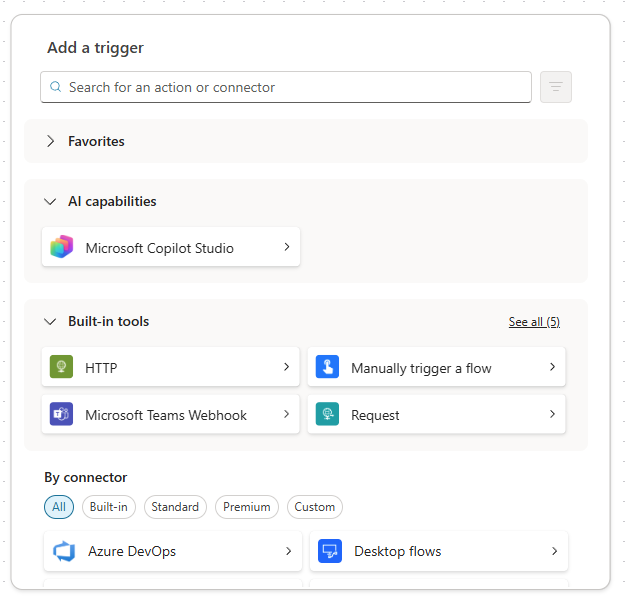
In the Add a trigger dialog, search for and select a trigger. For example, search for When a new email arrives and select the trigger from the Outlook connector.
Note
Both creation methods open the same designer view once the flow is created. Natural language scaffolds the flow for you. The designer lets you build it component by component. Either way, you end up in the same place.
Use Copilot in the designer
After you create the flow, by either method, the Copilot pane in the designer is available. Use it to ask questions about your flow or request changes without leaving the canvas.
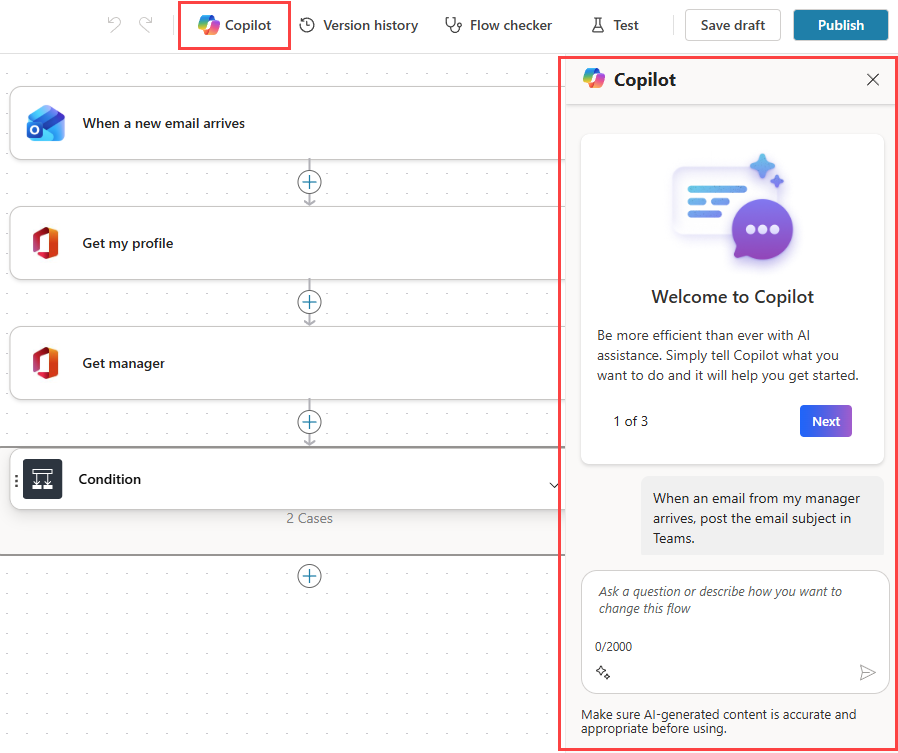
You can ask questions like What does my flow do? or How do I access child flows? You can also request modifications in plain language: Add a condition that only continues if the email is from an external sender. Copilot updates the flow in response, so you can iterate quickly without manually configuring each step.
The Copilot pane is especially useful when you've scaffolded a flow with natural language and want to refine specific steps. Describe the change you want rather than hunting through action settings to make it manually.