Configure triggers, actions, and connectors
With an agent flow created, this unit covers the configuration work that makes it functional: configuring triggers, defining any input parameters for instant triggers, and adding and configuring the actions that do the work.
Note
This unit assumes basic familiarity with Power Platform connectors. If you're new to connectors, see Connectors overview for a quick introduction before continuing.
Configure the trigger
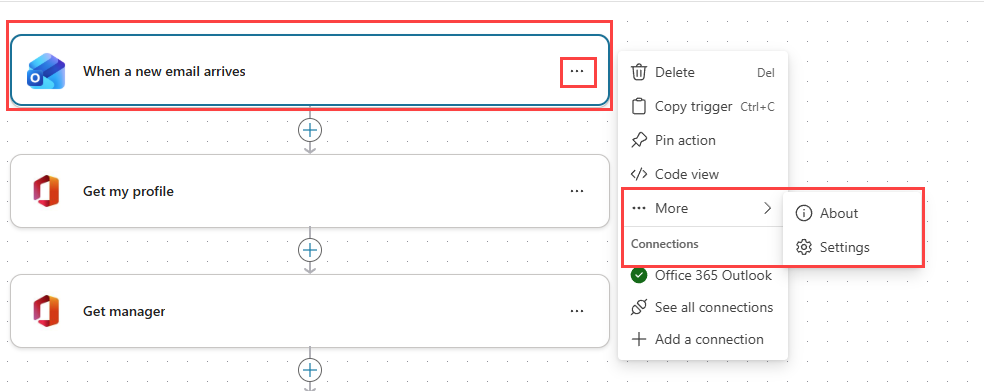
After you add a trigger, you can view and adjust its settings by selecting the trigger in the canvas, then selecting the ellipsis (...) > More > Settings.
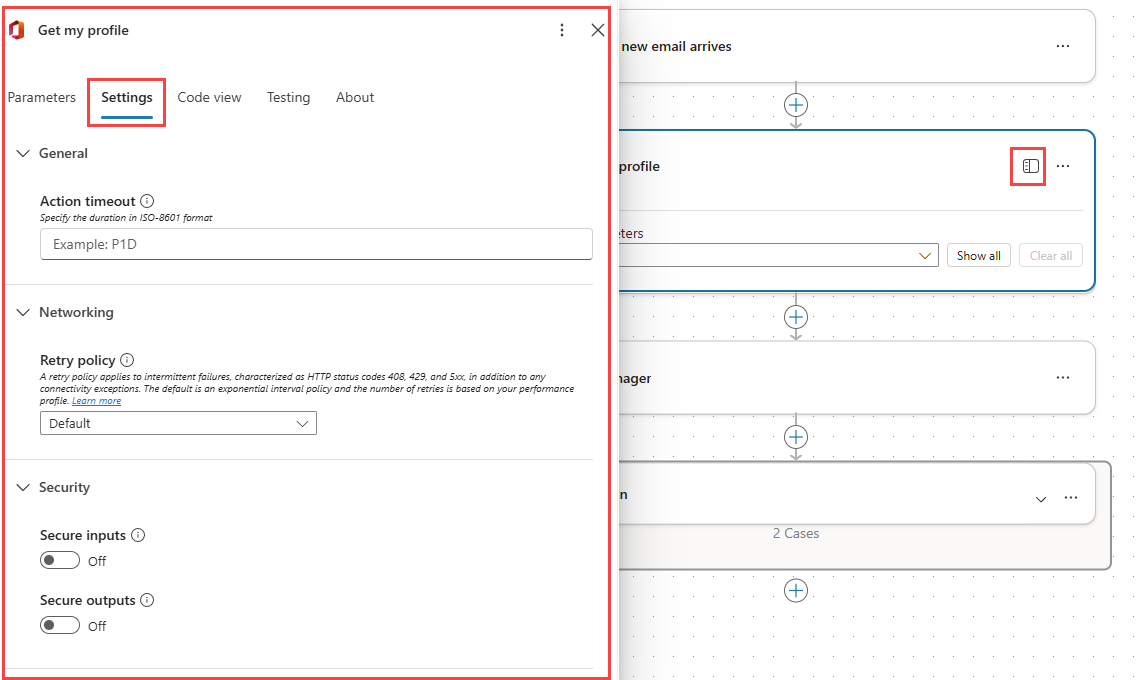
You can also select the trigger, then select the Expand pane icon and choose the Settings tab.
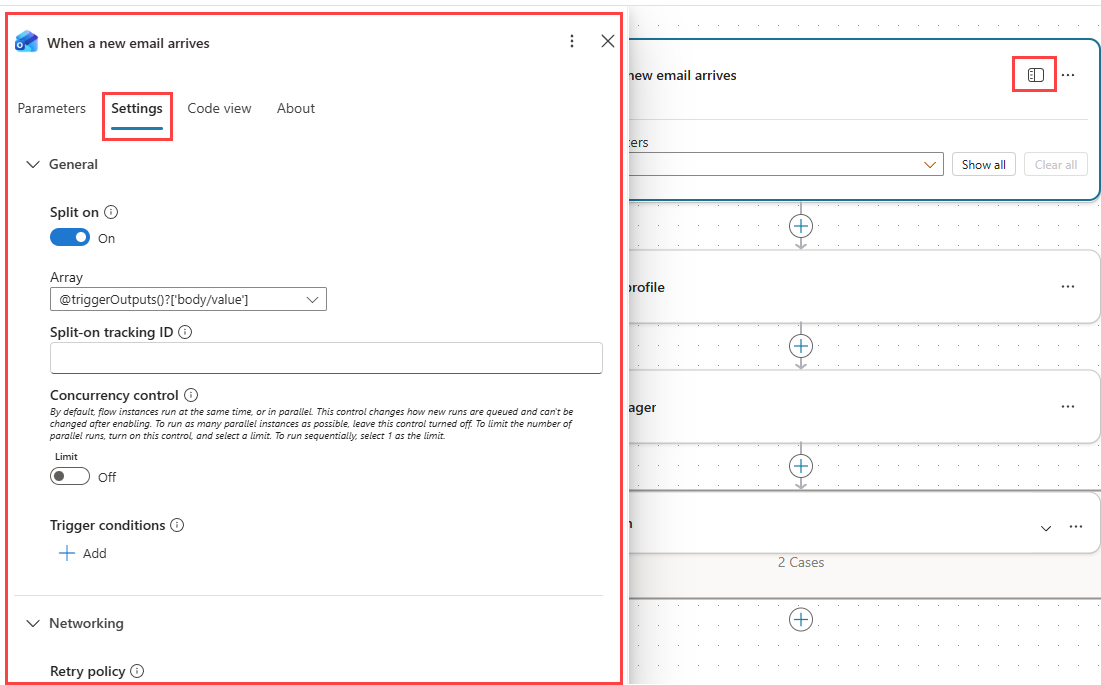
Common trigger settings include:
- Concurrency control: Controls how many flow instances can run simultaneously.
- Trigger conditions: Expressions that must evaluate to true before the trigger fires, useful for filtering events before the flow runs.
- Retry policy: Determines how the flow retries if the trigger fails to start.
Note
Available settings vary by connector and trigger type.
Define input parameters
If your flow uses an instant trigger (such as When an agent calls the flow or Manually trigger a flow), you can define input parameters that are passed into the flow when it runs.
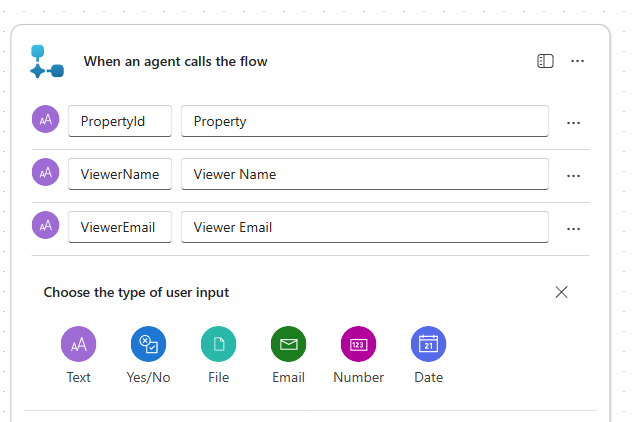
Input parameters are either entered by the user (for manual triggers) or supplied by the calling agent, flow, or app. The following parameter types are supported:
- Text: For string input.
- Yes/No: For Boolean selection.
- File: For file or image uploads.
- Email: For email address input.
- Number: For numeric values.
- Date: For date input.
Tip
Select the ellipsis (...) to the right of an input parameter to mark it as optional. For Text parameters, you can also specify a drop-down list of allowed values.
When a user manually starts a flow using Manually trigger a flow, the trigger automatically provides additional tokens you can reference as dynamic values in later actions, including the user's name and email, the current timestamp, and location information.
Add an action
After configuring triggers, add actions to define what steps the flow carries out. To add an action:
Select the + at the point in the flow where you want to add the action, then select Add an action.
The Add an action pane opens in the designer.
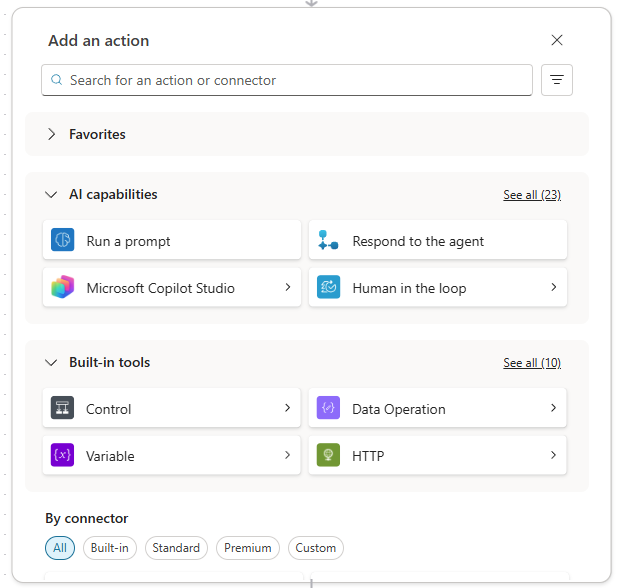
Search for the action by connector name or action name. For example, search office 365 users to find the Get user profile (V2) action.
Select the action from the results. The action card appears in the flow.
In the action card, configure the required and optional input fields.
If the connector requires a connection, select an existing connection or create a new one when prompted.
Repeat this for each action you need. In the IT support scenario, the sequence includes actions from Office 365 Users, ServiceNow, Outlook, Teams, and Dataverse, with each one building on the outputs of the steps before it.
Name actions for readability
Every action you add inherits a default name from the connector, such as "Get user profile (V2)" or "List records." These defaults work in a short test flow, but in a multi-step production flow they create confusion fast. When you get to the condition step that checks whether a ServiceNow ticket already exists, the dynamic content picker lists outputs from every previous step. If several actions share connector-default names, it's difficult to know which output belongs to which step.
Renaming actions resolves this immediately. A name like Get requester profile or Create ServiceNow ticket makes it clear which step produced which output and makes the flow readable to anyone who opens it later.
To rename an action:
Select the action card to select it.
Select the ellipsis (...) at the top of the action card, then select Rename.
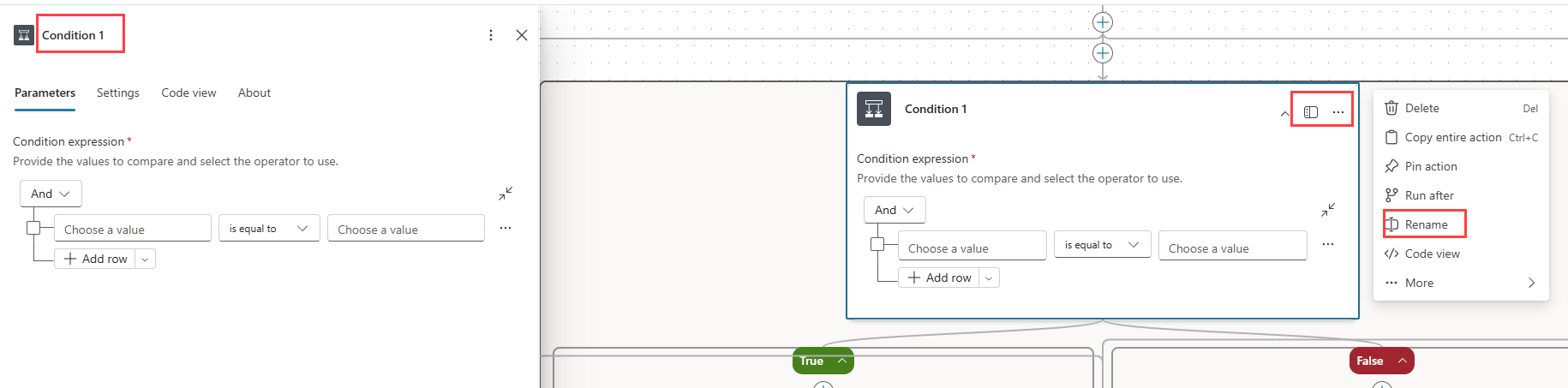
Enter a descriptive name that reflects the action's role in this specific flow.
Select outside the name field to confirm.
Alternatively, select the expand pane icon and edit the name in the top-left of the action pane.
Tip
Name each action before moving to the next. The names you assign appear in the dynamic content picker for all downstream actions, so descriptive names make every subsequent step faster to configure, especially when multiple actions use the same connector.
Action settings
Each action card has two tabs that control different aspects of how the action works:
- Parameters (the default tab): Configure the action's input fields here. Inputs can be fixed values, dynamic content from previous steps, or expressions. For example, the To field in an Outlook send email action can use the requester's email address pulled dynamically from the Get requester profile step.
- Settings: Controls execution behavior, including timeout duration, retry policy, and run-after conditions (useful for error handling). For the Respond to agent action, this tab also includes an asynchronous response mode option that controls how the flow returns results to a calling agent.