Control agent flow logic
Real business processes are rarely sequential. The email that arrives in the IT support mailbox might come from a requester who already has an open ticket, or from someone new. The confirmation message needs the actual ticket number and the requester's full name, not a generic placeholder. Conditions, dynamic content, expressions, and loops are the control structures that let any agent flow adapt to these realities rather than failing or producing incorrect output.
Use dynamic content from previous steps in a flow
Every trigger and action in an agent flow produces output data. That data, called dynamic content, is available as input to all downstream steps. Think of it as the flow's memory: when the Get requester profile action retrieves a user's details from Office 365, those details remain available to every later step, including the condition that checks for an existing ticket and the action that sends the confirmation email.
To insert dynamic content into an input field:
- Select the input field where you want to insert data.
- Select the Insert dynamic content icon (the lightning bolt ⚡) that appears inside the field, or type
/in the field. - The Dynamic content pane opens, listing available outputs from all previous triggers and actions in the flow.
- Search for the value you need, or select See more to view all outputs from a step.
- Select the value you want to insert it into the field.
Note
Not all outputs appear by default. Use the Search box or select See more to find outputs that aren't listed initially.
The following screenshot shows the Dynamic content pane opened for the User (UPN) field on a Get manager action. The available outputs come from the preceding trigger step (When a new email arrives) and the previous action (Get my profile):
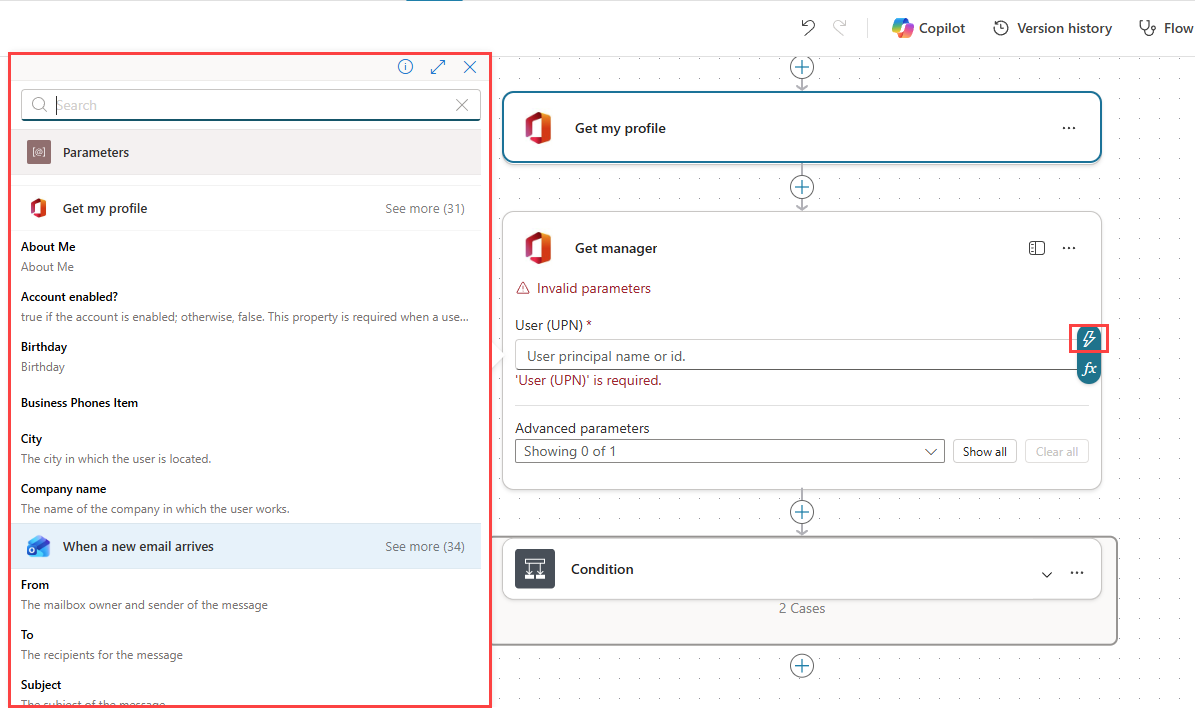
In the IT support scenario, the same dynamic content pane would show outputs from steps like Get requester profile and Create ServiceNow ticket, making it straightforward to populate the To field in the confirmation email with the requester's address or include the new ticket number in the message body.
This is also why renaming actions matters. As you learned in the previous unit, descriptive names like Get requester profile and Create ServiceNow ticket make the correct dynamic values easy to identify in the pane when you're configuring later steps. Unlike Get user profile (V2) and Create record, those names immediately tell you which step produced which output.
Apply expressions to transform data
Sometimes dynamic content alone isn't enough. You might need to combine a first name and last name into a single string, change text to lowercase, format a date for the email subject, or build a structured message from multiple fields. Expressions let you perform these operations on flow data using built-in functions.
Common expression use cases include:
- Combine values: Join two fields, such as concatenating a first name and last name with a space.
- Format text: Change case, trim whitespace, or extract a substring from a longer string.
- Build structured strings: Compose a subject line like Ticket created: IT support request by combining a fixed prefix with dynamic content from the trigger.
- Evaluate data: Compute or compare values for use in conditions further down the flow.
To add an expression to an input field:
Select the input field where you want to insert the expression.
Select the fx icon inside the field, or type
/and select Insert expression.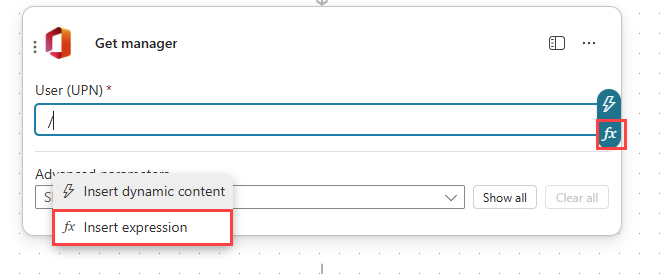
The Expression pane opens. Type or compose your expression using the function reference and dynamic values available in the pane.
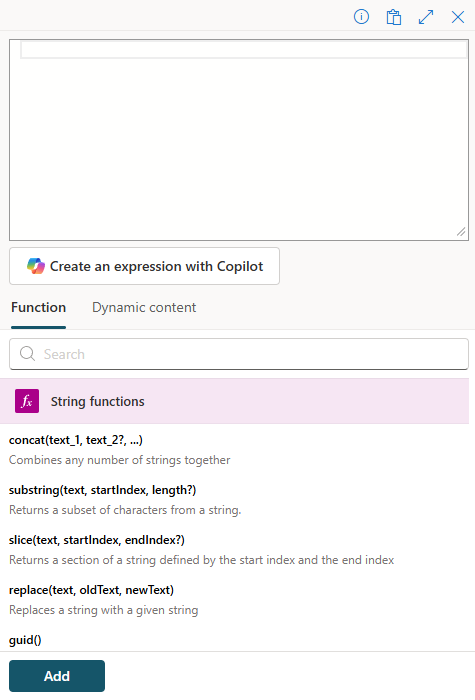
Select Add to insert the completed expression into the field.
Tip
You don't need to write expression syntax by hand. Describe what you need in plain language in the Copilot pane. For example, say "Join the requester's first name and last name with a space" and Copilot generates the concat expression for you. This is especially useful when you're combining multiple dynamic values or formatting dates.
In the IT support scenario, expressions handle the cases that a simple dynamic content reference can't. Concatenating the requester's given name and surname from the Office 365 profile into a single Full name field for the email body requires an expression. Formatting the email subject line by combining a static prefix with the original email subject from the trigger also requires an expression, or a Copilot-generated formula that produces the same result.
Branch the flow with conditions
Not every request follows the same path. When a flow needs to evaluate a value and take different actions depending on the result, you use a condition to create an if/then/else branch. For example, before creating a ticket in the IT support scenario, the flow needs to answer a key question: does the requester already have an open ServiceNow ticket? If yes, skip creation and proceed to the confirmation email. If no, create the ticket first.
Conditions are built-in actions from the Control connector. When you add a condition, the flow splits into a True branch and a False branch, and follows the branch that matches the evaluated result.
To add a condition:
Select + below the step where you want the branch to appear, then select Add an action.
In the Add an action pane, select or search for Control.
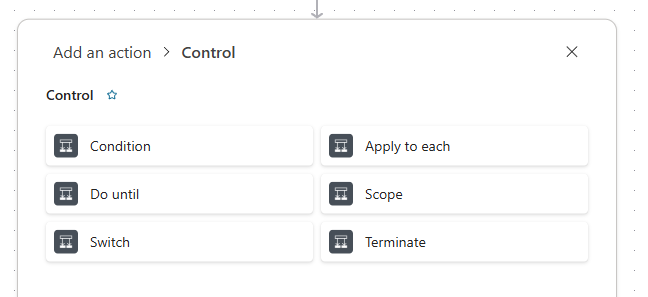
Select Condition from the list of Control actions.
In the condition card, configure the comparison:
- In the Choose a value field on the left, insert a dynamic content value or expression.
- Select an operator from the dropdown (options include is equal to, contains, is greater than, and more).
- In the Choose a value field on the right, enter the comparison value.
The following screenshot shows a condition comparing the sender's email address from a trigger step (When a new email arrives) with the manager's email address retrieved by a Get manager action:
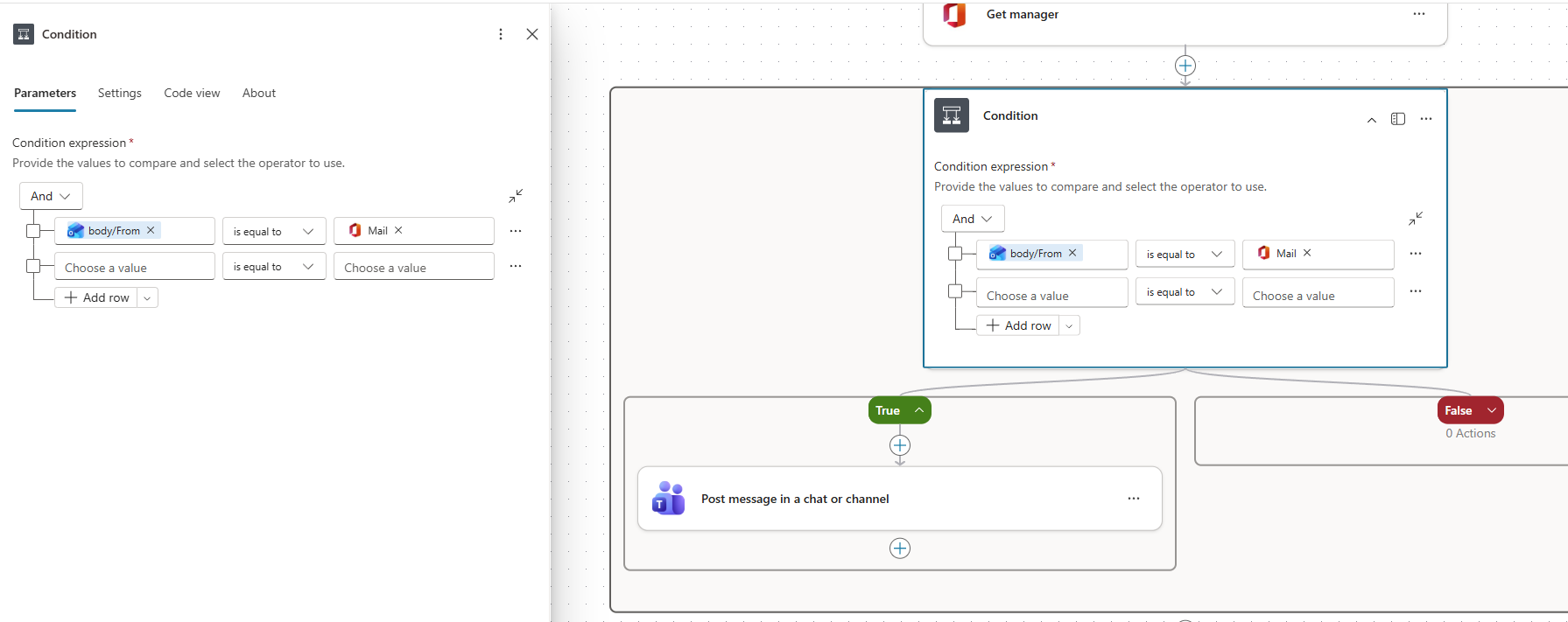
Add the actions for the True branch and the False branch. Each branch can contain multiple actions.
In the IT support scenario, the condition evaluates whether the ServiceNow search returned any open tickets. If True (a ticket already exists), the flow skips to the confirmation email and includes the existing ticket number. If False (no ticket found), the flow first creates a new ServiceNow ticket, then sends the confirmation with the new ticket number.
Tip
If your scenario requires more than two paths, use the Switch action from the Control connector instead. Switch evaluates an expression and creates a named branch for each matching case, which is useful when routing flows based on request category, priority level, or department.
Run actions in parallel
By default, actions in an agent flow run sequentially: each step waits for the previous one to complete. When two or more actions are independent of each other, you can run them simultaneously using parallel branches. In the IT support scenario, for example, sending the confirmation email and posting the Teams notification don't share any dependencies. Running them in parallel reduces the total time the flow takes to complete.
To add a parallel branch:
Below the step where you want the parallel split, right-click the + and select Add a parallel branch. A new branch appears alongside the existing flow path, and the Add an action pane opens for the new branch.
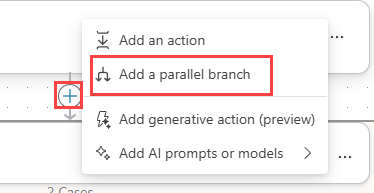
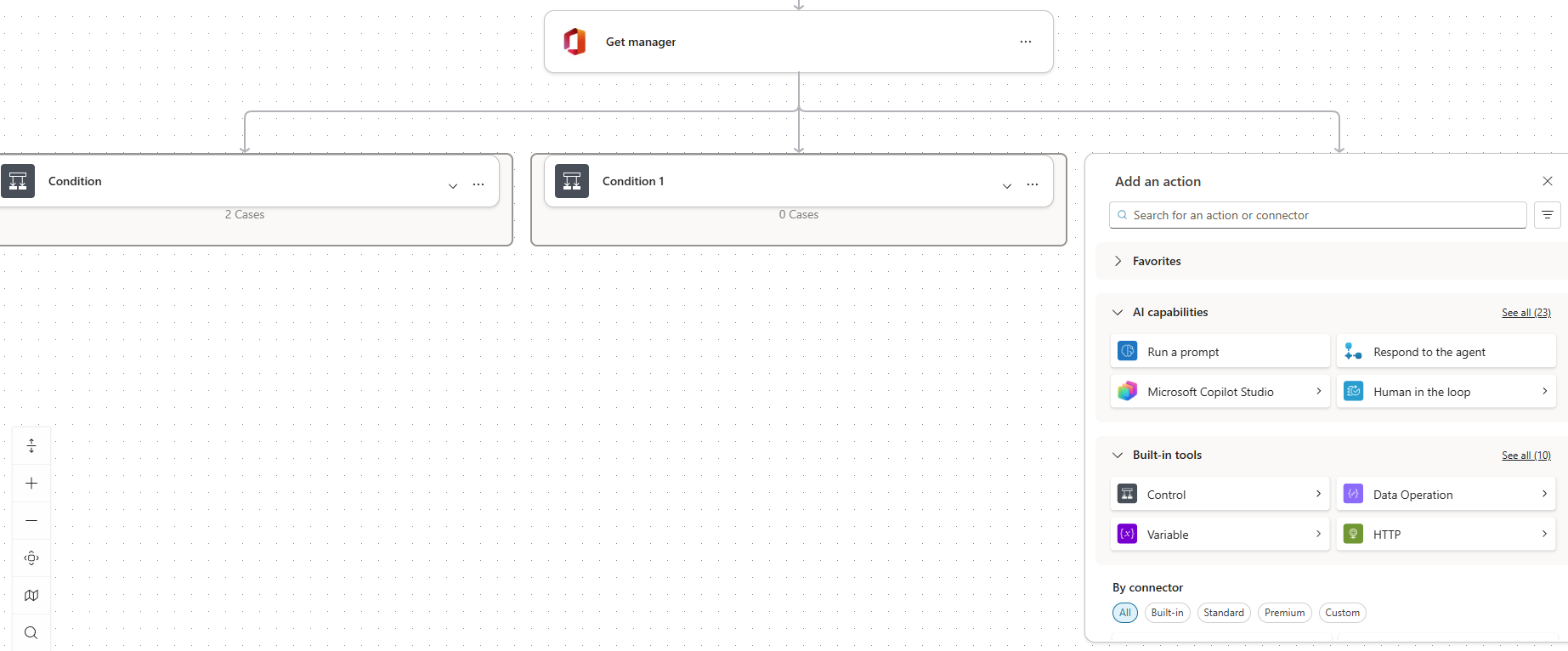
Add actions to each branch. You can add additional branches at the same split point to run more than two actions in parallel.
To resume the flow after all branches finish, add an action below the parallel group. In that action's Settings tab, configure the Run after property to reference the last action in each branch. The flow waits for all branches to complete before continuing.
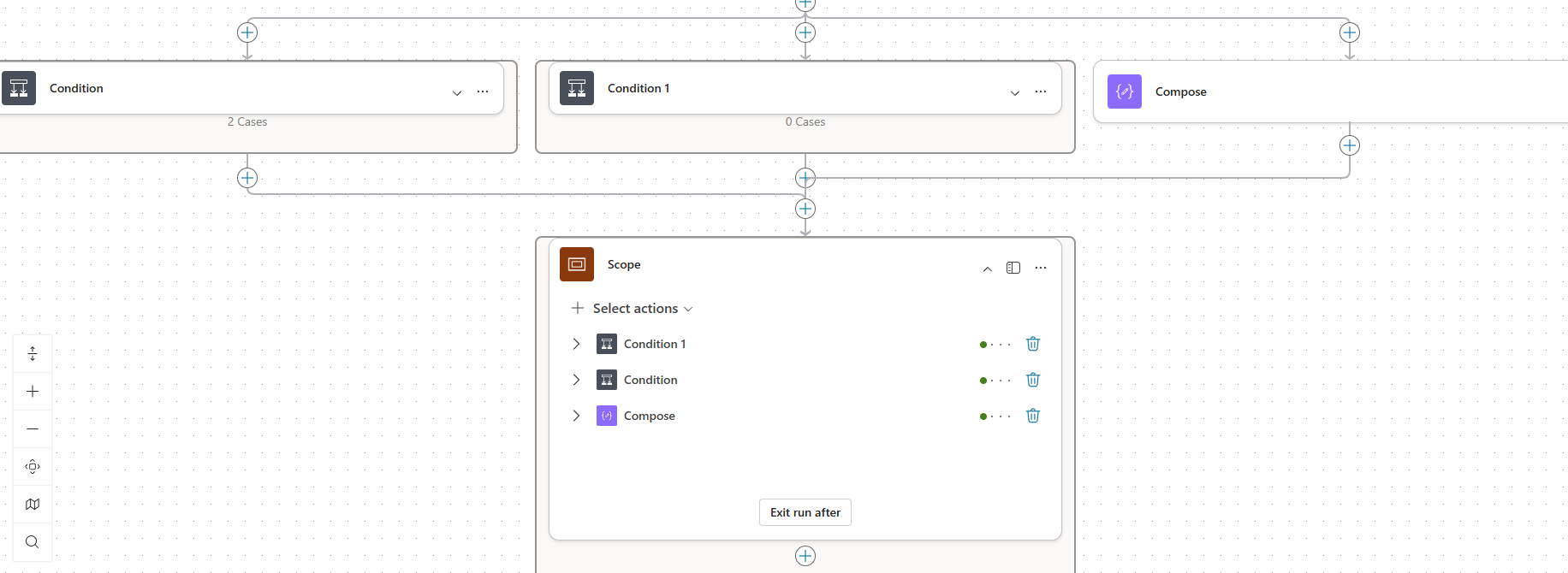
Note
Configuring Run after on a join action is also how you implement error-handling paths. When a branch fails, the flow can route to a fallback action rather than stopping entirely.
Process multiple results with loops
When an action returns a list of items, you need a way to process each one individually. Agent flows provide two loop types from the Control connector for this purpose.
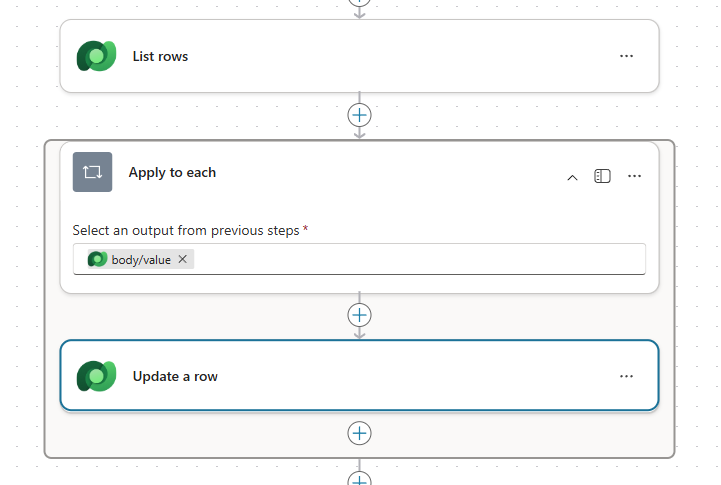
Apply to each: Iterates over every item in a list. Use this when an earlier action returns an array of records and you need to act on each one. For example, a List rows action that retrieves a set of contacts returns an array. Apply to each lets you process every contact in that result. Place the actions you want to repeat inside the loop body, and the loop runs them once per item automatically.
Until: Repeats a set of actions until a condition becomes true. Use this for retry scenarios, such as polling a status field until it changes to Resolved, or retrying a connection until it becomes available.
The following screenshot shows an Apply to each loop configured to process each contact retrieved by a List rows action:
Important
An Until loop without a clear exit condition runs indefinitely and consumes resources. Always configure a maximum iteration count or a time limit in the loop's settings, in addition to the condition that ends the loop. For most scenarios, Apply to each is the safer choice because it operates on a finite list and stops automatically when all items are processed.
In the IT support scenario, Apply to each is useful if the ServiceNow search returns multiple open tickets for the same requester and you need to evaluate or log each one before deciding how to route the flow.