Enable diagnostic logging in Microsoft Foundry
Visibility is a key part of securing AI workloads. Even with strict access controls, secret management, and network isolation, you still need a way to verify how your Microsoft Foundry environment behaves over time. Diagnostic logging provides that visibility by recording configuration changes, access events, and resource activity across your environment.
Microsoft Foundry integrates with Azure Monitor and Azure Log Analytics to collect and route logs from the services that support your AI workloads. By enabling diagnostic settings, you can send operational and security data to centralized destinations where it can be analyzed, visualized, or correlated with Defender for Cloud alerts and recommendations.
Improve visibility with diagnostic logging
Diagnostics help you understand what's happening inside your environment and respond quickly when something changes or goes wrong. Without logs, you might miss configuration drift, failed authentication attempts, or unexpected access to sensitive data.
Enabling diagnostic logging provides several benefits:
- Operational visibility into configuration changes, requests, and user actions
- Security insights that reveal anomalies or suspicious access
- Centralized data collection across Foundry and its connected resources
- Compliance support through auditable activity records
Logs form the evidence base for both proactive monitoring and post-incident investigation.
Enable diagnostic settings for Microsoft Foundry
You can configure diagnostic settings at the resource level in Microsoft Foundry. Resource-level diagnostics capture management operations such as configuration changes, access actions, and service health events.
Some operational logs, like inference requests, come from underlying Azure Cognitive Services resources connected to your resource. To get full visibility, enable diagnostics both at the resource level and on those connected services.
In the Azure portal, open your Microsoft Foundry resource.
Select Diagnostic settings under Monitoring.
Choose + Add diagnostic setting.
Give the setting a clear name, like FoundryActivityLogs.
Select the log categories available for your resource, such as Audit, RequestResponse, or AllMetrics.
Category names can vary by service, so use the portal list as the source of truth.
Choose one or more destinations:
- Log Analytics workspace for querying and analysis
- Storage account for long-term retention
- Event Hub for streaming to external SIEM tools
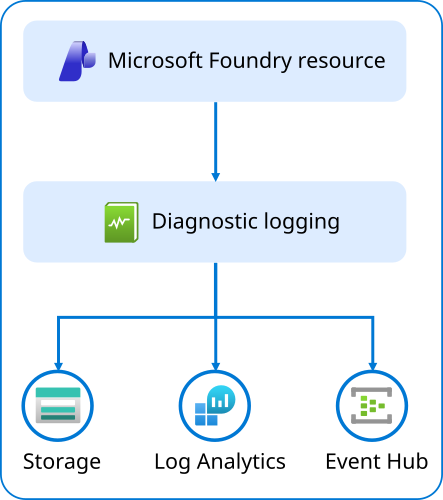
Make sure the destination resource is in a region that meets your organization's data residency and retention policies.
For configuration details, see Create diagnostic settings in the Azure portal.
Enable diagnostics for connected resources
Microsoft Foundry depends on several connected services, including Key Vault, Storage, and Private Link. Each produces logs that should be collected separately and routed to the same Log Analytics workspace or SIEM for correlation.
Enable diagnostic settings on connected resources to build a complete view of your AI environment:
- Azure Key Vault captures access events and policy changes.
- Azure Storage collects read, write, and delete operations.
- Private endpoints capture NSG flow logs for the subnets hosting private endpoints to analyze traffic patterns.
- Virtual networks capture network activity and help investigate connection behavior.
Resource-level diagnostics show management activity, while these connected resource logs capture data and inference operations. Together, they provide full coverage of your AI environment.
Route and analyze logs centrally
After diagnostics are enabled, use Azure Monitor, Log Analytics, or Microsoft Sentinel to analyze the data. Create custom dashboards or alerts that focus on critical indicators like failed logins, unauthorized API calls, or unusual data transfers.
For example, you can use a Kusto Query Language (KQL) query in Log Analytics to track write operations across your AI resources:
AzureActivity
| where ResourceProviderValue == "Microsoft.CognitiveServices"
| where OperationNameValue contains "Write"
| summarize Count = count() by ActivityStatusValue, Caller, ResourceGroup
You can also review insights in the Data and AI security dashboard in Microsoft Defender for Cloud, which aggregates security recommendations across Microsoft Foundry and related services. This dashboard is part of Defender for Cloud's overall recommendation system rather than a standalone Foundry feature.
Integrating diagnostics with these tools helps keep your AI workloads observable, auditable, and ready for investigation.
Maintain and protect diagnostic data
Diagnostics are only valuable if the data remains complete, retained, and secure. Use these practices to maintain a reliable log management process:
- Use Azure Policy to enforce diagnostic settings across new Foundry resources and connected resources
- Set retention periods in Log Analytics or Storage that align with compliance requirements
- Restrict access to log data using Microsoft Entra ID roles and least privilege
- Enable NSG flow logs to maintain visibility into private endpoint and subnet traffic
- Review log ingestion costs regularly and adjust categories or destinations as needed
Consistent retention, access control, and cost management ensure visibility stays both effective and sustainable.
When diagnostics and log routing are in place, your Microsoft Foundry environment becomes fully observable. You can trace actions across users, services, and networks, and respond quickly when issues arise. Combined with RBAC, Key Vault, and network isolation, diagnostic visibility completes your defense-in-depth approach to securing AI workloads.