Secure Microsoft Foundry secrets with Azure Key Vault (preview)
AI workloads depend on credentials, keys, and connection strings to connect models, datasets, and services. In Microsoft Foundry, these secrets are used to authenticate to data sources, APIs, and managed compute. If credentials are stored in configuration files or shared directly between users, they might be exposed or misused.
Azure Key Vault centralizes secret management. It lets you store and retrieve keys, passwords, certificates, and tokens while controlling access through Microsoft Entra ID. Using Key Vault keeps secrets encrypted, access logged, and permissions aligned with the least-privilege model already applied to your Foundry environment.
Secure shared environments with centralized secret management
When multiple teams share an AI environment, it can be difficult to track where credentials are stored or how they're used. Without a central vault, secrets might end up in scripts, training configurations, or deployment pipelines where they're vulnerable to exposure.
Using Azure Key Vault helps reduce that risk and provides several practical benefits:
- Centralized storage for secrets that support models, datasets, and pipelines
- Encryption by default for secrets at rest and in transit
- Granular access control through Microsoft Entra ID integration
- Auditing and monitoring through Defender for Cloud and Azure diagnostics
Centralized secret management creates one control point for both operational security and compliance. In short, it replaces scattered credential storage with consistent, traceable secret management that scales with your AI workloads.
Store and control access to secrets
Each Microsoft Foundry resource supports a single Key Vault connection across the resource and its associated projects. The connection is currently in preview and can only be created when no existing Key Vault connection is active.
- Use the Key Vault Secrets User role for identities that need to retrieve specific secrets.
- Assign the Key Vault Administrator role only to trusted operators who manage vault configuration.
- Enable managed identities for Foundry services and pipelines that require secret access to avoid storing credentials in code or configuration files.
Apply least privilege by limiting access to Get and List operations unless broader permissions are required. When temporary administrative access is needed, use Privileged Identity Management (PIM) for time-bound elevation.
For guidance on assigning roles, see Assign Azure role-based access control (RBAC) roles for Key Vault.
Integrate Key Vault with Microsoft Foundry
After permissions are configured, connect Foundry to your vault. In the Microsoft Foundry portal, go to Management center > Settings > Connections, select Add connection, and choose Azure Key Vault.
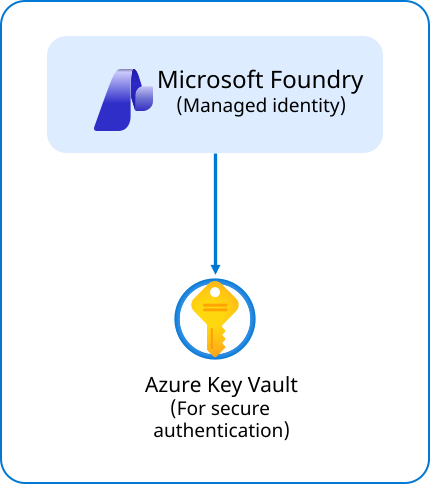
Connections define which vault and managed identity are used to retrieve secrets at runtime. This setup ensures that model deployments and data connections can authenticate securely without exposing credentials in logs or configuration files.
The diagram shows how Microsoft Foundry retrieves secrets from Azure Key Vault through a managed identity, allowing workloads to access required resources without embedded credentials.
A typical configuration might include:
- A Foundry project linked to a Key Vault that stores API keys and data source connections
- Managed identities assigned to the Foundry resource and compute resources for automatic secret retrieval
- Secret rotation enforced through Azure Policy or Defender for Cloud recommendations
Monitor and maintain Key Vault security
Managing secrets securely is an ongoing process. Use these practices to maintain a strong security posture:
- Enable diagnostic logging and send logs to Log Analytics or a SIEM for monitoring
- Review access patterns to detect unused or suspicious identities
- Use Azure Policy to enforce standards like soft delete, purge protection, and private endpoints
- Integrate with Defender for Cloud to receive alerts and recommendations related to Key Vault activity
Regular review and rotation keep your secrets aligned with policy and reduce the risk of long-term exposure. In short, treat secret management as a living part of your security posture, not a one-time configuration.
When secrets are centralized in Azure Key Vault and retrieved using managed identities, credentials stay protected by the same access controls that secure your Microsoft Foundry environment. With secret management in place, the next step is to isolate network communication for your AI workloads using managed virtual networks and Private Link.
Try it out
Test your Key Vault integration in a development environment to see how secret management works in practice.
Tip
If you'd like to follow along with the exercises, you can use your own development environment or create a free Azure trial account to test the configurations safely.
Your organization's Microsoft Foundry resource already connects to several data sources. You've been asked to secure the connection strings and API keys used by model deployments.
In the Azure portal, create or select a Key Vault.
In Key Vault, go to Access control (IAM), then select Add > Add role assignment.
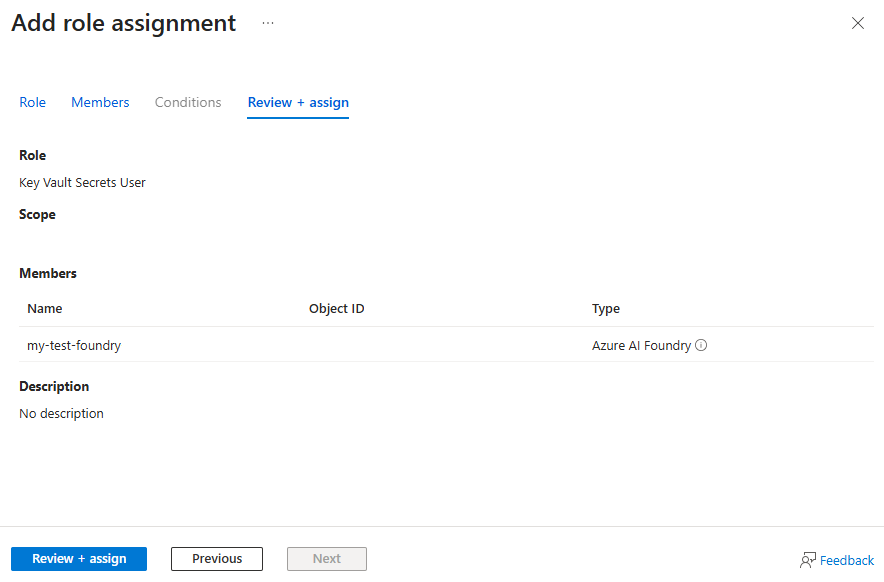
On the Add role assignment page, in the Role tab, search for and select Key Vault Secrets User.
On the Members tab, choose Managed identity, select the identity for Microsoft Foundry from the drop-down list, and select the appropriate Foundry resource.
On the Review + assign tab, review your settings, then select Review + assign.
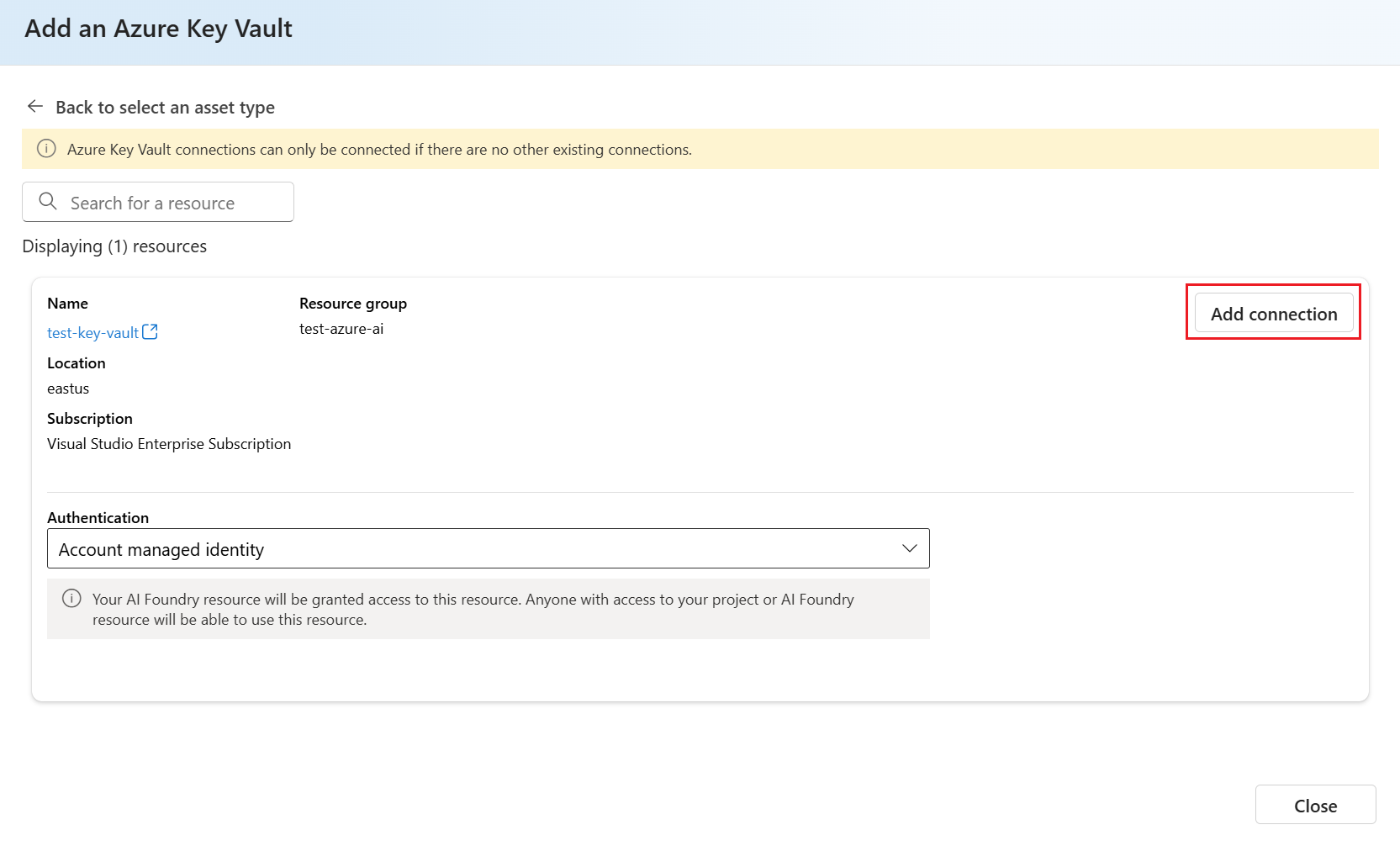
In the Microsoft Foundry portal, open Management center > Connected resources, select + New connection, and choose Azure Key Vault.
Select the vault and managed identity you configured, then select Add connection.
Note
If the Add connection button is unavailable, confirm that no existing Key Vault connection is active. Each resource supports only one Key Vault connection at a time.
Confirm that your Foundry project retrieves secrets from Key Vault and that no credentials appear in configuration files or logs.
Managed identities and Azure Key Vault work together to keep credentials out of local configuration files while maintaining secure, auditable access for AI workloads.