Test, validate, and publish a Fabric data agent
With the Lamna Healthcare data agent created and configured, you're ready to test it. In this unit, you learn how to validate agent responses using the built-in steps view, refine instructions when a response isn't what you expected, and publish and share the agent with colleagues.
Test with natural language questions
The chat pane is where users interact with the agent using plain English. For the Lamna Healthcare agent, clinical staff can ask questions about patient locations, room availability, and equipment assignments — questions like:
- "Which patients are admitted to rooms in the Surgical Services department?"
- "How many rooms in the Surgical Services department are currently occupied?"
- "Which vital sign monitors are assigned to rooms in the Surgical Services department?"
The agent displays its answer in the chat pane. Every response includes a steps dropdown — expand it to see how the agent interpreted your question and whether it queried the right entities.
Examine the steps and generated GQL
When you expand the steps dropdown, you see three pieces of information:
- Entity types and relationships: The agent identified in your question
- The GQL query: The agent generated to retrieve data from the ontology
- Intermediate reasoning steps that show how the agent mapped your natural language to graph concepts
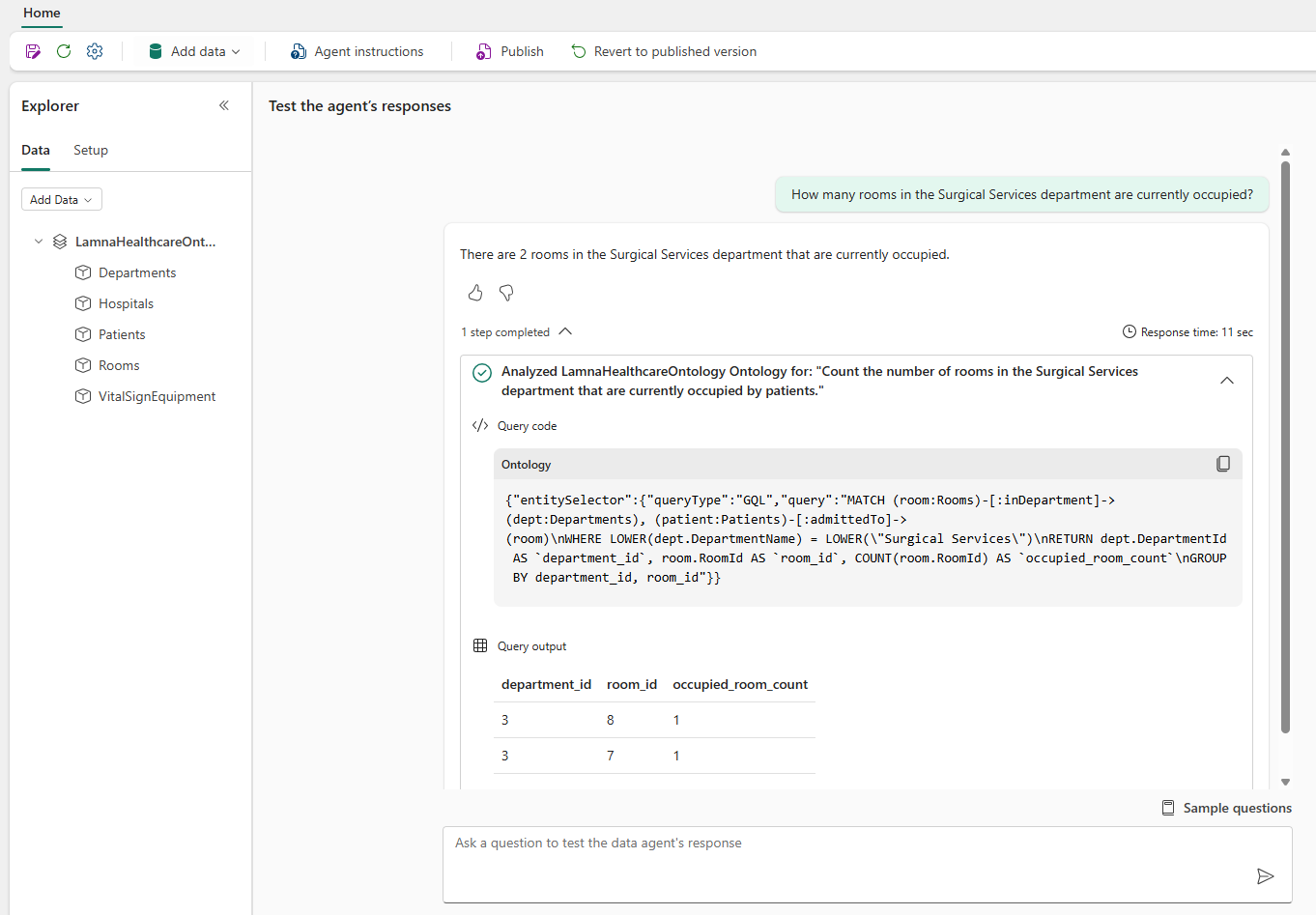
For a question like "How many rooms in the Surgical Services department are currently occupied?", the steps show whether the agent correctly identified the Room entity, filtered by the Surgical Services department, and counted only occupied rooms. When the steps look wrong, you know exactly where to refine.
If the steps show the agent used the wrong entity types or traversed relationships incorrectly, there's likely a gap in the instructions. Fabric data agents show their work, making it straightforward to identify and correct gaps in the agent's reasoning.
Refine with instructions
When an ontology is the data source, instructions are how you improve accuracy. When a response is wrong or the steps reveal incorrect reasoning, refining the instructions is the path forward. Microsoft's guidance on iterative improvement identifies four areas where targeted instructions have the most impact:
- Terminology: Map the words users naturally use to the entity types and relationships defined in the ontology. If your organization uses department nicknames or shorthand, instructions can bridge that gap.
- Reasoning steps: Give the agent a logical path to follow for common question patterns — for example, specifying which entity to start from and which relationships to traverse to reach an answer.
- Response behavior: Set expectations for how answers should be formatted — whether responses should include counts, lists, summaries, or a specific level of detail.
- Scope: Define what the agent should and shouldn't answer. Being explicit about the ontology's coverage prevents the agent from attempting questions it can't reliably answer.
After updating instructions, re-testing the same question confirms whether the change improved the agent's reasoning. This iterative cycle — test, examine steps, refine, repeat — is how an agent is shaped to reliably serve its intended audience.
Publish the agent
When testing confirms the agent provides accurate answers with sound reasoning, publishing creates a stable version for colleagues to use. Publishing requires a description — a field that carries more weight than it appears. A clear description serves two purposes: it guides colleagues on what the agent can answer, and it allows external AI systems like Copilot Studio to discover and invoke the agent programmatically. A good description explains both the agent's scope and its limitations.
Tip
The agent itself can help write its description. Asking it "What can you help me with?" generates a summary based on its ontology and instructions — a useful starting point.
After publishing, two versions of the agent exist side by side:
- Draft version: Remains editable, so testing and refinement can continue without affecting users querying the published agent
- Published version: The stable version that colleagues access when they use the shared link
The version toggle lets you switch between draft and published to compare how instruction changes affect responses — refine in draft, verify the improvement, then publish when confident.
Share the agent
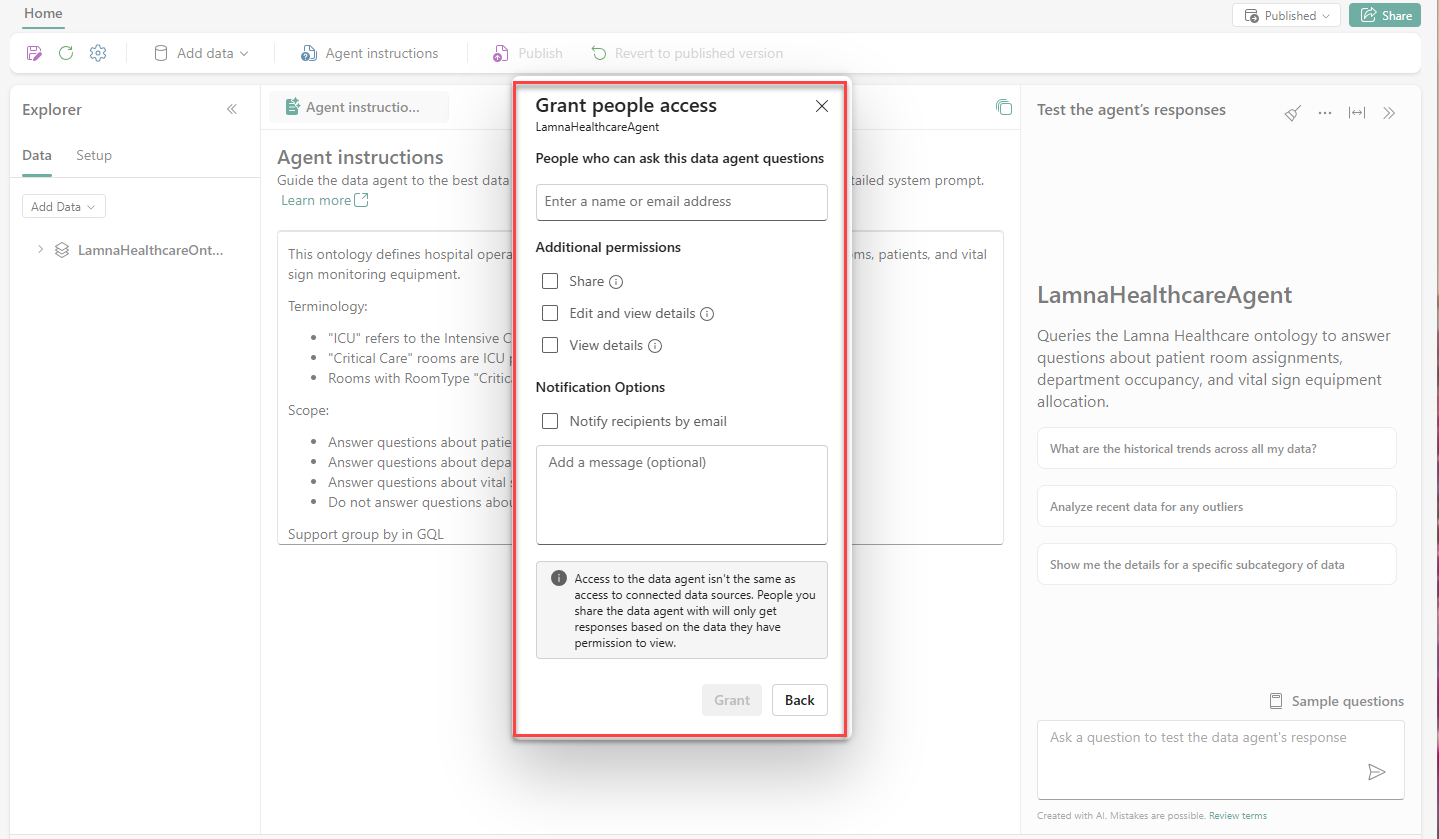
Sharing the agent generates a link that colleagues can use to access it directly. There are three permission levels, each controlling what recipients can do:
- No extra permission (default): Users can query the published version only. They see responses and can interact with the agent, but they can't view configurations, instructions, or the draft version.
- View details: Users can view configurations of both published and draft versions, query both, and examine instructions. They can't edit the agent or publish changes.
- Edit and view details: Full access to view, edit, and query both versions, and publish updates.
Important
For ontology-backed agents, recipients also need read access to the ontology item itself and the underlying data it's bound to. Without those permissions, queries fail even with a valid shared link.
With the agent published and shared, clinical staff at Lamna Healthcare can ask questions like "Which patients are admitted to rooms in the Surgical Services department?" and get answers in seconds — without writing a query.