Package, deploy, and consume a component
The availability indicator and device picker now move through their lifecycle correctly and call the Device, Utility, and Web API features the equipment-provisioning scenario needs. The remaining gap is distribution: turning that working code into something a maker adds to the request form without touching a line of it.
Validate the component before you package anything
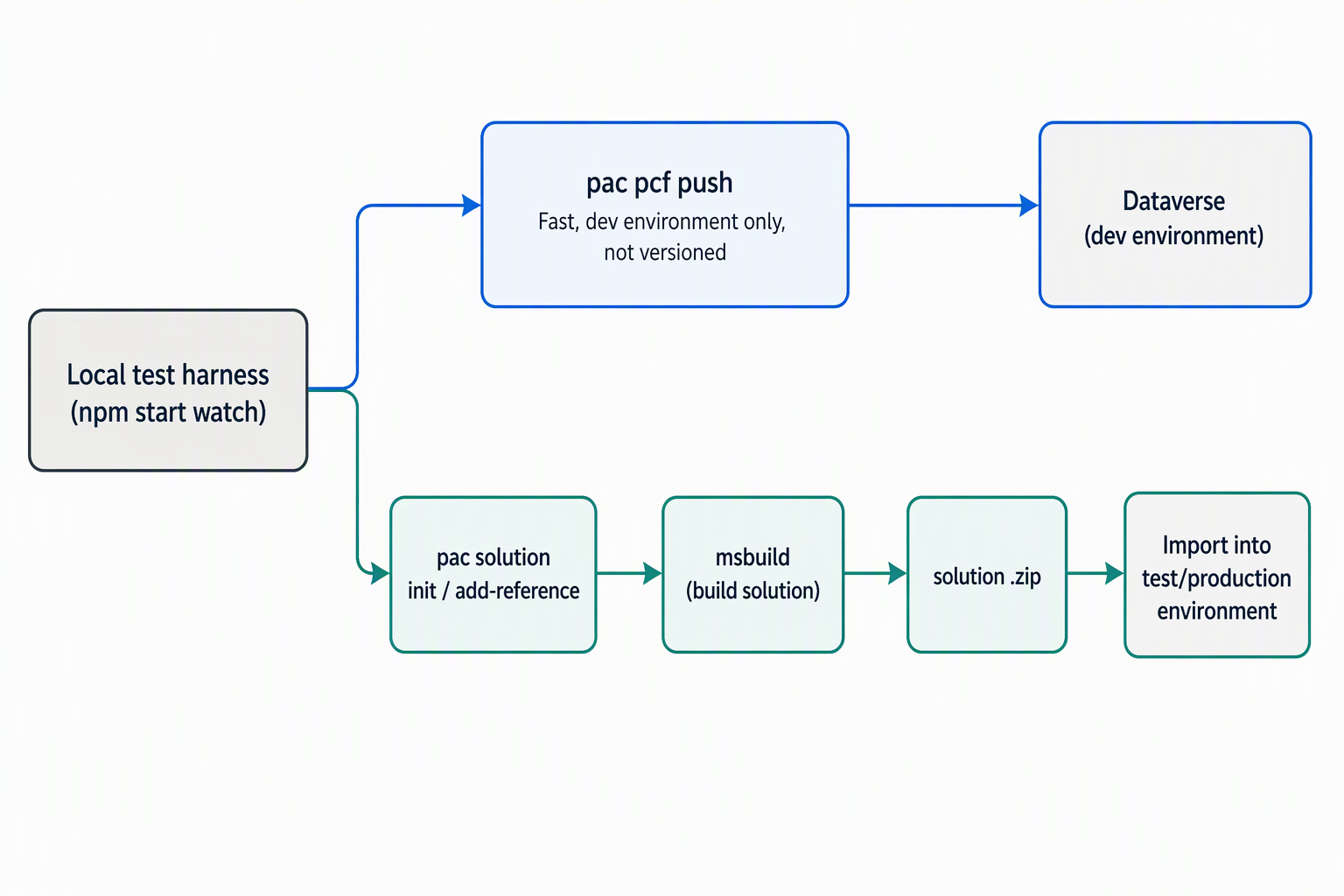
Before any solution file enters the picture, the Power Platform CLI gives you two ways to see the component running without a full deployment. Running npm start builds the component once and opens it in a local test harness in the browser. That's the same experience whether the component eventually lands in a model-driven app or a canvas app.
While you're actively iterating, npm start watch is the mode you reach for instead: it keeps that harness open and automatically rebuilds and reloads it every time you save a change to index.ts, one of its imports, or any resource file the manifest declares.
Use the test harness to confirm lifecycle logic and rendering: toggle the simulated properties, watch updateView react, and catch layout problems before Dataverse is even part of the picture.
Once the component looks right in the harness, pac pcf push --publisher-prefix <prefix> pushes it directly into a connected Dataverse environment. That registers it, so you can drop it onto a real form and see it work against live data.
This command skips the formal solution-build step entirely, so it's considerably faster than packaging a solution, but that speed comes with a trade-off: it bypasses the versioning and publisher controls a managed solution enforces, which makes it a poor fit for anything beyond your own inner development loop. Running it requires an authenticated connection first, set up with pac auth create --environment <environment ID, URL, or name>.
Guiding question: You've been iterating on the device picker using
pac pcf pushagainst your own development environment all week. What has to change before that same component is ready to hand to a maker in a test environment?
Choose the right path for where the component is headed
The test harness and pac pcf push exist for one audience: you, while you're still shaping the component's logic. The moment another person or another environment needs the component, a packaged solution becomes the only supportable path. The table contrasts both:
| Path | Purpose | When to use | Output |
|---|---|---|---|
Test harness (npm start) |
Validate lifecycle logic and rendering in isolation | While writing or debugging component code, before touching Dataverse | Component running in a browser tab, no environment involved |
pac pcf push |
Register the component directly in a connected environment for live testing | Inner-loop testing against real form data, still in your own development environment | Component available on forms in that environment, not versioned |
Solution package (pac solution + build) |
Produce a distributable, versioned artifact | Moving the component to a test or production environment, or handing it to a maker | A solution .zip file ready to import |
Each row moves further from the author's own machine and closer to something durable. The solution package is the one path on this list built for application lifecycle management, so it's the one you rely on for anything beyond your own testing.
Package the component into a solution
A code component has to live inside a Dataverse solution before it can move across environments or reach a maker who didn't write it. The Power Platform CLI scaffolds that solution project, references the existing PCF project, and builds the result into an importable file:
pac solution init --publisher-name EquipmentProvisioning --publisher-prefix equip
pac solution add-reference --path .\AvailabilityIndicator
msbuild /t:restore
msbuild
pac solution init creates the solution project and its publisher details. pac solution add-reference points that project at the PCF component's folder, so the build picks up its manifest and compiled code. The msbuild step then produces the actual solution file.
The first build needs msbuild /t:restore to pull down the project's NuGet dependencies before anything compiles; every build after that only needs plain msbuild. If you have .NET SDK 6 or later installed, dotnet build is the modern equivalent and skips that separate restore step entirely.
By default, msbuild creates a Debug build, which produces an unmanaged solution. Once that first build succeeds, run msbuild /p:configuration=Release when you need a managed solution package.
Unmanaged solutions stay editable, which suits the development environment where you're still iterating on the component itself. Managed solutions lock customizations down, which is exactly what a test or production environment expects from anything imported into it. The built file lands in the project's bin\debug or bin\release folder depending on which configuration you ran.
Deploy the solution to its target environment
With a solution .zip in hand, getting it into the target environment is an import operation, not a code change. You, or whoever owns the release, import the file manually through the Power Platform admin center or maker portal's solution-import experience. Or you automate that same import step through Power Platform Build Tools as part of a release pipeline.
Either route requires the System Administrator, System Customizer, or Environment Maker security role in the target environment. Importing a solution is as much a permissions question as a technical one.
The pipeline route matters more as the number of target environments grows: importing a managed solution by hand into one test environment is reasonable, but repeating that by hand across several environments invites the kind of drift a pipeline avoids.
Let a maker add the component to the form
Once the solution is imported, the component shows up in the environment as an available control, and this is where the work shifts from developer to maker. Adding the availability indicator to the device-status column on the request form, or the device picker to a subgrid listing eligible devices, happens entirely in the form or view designer. No code is required at that point.
The maker selects the column or subgrid, picks the custom control from the list of available components, and configures its manifest-declared properties. These are the same property and data-set nodes you defined back when you built the manifest.
That configuration step is the only part that differs between app types. A code component's definition and implementation work identically in a model-driven app and a canvas app. But a model-driven form designer and a canvas app's property pane expose that configuration differently.
Either way, the maker never sees init, updateView, or the Web API call you wrote. They see a control that behaves like any other field or subgrid on the form, which is the whole point of building it this way.
Learn more about importing solutions into an environment.
Taken together, the three prior units and this one cover the full path a code component travels. It fires through its lifecycle events against a manifest you defined, and reads and writes through Device, Utility, and Web API calls you implemented. It now reaches the request form as a packaged, deployed control a maker configures without opening a code editor. The knowledge check that follows checks how well that path holds together.