Exercise - Bringing your music video to life
Objective
Turn your music video concept and storyboard from Module 1 into a short visual teaser using Microsoft Copilot, Microsoft Designer, and Clipchamp.
Materials Needed
- Laptop or desktop with internet access
- Access to Microsoft Copilot, Designer, and Clipchamp
- Your completed concept and storyboard from Module 1
- The same song used in Module 1
- USB drive or cloud storage to save your work
Step-by-Step instructions
Part 1: Review and choose key scenes
- Open your storyboard and concept notes from Session 1
- Pick 3–4 important scenes that would look strong as visuals
- Choose one “signature shot"—a key moment that defines your video
Part 2: Create scene images in Microsoft Designer
Open Microsoft Designer
For each scene, use a prompt like:
"Create a cinematic image for a music video scene where [describe the scene]. The mood should be [emotion]. Use [visual style or color palette]."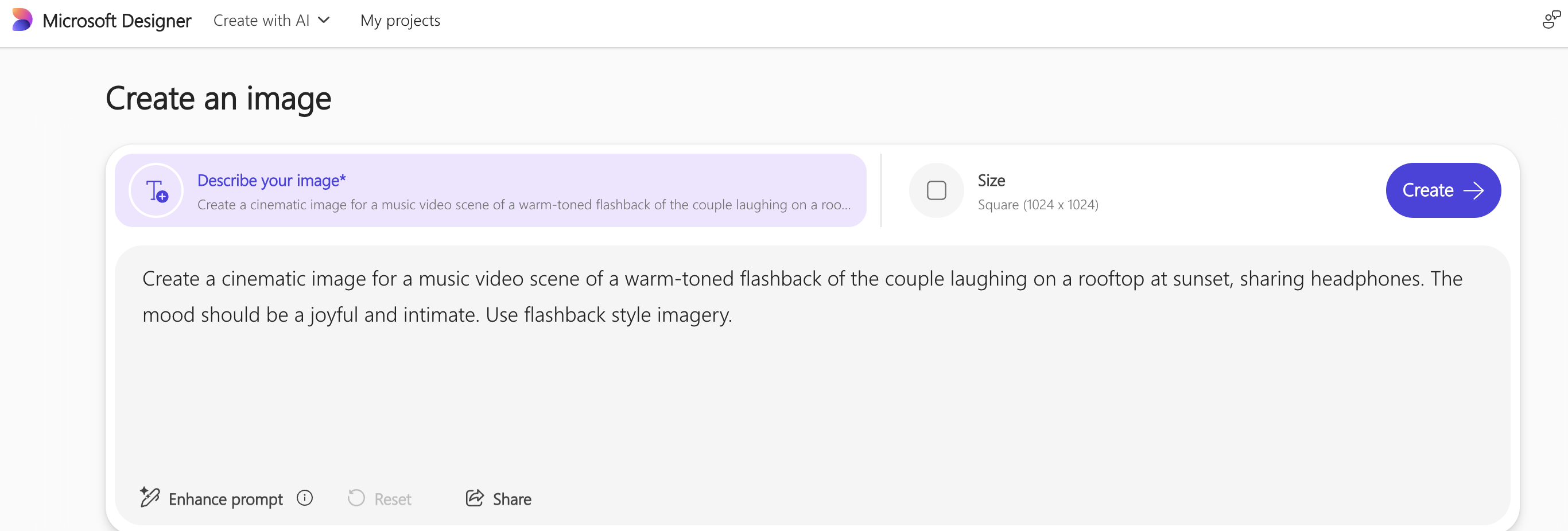
Try different angles or styles for your signature shot
Save your favorite images for later use
Part 3: Generate transitions and effects with Copilot
Open Microsoft Copilot
Ask Copilot to describe creative transitions: "Suggest video transitions for a scene moving from [Scene 1] to [Scene 2]. The song's mood is [mood]."
Get visual effects ideas for your signature shot: "Describe visual effects that would enhance a scene showing [signature shot]. The effects should match a [genre] song with themes of [theme]."
Save Copilot's suggestions for use in your video editor
Part 4: Build your teaser in Clipchamp
Open Clipchamp and create a new project (16:9 aspect ratio)
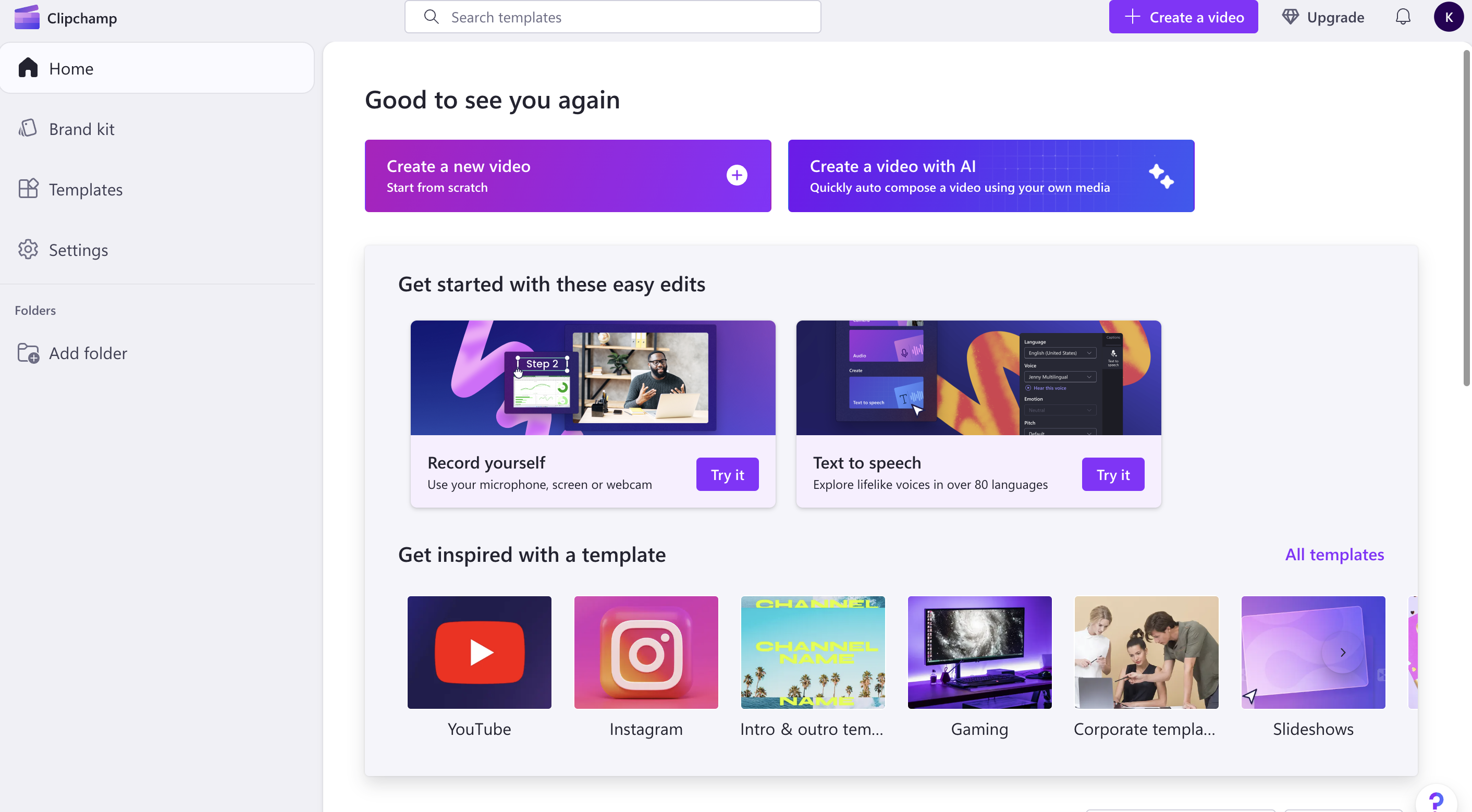
Import your saved images from Designer
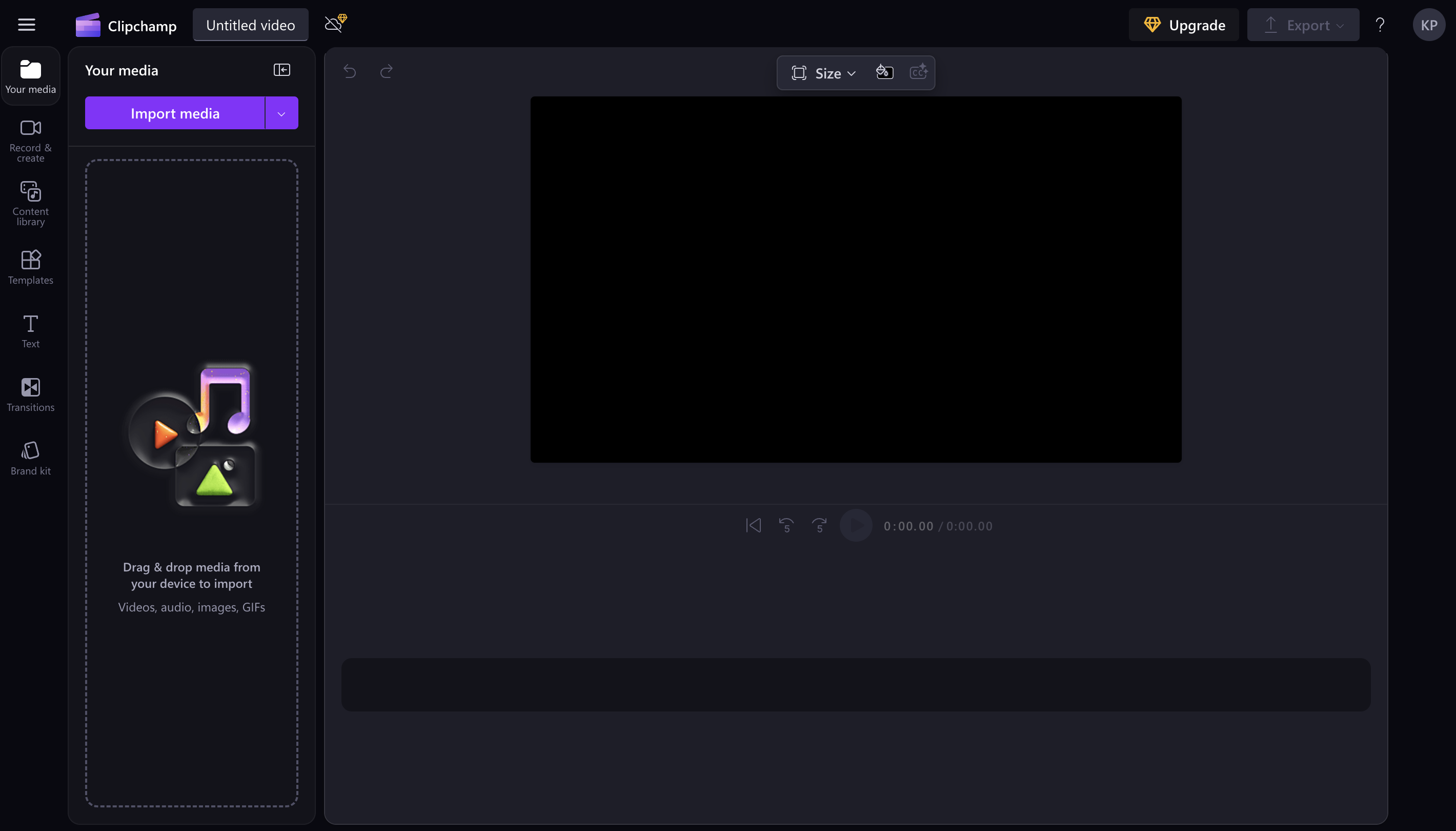
Use Clipchamp's AI tools to:
Arrange your scenes in order
Add transitions suggested by Copilot
Insert any text from your original concept
Apply visual effects to the signature shot
Sync everything to your selected song
Export a 15–30 second teaser of your music video
Part 5: Reflect on the process
- Watch your teaser alongside your original storyboard
- Reflect on how AI tools helped you.