Create a declarative agent
Copilot Studio provides a no-code interface for building AI agents.
Prerequisites
In order to build declarative agents in Copilot Studio:
- Users and makers must have a license to use Microsoft 365 Copilot.
- Makers must have permissions to create in and have access to a Copilot Studio environment. If you don't already have access to Copilot Studio, depending on the configuration of your Microsoft 365 organization, you may be able to create a trial account.
Create declarative agents in Copilot Studio
Makers can use Copilot Studio to build both custom agents and declarative agents.
Custom agents are created using the main agent creation flow via either Create > New agent or Agents > New agent.
Declarative agents, on the other hand, are built specifically for Microsoft 365 Copilot. To create a declarative agent, you must navigate to Agents in the left side navigation panel, select Microsoft 365 Copilot from the list of agents, then select Add on the Agents card. You're sent to the conversational authoring experience to create a declarative agent.
You can create agents using the conversational authoring experience, which uses generative AI to configure your agent, or skip to manually configure your agent's properties. Copilot Studio provides a test canvas that allows you to validate your agent's behavior as you continue to refine it, before publishing to Microsoft 365 Copilot.
Define instructions, knowledge, and tools
You can create an agent that is defined only by the instructions you provide. In this case, any agent responses are provided from the generative AI's own knowledge. You can also add enterprise data sources to expand the knowledge of your agent and tools to expand its capabilities. In this module, you learn to define instructions and add custom knowledge to your agent.
Publish agents to Microsoft 365 Copilot and Microsoft Teams
You publish your agent to Microsoft 365 Copilot from Copilot Studio. The Availability options page of your agent provides options for distributing your agent:
| Availability option | Description |
|---|---|
| Share Link | Share a deep link into Microsoft Teams to invoke the published agent. Opening the link in the tenant opens a chat experience with the agent. |
| Show to my teammates and shared users | Grant access to others to participate in authoring the agent, or to security groups to grant them access to use the agent in Microsoft 365 Chat or Teams. |
| Show to everyone in my org | Submit to the tenant admin to add the agent to the organizational catalog for all tenant users to install as desired. |
| Download as a .zip | Download as a zip folder. You can manually upload to Teams/Microsoft 365 Copilot to submit to the admin to review, or upload directly to the organizational catalog. |
Access agents in Copilot Studio
After you create a declarative agent, you can access it in Copilot Studio on the Microsoft 365 Copilot agent page under the Agents tab.
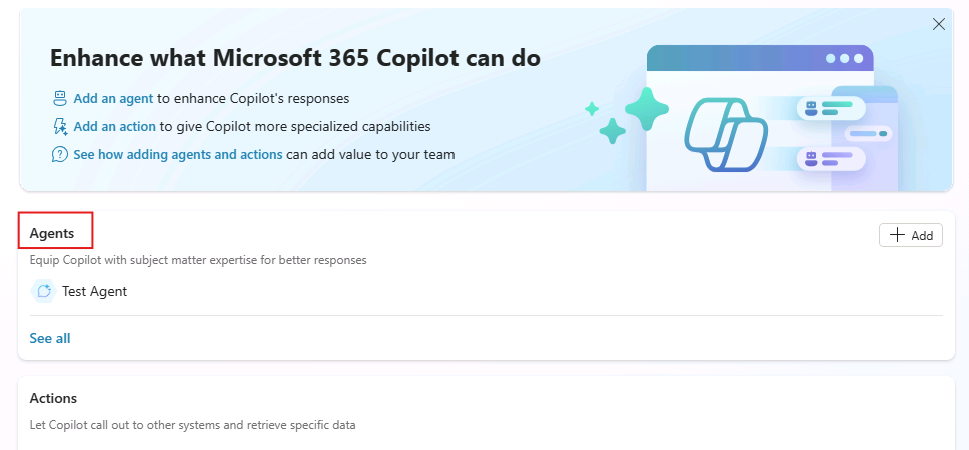
The declarative agent is also visible on the Tools page. Because the agent isn't a custom agent, it doesn't appear in the main agents list.