Exercise - Integrate knowledge and actions
In this exercise, learners will enhance their declarative agent for Microsoft 365 Copilot using TypeSpec. They gain foundational skills in adding capabilities such as web content, OneDrive/SharePoint integration, Teams messages, and more, while testing and provisioning the agent to ensure proper functionality.
Task 1: Integrate web content knowledge
Goal: Add web content as a knowledge source for your declarative agent, enabling it to use Bing's search index to respond to user prompts.
Open Visual Studio Code.
Open the
main.tspfile in your project.Add the following code snippet to include the
WebSearchcapability in theMyAgentnamespace:namespace MyAgent { op webSearch is AgentCapabilities.WebSearch<TSites = [ { url: "https://learn.microsoft.com", }, ]>; }Save the file.
In the Lifecycle pane of the Microsoft 365 Agents Toolkit, select Provision to apply the changes.
Reload the page in the Copilot application to activate the web content capability.

Note
Not specifying the TSites array causes all web content to be available to the agent.
Task 2: Add OneDrive/SharePoint integration
Goal: Enable your declarative agent to access and use OneDrive and SharePoint content as knowledge sources.
Open the
main.tspfile in your project.Add the following code snippet to include the
OneDriveAndSharePointcapability in theMyAgentnamespace. Replace the URL with a valid SharePoint site URL from your organization:namespace MyAgent { op od_sp is AgentCapabilities.OneDriveAndSharePoint<TItemsByUrl = [ { url: "https://contoso.sharepoint.com/sites/ProductSupport" } ]>; }Save the file.
In the Lifecycle pane of the Microsoft 365 Agents Toolkit, select Provision to apply the changes.
Reload the page in the Copilot application to activate the OneDrive/SharePoint capability.
Note
- URLs should be full path to SharePoint items (site, document library, folder, or file). You can use the "Copy direct link" option in SharePoint to get the full path or files and folders. Right-click on the file or folder and select Details. Navigate to Path and select the copy icon.
- Not specifying the
TItemsByUrlarray (or the alternativeTItemsBySharePointIdsarray) causes all OneDrive and SharePoint content in your Microsoft 365 organization that is available to the logged in user to be available to the agent.
Check your work: Add OneDrive/SharePoint integration
To validate the integration:
- Navigate to the Copilot application.
- Select your declarative agent.
- Ask a question that requires OneDrive or SharePoint knowledge (e.g., "What documents are available in the ProductSupport site?").
- Confirm that the agent provides a response based on the specified SharePoint site.

Task 3: Incorporate Teams messages
Goal: Allow your declarative agent to use Teams messages, including channels, teams, and meeting chats, as knowledge sources.
Open the
main.tspfile in your project.1Add the following code snippet to include the
TeamsMessagescapability in theMyAgentnamespace. Replace the URL with a valid Teams channel or team URL from your organization:namespace MyAgent { op teamsMessages is AgentCapabilities.TeamsMessages<TUrls = [ { url: "https://teams.microsoft.com/l/team/..." } ]>; }Save the file.
In the Lifecycle pane of the Microsoft 365 Agents Toolkit, select Provision to apply the changes.
Reload the page in the Copilot application to activate the Teams messages capability.
Note
- The URL in the
urlproperty must be well formed links to a Teams chat, team, or meeting chat. - Not specifying the
TUrlsarray causes all Teams channels, teams, meetings, 1:1 chat, and group chats in your Microsoft 365 organization that is available to the logged in user to be available to the agent.
Check your work: Incorporate Teams messages
To validate the integration:
- Navigate to the Copilot application.
- Select your declarative agent.
- Ask a question that requires Teams messages knowledge (e.g., "What was discussed in the last team meeting?").
- Confirm that the agent provides a response based on the specified Teams messages.

Task 4: Include email knowledge
Goal: Enable your declarative agent to use email from the user's mailbox or a shared mailbox as a knowledge source.
Open the
main.tspfile in your project.Add the following code snippet to include the
Emailcapability in theMyAgentnamespace:namespace MyAgent { op email is AgentCapabilities.Email<TFolders = [ { folder_id: "Inbox" } ]>; }Save the file.
In the Lifecycle pane of the Microsoft 365 Agents Toolkit, select Provision to apply the changes.
Reload the page in the Copilot application to activate the email knowledge capability.
Note
- This example accesses the user of the agent's mailbox. To access a shared mailbox instead, add the optional shared_mailbox property set to the email address of the shared mailbox.
- The TFolders array limits the mailbox access to specific folders. To access the entire mailbox, omit the folders array.
Check your work: Include email knowledge
To validate the integration:
- Navigate to the Copilot application.
- Select your declarative agent.
- Ask a question that requires email knowledge (e.g., "What emails are in my inbox?").
- Confirm that the agent provides a response based on the specified email folder.

Task 5: Add image generator
Goal: Enable your declarative agent to generate images based on user prompts.
Open the
main.tspfile in your project.Add the following code snippet to include the
GraphicArtcapability in theMyAgentnamespace:namespace MyAgent { op graphicArt is AgentCapabilities.GraphicArt; }Save the file.
In the Lifecycle pane of the Microsoft 365 Agents Toolkit, select Provision to apply the changes.
Reload the page in the Copilot application to activate the image generator capability.
Check your work: Add image generator
To validate the integration:
- Navigate to the Copilot application.
- Select your declarative agent.
- Provide a prompt to generate an image (e.g., "Create an image of a sunset over mountains.").
- Confirm that the agent generates an appropriate image.

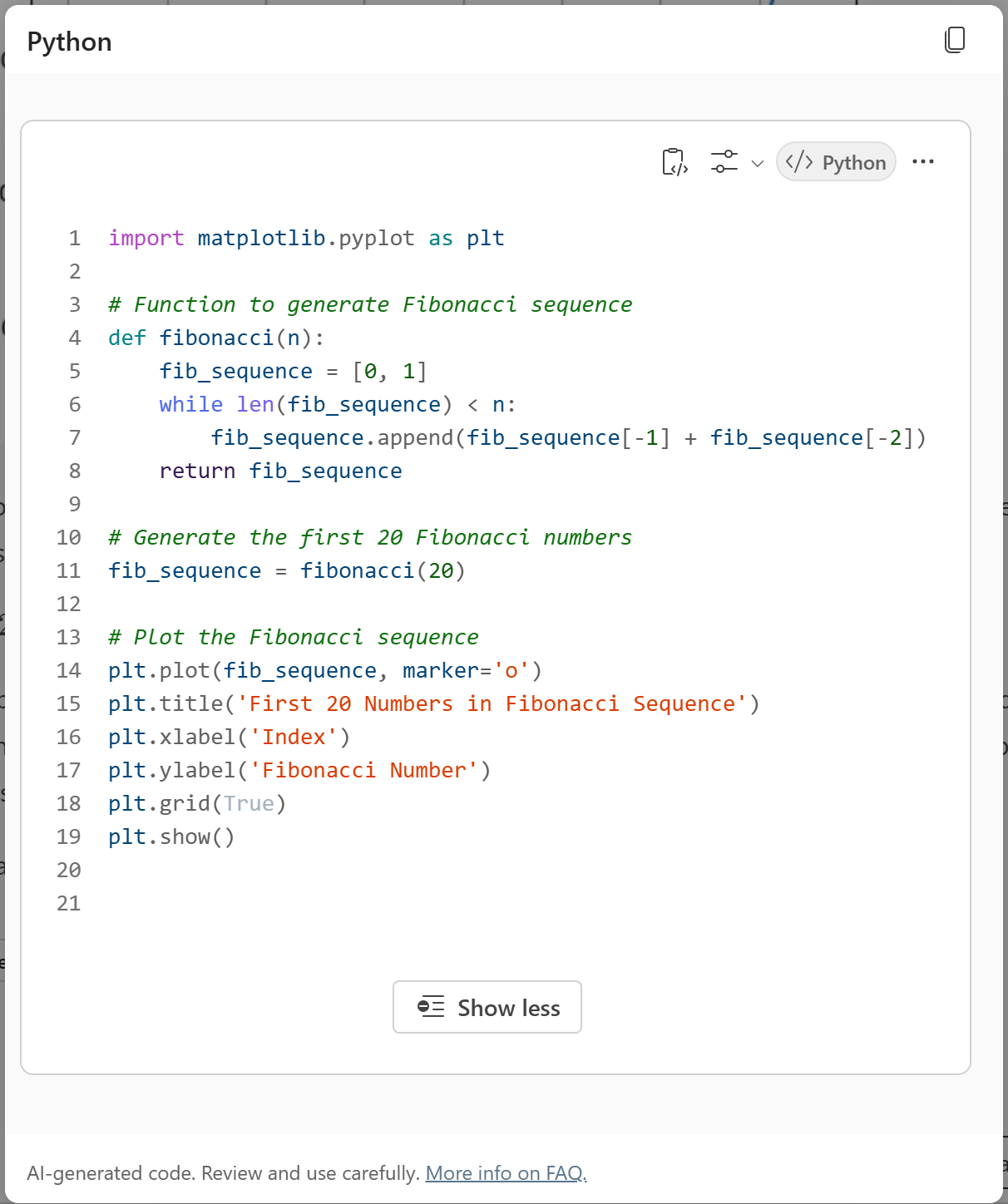
Task 6: Add code interpreter
Goal: Enable your declarative agent to solve complex tasks using Python code.
Open the
main.tspfile in your project.Add the following code snippet to include the
CodeInterpretercapability in theMyAgentnamespace:namespace MyAgent { op codeInterpreter is AgentCapabilities.CodeInterpreter; }Save the file.
In the Lifecycle pane of the Microsoft 365 Agents Toolkit, select Provision to apply the changes.
Reload the page in the Copilot application to activate the code interpreter capability.
Check your work: Add code interpreter
To validate the integration:
- Navigate to the Copilot application.
- Select your declarative agent.
- Provide a prompt requiring Python code execution (e.g., "Generate a graph of sales data.").
- Confirm that the agent generates the graph and provides the Python code used.