Generate messages and add human review
Each tier gets its own generated message, and the two higher-value tiers pause for a person to approve the return from their inbox.
On each Classify branch, add an M365 Copilot action to draft the message, configured the same way as Draft Not Eligible Message in the previous module Time Zone set, Prefer Async turned Off. For the between $10 and $50 path, rename the action
Draft Manager Approval Messageand set the message to:A customer wants to return order [Order Number]. Its shipping fee is between $10 and $50, which requires manager approval. Write a short approval request that begins with "Hello," and states the order number and why approval is needed. Output only the final message, ready to send.As in a previous step, replace
[Order Number]with the Order Number value from the trigger group in the picker. An approver should read which order they're approving, not a fill-in-the-blank template. Notice these prompts prescribe the greeting ("begins with "Hello,"") rather than listing what to avoid: telling the model what to write is more reliable than prohibiting what not to, because vague prohibitions invite it to reason about them inside the output.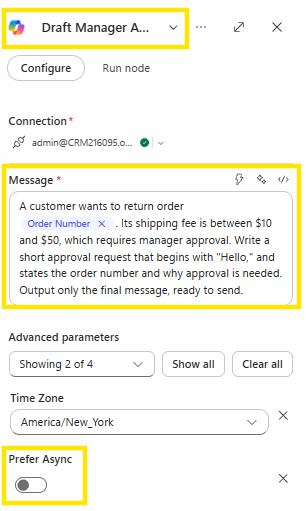
Note
💡 Tip: Recognize the pattern? It's the same tiered-approval idea as Module 2 (where order values above 1,000 and 10,000 USD escalated to a manager and an executive) applied here at return time, and delivered through Human review instead of the Approvals connector.
For the above $50 path, rename the action
Draft Senior Manager Approval Messageand set the message to:A customer wants to return order [Order Number]. Its shipping fee exceeds $50, which requires senior-manager approval. Write a short approval request that begins with "Hello," and states the order number and why approval is needed. Output only the final message, ready to send.For the Other path (no approval needed), rename the action
Draft Approved Messageand set the message to:Create a short customer-facing message that the return for order [Order Number] is approved. Write a single ready-to-send message with no placeholders.Add a Human review action to the between $10 and $50 (manager) path. Set up its connection, rename the action
Manager Review, and set the Title to:Need Return ApprovalFor the Message, use the Response dynamic value of Draft Manager Approval Message. Under Assigned to (first to respond), enter yourself as the reviewer. In production, this would resolve to the actual manager or senior manager for the order; assigning yourself keeps the lab self-contained. Set Channel to Outlook. The review will arrive as an actionable Request information email.
Note
💡 Tip: Prefer Microsoft Teams? Choose Teams as the Channel instead, and the review arrives as an actionable card in your Teams chat. The rest of the lab is unchanged.
Then, under Inputs, choose Yes/No. Inputs are the fields the reviewer fills in when responding, and the action requires at least one, so the panel flags a validation error until you add it. The input appears with the prompt Please select yes or no, which is what the reviewer will see beside the choice. Keep it as is.
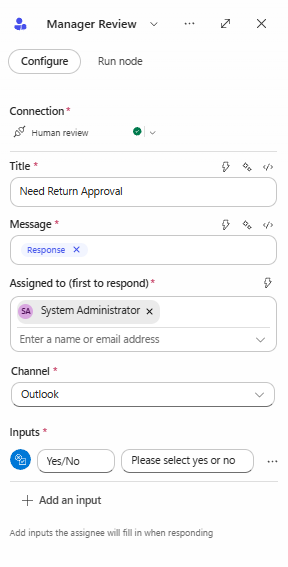
Repeat for the above $50 (senior manager) path: add a second Human review renamed
Senior Manager Review, with the titleNeed Return Approval, the Response dynamic value of Draft Senior Manager Approval Message as the message, yourself under Assigned to (first to respond), the Outlook channel, and a Yes/No input.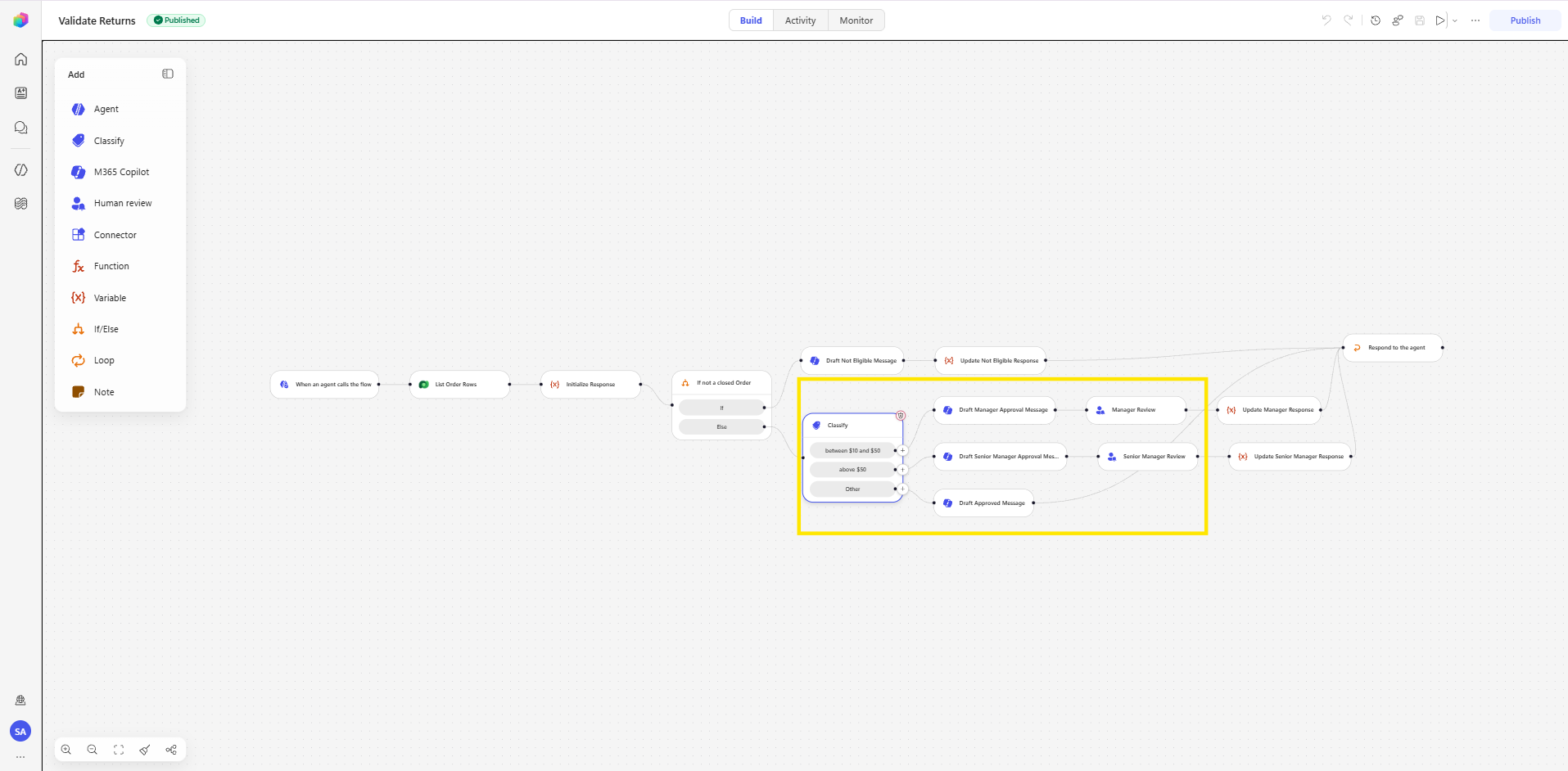
✅ Checkpoint: The two higher-value paths each generate an approver message and request a Yes/No approval over email; the Other path generates an approved message.