Use Click to Do to take action on text and images
Click to Do is designed to be fast and intuitive, allowing you to interact with content directly from your screen with minimal effort.
Launch Click to Do
You can activate Click to Do in several ways. The quickest method for most people is using a keyboard shortcut:
- Press Windows key + Q (fastest for most users)
- Press and hold the Windows key + mouse click (great for selecting content directly on screen)
- Access it through tools like Snipping Tool or search in Windows (useful if you're already working in those tools)
- Swipe from the right side of your screen (touch devices only)
Once activated, Click to Do overlays your screen and highlights selectable text and images.
Note
To display the Click to Do entry point from Snipping Tool, Snipping Tool version 11.2411.20.0, or later is required.
Take action on text
Select any visible text on your screen to access available actions. Available actions might vary depending on your device and supported features.
- Copy – Copies text to the clipboard
- Open with – Sends text to an app like Notepad
- Search the web – Finds more information online
- Summarize or rewrite – Generates a shorter or refined version of the text (available on supported devices)
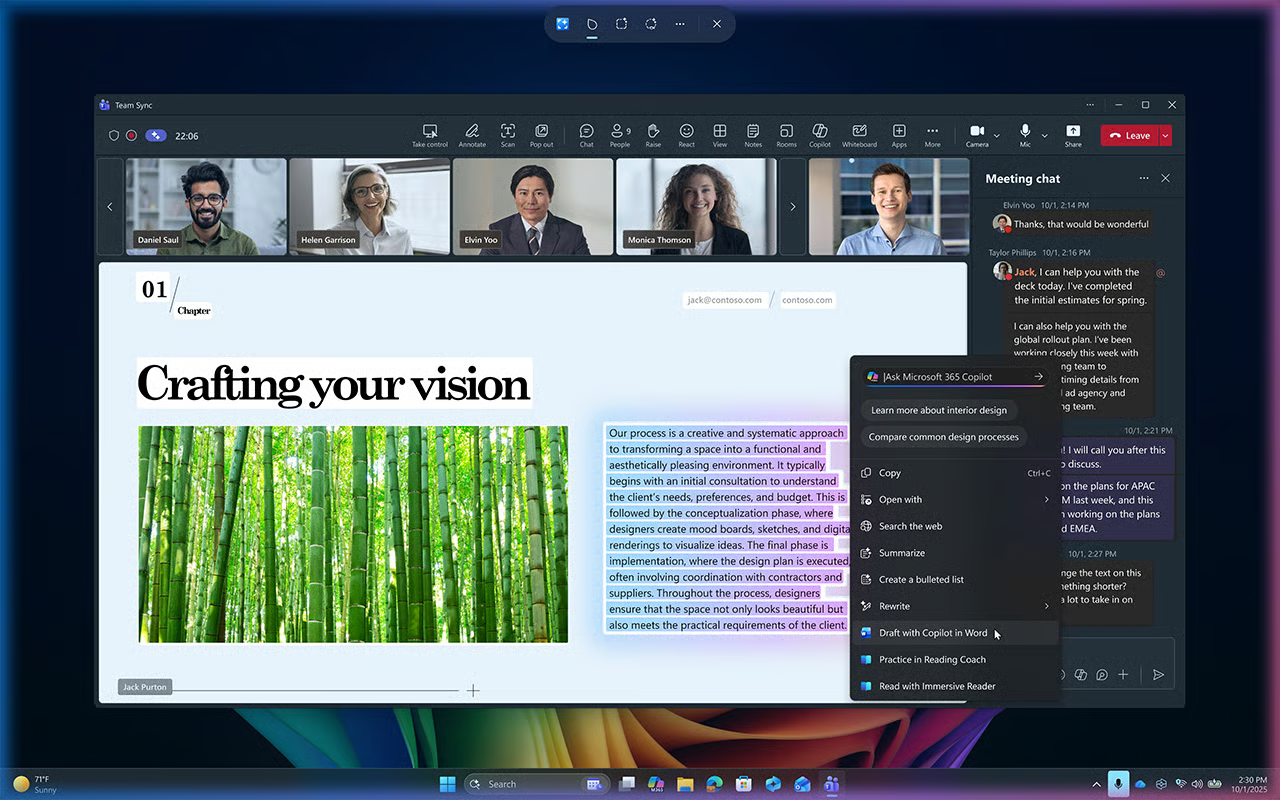
Additional contextual actions might appear depending on the type of text:
- Email address – If you select an email address, you have the option to send an email or start a Teams message.
- URL – If you select a URL, you have the option to open the website.
These actions help eliminate tedious manual steps like copying, opening another app, and pasting content over in order to get things done.
Take action on images
You can quickly edit, reuse, or learn more about visual content without switching between apps or disrupting your focus. You can:
- Edit image – Such as removing the background or erasing objects (using apps like Paint or Photos)
- Visual search – By sending the selected content to Bing visual search using your default browser
- Open in another app – For further editing
Actions and app availability
When you select content, Click to Do shows options based on the apps and features available on your PC.
Some options depend on specific apps. For example, image editing options only appear if the required apps are installed. If those apps aren’t available, such as in managed organizational environments, then those options won’t appear.
How Click to Do works with apps
Click to Do connects what you select on your screen to the apps and services that can help you complete a task. Use this table as a quick reference to see what you can do with different types of selected content and which apps support those actions.
| Content type | What you select | What you can do | App or service used |
|---|---|---|---|
| Text | General text | Copy, open in another app, or search the web | Notepad (or another app), Microsoft Edge with Bing |
| Text | Longer text | Summarize, rewrite, or generate content | Microsoft 365 Copilot (on supported devices) |
| Text | Email address | Send an email, start a Teams chat, or schedule a meeting | Default email app, Microsoft Teams |
| Text | Website (URL) | Open the website | Default browser |
| Image | Image | Blur the background or erase objects | Photos app |
| Image | Image | Remove the background | Paint app |
| Image | Image | Search for similar or related images | Bing visual search |
| Image | Image | Save or share the image | Windows system features |
Stay in your workflow
Click to Do helps you move directly from intent to action:
- No need to switch apps
- No need to re-enter or reformat content
- No interruption to your focus and workflow
Instead, actions appear exactly where you need them—on top of the content you’re already working with.