Choose when to use Click to Do
Click to Do is most useful in moments where small tasks start to interrupt your flow.
Use Click to Do in situations like these:
When you see content and want to do something with it right away For example, summarizing a paragraph, refining text, or following up on contact details
When you're about to copy and paste content into another app Instead of switching tools, you can work with the content directly on screen
When you're reviewing dense or detailed information Such as reports, documents, or technical instructions and need to quickly understand key points
When you’re working with images or visual content For quick edits, searches, or extracting information without opening another app
When you're trying to stay focused during time-sensitive work Especially when preparing for a meeting, reviewing content, or responding quickly
These situations come up frequently in everyday work. Using Click to Do in these moments helps you move through tasks more smoothly without breaking your focus.
Try it yourself
Use Click to Do to complete the following tasks:
Rewrite or edit text in a document
Open a document.
Activate Click to Do using Windows key + click. You’ll see a subtle visual change on screen letting you know Click to Do is active.
Select the paragraph you want to edit, choose Rewrite, then select a writing style.
Review the suggested rewrite, then copy and paste it into your document.
Get through long documents faster
Open a document, such as a PDF.
Activate Click to Do using Windows key + click.
Select a section of text you want to review.
Choose Summarize to quickly get the key points.
Take quick action on an email
Open an email.
Activate Click to Do using Windows key + click.
Select the sender’s email address to view available options.
Choose an option, such as:
- Send a message with Teams to quickly start a conversation
- Schedule a meeting with Teams to add a quick meeting to your calendar
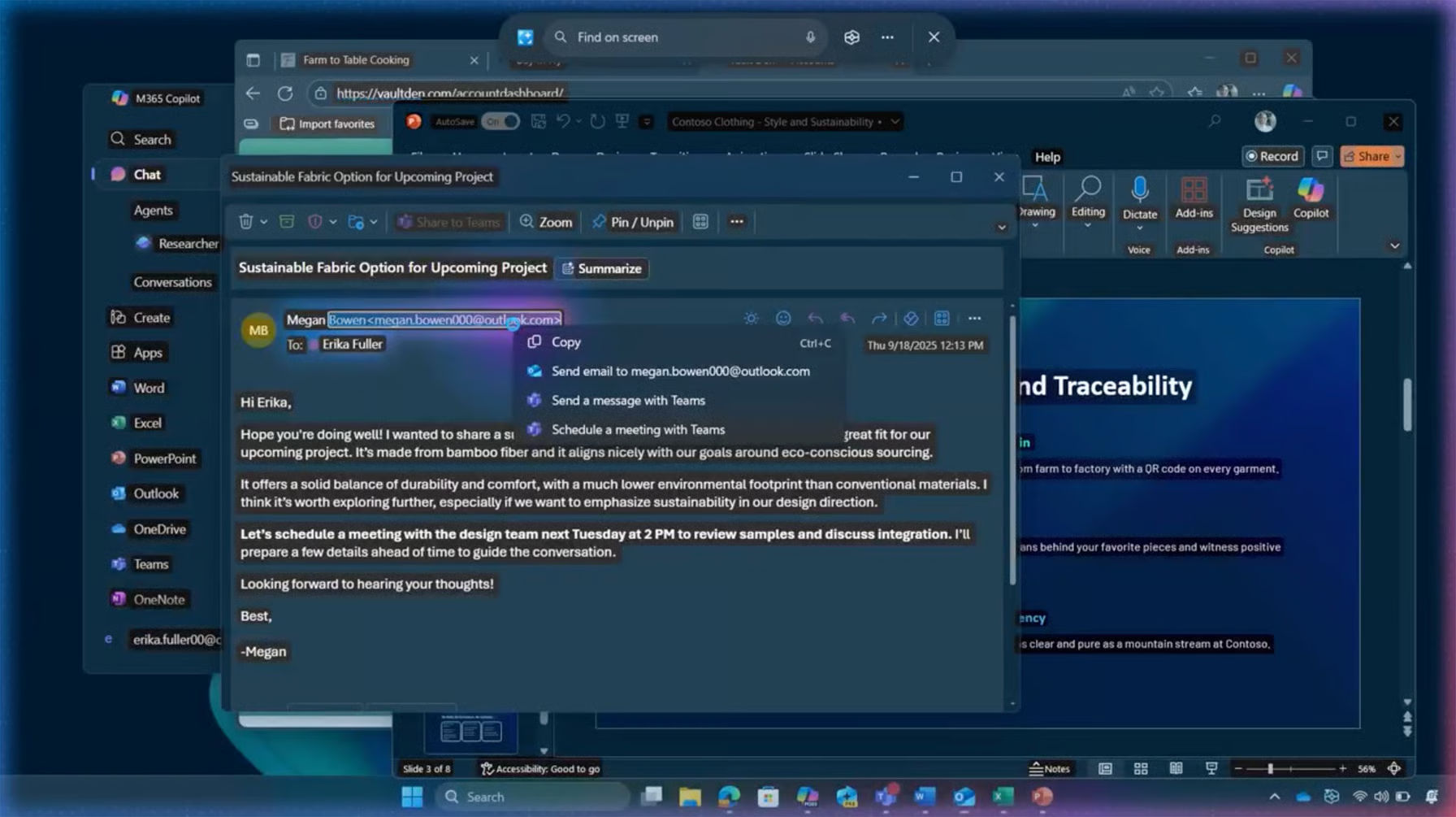
As you complete these tasks, notice how Click to Do suggests relevant options based on what you select and allows you to complete tasks without switching apps.