Share your presentation for collaboration
Effective teamwork in PowerPoint begins with cloud storage. When a presentation is stored on OneDrive or SharePoint, every team member works from the same live version of the file. This eliminates the need to send multiple copies over email, reduces version confusion, and ensures that the latest edits are always visible to everyone.
Sharing a presentation isn’t just about access—it’s about control. PowerPoint lets you decide who can view, edit, or comment on the file, so you can balance openness with security. For example, you might allow teammates to co-author slides while restricting external reviewers to view-only access.
Here are the key elements of sharing in PowerPoint:
- Share button: Found in the top-right corner of PowerPoint, this provides quick access to invite others by name, email address, or link.
- Permissions: Choose whether collaborators can edit, comment, or view only, and update these permissions at any time.
- Co-authoring view: PowerPoint shows presence indicators when teammates are working in the file, highlighting their edits in real time so you know exactly who is contributing.
- Version history: If needed, you can roll back to an earlier version of the presentation, giving you peace of mind when multiple people are editing.
Together, these tools create a seamless environment for group work. Instead of wasting time reconciling edits later, your team can stay focused on crafting a presentation that communicates your message clearly and effectively.
Use cloud storage to enable collaboration
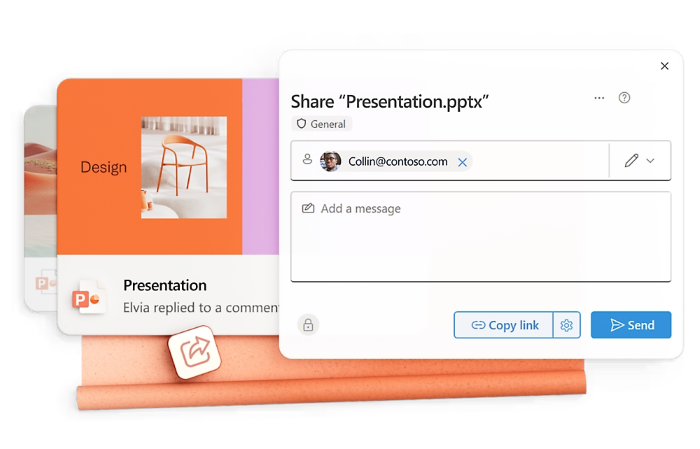
When you store your presentation in OneDrive or SharePoint, you:
- Ensure everyone accesses the latest version of the file—no more juggling multiple email attachments or outdated copies.
- Control who can make changes by inviting collaborators with specific permissions.
- Unlock real-time co-authoring, so multiple people can work on the same slides simultaneously.
Tip
Saving to the cloud is the first step to enabling collaboration. If your file is still saved locally, move it to OneDrive or SharePoint before sharing.
Share your presentation with others

Once your file is in the cloud, sharing is simple:
- Select the Share button in the top-right corner of PowerPoint.
- Choose who to invite by entering email addresses or generating a sharing link.
- Set permissions for each person (edit, comment, or view only).
- Send the invitation so collaborators receive a link to access the file.
See collaboration in action
When teammates join you in the same presentation, PowerPoint keeps you aware of what’s happening:
- Presence indicators: Colored flags or initials show who is viewing or editing slides.
- Real-time updates: Changes appear instantly, so you can see edits as they happen.
- Automatic version history: Every change is saved, and you can restore a previous version if necessary.
Tip
The Share button in PowerPoint lets you invite collaborators and manage permissions.
Collaborating in PowerPoint helps your team work faster, avoid version conflicts, and deliver polished presentations together—no matter where everyone is located.
Next, you’ll practice sharing a presentation and setting permissions to enable real-time collaboration.