Exercise – share a presentation and track changes
Collaborating on a PowerPoint presentation is most effective when everyone can access and edit the same file in real time. In this exercise, you’ll practice sharing a presentation using OneDrive or SharePoint, inviting collaborators, and observing how changes are tracked and displayed. This hands-on activity will help you set permissions, monitor edits, and maintain version control—all essential skills for modern teamwork.
Important
These steps are for the latest version of PowerPoint for Microsoft 365. If you’re using an older version, some features or menu locations may differ.
Save your presentation to OneDrive or SharePoint.
- Open your PowerPoint presentation.
- Select File > Save As.
- Choose OneDrive or SharePoint as the save location.
- Enter a file name and click Save.
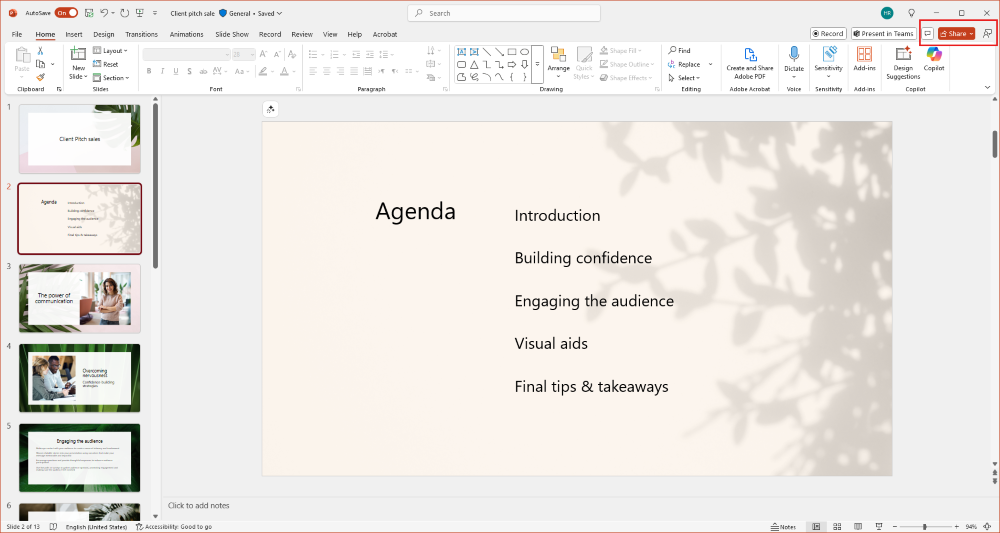
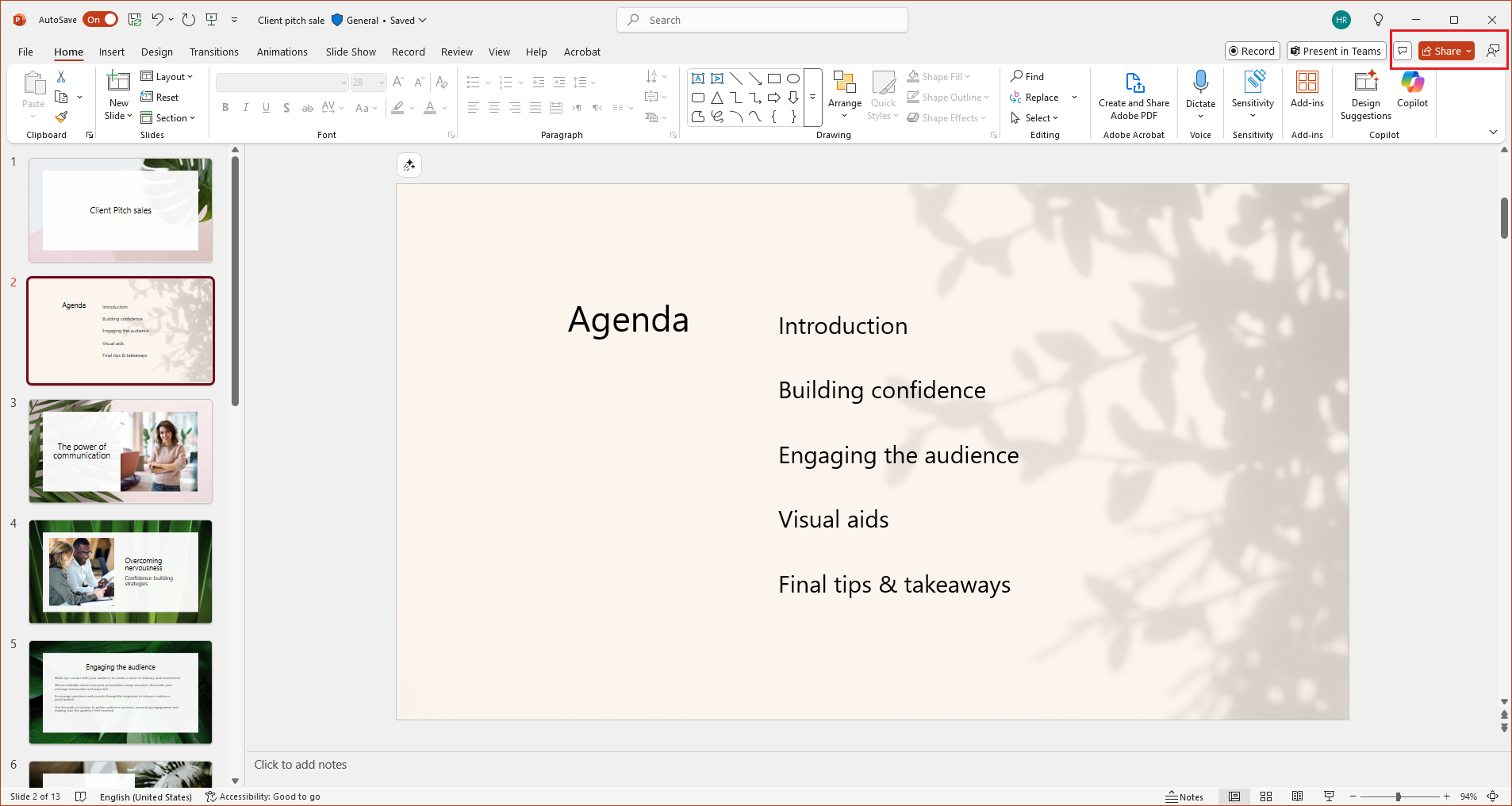
Click the Share button.
- In the top-right corner of PowerPoint, select the Share button.
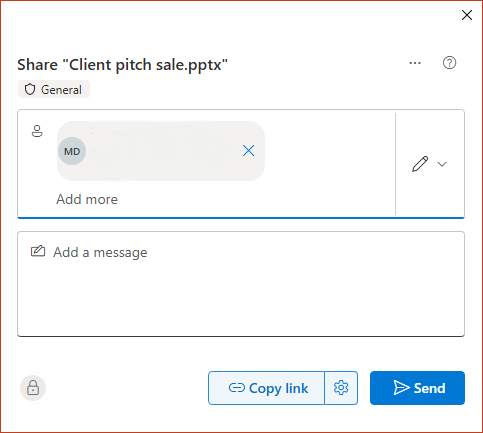
Invite collaborators and set permissions.
- Enter the email addresses of your teammates or generate a sharing link.
- Choose whether each person can edit, comment, or view only.
- Add an optional message to provide context or instructions.
- Click Send or Copy link to share the presentation.
Note
You can update permissions at any time by returning to the Share dialog.
Collaborate and track changes in real time.
- Ask your collaborators to open the shared presentation.
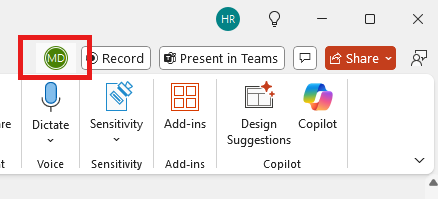
- Observe presence indicators (colored flags or initials) showing who is editing.
- Watch as changes appear instantly—no need to refresh or merge versions.
Tip
Hover over a presence indicator to see who is editing a slide.
Review version history.
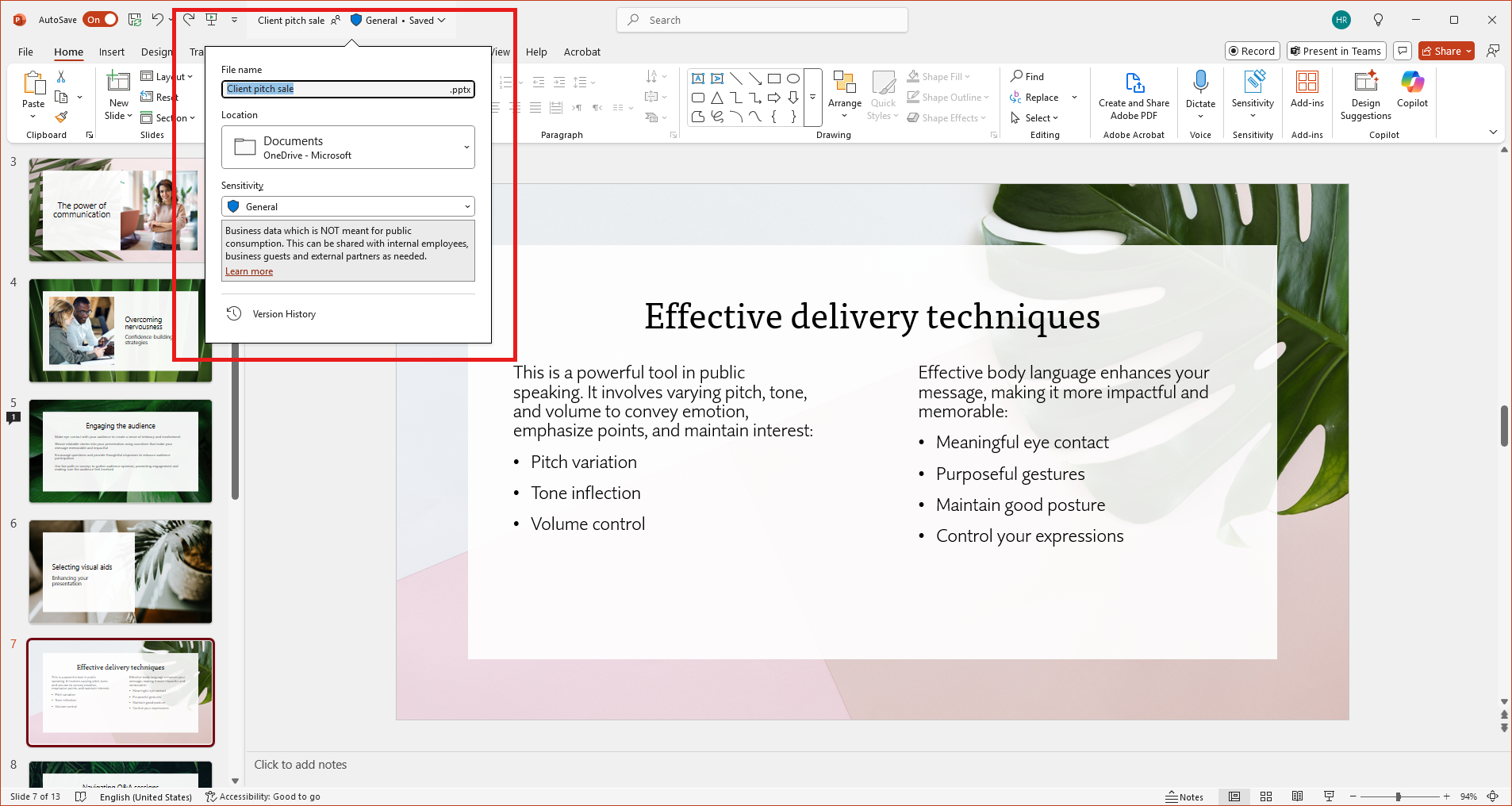
- Click the file name at the top of PowerPoint.
- Select Version History from the dropdown menu.
- Browse previous versions, compare changes, or restore an earlier version if needed.
Important
Version history helps you recover from mistakes or unwanted changes, giving you confidence to collaborate freely.
By completing this exercise, you’ll gain hands-on experience with PowerPoint’s collaboration features—making it easier to work with your team and keep presentations organized and up to date.