Exercise – add comments and resolve feedback
Feedback is most valuable when it’s clear, visible, and easy to act on. PowerPoint’s commenting tools make this possible by attaching suggestions directly to the slides they relate to. Instead of juggling email threads or side conversations, your team can keep all feedback in one place and track it from discussion to resolution.
In this exercise, you’ll practice using PowerPoint’s commenting tools to leave feedback, tag teammates, and resolve discussions. These steps will help keep collaboration organized and ensure that every idea is captured and addressed.
Open the shared presentation
- Confirm that the presentation is saved to OneDrive or SharePoint.
- Open the file in PowerPoint to begin collaborating.
Insert a comment
- Select the text, object, or slide where you want to leave feedback.
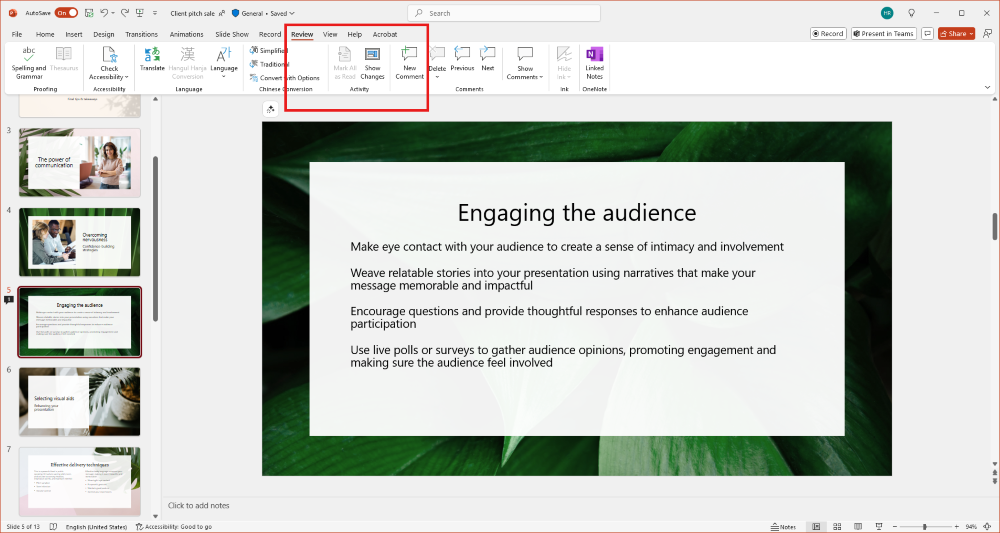
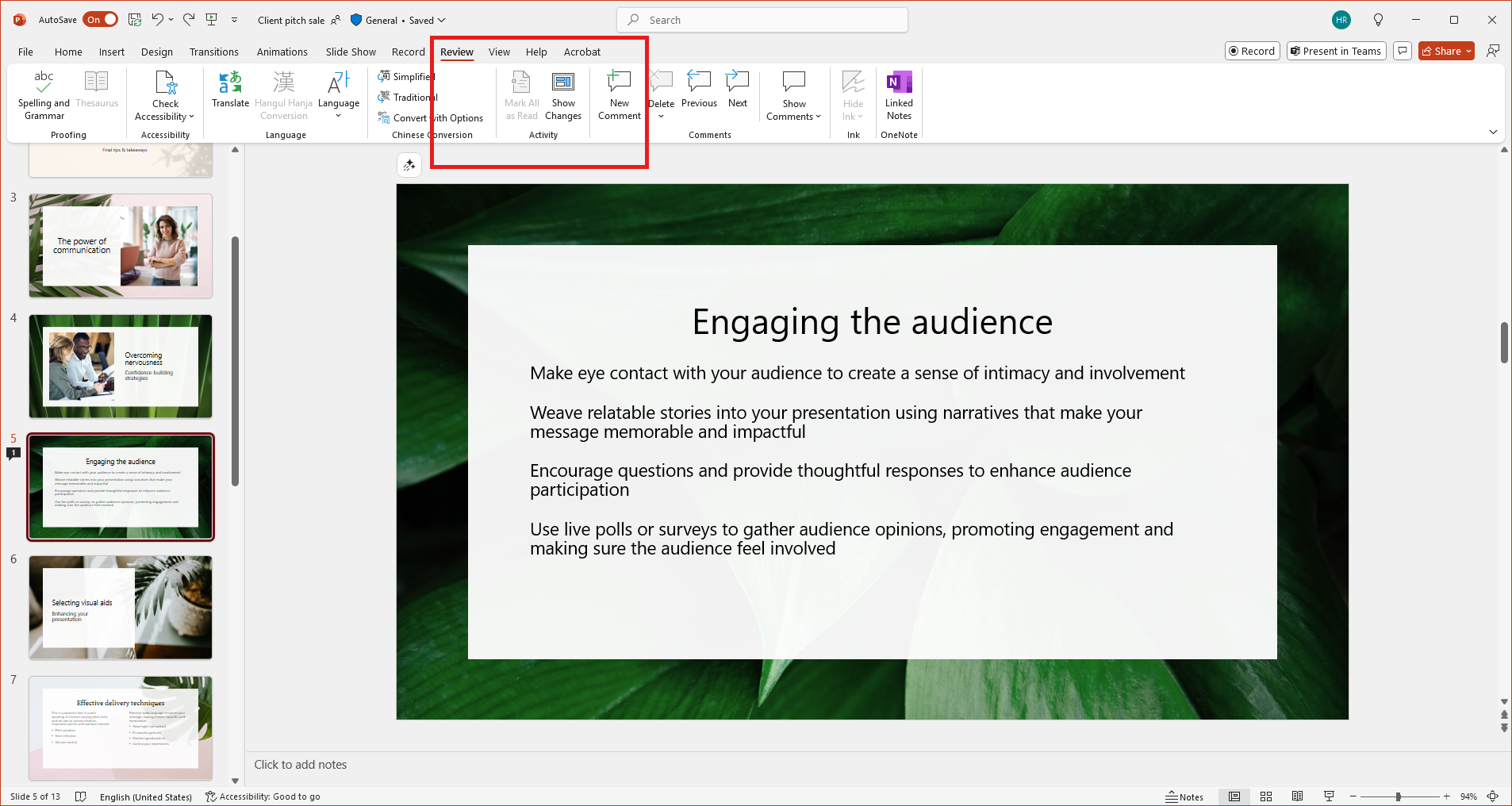
- Go to the Review tab and click New Comment.
- Type your feedback in the comment box.
- Alternatively, right-click on the slide element and choose New Comment from the context menu.
Note
Comments are attached to specific elements, making it easy to identify what the feedback refers to.
Tag a teammate with @mentions
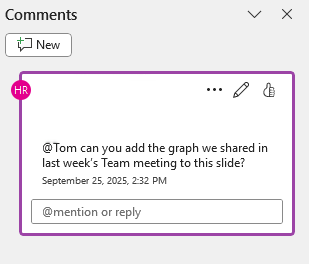
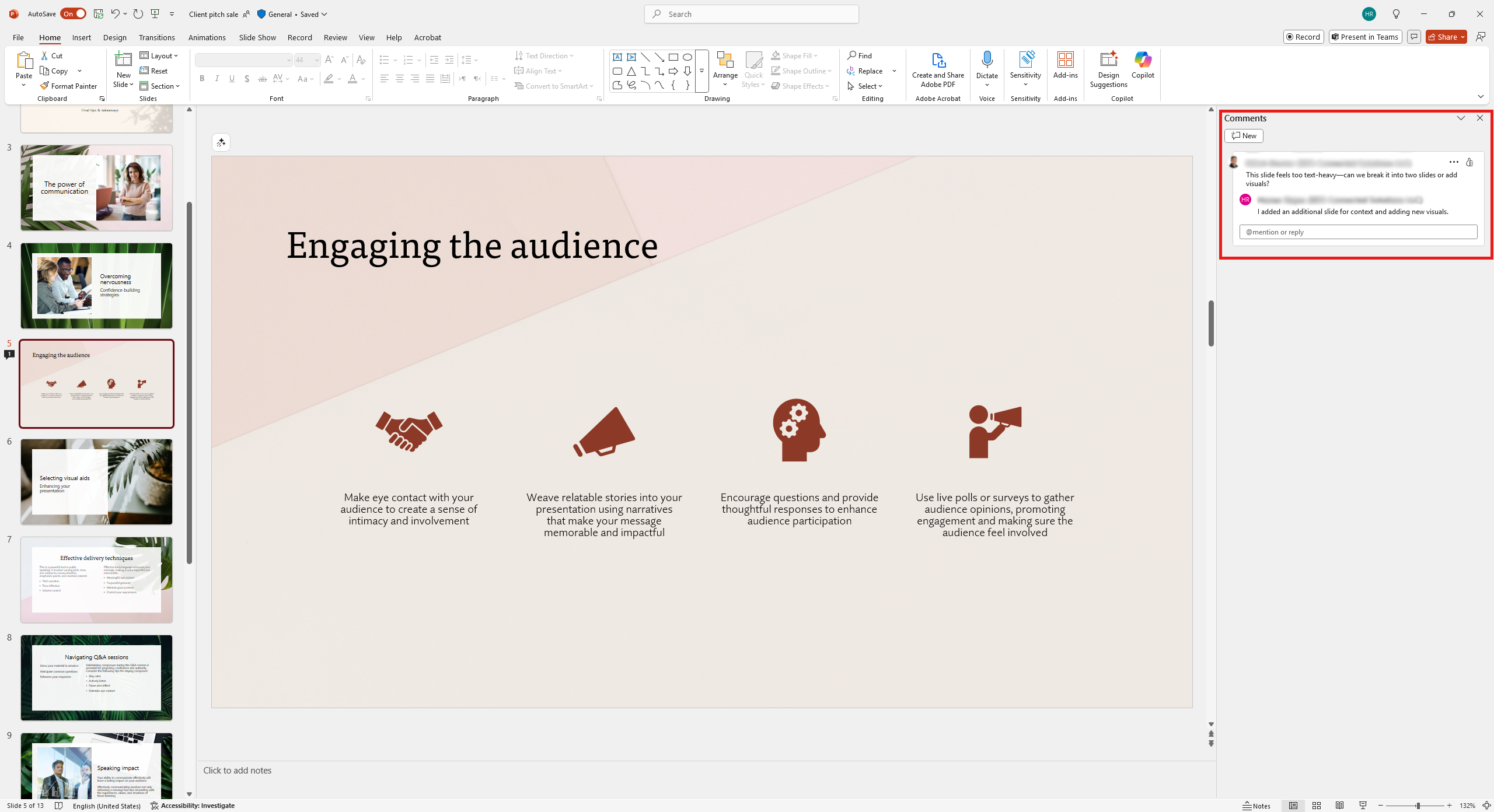
- In your comment, type @ followed by the person’s name or email address.
- Select the correct person from the suggestions list.
- Finish your comment and post it.
Tip
Use @mentions to assign tasks or direct questions to specific collaborators.
Reply to and resolve comments
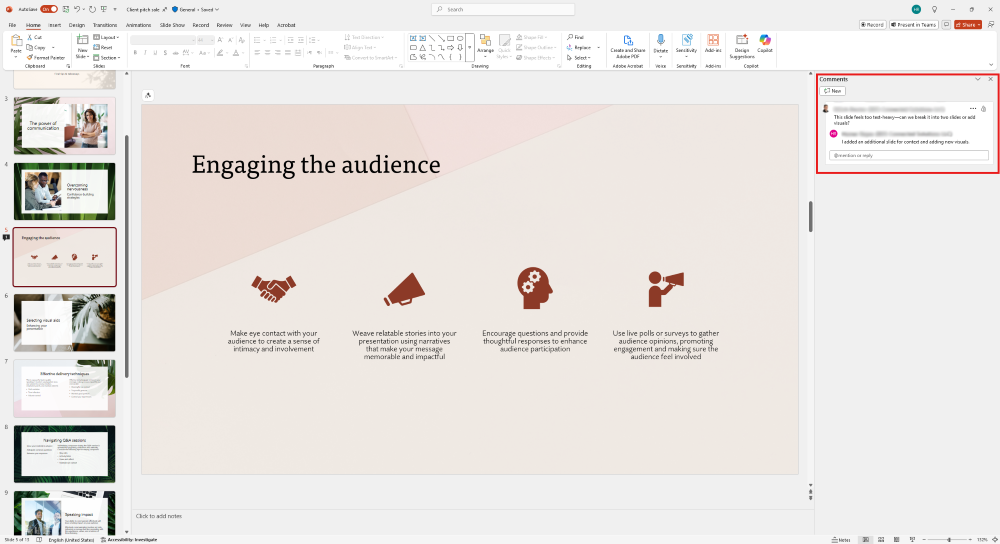
- Click on any comment to reply and continue the discussion.
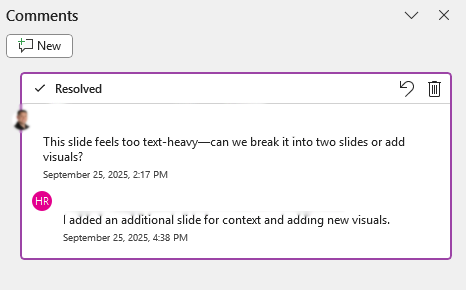
- Once the issue is addressed, click Resolve to close the comment.
- If further discussion is needed, reopen the comment by selecting Reopen.
Note
Resolved comments remain visible and can be reopened at any time to maintain a clear record of decisions.
By completing this exercise, you’ll gain hands-on experience with PowerPoint’s commenting features—making it easier to provide structured feedback and collaborate effectively with your team.