Scenario - Use multiple data sources
Command bar button logic for Visible and OnSelect can access multiple data sources in Power Fx expressions. When you add a command bar button, the table associated with that command bar is automatically available as a data source. For example, if you’re editing the main grid command bar for the Projects table, that table is available in your Power Fx logic. To reference additional tables, such as a project team table, you must add those data sources manually before you can use them in your formulas.
When you customize a command bar and add Power Fx logic, a component library is created and linked to your model-driven app. This component library automatically includes the table for the command as a data source.
To use additional data sources, you must manually add them by opening the component library and associating the required tables.
Note
You can increase the video resolution by selecting the three dots, Quality, and selecting a higher bitrate.
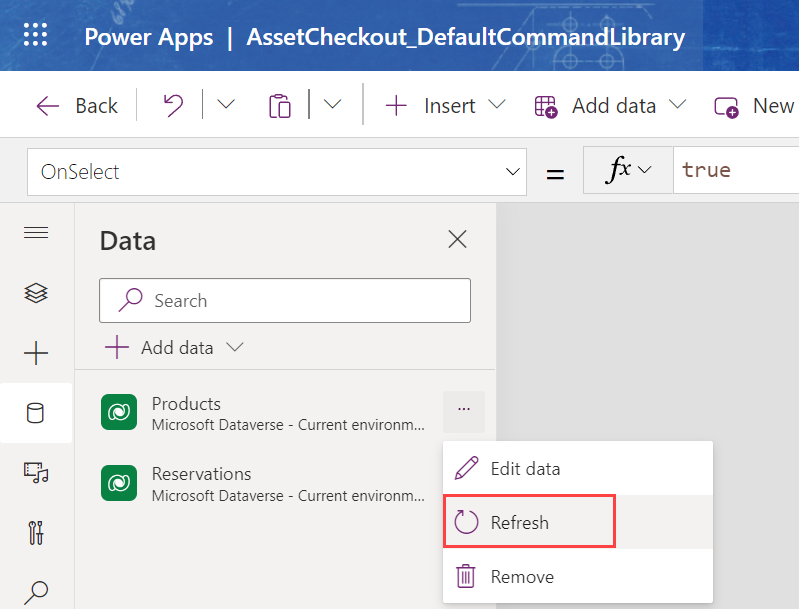
Another essential thing to know about Dataverse table data sources is that you must manually refresh them after changing the table definitions. For example, if you add a new column to a table, that column won't be available to your command bar formulas until you refresh the data source.
To refresh a data source:
Save your command bar.
Select Open Component Library.
In the Data panel, select the ellipsis (...) next to the table data source you wish to refresh.
Select Refresh.
When adding additional data sources, you can connect to various connectors in the component library. However, command bar formulas only support Dataverse data sources. Even if you add other connectors, they can’t be used in command bar Power Fx logic. Attempting to reference a non-Dataverse connector can prevent the command bar from rendering at runtime.