Configure the Case Management agent
As AI and agents become more and more a part of our daily lives, Copilot in Dynamics 365 Service is bringing more and more autonomous agents to assist agents. One of those agents is the Case Management Agent. The Case Management Agent automates case creation which reduces manual effort and data entry errors.
The agent creates and updates cases in two main ways:
From conversations: While chatting with customers, the agent notices key details, fills in the necessary information, and keeps the case updated as the conversation goes on.
From emails: When customers send emails, cases are created through the Automatic record creation and update rules create cases from emails. After a case is created using these rules, the agent updates the case fields based on the ongoing email interactions with customers.
Before you can use the Case Management Agent in your environment, there are multiple perquisites that you need to have enabled and configured. This includes a compatible billing plan, workstreams, and other features. Refer to the complete list of the prerequisites to make sure your ready to begin using the agent.
Configure autonomous case creation and update
The Case Management Agent is configured in the Copilot Service admin center. It's configured by going to Case Settings under the Customer Support group and selecting Manage in the Case Management section.
There are two areas that you can configure:
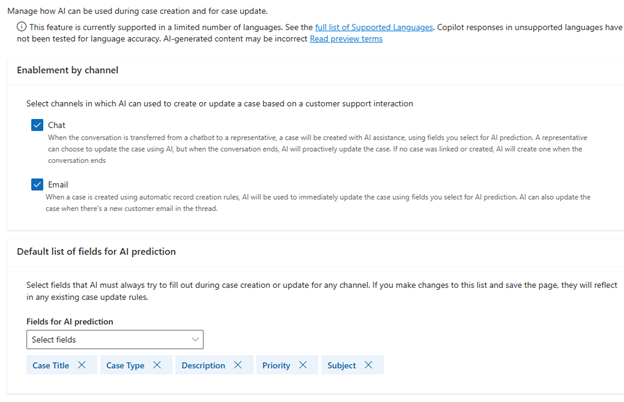
Case creation and update: Autonomously creates and updates cases when a new conversation or new email comes in.
Autonomous case follow-up: Allows representatives to choose when and how much to automate case follow-ups and closures with Copilot.
Optionally, in Rules for case update with AI assistance, specify the fields the agent must update from an ongoing conversation or incoming email after creating a case. If you don't specify update rules, the agent updates the fields you added in the previous step.
Autonomous case follow-up and resolution
With autonomous case follow-up and resolution, you can allow customer service representatives to choose when and how much to automate case follow-ups and closures with Copilot. They’ll get suggested follow-up actions in their case timeline, and more.
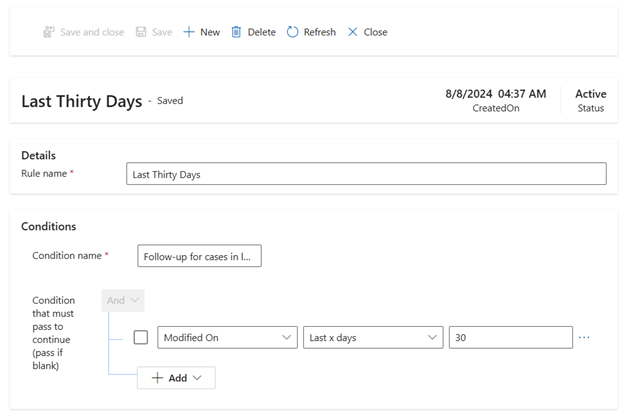
Another component is rules. These rules help to determine which cases are eligible for case following up. By default, there is a last thirty days rule, however you can create additional rules as needed.
The configuration process consists of defining the conditions that need to be met. In the following image you can see an example of the configuration.
Enable service representatives to use autonomous Case Management Agent
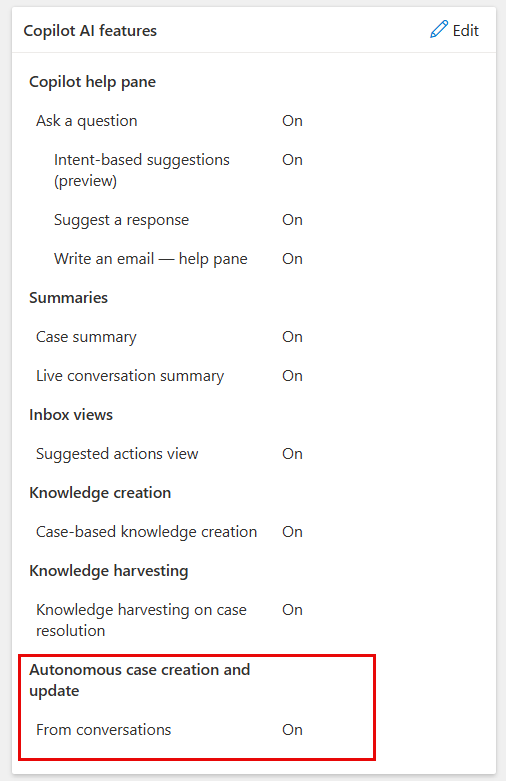
For service representatives to use the Case Management Agent in Copilot Service workspace, allow the autonomous case creation and update, case follow-up, and closure in agent experience profiles.
By default, service representatives added to the out-of-the-box experience profiles can use the autonomous Case Management Agent, however you can enable it for any custom profiles that you've created. Under Experience profiles, select Workspaces. Select the Experience profile you want to add under the Copilot AI features, enable Autonomous case creation and update from conversations.