Explore the Copilot Service admin center
The Copilot Service admin center is the primary management interface for Dynamics 365 Contact Center. From this single app, you configure channels, routing, agent experiences, knowledge management, and operational settings. Understanding how the admin center is organized helps you find settings quickly and configure the system efficiently.
Access the admin center
The Copilot Service admin center app is automatically installed in all Dynamics 365 Contact Center organizations. To access it, sign in to Dynamics 365 and select Copilot Service admin center on the apps page.
You must have the System Administrator role to have full access the admin center. The app adapts its site map to show only the capabilities that are provisioned in your environment. While other role can provide scoped access, the System Administrator role is the only role that provides full access.
Note
The admin center has been renamed multiple times during product evolution. "Customer Service Admin Center" (pre-2024), "Contact Center Admin Center" (Pre-April 2025) and "Copilot Service Admin Center" (current, post-wave 1 2025) all refer to the same Dataverse-based admin surface. If you encounter older names in documentation or partner materials, they map to the same app.
Navigate the admin center
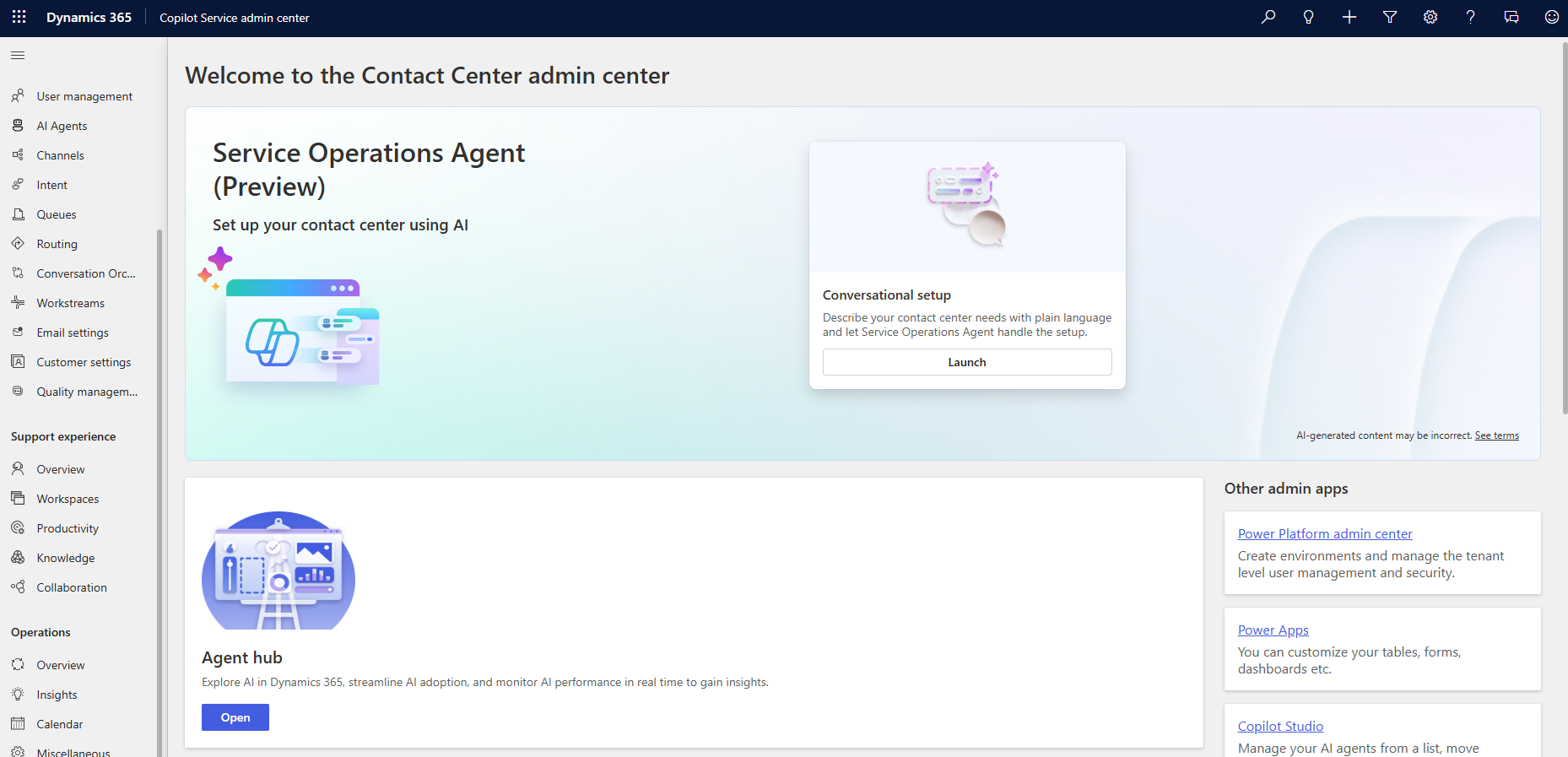
The admin center provides a task-oriented site map with overview pages for each functional area. Each overview page lists at-a-glance information with deep links to feature management pages. The following table describes the key sections:
| Section | What you configure |
|---|---|
| Home | View setup status, errors, warnings, and recommendations |
| Customer support | Set up and manage users, AI agents, channels, intent, queues, routing, conversation orchestration, workstreams, email settings, customer settings, and quality management |
| Support experience | Configure workspaces, productivity, knowledge, and collaboration |
| Operations | Manage insights and the calendar |
| Contact Center Agents | View and manage Customer Assist Agent, Quality Assurance Agent, and Service Operations Agent |
The admin center also provides a search option that lets you find administrator settings across all feature areas. Instead of navigating through the site map, you can type a setting name in the search box to go directly to the relevant configuration page.

Understand the admin surface landscape
The Copilot Service admin center is one of several admin portals that govern different parts of a Contact Center deployment. Knowing which settings live in each portal prevents unnecessary troubleshooting time.
| Admin surface | URL pattern | What lives here | Who uses it |
|---|---|---|---|
| Copilot Service admin center | <org>.crm.dynamics.com/apps/customerservice/admin |
Workstreams, queues, routing rules, channels, agent experience profiles, Copilot features, knowledge management, SLAs | Contact Center admins, supervisors |
| Power Platform Admin Center | admin.powerplatform.microsoft.com |
Environment lifecycle (create, copy, delete), capacity, DLP policies, Dataverse settings, solution import and export | Platform admins, ALM engineers |
| Microsoft Teams Admin Center | admin.teams.microsoft.com |
Voice policies, calling plans, Direct Routing and Operator Connect, Teams channel configuration, compliance recording | Telephony admins, IT |
| Azure portal | portal.azure.com |
Azure Communication Services, Bot Framework registrations, Microsoft Entra ID app registrations, networking, cognitive services keys | Cloud architects, DevOps |
Important
A common mistake is searching for voice channel settings in Teams Admin Center when they're configured in Copilot Service admin center (voice workstream). Similarly, Power Platform environment settings are separate from Contact Center application settings. Understanding which portal owns which settings saves time during implementation and troubleshooting.
Configure the contact center using Service Operations Agent
Note
Service Operations Agent is a preview feature and is currently available in the United States and in English only. Preview features aren't meant for production use and may have restricted functionality. For release timeline details, see the Service Operations Agent release plan.
Service Operations Agent is a self-service AI assistant in Copilot Service admin center that supports administrators with configuration, validation, and troubleshooting tasks using natural language. Rather than navigating through multiple settings pages manually, you describe what you want to configure and the agent runs the steps while keeping a human in the loop.
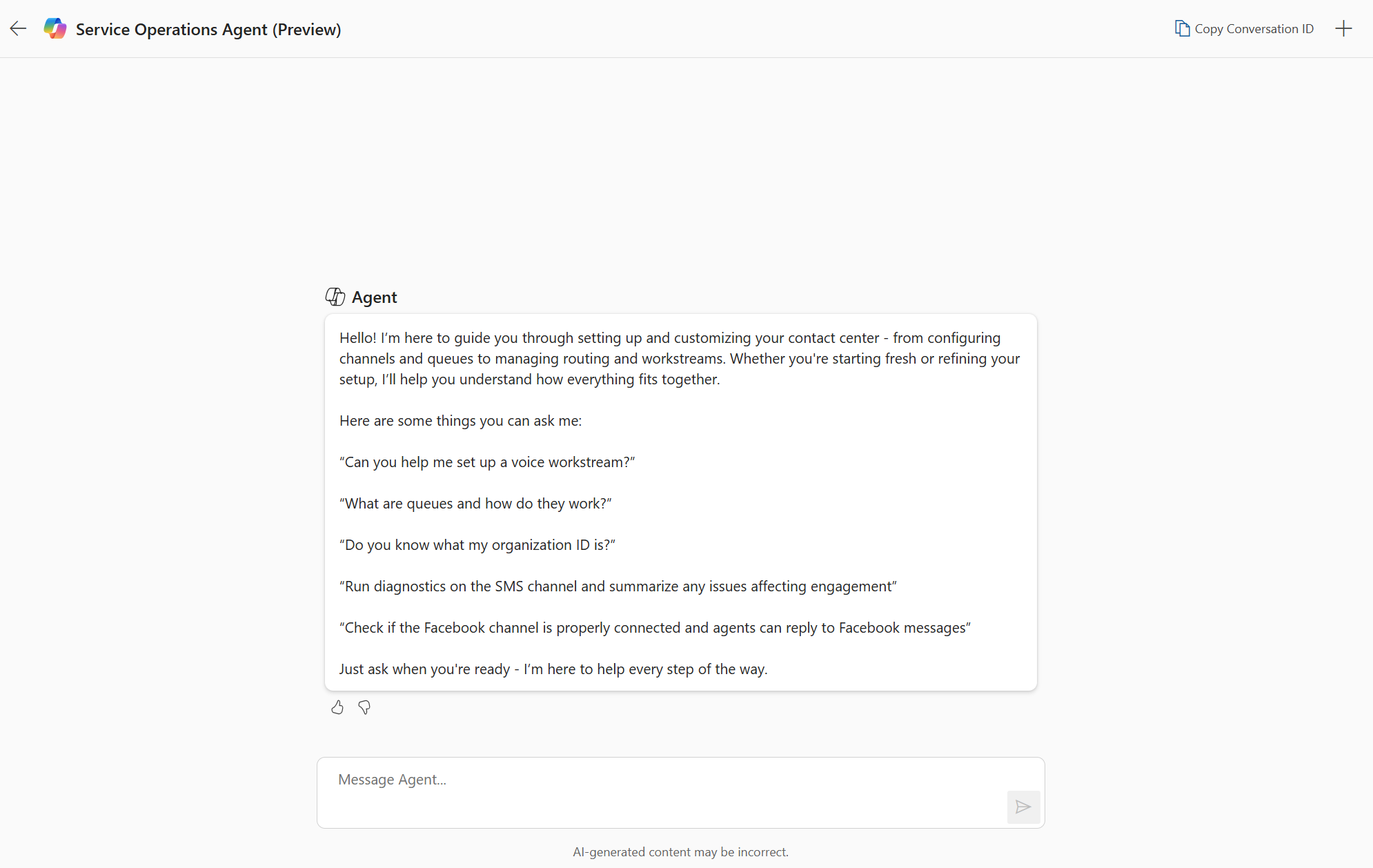
Service Operations Agent supports the following capabilities:
- Channel configuration: Help set up channels and workstreams, sync phone numbers with Azure Communication Services and Teams, and provide guidance on configuration best practices.
- Queue management: Create and assign users to queues, create skills and assign them to users, check queue details, and set up operating hours.
- Troubleshooting: Query the agent about contact center capabilities, ask questions about the environment, and run diagnostics for supported channels.
To access Service Operations Agent, open the Copilot Service admin center and select Launch in the Conversational Setup tile. The agent requires a Dataverse connection through an MCP server; select Allow once when prompted to establish the connection.
Tip
Use clear, detailed prompts and explicitly specify the relevant channel or topic. For example: "Please create a voice workstream with the name Contoso Voice and use the General queue as the default queue."
Manage feature areas from overview pages
Each major feature area in the admin center has an overview page that provides a summary of current configuration and quick access to management actions. For example, the Channels overview page shows all configured channels with their status, and each entry links directly to the channel's detailed settings.
Overview pages follow a consistent pattern:
- Summary cards: Display key metrics or status indicators for the feature area
- Feature list: Lists individual components (for example, individual channels or workstreams) with status and quick actions
- Deep links: Each item links to its detailed configuration page
This structure lets administrators quickly assess the state of their configuration and navigate directly to the settings they need to change.