Configure and assign security roles
Security roles translate business requirements into specific data access permissions. Proper role configuration ensures each user has exactly the privileges needed.
Plan security roles from job functions
Start by identifying distinct job functions and mapping them to required data access:
| Job function | Tables needed | Access pattern |
|---|---|---|
| Store associate | Customers, Orders | Read/Write own records |
| Store manager | Customers, Orders, Inventory | Read/Write business unit, Assign |
| Zava Pay analyst | Transactions, Accounts | Read business unit, no Write |
| Compliance officer | Audit logs, Transactions | Read organization-wide |
| App maker | Custom tables | Create/Read/Write user-level |
Each distinct access pattern typically requires its own security role. Resist the temptation to create one "super role" - it defeats the purpose of least-privilege design.
Create custom security roles
You can create roles from scratch or copy existing predefined roles as a starting point. Security roles are solution aware (solutions and their lifecycle are covered in depth in another module). You can also create and edit roles in the PPAC, but the recommended approach is using the solution.
- In the Power Apps maker portal, select the desired solution and select New (or add existing if appropriate). Go to Security > Security Role.
- Select the correct business unit, enter a descriptive name that reflects the job function (for example, "Zava Pay - Transaction Analyst"), and select Save.
- For each table the role needs access to, configure the eight privileges with appropriate access levels.
- Use Permission Settings presets to configure common patterns:
- No Access - All privileges set to None
- Full Access - All privileges set to Organization
- Collaborate - Create (BU), Read (BU), Write (BU), Delete (None), Append (BU), Append To (BU), Assign (None), Share (None)
- Private - Create (User), Read (User), Write (User), Delete (User), Append (User), Append To (User), Assign (None), Share (None)
- Select Save.
Tip
Copy predefined roles (like Basic User or App Opener) as starting templates rather than creating from scratch. This approach ensures you inherit required miscellaneous privileges (like prvReadOrganization) that are easy to miss when building from zero.
Predefined or custom security roles don't inherit access to custom tables. You must individually configure each custom table within each role. If you add new tables in the future, you must explicitly assign permissions before users can access them.
Assign roles directly to users
For individual role assignment:
- Go to Settings > Users + permissions > Security roles.
- Select the role you want and choose Members.
- Select + Add people and search for the user.
- Select the user and confirm.
A user can have multiple security roles. Privileges accumulate, so the user gets the union of all privileges across all assigned roles in a given environment.
Assign roles through Entra group teams
For scalable administration, assign security roles to Microsoft Entra group teams rather than individual users:
- Go to Settings > Users + permissions > Teams.
- Select + Create team and choose AAD Security Group as the team type.
- Enter the team name and select the Entra ID security group to link.
- Select the business unit this team belongs to.
- Select Create.
- After you create the team, select it, and then select Manage security roles. Select the appropriate roles, and then select Save.
Members of the linked Entra group automatically receive the team's security role privileges when they access the environment. When you remove them from the Entra group, they lose those privileges in their next session.
This approach aligns with security group governance. The same Entra group that grants environment access (via security group association) can also grant appropriate Dataverse security roles through a group team.
Important
Entra group team members are provisioned just-in-time on first access, not when you create the team. Plan for this delay in your onboarding processes.
Configure service principal access
Service principals (application users) also need security roles for API-based data access:
- Go to Settings > Users + permissions > Application users.
- Select + New app user and register the application by using the App ID from Entra ID app registration.
- Select the business unit and assign appropriate security roles.
Service principals should have the minimum privileges needed for their integration scenario. A data synchronization service might need Read/Write on specific tables, while a reporting service needs only Read access.
Note
Service principals bypass some security checks, like column-level security in certain scenarios. Apply IP firewall and connector restrictions as complementary controls for service principal access.
Apply inheritance settings
Security roles have an inheritance model that affects how team membership contributes to user access:
- Team privileges only - User only gets privileges when acting through the team context. For direct record creation, the user's own roles apply.
- Direct User (Basic) access level and Team privileges - User gets both their own roles AND all team role privileges regardless of context. This setting is the default and most common setting.
Configure inheritance when the security design requires users to have different privilege levels depending on whether they're acting independently or as part of a team.
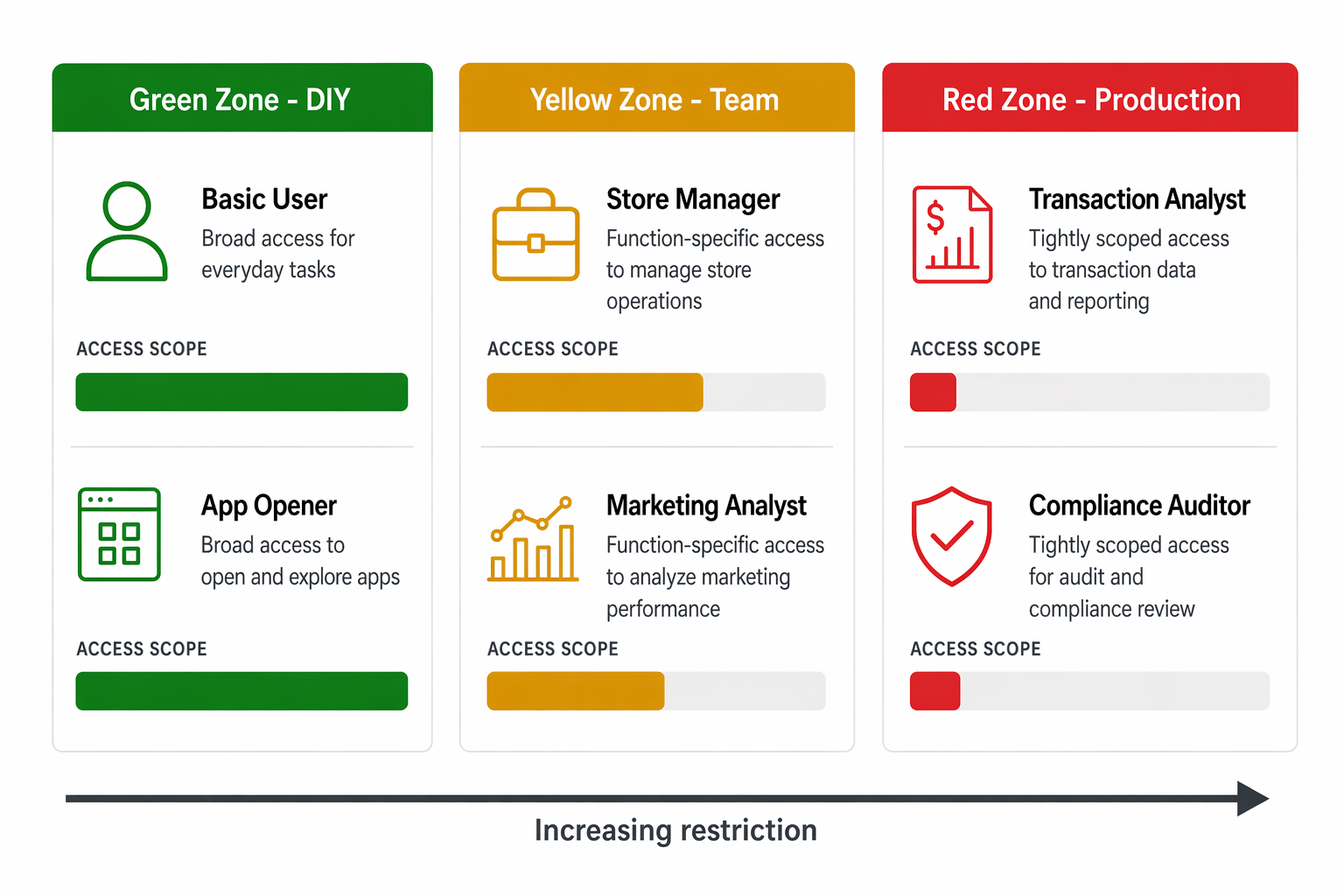
Design role strategy by governance zone
Align your role strategy with governance zones:
| Zone | Role approach | Example at Zava |
|---|---|---|
| Green (DIY) | Broad roles, minimal customization | Basic User + App Opener (developer environments) |
| Yellow (team) | Function-specific roles, moderate restriction | Store Manager, Marketing Analyst |
| Red (production) | Tightly scoped roles, explicit grants only | Zava Pay Transaction Analyst, Compliance Auditor |
Red zone environments such as Zava Pay shouldn't have any users with System Administrator except dedicated admin accounts. Every other user gets a custom role that grants only what they need.