Manage business units and teams
Business units and teams translate organizational structure into data access boundaries. A well-designed business unit hierarchy ensures security roles scope data access appropriately without requiring per-record configuration.
Design business unit structure
Business units create the boundaries that security roles reference. When a security role grants "Business Unit" level access, it means the user sees records owned by anyone in their business unit. The structure directly controls data visibility.
Design principles:
- Align with data boundaries, not org charts - Business units should reflect data access needs, not necessarily reporting hierarchies. Two departments that need access to the same data can share a business unit.
- Keep it shallow - Deep hierarchies (more than 3-4 levels) add complexity without proportional value. Use teams for fine-grained access within a business unit.
- Plan for growth - Adding business units later requires reassigning users and records. Design with future divisions in mind.
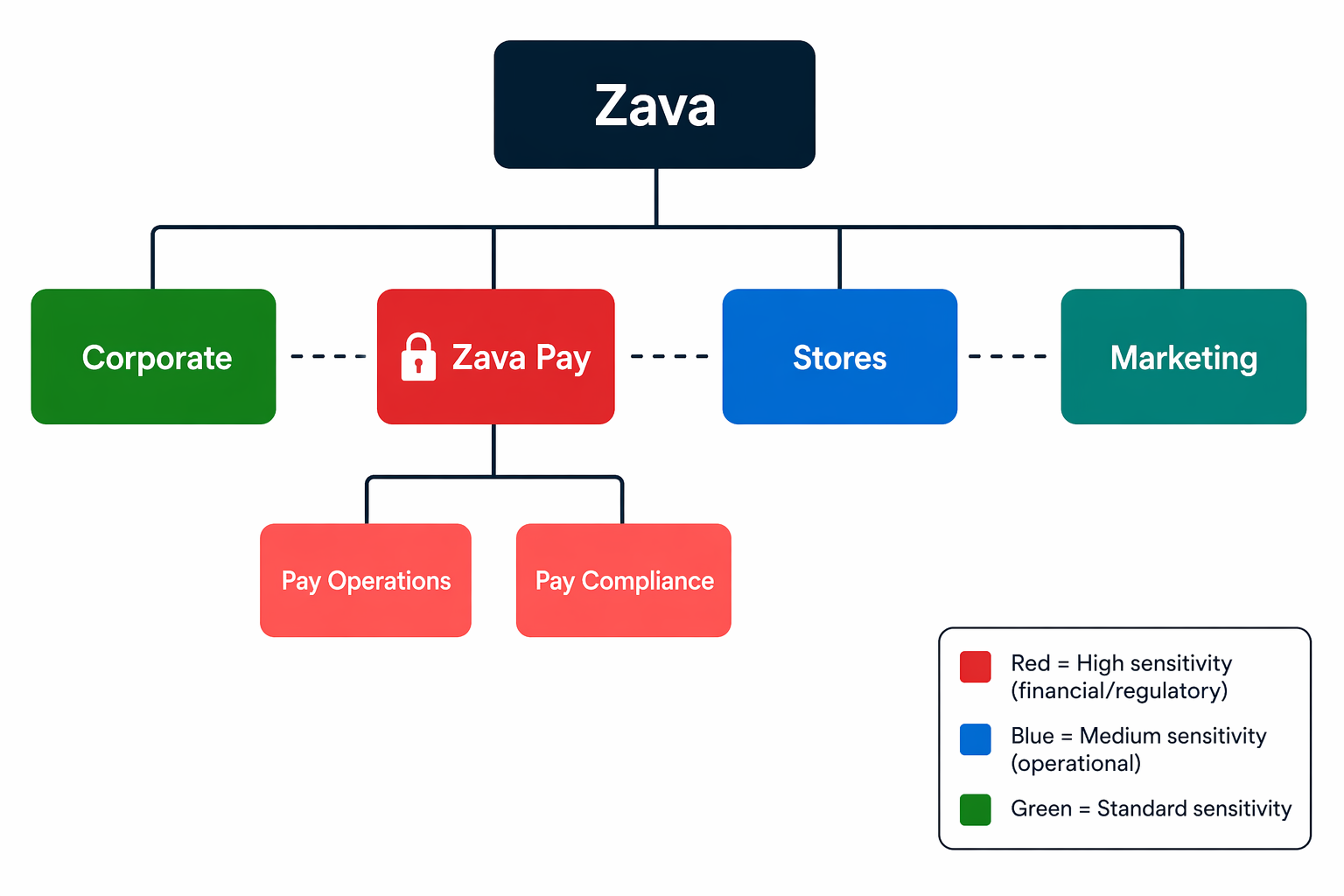
At Zava, the business unit structure reflects data sensitivity zones:
Zava (root)
├── Corporate        → Corporate apps, shared services
├── Zava Pay         → Financial data, regulatory compliance
│   ├── Pay Operations   → Day-to-day transaction processing
│   └── Pay Compliance   → Audit, reporting, oversight
├── Stores           → Retail operations
└── Marketing        → Customer engagement, campaigns
Create business units
To create a new business unit:
- In the Power Platform admin center, select the environment.
- On the Access card, select Business units > See all.
- Select + New business unit.
- Enter the business unit name and select the parent business unit.
- Optionally configure division, description, and contact information.
- Select Save.
Each business unit automatically gets a default team. This team's membership is managed automatically. All users assigned to that business unit become members of its default team.
Assign users to business units
Each user belongs to exactly one business unit. When you create a user in Dataverse, the user is assigned to the root business unit by default. Reassign the user to the correct unit:
- On the Access card, select Users > See all.
- Select the user.
- Select Change business unit.
- Choose the new business unit.
- Decide whether to move the user's owned records to the new business unit or keep them in the original business unit.
- Confirm the change.
Important
Depending on environment settings, changing a user's business unit might remove their existing security role assignments. Always verify role assignments after moving a user. Configure the DoNotRemoveRolesOnChangeBusinessUnit setting if you want to preserve roles during moves.
Configure owner teams
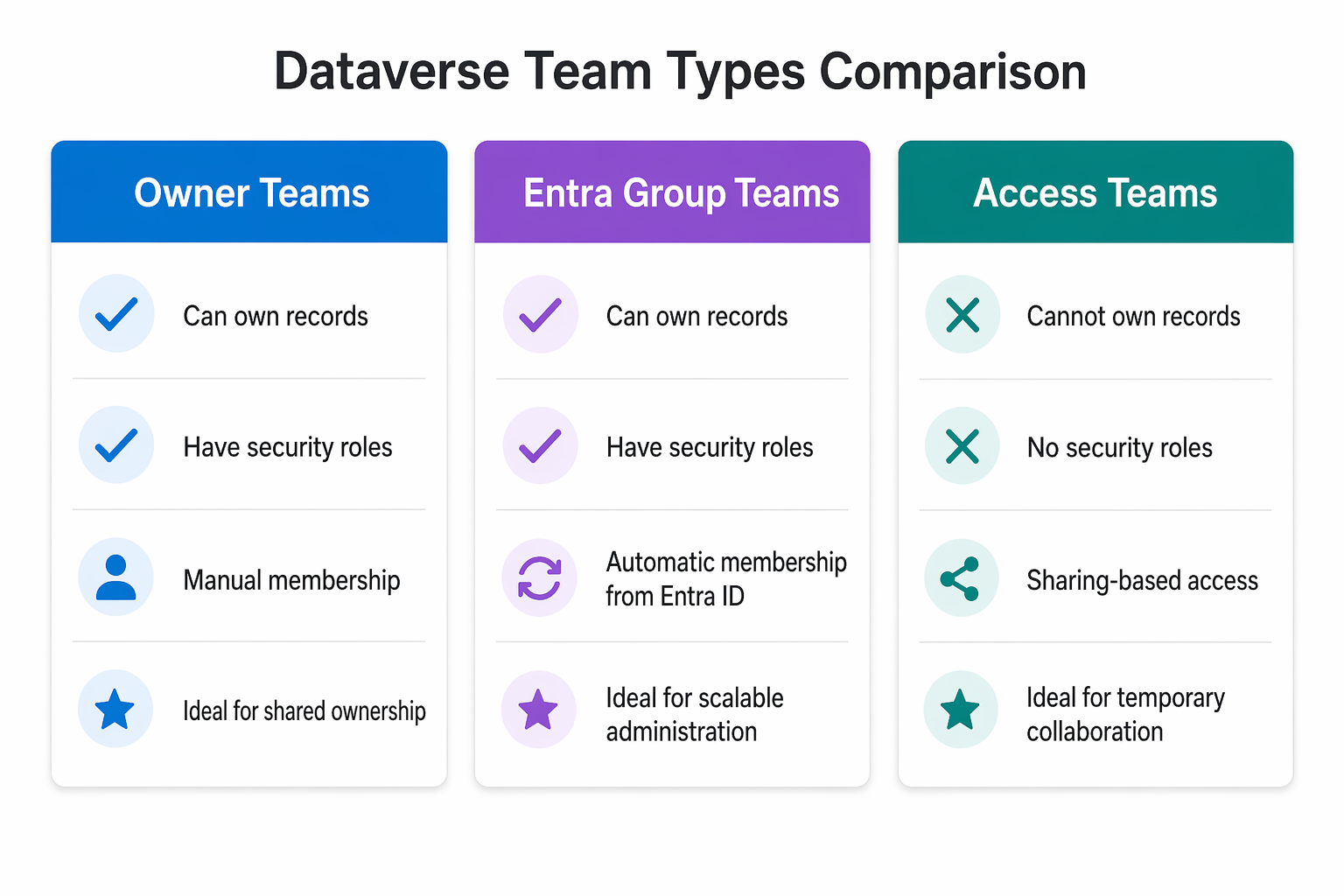
Owner teams let groups of users share record ownership and inherit security role privileges:
- On the Access card, select Teams > See all.
- Select + Create team.
- Enter a team name and description.
- Select the business unit this team belongs to.
- Choose Owner as the team type.
- Add an administrator.
- Select Create.
- After creation, add members manually and assign security roles.
Owner teams are ideal when:
- Multiple users need shared ownership of records (for example, a compliance team that jointly manages audit cases).
- You want to assign security roles to a group rather than individuals.
- Records belong to a team function rather than a single person.
Configure Entra group teams
Entra group teams bridge the gap between Entra ID group governance and Dataverse access:
- On the Access card, select Teams > See all.
- Select + Create team.
- Enter the team name.
- Select the business unit.
- Choose Entra ID Security Group as the team type.
- Enter the Entra ID group name and select the matching group.
- Select Create.
- Assign security roles to the team.
Membership is automatic - when users are added to the Entra ID group, they gain the team's security roles on their next environment access. Removal from the Entra group revokes those roles.
Tip
Combine Entra group teams with the environment security group from a prior module. Use one Entra group to control environment access (security group association) and a more specific nested group for the Dataverse team. This provides both gate (can they enter?) and role (what can they do?) control from a single identity source.
Configure access teams
Access teams provide sharing-based access without granting broad table privileges:
- Enable access teams on the target table (done by a maker in Power Apps):
- Open the table settings and enable Access team templates.
- Define templates specifying which privileges (Read, Write, Append) the team grants.
- In model-driven apps, users can add other users to access teams on individual records using the Share command or through team templates.
Access teams are ideal for:
- Cross-business-unit collaboration on specific records
- Project-based temporary access
- Scenarios where owner teams would create too many permanent role grants
Enable matrix data access
Traditional business unit access is hierarchical. A user in a parent unit can see child unit data, but not the reverse. Matrix data access removes this constraint:
- Go to Settings > Product > Features.
- Turn on Record ownership across business units.
- Publish all customizations.
When you turn on matrix access:
- Assign security roles from multiple business units to users.
- A user can own records in business units other than their own.
- The owning business unit field always shows where the record belongs, regardless of the user's home unit.
At Zava, this access model means a compliance officer (home business unit: Zava Pay Compliance) can also have Read access to records in the Stores business unit through a role assignment from that unit - without moving them there.
Note
Matrix data access adds complexity. Enable it only when traditional hierarchical access isn't enough. For most organizations, a combination of teams and sharing handles cross-unit scenarios without enabling matrix mode.
Plan team and business unit governance
Effective governance requires ongoing management:
| Scenario | Action |
|---|---|
| New employee joins | Assign to correct business unit, add to appropriate Entra groups |
| Employee changes role | Move to new business unit (if needed), update team memberships |
| Employee leaves | Disable account, reassign owned records to team or manager |
| New project team needed | Create access team or Entra group team with scoped roles |
| Department restructure | Plan business unit changes, test record reassignment impact |
Document your business unit and team structure as part of the governance framework. Review quarterly to ensure alignment with organizational changes.