Apply column security and masking
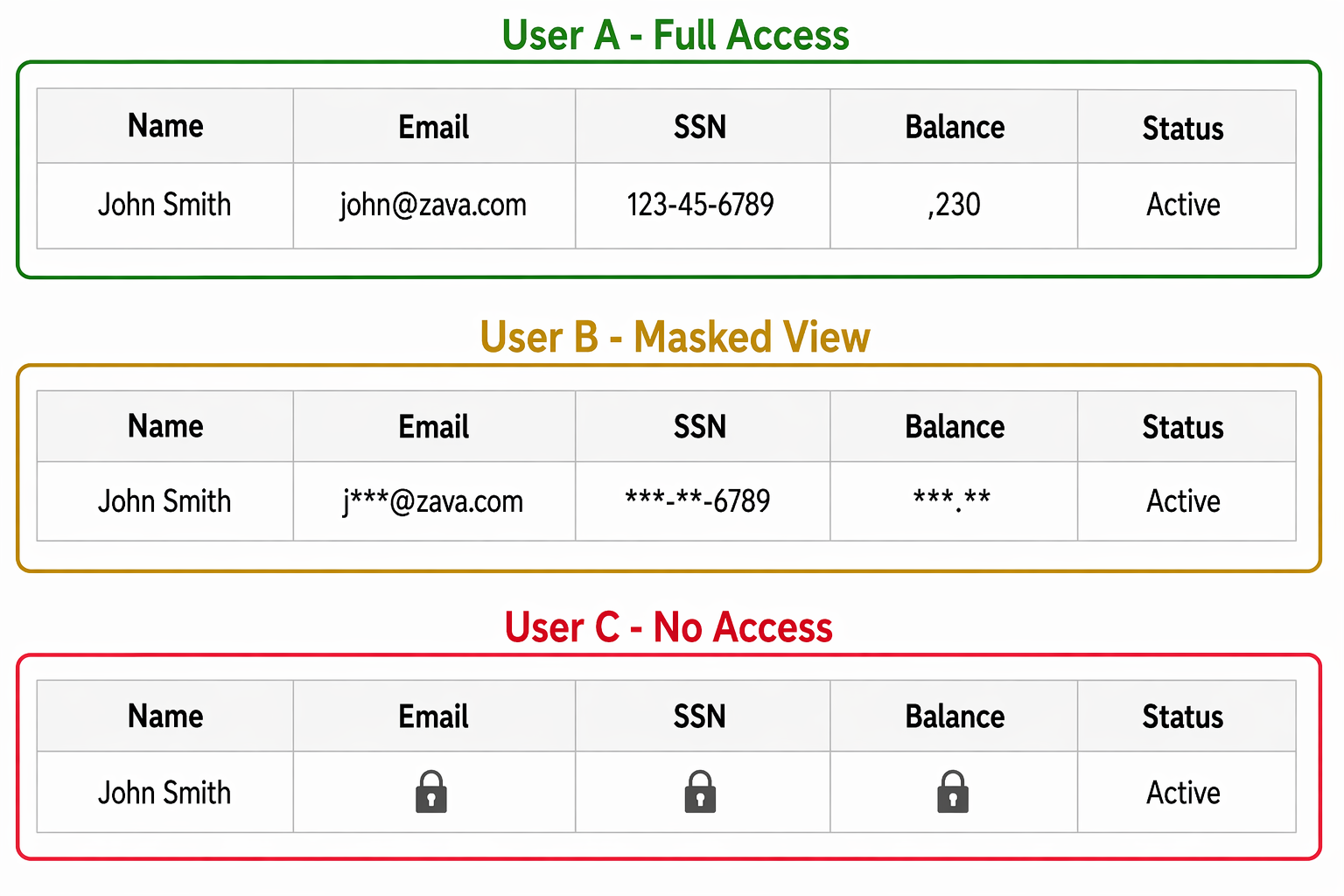
Record-level security controls who can access a record. Column-level security controls what they see within that record. For sensitive data like financial account numbers, personal identification, and payment details, column-level security ensures that even authorized users only see data they specifically need.
When to use column-level security
Column-level security is appropriate when:
- A table contains a mix of sensitive and non-sensitive columns (for example, a Customer table with both name and personal ID number)
- Different user roles need different column visibility within the same record
- Compliance requirements mandate restricted access to specific data elements, such as payment card data (PCI-DSS) and personal data
- You need to show masked values to some users while others see full data
Column-level security is NOT appropriate for:
- Restricting entire records - use security roles and business units instead
- Tables where all columns have the same sensitivity level
- Scenarios where the performance overhead of per-column evaluation outweighs the security benefit
Enable column security on a table
Before configuring profiles, enable security on individual columns:
- In Power Apps, open the target solution and navigate to the table.
- Select Columns and choose the column to secure.
- Expand Advanced options.
- Enable Enable column security.
- Select Save.
After enabling, the column is locked by default - only System Administrators can see it until you create a column security profile and grant access.
Important
Not all column types support security. You can't secure: virtual table columns, lookup columns, formula columns, the primary name column, or system columns (createdon, modifiedon, statecode, statuscode). Plan your data model accordingly.
Create column security profiles
A column security profile is a named set of column permissions assigned to users or teams:
- In Power Apps, open the target solution
- Navigate to New > Security > Column security profile.
- Enter a profile name that reflects the access level (for example, "Zava Pay - Full Financial Access" or "Stores - Masked PII View").
- Save the profile.
To configure an existing one, follow the same steps and select Add existing in the solution.
Configure column permissions
For each secured column in the profile, set four permissions:
| Permission | Options | Behavior |
|---|---|---|
| Read | Allowed / Not Allowed | Can the user see the column value at all? |
| Read Unmasked | All Records / One Record / Not Allowed | Can the user see the full (unmasked) value? |
| Update | Allowed / Not Allowed | Can the user modify the column value? |
| Create | Allowed / Not Allowed | Can the user set this value when creating a record? |
To configure permissions:
- Open the column security profile.
- Select the Column Permission tab.
- Select the columns to configure and choose Edit.
- Set each permission level.
- Select Save.
Configure data masking
Data masking shows partial or obscured values to users who have Read permission but not Read Unmasked. This lets users identify records without exposing full sensitive values.
Masking rule behavior:
| Data type | Masked display | Example |
|---|---|---|
| Text/String | First or last characters visible | ***-**-1234 |
| Partial domain visible | j***@zava.com |
|
| Number | Masked digits | ****5678 |
| Currency | Fully masked | ***.** |
To apply masking:
- In the column security profile, set Read to Allowed and Read Unmasked to Not Allowed.
- The masking rule applies automatically based on the column's data type.
- Users with Read Unmasked = All Records see full values.
- Users with Read Unmasked = One Record must explicitly request unmasking per record.
Note
Audit logs show * for secured column values, regardless of the auditor's permissions. If you need to audit actual values of secured columns, maintain a separate secure audit trail with appropriate access controls.
Assign profiles to users and teams
After configuring column permissions, grant the profile to appropriate users:
- Open the column security profile.
- Select the Users tab or Teams tab.
- Select + Add Users or + Add Teams.
- Search for and select the appropriate users or teams.
- Select Add.
Users not assigned to any profile for a secured column have no access to that column - it appears empty or hidden depending on the app.
Design column security for Zava Pay
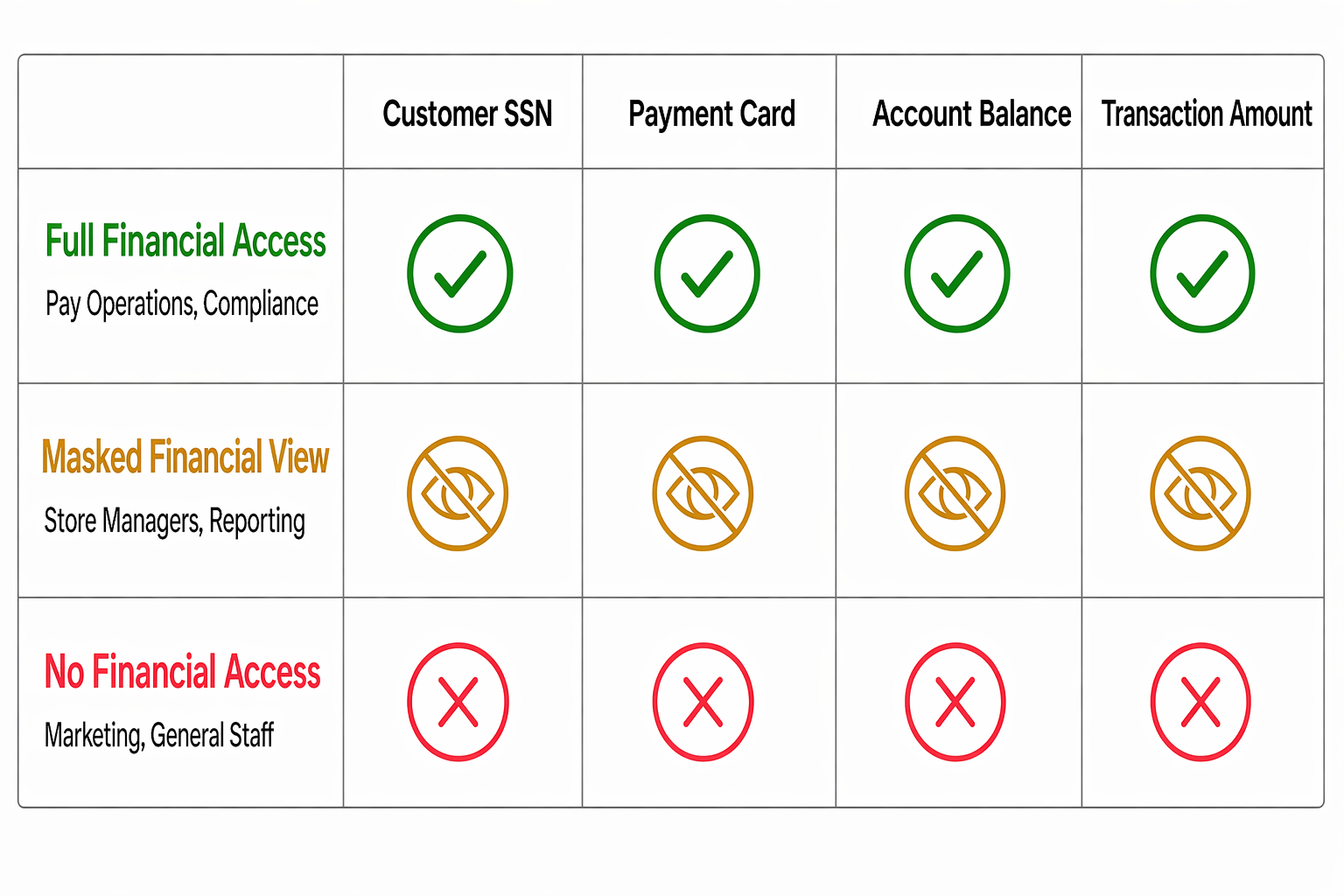
For Zava Pay's financial data, three profiles handle different access needs:
| Profile | Users/Teams | Read | Read Unmasked | Update | Create |
|---|---|---|---|---|---|
| Full Financial Access | Pay Operations team, Compliance | Allowed | All Records | Allowed | Allowed |
| Masked Financial View | Store managers, reporting | Allowed | Not Allowed | Not Allowed | Not Allowed |
| No Financial Access | Marketing, general staff | Not Allowed | Not Allowed | Not Allowed | Not Allowed |
Columns secured with these profiles:
CustomerSSN- Social security numberPaymentCardLast4- Card detailsAccountBalance- Current balanceTransactionAmount- Individual transaction values (for the Masked profile, shows***.**)
Best practices for column security
- Secure calculated columns too - If a calculated column derives from a secured column, secure both. Otherwise, users can see sensitive data through the calculated column.
- Test with affected users - After enabling column security, verify that users can still perform their required tasks. Missing Read permission on a column used in a view filter can break the view entirely.
- Document your profiles - Maintain a matrix showing which profiles apply to which columns and which teams. This documentation is critical during security audits.
- Minimize usage - Column-level security adds performance overhead for every data access request. Apply it only to genuinely sensitive columns, not as a general access control mechanism.
- Combine with security roles - Column security assumes record access is already appropriate. Don't rely solely on column masking to protect data - restrict record access through roles and business units first.