Create configuration profiles
Now that you understand what configuration profiles are and their role in policy enforcement, you're ready to create them. But creating a profile isn't a single-step process with the same approach for every scenario. The method you choose, using templates, the settings catalog, or custom profiles depends on what you're trying to accomplish and how specific your requirements are.
Think of profile creation as a decision-making process. You start by identifying what you need to configure. Then you choose the right tool from Intune's three approaches. Finally, you assign that profile to the users or devices that need it. The key is matching the right approach to your specific scenario.
Deciding which profile approach to use
Before you create any profile in Intune, understand your three options: templates, the settings catalog, and custom profiles. Each serves a different purpose and works best in different scenarios.
Use the following flowchart to decide which approach—templates, the settings catalog, or a custom profile—fits your scenario.
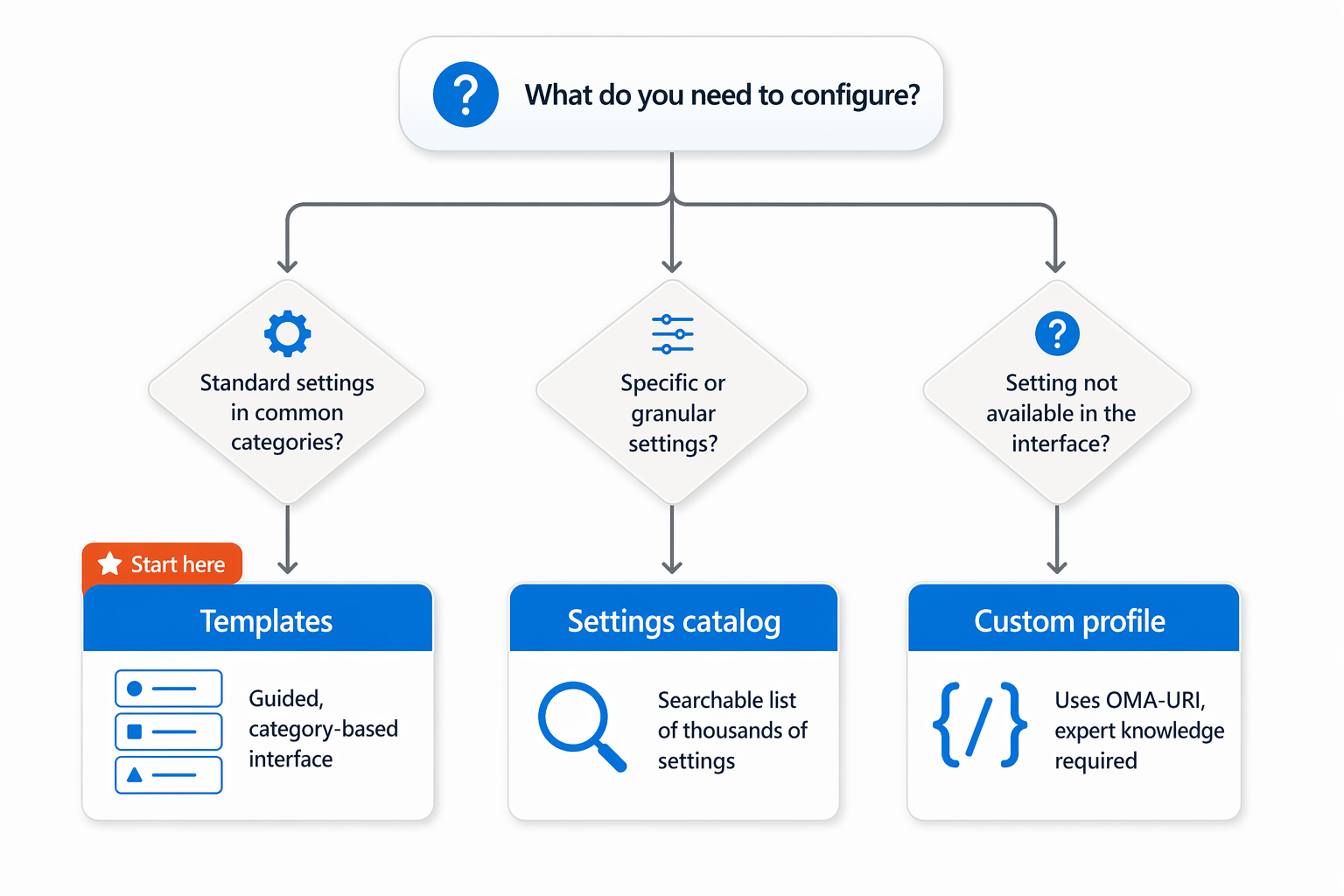
Templates. are profile types designed for common configuration scenarios. Intune provides templates like device restriction templates, endpoint protection templates, and device health profiles. Templates use a traditional interface organized by category. You navigate through sections like security, connectivity, or system settings, configuring only the options you need. Templates work well when your requirements fit into standard categories and when you want a guided, straightforward experience. If you need to configure standard security settings like firewall or antivirus on Windows devices, a device restriction template is likely your best first choice.
The settings catalog. is a more modern approach that gives you access to every available configuration setting Intune supports. Rather than organizing settings by category, the settings catalog provides a searchable list of thousands of settings. You search for the specific setting you need, configure it, and move to the next one. This approach works exceptionally well when your requirements are granular or specific. If you need to configure device settings that don't fit neatly into a standard template, or if you need to combine many specific settings into a single profile, the settings catalog is your tool.
Custom profiles. use Open Mobile Alliance – Uniform Resources (OMA-URIs) to deploy settings that exist outside the standard Intune settings. Custom profiles require technical expertise because you must know the exact OMA-URI syntax for the setting you want to deploy. Use custom profiles only when a setting you need isn't available in either templates or the settings catalog. Custom profiles are powerful but carry more risk because you're working with lower-level device configuration languages.
The profile creation workflow
Creating a configuration profile follows a consistent workflow regardless of which approach you choose. Understanding this workflow helps you work efficiently in Intune.
Choose your platform. The first decision is which device platform you're targeting: Windows, macOS, iOS, iPadOS, or Android. The platform determines which settings are available and which profiles you can create. A profile created for Windows devices won't apply to iOS devices, so you must explicitly choose your audience.
Choose your profile type or approach. Once you've chosen your platform, select the specific profile type (template) or indicate you want to use the settings catalog. This choice is crucial because it determines how you'll configure the settings and what options are available to you.
Configure your settings. This is where the actual configuration happens. If you're using a template, you navigate through organized sections and enable or disable features as needed. If you're using the settings catalog, you search for specific settings, review their descriptions, and configure the values. The interface differs, but the outcome is the same: you're defining which settings apply and what values they should have.
Assign your profile. Creating a profile doesn't make it apply to devices automatically. You must assign the profile to users, device groups, or devices. Assignments determine who receives the profile. You can assign a profile to all users, specific security groups, or filtered sets based on device attributes. Intune also supports assignment filters, which let you assign a profile broadly but exclude certain devices based on criteria like device name patterns or manufacturer.
Monitor profile application. After assignment, monitor whether devices are receiving and applying the profile successfully. Intune provides per-device status reports showing whether each device has received the profile, applied it, or encountered errors. This monitoring step confirms that your configuration is reaching the devices you intended to target.
Profile structure and components
Every configuration profile has common structural elements that work the same way regardless of the approach you use.
Settings. are the actual configurations you're deploying. A settings catalog profile for Windows might include 20 different settings controlling everything from security features to user interface options. Each setting has a name, description, and available values. The values might be Boolean (on/off), numeric, or selected from predefined options.
Assignments. determine which users or devices receive the profile. You can assign to Microsoft Entra ID groups, which makes profiles dynamic when new users join a group, they automatically receive the profile. You can also assign directly to specific devices. The assignment approach affects how the profile applies at scale.
Applicability and filters. let you refine your assignments. Applicability determines which devices can receive the profile based on their platform and operating system version. Filters let you apply additional logic. For instance, "apply this profile to all Windows devices except those with names starting with TEST." Filters reduce the need to create multiple versions of the same profile for slightly different scenarios.
Choosing between templates and settings catalog in practice
Consider how these approaches work in real scenarios. Suppose you need to configure basic Windows Defender settings and enable disk encryption on all Windows 11 devices at your organization. A device restriction template combined with an endpoint protection template covers both requirements neatly. You navigate the familiar template interface, enable the settings you need, and assign to your device groups. This is straightforward and requires no specialized knowledge.
Now suppose a department needs very specific device settings that cross multiple categories: they need certain USB restrictions, particular power settings, and specific user account controls, but they don't need the standard security settings included in common templates. The settings catalog is perfect here. You search for each specific setting by name, configure exactly what you need, and create a lean profile that includes only the necessary configurations. No extra settings, no unnecessary complexity.
Understanding your requirements, whether they fit standard templates or require a more granular approach, drives your choice of profile type. Most organizations use both templates for standard scenarios and the settings catalog for specialized requirements.
Real-world profile creation example
Imagine you're creating a profile for field sales representatives. These devices need wireless network configuration for consistent corporate connectivity, email settings so users can access company resources, and specific app restrictions to protect sensitive data while allowing productivity apps. The wireless network configuration fits well in a template. The email settings might be in a settings catalog. The app restrictions might require a custom approach depending on specifics.
Your solution might be to create two profiles: one template-based profile handling wireless and basic security, and one settings catalog profile handling the specific restrictions the sales team needs. You assign both profiles to the same device group. The devices receive both profiles and apply all settings. The combined configuration meets all the requirements without forcing unnecessary settings from overly broad templates.
This layered approach, using multiple profiles to handle different aspects of your configuration requirements, is common in well-designed Intune deployments. It's cleaner than creating one massive profile with extraneous settings, and it's easier to manage because each profile has a clear purpose.
Why understanding profile creation approach matters
The choice between templates, settings catalog, and custom profiles affects not just the mechanics of creating profiles, but the entire management experience. Choosing the right approach means your profiles are maintainable, efficient, and focused on exactly what your organization needs. Choosing the wrong approach can lead to overcomplicated profiles, unnecessary settings, or difficulty managing updates as your requirements evolve.
Now that you understand the creation approaches available, you're ready to explore the specific settings you can configure within each approach and understand how to structure assignments to reach the right devices.