Create compliance policies
Consider this scenario: your organization needs to ensure that all devices accessing company data meet specific security standards. Some devices might lack encryption, others might run outdated operating systems, and some might not have antivirus protection enabled. How do you automatically identify and respond to these devices without having to check each one manually?
Microsoft Intune compliance policies are the answer. These policies define the security and health standards your devices must meet. When devices don't comply with your requirements, Intune can notify users, mark devices as non-compliant, or even block access to company resources. Combined with Conditional Access in Microsoft Entra ID, compliance policies become a powerful tool for protecting your organization's data.
Understanding compliance policies
Compliance policies work by evaluating device settings against requirements you define. When you create a compliance policy, you specify which device settings matter to your organization, like encryption status, firewall configuration, or antivirus protection. Intune then checks each managed device against these requirements and reports the result: compliant, non-compliant, or not evaluated.
The key insight is that compliance policies bridge device management and access control. Intune reports a device's compliance status to Microsoft Entra ID, which can then use that information in Conditional Access policies. For example, a Conditional Access policy might require a device to be marked as compliant before allowing access to Microsoft Teams. This means non-compliant devices are automatically blocked from accessing sensitive resources.
Compliance policies enforce three categories of requirements: device health (like antivirus and secure boot), device security (like password complexity and encryption), and system security (like TPM requirements and jailbreak detection). Different device platforms support different settings, so you'll create separate policies for Windows, iOS, and Android devices.
Key components of a compliance policy
When you create a compliance policy, you configure settings across several categories.
The following diagram shows the three categories of requirements that a compliance policy evaluates.
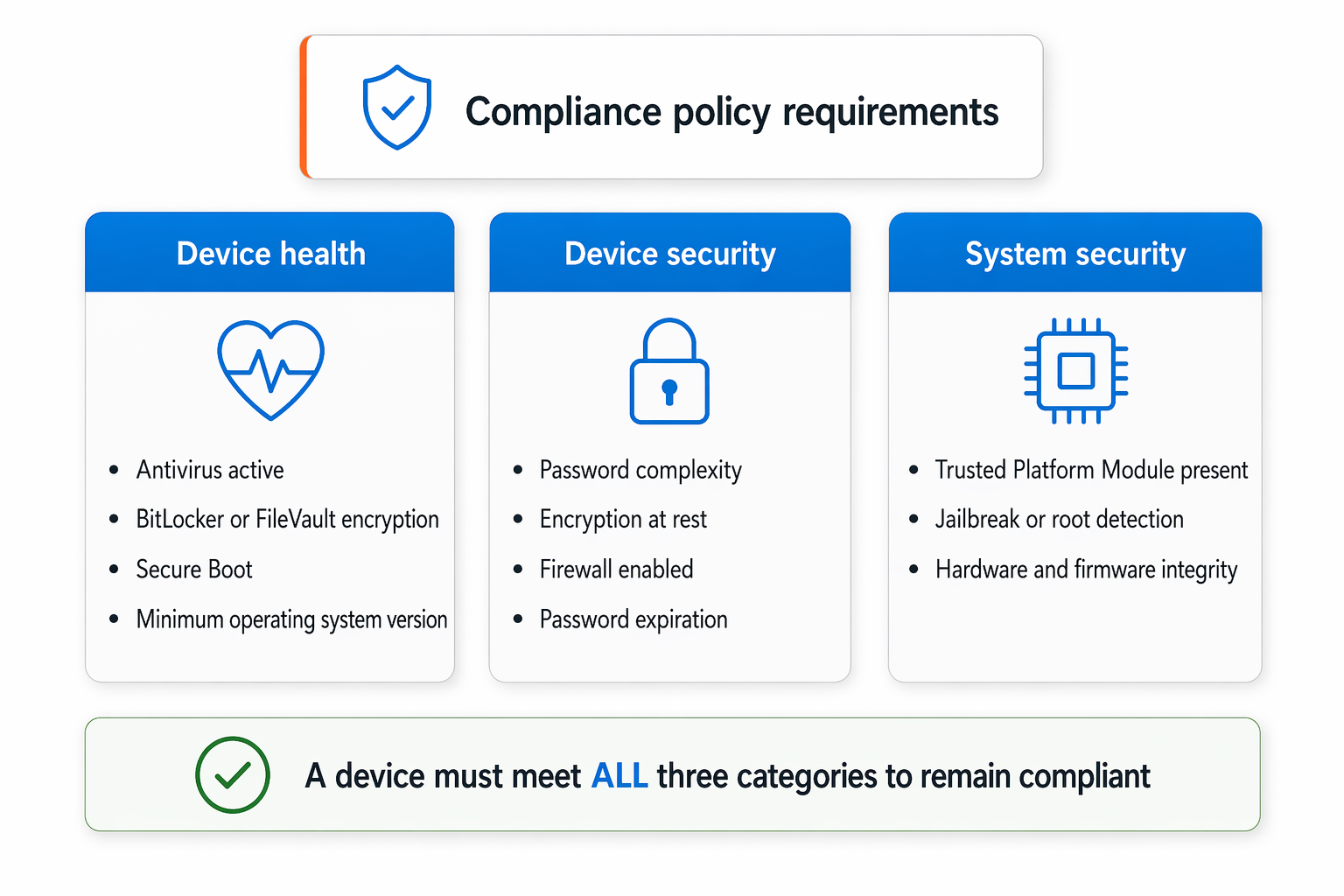
Device health settings ensure your devices have proper protections in place. You can require antivirus software to be active, mandate BitLocker encryption on Windows or FileVault on macOS, enforce secure boot, and set minimum operating system versions. These settings verify that the underlying device is secure.
Device security settings control how users interact with their devices. You can require strong passwords or PINs with specific complexity rules, enforce encryption of data at rest, mandate firewall activation, and set password expiration policies. These settings protect against unauthorized access and data theft.
System security settings verify the device's hardware and firmware integrity. You can require Trusted Platform Module (TPM) presence, which provides hardware-based security, and detect if devices have been jailbroken (iOS) or rooted (Android). These settings catch devices that have been modified or compromised.
Each setting you configure becomes part of the compliance evaluation. A device only remains compliant if it meets all requirements you've enabled. If any setting falls out of compliance, for example, if BitLocker is disabled or an antivirus subscription expires, Intune detects it and updates the device's compliance status.
Creating and assigning compliance policies
To create a compliance policy, you start by signing in to the Microsoft Intune admin center and navigating to the Devices section. You'll select the appropriate platform (Windows, macOS, iOS, or Android) because each platform has its own set of available settings. Once you select a platform and create the policy, you configure the specific settings that matter for your organization.
You configure settings such as requiring BitLocker encryption for Windows devices, setting a minimum iOS version, or mandating antivirus for all devices. After configuring settings, you also define a compliance validation grace period. This grace period gives users time to bring their devices into compliance before Intune takes action. You might set this to 30 days, for example, allowing users a month before enforcement begins.
Assignment is the next critical step. You assign compliance policies to Microsoft Entra ID groups, just like device configurations. Users in those groups will have the compliance policy deployed to their devices. The compliance evaluation begins immediately, but Intune won't enforce actions until the grace period expires. This gives users notice and time to address issues.
Defining actions for non-compliance
Non-compliance requires responses. When a device falls out of compliance, you define exactly what happens. Intune can automatically send the user an email notification explaining which policy is violated and how to fix it. The user sees the non-compliant status in the Company Portal and knows they need to take action.
You can configure a schedule for escalating actions. For example, after one day of non-compliance, Intune sends an email notification. After seven days, the device is marked as non-compliant for Conditional Access purposes. This means Conditional Access policies can block the device from accessing protected resources. Some organizations also configure remote lock or data wipe after extended periods of non-compliance, though this requires careful planning and user communication.
The most common approach is to use email notifications combined with Conditional Access enforcement. This allows IT to control access without taking drastic measures, while giving users clear communication about what needs to be fixed.
Connecting compliance to Conditional Access
Compliance policies alone don't block access. They only report status. To actually enforce device compliance, you use Conditional Access policies in Microsoft Entra ID. A Conditional Access policy can require that devices be marked as compliant before allowing access to apps like Microsoft Teams, SharePoint, or Exchange Online.
Here's how the flow works: Intune evaluates a device against compliance requirements and reports the status to Microsoft Entra ID. When a user tries to access a protected resource, Conditional Access checks the device's compliance status. If the device is compliant, access is granted. If it's non-compliant, access is denied. The user sees a message explaining that their device doesn't meet security requirements.
This approach gives you control without manual intervention. Users need to fix their devices to restore access, while IT maintains visibility and enforcement through policy rather than individual ticket-based response. For example, requiring all Windows 11 devices to meet your compliance policy before accessing company email ensures consistent security posture across your organization.
Monitoring compliance status
After compliance policies are assigned, you monitor device compliance in the Intune admin center. The compliance dashboard shows you the overall compliance rate, which devices are compliant or non-compliant, and why devices failed compliance checks. You can also see details about specific policy violations, like devices missing BitLocker encryption.
This visibility helps you identify trends. If many devices are failing a particular requirement, you might need to extend the grace period, provide user training, or adjust your policy expectations. The goal is to balance security requirements with practical device management and user productivity.
Summary: Compliance policies are how you define what "secure" means for your organization, evaluate your devices against that standard, and integrate those findings into your access control strategy through Conditional Access. Together, they create a strong foundation for endpoint security.