Create an external tenant
To create a tenant within an existing Azure subscription, perform the following steps:
In the Microsoft Entra admin center, browse to Identity > Overview . Then, select Manage tenants.
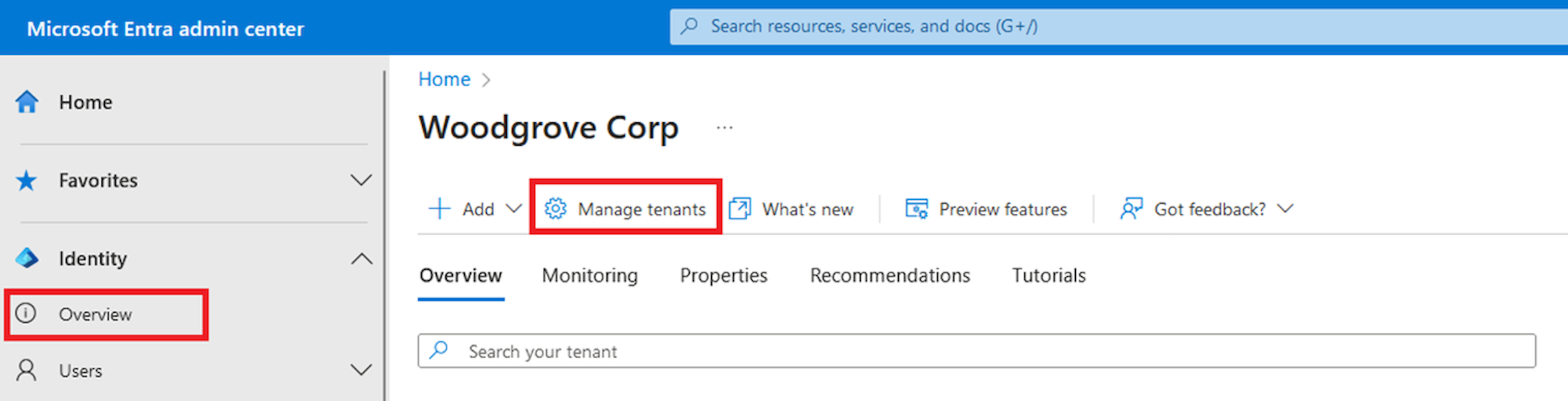
On the Manage tenants page, select Create.
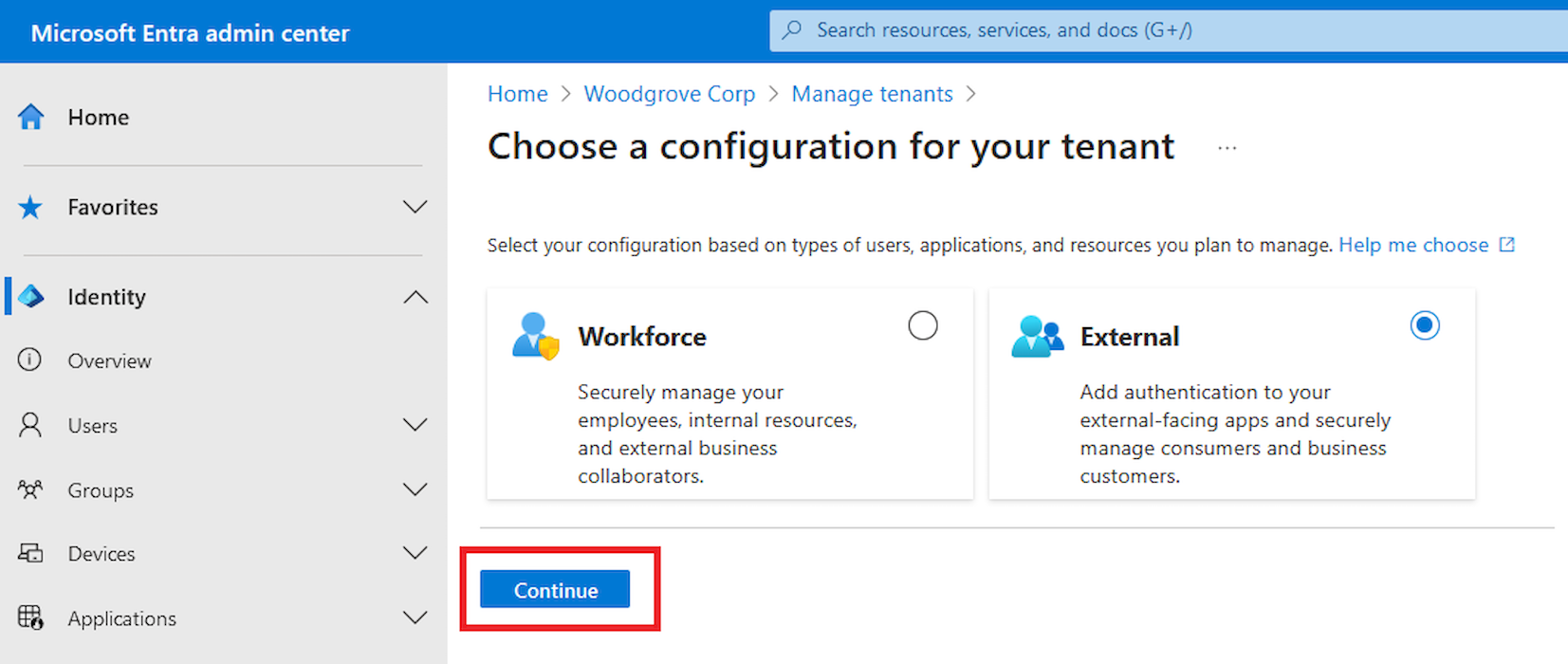
Select External, and then select Continue.
On the Basics tab, in the Create a tenant page, enter the following information: Type your desired Tenant Name (for example Woodgrove live demo). Type your desired Domain Name (for example woodgrovelive). Select your desired Location. This selection can't be changed later. Then, select Next: Add a subscription.
On the Add a subscription tab, enter the following information: Next to Subscription, select your subscription from the menu. Next to Resource group, select a resource group from the menu. If there are no available resource groups, select Create new, add a name, and then select OK. If Resource group location appears, select the geographic location of the resource group from the menu. Then, select Review + Create.
If the information that you entered is correct, select Create. The tenant creation process can take up to 30 minutes.
You can monitor the progress of the tenant creation process in the Notifications pane. Once the tenant is created, you can access it in both the Microsoft Entra admin center and the Azure portal.
Use the Settings icon in the top menu to Switch to your customer tenant you created from the Directories + subscriptions menu. If the tenant you created doesn't appear in the list, refresh the page (using the web browser refresh button).
Browse to Home > Tenant overview to start configuring your tenant.
The Microsoft Entra External ID tenant is ready to use.