Create and manage mailboxes
Manage user mailboxes every day
When you assign a Microsoft 365 or Exchange Online license to a user, Exchange Online automatically provisions a user mailbox for that account. This is the mailbox lifecycle you manage every day as an administrator: new hires need a mailbox, existing mailboxes need their properties updated, and departing employees need forwarding or a hold configured before removal. You do this work from three places: the Microsoft 365 admin center, the Exchange admin center (EAC), or Exchange Online PowerShell.
Each surface exposes the same underlying mailbox object, so you pick whichever tool fits the task. The Microsoft 365 admin center handles quick, single-user changes like updating a display name. The EAC gives you a dedicated view built for Exchange-specific settings. PowerShell handles bulk changes and anything that isn't exposed in a UI—for example, filtering mailboxes by size across the whole tenant.
Whichever tool you use, the same core properties come up constantly:
- Display name and proxy addresses: the name recipients see, and the alias (secondary email) addresses the mailbox accepts mail for.
- Email forwarding: routes copies of incoming mail to another address, often used during a transition period.
- Storage quota and usage: how much data the mailbox holds against its licensed limit.
- In-place archive: a secondary mailbox for older items, keeping the primary mailbox lean.
- Litigation hold: preserves all mailbox content, including deleted and edited items, for legal or compliance needs.
In PowerShell, Get-Mailbox retrieves these properties, and Set-Mailbox updates them:
Get-Mailbox -Identity "user@relecloud.com" | Select-Object DisplayName, ProhibitSendReceiveQuota
Set-Mailbox -Identity "user@relecloud.com" -ForwardingAddress "manager@relecloud.com"
The first command returns a user's display name and storage limit. The second sets up forwarding to a manager's address. Both cmdlets accept a -Identity parameter and work as well against a single mailbox as against hundreds, when combined with a filter.
Choose the right mailbox type
Before you create a mailbox, decide what kind of mailbox the scenario calls for. Exchange Online supports several mailbox types, and picking the wrong one early creates cleanup work later.
A user mailbox belongs to a single, licensed person and is what gets provisioned by default when you assign a license. A shared mailbox lets a team send and receive mail from one address, such as support@relecloud.com, without every team member needing a separate license for that mailbox. A resource mailbox (room or equipment) represents a physical asset like a conference room or a projector cart, and it manages its own booking calendar instead of belonging to a person.
| Mailbox type | Belongs to | License |
|---|---|---|
| User mailbox | A single person | Provisioned when you assign a license |
| Shared mailbox | A team, one shared address | None up to 50 GB; Exchange Online Plan 2 above 50 GB |
| Resource mailbox (room or equipment) | A physical asset—room or equipment | Manages its own booking calendar; no user license |
The customer success mailboxes from the start of this module are shared mailboxes: multiple agents need to answer mail from one address, and no single person owns it. That distinction, shared instead of user, is exactly what puts the 50 GB threshold in play.
Resolve the puzzle: does a shared mailbox need a license?
Guiding question: Predict the rule before you read further. A shared mailbox gets a fixed amount of storage with no license attached at all. Based on what you know about the two mailboxes from the start of this module, one at 37 GB and one at 84 GB, where do you think that free-storage line sits, and which mailbox crosses it?
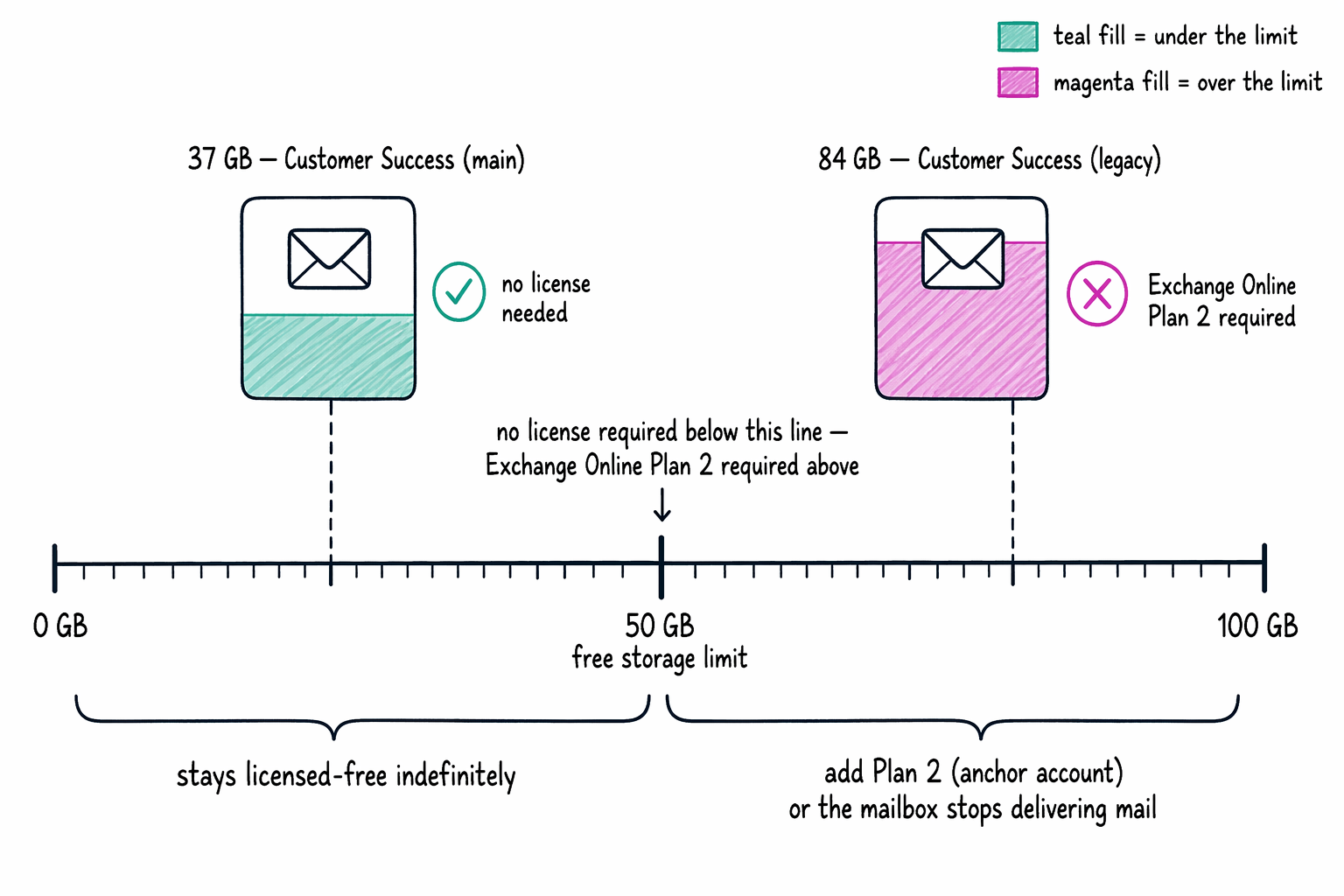
A shared mailbox stores up to 50 GB of mail with no license required. That's the whole rule: stay at or under 50 GB, and the mailbox runs indefinitely at no license cost. Cross 50 GB, and the mailbox needs an Exchange Online Plan 2 license assigned to it (an anchor account) to keep accepting mail. Without that license, the mailbox stops delivering new messages once it hits its limit.
That's the answer to the two mailboxes from the start of this module. The 37 GB mailbox sits comfortably under the 50 GB line, so it needs no license. The 84 GB mailbox already sits past the line, so it needs an Exchange Online Plan 2 license, or Exchange Online Plan 1 with an Exchange Online Archiving add-on if the real requirement is in-place archiving or litigation hold rather than raw storage. Guessing "shared mailboxes never need a license" leaves the 84 GB mailbox to silently stop accepting mail. Guessing "license everything to be safe" pays for a license the 37 GB mailbox never needed.
Learn more about Exchange Online storage limits across Plan 1 and Plan 2.
Avoid two mailbox sequencing gotchas
Converting an existing user mailbox to a shared mailbox is a common way shared mailboxes come into existence, typically when an employee leaves but their mailbox needs to stay accessible to a team. The Convert to shared mailbox option only appears for a mailbox that's currently licensed. Remove the license first, and the option disappears along with the conversion path.
The order that works: convert the mailbox to shared while it's still licensed, then remove the license afterward, but only if the mailbox is 50 GB or under. If it's already past 50 GB, keep the license (or add Plan 2) in place after conversion, for the same sizing reason as any other shared mailbox over the threshold.
A second gotcha applies once the mailbox is shared and people start using it: a shared mailbox supports a maximum of 25 concurrent users signed in through Outlook or Outlook on the web. Add more people than that, and connection failures and duplicate messages become likely as the mailbox struggles to sync across too many simultaneous sessions. When a scenario calls for more than 25 people needing regular access, a Microsoft 365 group fits the need better than a shared mailbox.
Learn more about converting a user mailbox to a shared mailbox, including the anchor-account requirement.
The mailbox is sized and licensed correctly now. But who's actually allowed to send mail as it, and can the recipient even tell who really typed the reply?