Delegate mailbox access: Full Access, Send As, and Send on Behalf
Decide whether Send As and Send on Behalf are really interchangeable
Send As and Send on Behalf both let a delegate send mail through a mailbox that isn't their own, so it's easy to assume the two permissions are interchangeable—just two ways to grant the same ability. Whether Relecloud's customer success reps forward technical issues, close a case, or reply to a billing question, every message they send from support@relecloud.com has to look consistent to the customer on the other end. That's the whole point of a shared mailbox, so the delegate permission Relecloud assigns has to match that goal exactly.
Guiding question: Relecloud wants every reply from the Customer Success mailbox to look like it comes from "Customer Success" itself, with no hint that an individual rep typed it. Based on that requirement alone, do you assign Send As or Send on Behalf to the reps? Keep your answer in mind as you read the next section.
The two permissions produce a different result in the recipient's inbox, and that difference is the entire reason to choose one over the other.
See the difference in the recipient's inbox
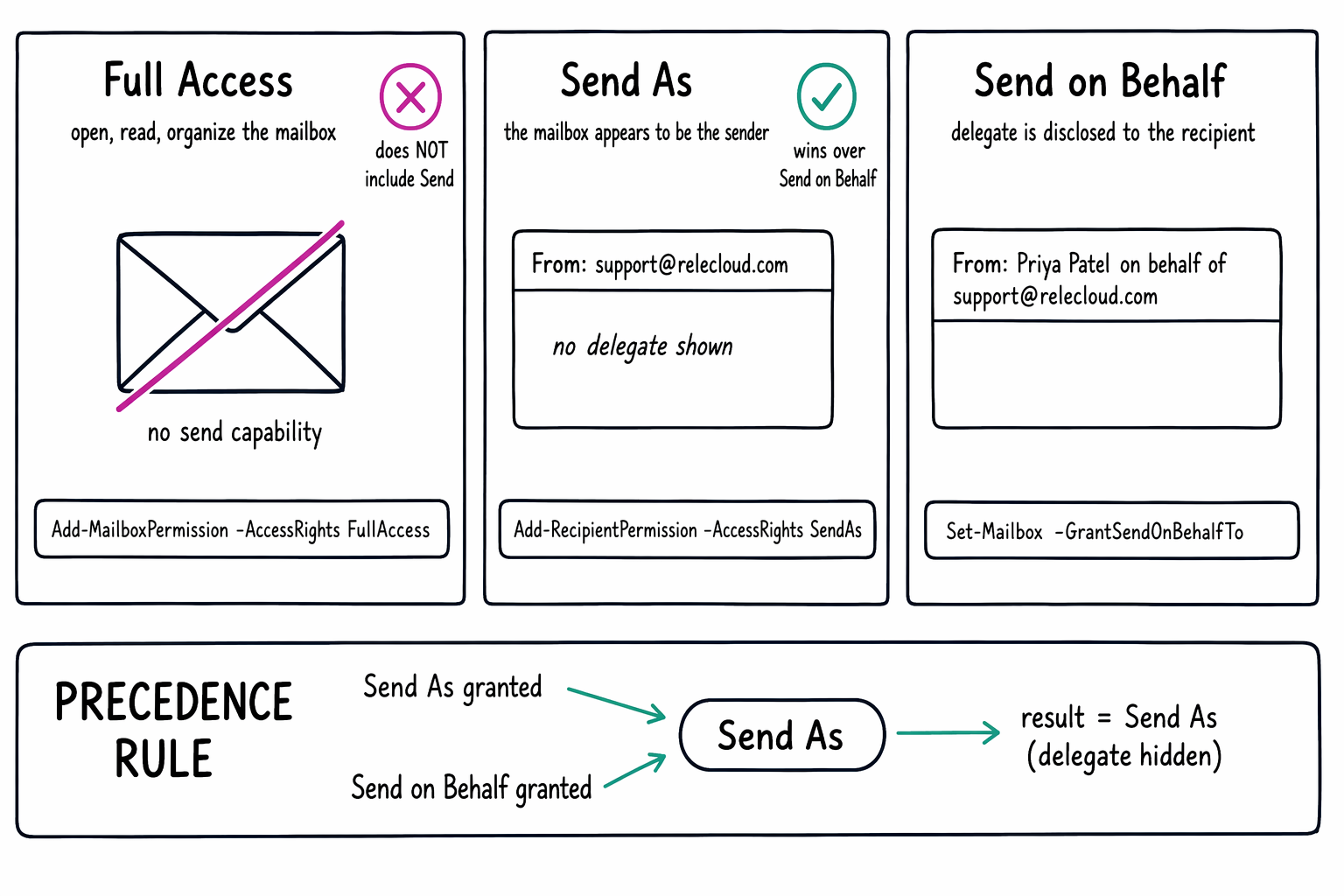
Send As makes an outgoing message appear sent directly from the mailbox. A customer who receives a reply from support@relecloud.com under Send As sees only support@relecloud.com in the From field. No name, no indication that a specific rep, or any delegate, actually wrote the reply.
Send on Behalf discloses the delegate. The customer sees something closer to "Priya Patel on behalf of Customer Success" in the From field. The mailbox is still the sender of record, but the individual behind the message is visible.
That's the answer to the guiding question: Relecloud's requirement—every reply looks like it came from Customer Success, not from an individual rep—points directly to Send As. Send on Behalf would put an individual rep's name in front of every customer, which is exactly what the requirement rules out. If Relecloud's goal instead were transparency, showing customers which manager approved a message sent through an assistant's mailbox, Send on Behalf is the better fit. The mail itself doesn't change. The identity attached to it does.
Learn more about which permissions to use for a shared mailbox.
Add Full Access without assuming it grants send rights
Full Access is the permission that most administrators assign first, because it's the one that lets a delegate open the mailbox at all: read messages, view the calendar, and organize folders as though it were their own. But Full Access, by itself, grants none of that ability to send.
Add-MailboxPermission -Identity "support@relecloud.com" -User "priya@relecloud.com" -AccessRights FullAccess
That command gives Priya full access to open and manage the mailbox. She can read every incoming case and file messages into folders, but she still can't reply. Sending a message as or on behalf of support@relecloud.com needs one of the other two permissions layered on top:
Add-RecipientPermission -Identity "support@relecloud.com" -Trustee "priya@relecloud.com" -AccessRights SendAs
Set-Mailbox -Identity "support@relecloud.com" -GrantSendOnBehalfTo "priya@relecloud.com"
Treating Full Access as a package deal that includes sending is a common assumption, but it leaves the reps with read-only access to a support mailbox they need to answer.
| Permission | Grants | Recipient sees |
|---|---|---|
| Full Access | Open, read, and manage the mailbox—but not send | No change to the From field |
| Send As | Send as the mailbox itself | Only the mailbox address (support@relecloud.com)—no delegate named |
| Send on Behalf | Send through the mailbox as a disclosed delegate | "Priya Patel on behalf of Customer Success" |
Know which permission wins when a delegate has both
A delegate can hold Send As and Send on Behalf on the same mailbox at the same time. When that happens, Send As always takes precedence: Exchange Online uses Send As, and the message goes out with no disclosure of the delegate, regardless of what Send on Behalf is also configured to do.
This matters when you're troubleshooting a message that shows up differently than expected. If a rep reports that customers only see support@relecloud.com instead of the "on behalf of" disclosure you configured, check whether that rep also has Send As on the same mailbox. If they do, that's the permission Exchange Online is honoring, not the one you meant to test.
Learn more about the full Send As and Send on Behalf comparison, including this precedence rule.
Apply the same rules to any mailbox, not just shared ones
Everything covered so far uses Relecloud's shared support mailbox as the example, because a shared mailbox makes the "who does the customer think sent this" question concrete. But Full Access, Send As, and Send on Behalf aren't shared-mailbox-only features. The same three permissions, with the same behavior and the same Send As precedence rule, apply when you delegate access to a user mailbox—for example, granting an executive assistant Send on Behalf access to a manager's individual mailbox so replies are clearly disclosed as sent by the assistant.
The decision process stays identical no matter which mailbox type you're configuring: start from what the recipient needs to see, then assign the permission that produces that result.
The mailbox is squared away. The upcoming exercise gives you hands-on practice sizing, licensing, and delegating a mailbox using what you covered in this unit and the last. But before you leave Exchange behind—when someone emails Relecloud, or a Relecloud reply heads out to a customer, how does that message actually get where it's going?