Create purchase orders
When a purchase requisition is approved, and after you select a vendor, you can create the purchase order to purchase the items.
Purchase orders
Purchase orders can help people in various roles update and keep track of order statuses. For example, the purchasing agent uses purchase orders to keep track of a list of products that a specific vendor purchases. Then, the purchasing agent records information, such as price, delivery information, and items, into the purchase order. Additionally, the purchasing agent generates a purchase order confirmation document, which is an external document that the purchasing agent sends to the vendor to notify them of the purchase.
The Summary by Copilot FastTab on the All Purchase Orders page provides an overview of the selected purchase order's status, including the number of lines that are partially or fully confirmed, received, and invoiced. It also highlights important insights, such as a summary of lines that are overdue or approaching their due dates. This innovative tool helps transform how you interact with your data because Copilot customizes summaries based on your user profile and current context. The information that displays can vary depending on your most frequently accessed pages, which ensure that it includes only relevant details based on your security roles and permissions. By understanding and prioritizing information according to your intent and role, this feature highlights critical attributes and dimensions so that you can make quicker, more informed decisions, and enhance your overall efficiency in managing all purchase orders.
Procurement and sourcing > Purchase orders > All purchase orders
When you create a purchase order, you must indicate which type of order it is. You can select one of the following order types.
- Journal – Use this type as a draft or template. You can’t process a journal because no inventory transactions are available for it.
- Purchase order – Use when the vendor confirms an order.
- Returned order – Use when you return goods to the vendor. On the Other tab, you must enter the returned item number or the returned merchandise authorization (RMA) number that the vendor gives you.
A purchase order can have several statuses that indicate where the selected order is in the purchase order process. As part of the workflow and change management activation process, the system implements the purchase order approval status on the purchase order header, and it can be any of the following statuses:
- Open order
- Received
- Invoiced
- Canceled
Additionally, each purchase order has a document status that indicates the status of the most recent document that’s complete for the order. These statuses include:
- None – No documents are processed for the order yet.
- Purchase inquiry – A purchase inquiry is generated, and the order is waiting feedback from the vendor.
- Purchase order – Confirmation is processed on the order.
- Product receipt – Product receipt is processed on the order.
- Invoice – An invoice is accounted with the order.
Because the system calculates the status and document status separately, different combinations of statuses and document status can help identify the status of an order. For example, if the status of an order is Open order and the document status is Invoice, you can conclude that the order is partly received and invoiced.
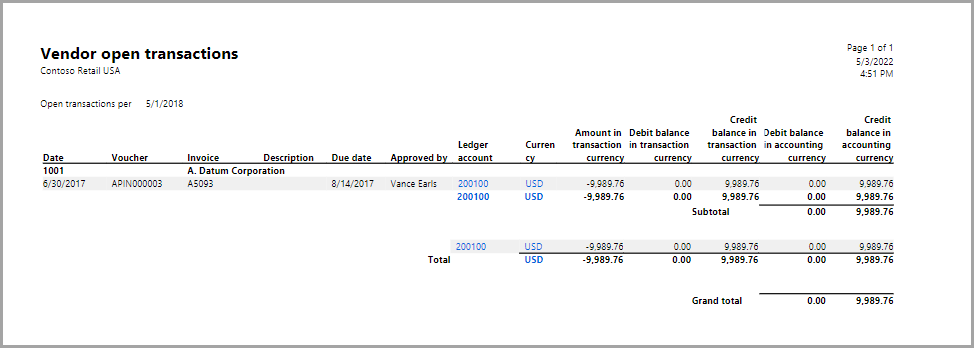
To track the open purchase orders and other transactions as they continue to occur, you can run a report in Microsoft Dynamics 365 Finance that shows open transactions for vendors. To do so, go to Accounts payable > Inquiries and reports > Vendor open transactions report. On this report, you can specify a range of dates and filter on vendors. The following screenshot shows an example of the Vendor open transactions report for vendor 1001 that’s part of the demo company Contoso Retail USA.
Note
To use the Vendor open transactions report, you must turn on the feature in the Feature management workspace.
The following video demonstrates how to create and process a purchase order in Dynamics 365 Supply Chain Management.