Overview of the procure-to-purchase process
The procurement cycle begins with products and vendors. You can use the Product information management module to define and create products and product variants that you purchase from your vendors. After you create and define products, you can authorize the products for use by releasing them to legal entities.
For more information about how to create products, see Create products and product masters in Dynamics 365 Supply Chain Management.
Procurement and sourcing workspace
Procurement and sourcing covers all steps, from identifying a need for product and services through procuring the product, receiving, invoicing, and processing of payments with vendors. You can configure procurement processes toward specific business needs by defining purchasing policies and workflows.
Identify a need for product and services
The need for products or services might arise from requisitions, such as when an employee requires a product. You can set up product catalogs to guide the selection of available products to select from. Alternatively, you can make requests or products that aren't yet available in a catalog, which allows the purchasing department to consider how to ship the product.
You can use spending limits to constrain requisition spending, and the purchasing workflow adds the option of requiring approval before ordering happens. Additionally, you can specify budget fund allocation, if required.
The procurement department identifies suppliers for required products and services, which can involve sending a request for quotation to multiple potential suppliers. Also, you can share specifications of the requested product, and then potential vendors can view these products to determine if they can deliver a product that conforms with them. Vendors return their bids, which the procurement department reviews before they select the supplier that they want to procure from.
Purchase orders include an option to send a purchase inquiry to the vendor as an alternative to a more comprehensive request for quotation process. You can use the purchase inquiry to help establish terms, such as prices, discounts, and a delivery date for the order. If your organization has set up vendors to use the Vendor portal, the purchase inquiry functionality is unavailable. Instead, the system shares the order on the Vendor portal, and when you send a confirmation request, the vendor can directly confirm the order.
You can use vendor catalogs to collect information on the product assortment that vendors can supply. Vendors can publish their own catalog, which helps make it easier for you to keep the catalog up to date. You can attach an approved vendor list to a product, which can help guide vendor selection when they open new purchase orders, and it prevents the use of unintended vendors.
Procurement
You can create purchase orders in several ways, including:
- As an outcome of master planning, which has identified a demand that requires a purchase. This process generates planned purchase orders, and when the system releases them, it generates purchase orders.
- Through the processing of purchase requisitions that result in procurement.
- Through the processing of purchase agreements, where you create purchase orders as released orders from the agreements. Typically, you would use this approach when you use purchase agreements to represent blanket orders.
- Manually, when the purchase order that you create isn't based on another document.
Purchase orders that you configure with purchase approval workflows require approval before the system records them as approved. This approval is required before you can process the order further.
Purchase orders are confirmed to represent that an agreement is established with the vendor. Then, the purchase order gradually progresses through different states until it's ultimately invoiced or canceled.
When you create a purchase order, the system prepopulates many fields with values that default from the information that the Vendors page stores about the vendor. As a result, a limited number of fields are available for you to fill in on the purchase order, though you can choose to override the default values.
Prices and discounts
Prices and discounts include information about the prices, discounts, and rebate terms that they offer. You can represent prices and discounts as trade agreements. Trade agreements represent vendor price lists with prices or discounts, and they have a specific set of dates for which the agreement is valid. You can negotiate prices and discounts and represent them through purchase agreements with conditions, such as commitments to buy certain volumes or monetary amounts as a precondition for the negotiated terms. You can create rebate agreements with vendors where the procurement of specific products or groups of products might trigger a rebate from the vendor depending on the purchase amount or volume.
Delivery options
Different options are available for the delivery process that's associated with a purchase order. You can split ordered products into delivery schedules, where you can plan parts of the ordered quantity for delivery on different dates. Delivery can also include direct delivery that initiates from a sales order, which automates the generation of the packing slip on the sales order at the same time as you record the product receipt on the purchase order. Purchase orders can also be part of an intercompany order chain, also referred to as intercompany purchase orders, where you can order products from a matching intercompany sales order. In this situation, some steps are automated across the two related intercompany orders.
Supplementary items
You can set up products to include supplementary items. The reason is to propose products that relate to the product that's being ordered. The extra products might be required, or they might be optional. In some cases, you could add supplementary items as free products that accompany the purchase of other products.
Purchase order charges
You can assign charges to the purchase order automatically by setting up automatic charges or manually by adding the charges. You can assign charges to the order at the header level or at the order line level. You can set up the accounting of charges in different ways. For example, you can set up a charge to be accounted as a product cost. If you choose this approach, you must assign the charges at the order line level before you can confirm the order. An option is available to help you allocate charges from the order header to the lines.
Product receipt and invoicing
Purchase orders that include physical products commonly require arrival registration to happen within a warehouse; thereafter, the system registers a product receipt for the order. You might consider configuring purchase orders with products that fulfill requisitions so that the employee who requests the products must also provide a confirmation of receipt.
Some purchase orders include products that are services or other nonphysical products where receipt in a warehouse isn't necessary. You can create products as services, or you can use procurement categories directly on the purchase order for such orders. With these orders, a warehouse worker might skip the accounting of a product receipt and instead invoice the order directly. Alternatively, the worker can complete product receipt registration on the purchase order without prior arrival registration.
Receipt of products might result in automatic consumption for a specific purpose. This process includes implied consumption with direct delivery, consumption toward a project, or accounting the product as a fixed asset.
When vendor invoices arrive from the vendor, the system might first record them in the invoice register independent of the purchase order. Later, the system approves the vendor invoices as a record against the purchase order. Recording the vendor invoice with the purchase order includes matching the product receipt toward the invoice.
You can specify accounting distributions on the purchase order to describe how to complete accounting in the ledger. Additionally, you can define how to obtain budget fund allocation when it's included in your configuration. Invoiced purchase orders record the liability into the vendor account in accounts payable from where you can process the vendor payment.
Vendor performance
Supply Chain Management supports performance and review of purchasing through procurement and account payable reports, which include spend analysis and vendor performance analysis.
Confirmed purchase orders with changes workspace
Your organization can use the Confirmed purchase orders with changes workspace to access the confirmed purchase orders that changed since confirmation. Procurement professionals can review changes to confirmed purchase orders and alleviate the downstream impacts. This workspace is activated in finance and operations by default, but your organization can turn on AI-powered and Microsoft Copilot functionality to generate a summary of impact and proposed communication content. For more information on how to turn on this feature, see Enable Copilot support for managing changes to confirmed purchase orders.
In the upper part of the workspace, three tiles summarize groups of changes to confirmed purchase orders and the related impact on downstream demand:
- Low impact changes - This tile highlights changes to purchase orders that have no known impact on downstream demand. No known impact is assumed if changes to the quantity or delivery dates don't affect those requirements from demand. Examples of these changes include an increased quantity or an earlier date. This tile generates a summary of changes to help you review and validate the purchase orders.
- High impact changes - This tile highlights purchase orders that have known downstream impacts on demand. This tile summarizes these changes together with the detected demand impacts, thereby helping you investigate further and decide what action to take.
- Impacted downstream orders - This tile summarizes impacts on different types of downstream demand orders by total, for each type of order. This information helps you review potential impacts on demand and identify each originating change.
Each tile provides a Show link. When you select this link, the view beneath shows the changes to supplying purchase orders and the affected demand according to the tile's classification and filter.
Procurement workflow
Some organizations require that a user other than the person who enters the transaction should approve purchase requisitions and purchase orders. To set up an approval process, you can create a workflow.
A workflow represents a business process. It defines how a document flows through the system and indicates who must complete a task or approve a document. Using the workflow system in your organization has several benefits, such as:
- Consistent processes — You can define the approval process for specific documents, such as purchase requisitions and expense reports. Using the workflow system helps to ensure that your organization processes and approves documents in a consistent and efficient manner.
- Process visibility — You can track the status, history, and performance metrics of a specific workflow instance. This approach helps you determine whether to make changes to the workflow to improve efficiency.
- Centralized work list — Users can view a centralized work list to view the workflow tasks and approvals that are assigned to them across all workflows that they participate in. This work list is available on the Work items page.
The following workflow types are available for Procurement and sourcing.
Expand table
| Type | Use this type to |
|---|---|
| Purchase requisition review | Create review and approval workflows for purchase requisitions. |
| Purchase requisition line review | Create review and approval workflows for purchase requisition lines. |
| Purchase order workflow | Create review and approval workflows for purchase orders. |
| Purchase order line workflow | Create review and approval workflows for purchase order lines. |
| Vendors add application workflow | Create review and approval workflows for adding new vendors through vendor requests. |
Purchasing process
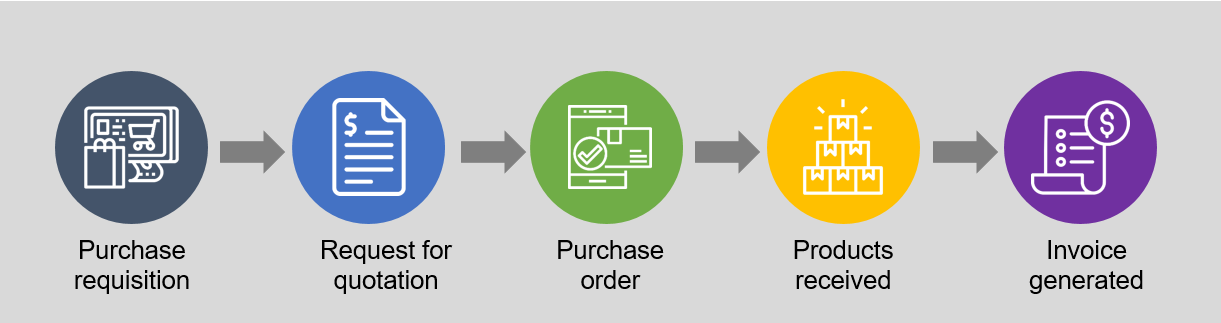
The need for products or services might arise from requisitions, such as when an employee requires a specific product to perform their job. For example, this product might be a laptop or office supplies. The high-level process for purchasing is as follows:
- The requester creates a purchase requisition.
- You send a request for quotation (RFQ) to the vendor or vendors.
- After you select the vendor, the system converts the RFQ to a purchase order or it creates a purchase order.
- The warehouse receives products into inventory.
- The system generates an invoice.
You can set up product catalogs to guide the selection of available products to select from. Alternatively, you can make requests for products that aren't yet available in a catalog, which allows the purchasing department to consider how to supply the product.
You can use spending limits to constrain requisition spending, and the purchasing workflow adds the option of requiring approval before ordering happens. Additionally, you can specify budget fund allocation, if necessary.
The procurement department identifies suppliers for required products and services, which can involve sending a request for quotation to multiple potential suppliers. You can share specifications of the requested product, and potential vendors can view these specifications to determine if they can deliver a product that conforms with them. Vendors return their bids, and then the procurement department reviews the bids prior to selecting the supplier that they want to procure from.
Purchase orders include an option to send a purchase inquiry to the vendor as an alternative to a more comprehensive RFQ process. You can use the purchase inquiry to help establish terms, such as prices, discounts, and a delivery date for the order. If your organization has set up vendors to use Vendor collaboration, the purchase inquiry functionality isn't available. Instead, the system shares the order on the Vendor collaboration interface, and when you send a purchase order, the vendor can directly confirm the order.
Work with purchase requisitions
Depending on the setup of your organization, you can create purchase requisitions for products that your organization uses.
In the purchasing policies, you define the default behavior of the purchase requisition and then decide if the user can select what type of purchase requisition that they can create.
The replenishment requisition can only have lines with items because it's preparing lines for master planning to pick up as a Demand for a specific site or warehouse. Master planning generates the planned purchase or transfer orders depending on the item coverage policies.
Therefore, after approval of the replenishment requisition, master planning can pick up the items. Alternatively, you can use a purchase requisition for consumption for generating purchase orders directly.
If your organization requires indirect products (products that master planning doesn't require), you can submit purchase requisitions for those products. A purchase requisition is an internal document that authorizes the Purchasing department to buy items or services. The Purchasing department can use purchase requisitions to generate the actual purchase orders for the items.
Purchase requisitions are internal documents, whereas purchase orders are the equivalent of external documents that the Purchasing department submits to vendors.
You can use a purchase requisition to submit a request for items or services that you require to perform your job function. By using purchase requisitions, you can:
- Order items and services from a hosted procurement catalog or from a vendor catalog that an approved vendor's website hosts.
- Submit a requisition for a non-catalog item if your purchasing policies support this action.
- Create a requisition on behalf of someone else if you have the proper permissions for your user role.
Purchase requisitions require that you define a purchase requisition workflow. This workflow controls the approval process of the purchase requisition from when you submit it to the workflow until it's approved. Then, you can create purchase orders and submit them to vendors.
Requisitions that have a purpose of consumption
A requisition that has a purpose of consumption represents demand for items or services that your organization plans to use internally. A purchase order always fulfills the demand that this type of requisition creates. If you set up Supply Chain Management to automatically generate purchase orders, it creates purchase orders after approval of the purchase requisition.
Requisitions that have a purpose of replenishment
A requisition that has a purpose of replenishment represents demand to replenish inventory.
For example, you create a requisition to replenish items so that you can sell them at a specific retail location at a specific time. A purchase order, transfer order, production order, or kanban can fulfill the demand that this type of requisition creates.
When the requisition purpose is replenishment, the system expresses demand as a quantity instead of a monetary amount. Therefore, encumbrance accounting, budgetary control, business rules for fixed asset determination (BRAD), project accounting, and any related rules don't apply. Only products that you stock and release to the specified legal entity can fulfill replenishment requisition demand. To define the products that are available when the requisition purpose is replenishment, use the Replenishment category access policy rule page.
To use purchase requisitions that have a purpose of replenishment, you must set up master scheduling to include requisition demand. The system automatically determines the fulfillment method for the demand that this type of requisition creates based on the supply policies that are set up for the items in your organization and that you plan by using master scheduling.
Create and send a request for quotation
You can send a request for quotation (RFQ) to vendors to request information about prices and delivery times for products. Organizations issue an RFQ when they want to buy items or services and want to receive competitive offers from several vendors.
In an RFQ, you ask vendors to provide the prices and delivery times for the quantities of products that you specify. You can also ask vendors to specify if incidental charges apply, such as shipping costs. You might ask if the vendor offers discounts for large orders or early payment of the vendor invoice.
The RFQ process covers:
- Creating and sending an RFQ to one or more vendors.
- Receiving and registering RFQ replies.
- Transferring accepted RFQ replies to a purchase order, purchase agreement, or purchase requisitions depending on the type of RFQ.
- Transferring the reply from a vendor to a trade agreement journal.
Create and manage purchase orders
A buyer who authorizes the purchase of products usually generates a purchase order. When the vendor (or seller or products) accepts the document, it becomes a binding contract for both parties.
A purchase order defines the descriptions, quantities, prices, discounts, payment terms, date of performance or shipment, and other associated terms and conditions. Additionally, it identifies a specific seller.
Many different roles and people can use purchase orders to update and keep track of the orders' status. For example, the purchasing agent uses purchase orders to create a list of products that they're purchasing from a specific vendor.
The purchasing agent records information, such as price, delivery information, and items, into the purchase order. Additionally, the purchasing agent generates a purchase order confirmation document, the external document that they send to the vendor to notify them of the purchase. When the purchasing agent receives the items, they receive the items into inventory and then generate an invoice.
Work with purchase agreements
A purchase agreement is a contract that commits an organization to buying a product in a certain quantity or amount over a period in exchange for special prices and discounts. The prices and discounts of the purchase agreement overrule prices and discounts that are stated in existing trade agreements.
A purchase agreement has a validity period that the person who creates it defines. The delivery date of a purchase should be within the validity period. Additionally, a purchase agreement is on hold by default. You can order from a purchase agreement only when it's set to Effective.
Purchase agreements are an optional feature that you can add into the procurement process. Purchase agreements can set default prices and discounts and can link to a purchase requisition. You can also create a purchase agreement from a reply of requests for quotes. When a purchase agreement links to a document, the system copies the link to other transactions and documents that are created from the document.
For example, you have an agreement that links to a purchase requisition. After you approve the purchase requisition and create the purchase order, the purchase order automatically links to the purchase agreement.
Approve POs and requisitions from a mobile device
To streamline purchase approvals, Dynamics 365 Supply Chain Management offers a mobile approval experience to help enhance flexibility and responsiveness. As a result, users can manage approval tasks for purchase requisitions and orders directly from their mobile devices, which improves efficiency without delays. The mobile app provides an overview of assigned tasks and due dates so that users can review detailed information on each request and make informed decisions, such as approve, reject, request changes, or delegate, without switching context. This feature helps ensure compliance and budget alignment while maintaining a smooth approval process.
Copilot features
Dynamics 365 Supply Chain Management customers can access Copilot in the Microsoft Supply Chain Center. Copilot proactively flags external issues, such as weather, financials, and geography, that might impact key supply chain processes. Next, predictive insights show impacted orders across materials, inventory, carrier, distribution networks, and more. Then, supply chain planners automatically draft an email that Copilot generates to alert impacted partners and mitigate potential disruptions before they happen.
The in-app help functionality provides users with immediate, contextual assistance from within the application and user processes:
- Draft precise responses to user queries - Copilot uses the extensive repository of public documentation on Dynamics 365 Supply Chain Management features, and it bases generative AI on the product documentation to craft precise responses to user queries.
- Context aware guidance - Users can pose questions relating to their current context, and then Copilot provides tailored and specific guidance.
On-hand inventory insights are available to help users make informed inventory decisions, such as for order promising:
- Query on-hand inventory – By using natural language, users can ask about inventory stock levels and availability as if they're chatting with a colleague. For example, you can enter Find all 18-inch tires in my store without needing to remember exact specifications, IDs, or navigation paths.
- Inquire Inventory - Provides a guided conversational experience to quickly identify the best available products for order inquiries without users needing to leave the Microsoft 365 work context. Sales managers focus on communicating with customers and increasing sales. Having product inventory levels handy from Microsoft 365 helps sales managers satisfy customers and close deals faster.
- Enable third-party apps or websites to query on-hand inventory - Natural-language search application programming interfaces (APIs) for Inventory Visibility can integrate with external e-commerce websites or apps. Customers can use them to build a chat feature for external apps or websites that can help customers find products and to review availability and alternatives.
Copilot helps procurement specialists make better purchasing decisions in procure-to-pay processes with the Manage purchasing decisions with Copilot feature. Copilot support for procurement is an advanced tool that empowers users to efficiently manage and assess changes to purchase orders on a large scale. By classifying changes by impact and associated risk, it enhances procurement decision making. With Copilot, users can swiftly identify high-impact or low-impact alterations and analyze downstream impact, thereby enabling prompt actions to mitigate potential risks.