Set up procurement categories
The following steps show you how to create new nodes in a procurement category hierarchy and how to set up a procurement category to use in a procurement process. Before you can start this procedure, you must have a category hierarchy of type Procurement. If you're using a demo data company, you can run this procedure in the USMF company.
Add a new procurement category
To add a new procurement category, follow these steps:
- Go to Navigation pane > Modules > Procurement and sourcing > Consignment > Procurement categories.
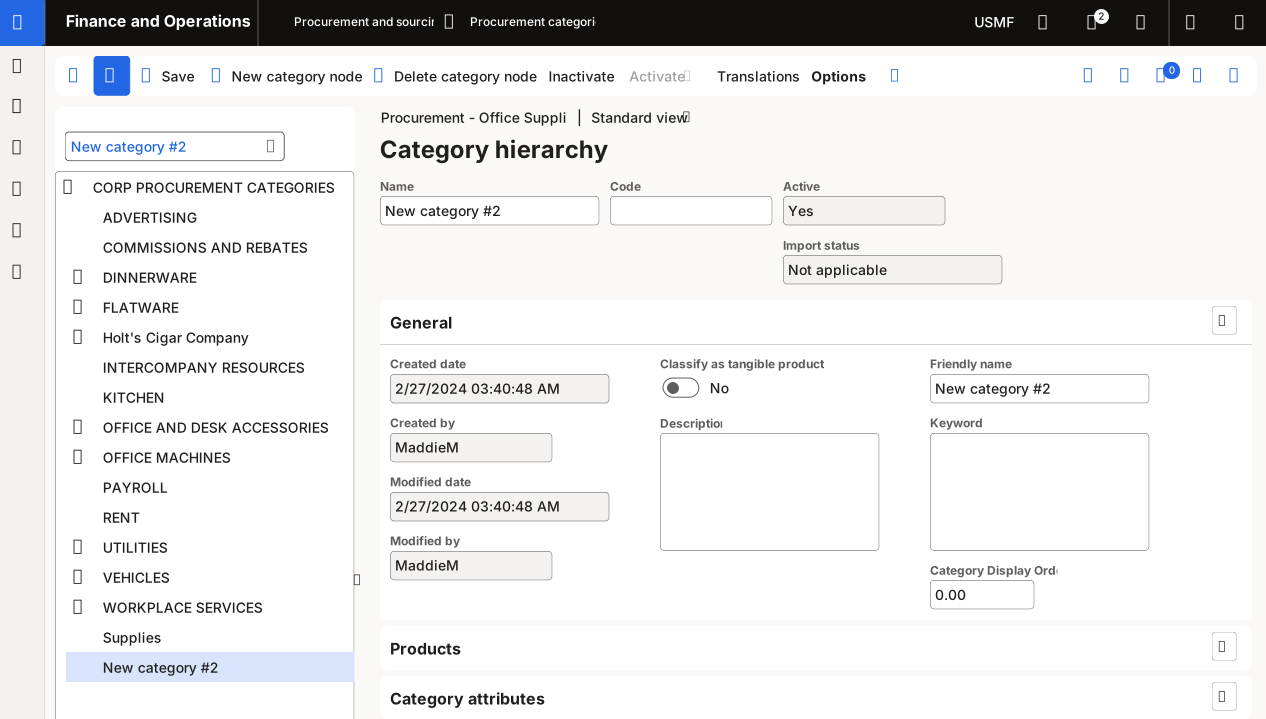
- On the Action Pane, select Edit category hierarchy. The current procurement category hierarchy displays on the left side of the page. Now, you can modify the hierarchy.
- On the Action Pane, select New category node. The system selects the top node by default. If you're running this procedure as a task guide, you can select the Unlock button and select another parent node to insert your new node. When you’re done, lock the task guide again and then select New category node.
- In the Name field, enter a value.
- In the Description field, enter a value.
- In the Friendly name field, enter a value. The friendly name is optional. It displays in category lookups together with the category name.
- Select Save.
Add products to your new procurement category
To add products to your new procurement category, follow these steps:
- Go to Procurement and sourcing > Consignment > Procurement categories. Select the node that you previously added. If you're running this procedure as a task guide, you need to unlock the task guide to select the node.
- Switch the expansion of the Products section.
- Select Add to associate products with the procurement category.
- Select the products that you want to add to the procurement category.
- Select the arrow to add the products to the Selected table.
- Select OK.