Introduction
Consider all of the actions a service representative takes to resolve a high-priority case. They need to verify the customer's account, look up a knowledge article, send an acknowledgment email, update the case status, escalate to a subject matter expert, and document the resolution—all while the customer is waiting. Without the right setup, that's a series of manual context-switches: opening new tabs, copying fields, switching to Teams, returning to the case.
The productivity pane in Copilot Service workspace is designed to eliminate that friction. It runs along the right side of the workspace and stays scoped to the representative's current session. As an administrator, you decide what appears there. The right combination of tools can reshape how quickly and consistently your team handles every interaction.
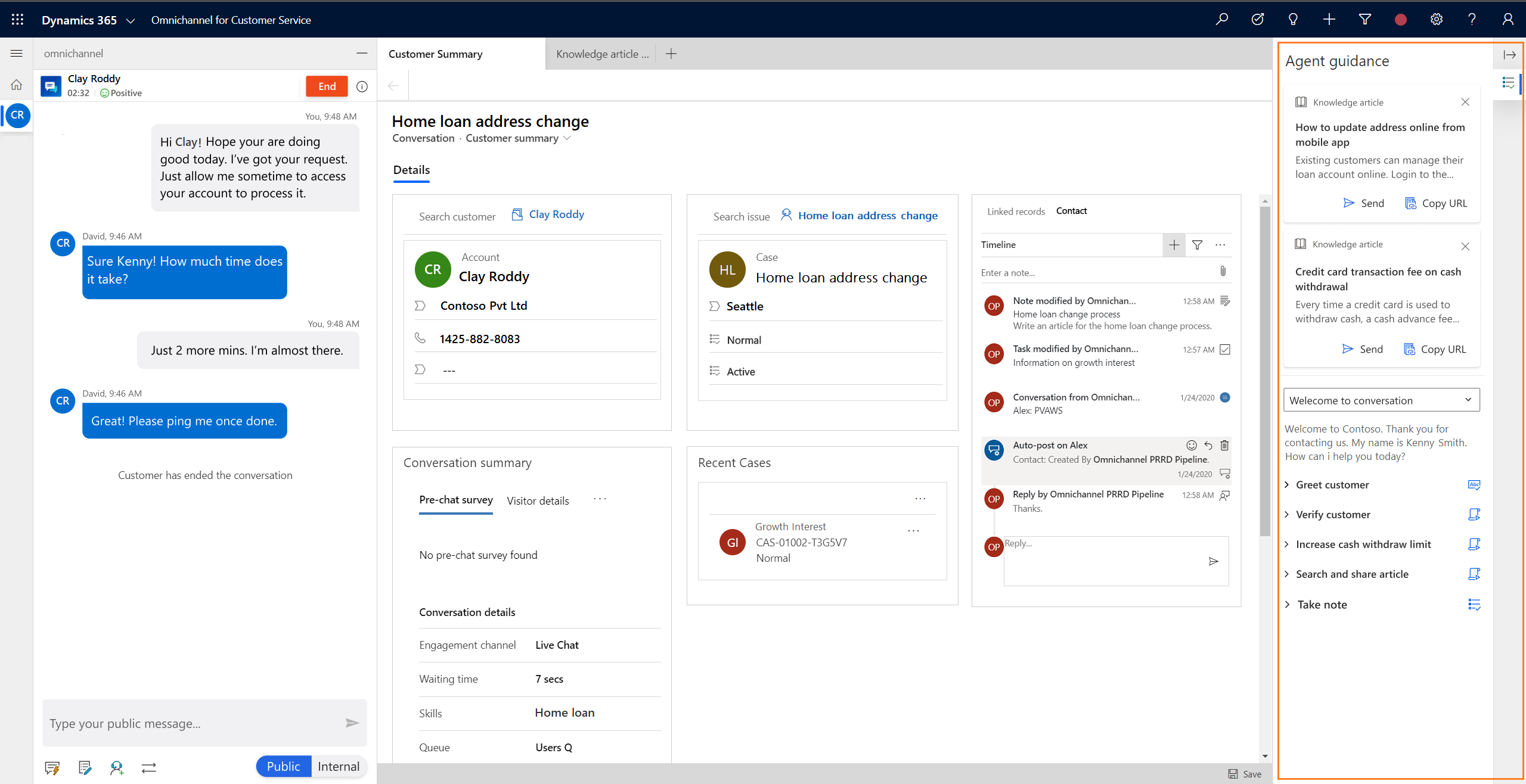
What's in the productivity pane
Copilot, Knowledge search, and Smart assist are included out of the box. Beyond those, you can configure:
- Scripts and macros: step-by-step conversation guidance and one-click automation for repetitive tasks
- Custom productivity tools: Power Apps custom pages or Power Apps component framework (PCF) controls hosted directly in the pane
- Teams collaboration: embedded Microsoft Teams chat and customer support swarming without leaving the workspace
- API extensions: programmatic control over sessions, tabs, and conversations for custom development scenarios
The tools available to a particular representative depend on the experience profile they're assigned to. You configure which tools are active at the profile level, so different teams—voice specialists, digital messaging representatives, back-office case workers—can each have a workspace tuned to how they work.
Why productivity tools matter
Every click a representative doesn't have to make is a second they can spend with the customer. Scripts reduce errors and help representatives follow the right business process—especially useful for compliance-sensitive interactions, complex multi-step intake flows, or scenarios where skipping a step has real consequences. Macros automate the mechanical parts: opening a form, populating fields with customer data, sending a templated reply. Representatives spend time on judgment rather than repetition.
Teams collaboration addresses a different kind of friction: getting help fast. When a case requires expertise from another team, representatives shouldn't have to leave the workspace and start a fresh conversation in Teams with no record context. Embedded Teams chat keeps the collaboration in-context, with the relevant record details visible to both participants.
For organizations with custom workflows or scenarios the out-of-the-box tools don't cover, the JavaScript APIs let developers extend the workspace programmatically, creating sessions, managing tabs, and linking records in ways that fit your specific processes.
What this module covers
This module walks through each productivity tool configuration area:
- Configure scripts and macros: create scripts with step-by-step guidance and macros that automate actions, use session context variables (slugs) to make them dynamic, and associate them with session templates.
- Enable custom productivity panels: add a Power Apps custom page or PCF control to the productivity pane and surface it through an experience profile.
- Enable Teams collaboration: configure embedded Teams chat, connect chats to Dynamics 365 records, and manage chat permissions.
- Extend productivity tools: use the App profile manager JavaScript API to manage sessions and tabs, and the Omnichannel JavaScript API to interact with conversations programmatically.
Before you start, make sure you're familiar with the Copilot Service workspace and with experience profiles.