Configure scripts and macros
Scripts and macros work together in the productivity pane to guide representatives through a conversation and automate the mechanical parts of each interaction. Scripts tell representatives what to do, and macros do it for them.
Understand scripts
A script is a structured set of sequential steps that guides a representative through an interaction. Each step tells them what action to take: greet the customer, verify their account, send a knowledge article link, update the case status. Scripts appear in the Scripts section of the productivity pane, so representatives can follow them without losing focus on the conversation.
Scripts reduce human error, enforce process adherence, and lower average handling time. They're especially useful for complex conversation types—new-issue intake, compliance-sensitive workflows, escalation scenarios, where missing a step has real consequences.
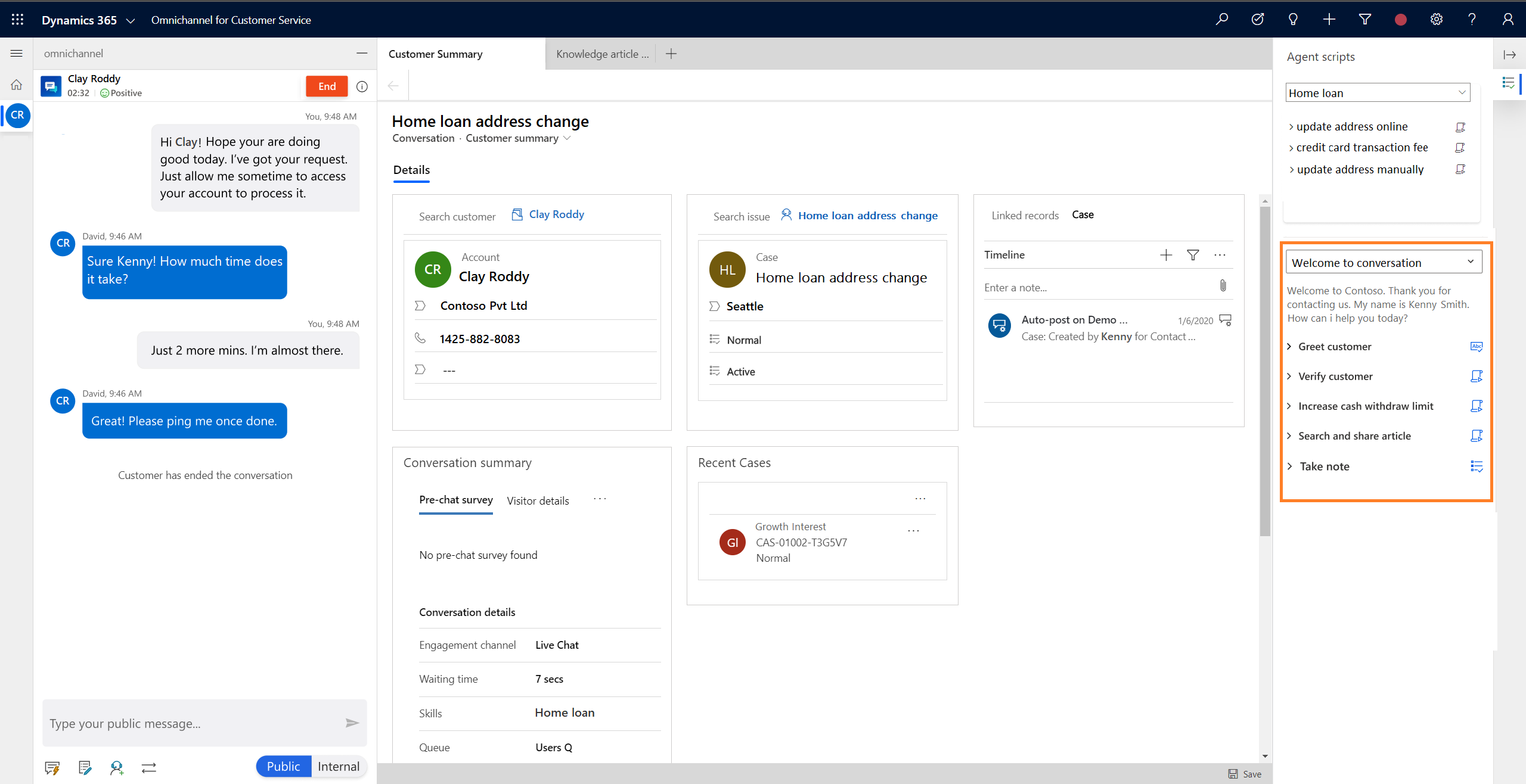
Create a script
- In Copilot Service admin center, navigate to Support experience > Productivity.
- Select Manage for Scripts, then select New.
- Enter the following:
| Field | Description |
|---|---|
| Name | The display name for the script. |
| Unique Name | A unique identifier in the format <prefix>_<name>. The prefix must be 3–8 alphanumeric characters with an underscore separating it from the name. |
| Language | The script language. Only languages enabled in Microsoft Dataverse appear. |
| Description | An optional description for your reference. |
- Select Save. The Script steps section appears.
Add script steps
Each step defines a single action in the script. To add a step, select New Script step in the Script steps section, then configure the following:
| Field | Description |
|---|---|
| Name | The label shown to the representative at runtime. Supports slugs for dynamic content—for example, Hi ${customerName}. |
| Unique Name | A unique identifier in <prefix>_<name> format. |
| Order | The sequence number for the step. |
| Action Type | Select Text instruction, Macro, or Script. |
| Text instruction | (Text type only.) The text the representative reads and acts on. Supports slugs and OData queries. |
| Target macro | (Macro type only.) The macro to run when the representative triggers this step. |
| Target script | (Script type only.) A nested script to load. |
Select Save and Close when done, then save the script.
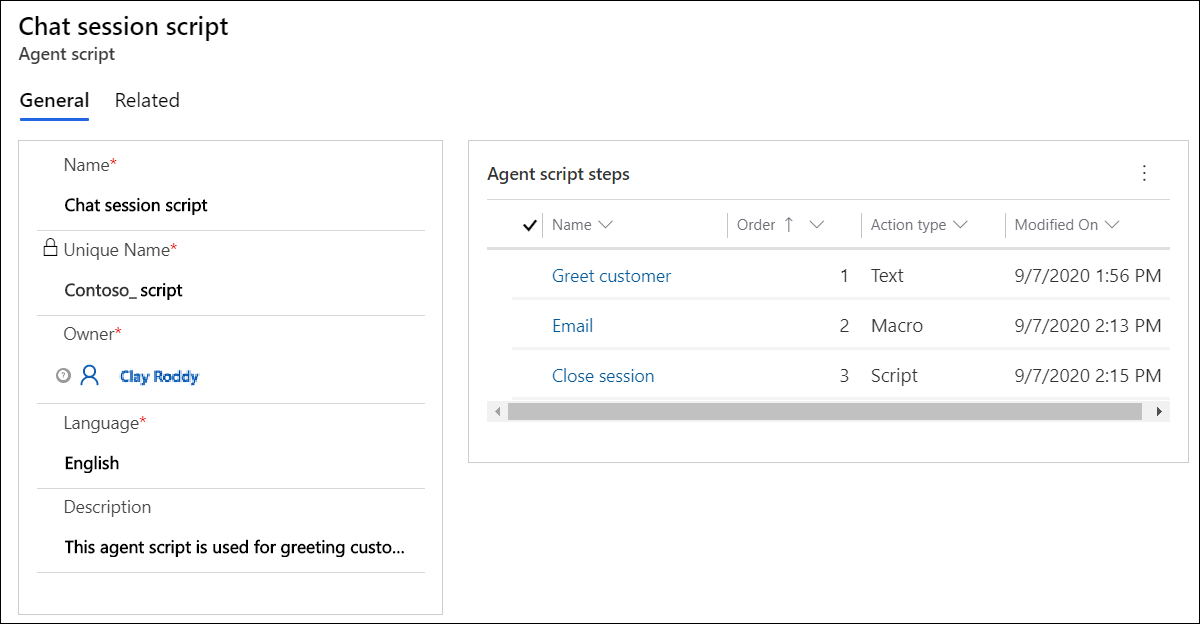
Use slugs to make scripts dynamic
Slugs are session context variables that resolve to real values at runtime. You can use them anywhere in a script step's Name or Text instruction fields to personalize content with information from the current session.
Session context is populated from two sources:
- Case sessions: the anchor tab populates variables like
${anchor.ticketnumber},${anchor.title}, and${anchor._customerid_value@OData.Community.Display.V1.FormattedValue}with values from the case record. - Conversation sessions: the channel provider populates variables like
${customerName},${Email}, and${queueId}with values from the incoming interaction.
You can also retrieve values from related records using an OData query:
${$odata.contact.emailaddress1.?$filter=contactid eq '{anchor._customerid_value}'}
This example retrieves the email address from the customer contact record linked to the current case. OData queries let scripts surface information that isn't directly on the anchor record, without requiring the representative to open a second tab.
Associate a script with a session template
A script doesn't display to representatives automatically — you need to associate it with a session template. This controls which scripts are available for a given session type.
- Navigate to Support experience > Workspaces, then select Manage for Session templates.
- Select the session template—for example, Chat - Default Session.
- Select the Scripts tab, then select Add Existing script.
- Search for the script, select it, and select Add, then Save.
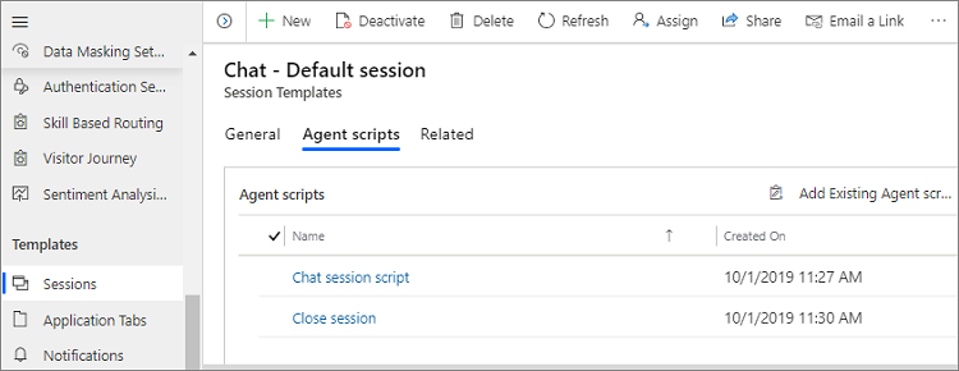
To control which script loads by default when a representative accepts a session, use the Expression builder. In the Scripts tab of the session template, set Enable build expression to Yes, select Build Expression, and define conditions based on session context variables. This way, a queue-specific script loads automatically for that queue's conversations without the representative having to select it manually.
Configure macros
A macro is a set of automated actions that run in sequence when triggered. Representatives can run macros from the productivity pane, or you can call them from within a script step using the Macro action type. This combination, a script step that fires an action, is how you create a guided experience where each step both instructs and acts.
To create a macro:
- Navigate to Support experience > Productivity, then select Manage for Macros.
- Select New, enter a name and description.
- Add Start macro execution as the first step—this is required for every macro.
- Add subsequent steps using one of the action categories described next.
Macro action categories
Macros support four categories of actions, which you mix and match to build your automation:
| Category | What it does |
|---|---|
| Productivity automation | Opens or updates records, opens views, resolves cases, searches the knowledge base, clones records, opens email templates, fills form fields, sets and retrieves session context variables, and supports integration with external web pages and applications. |
| Session connector | Gets tab IDs, refreshes tabs, opens tab templates, sets focus to a tab, refreshes session context, and passes tab IDs between steps. |
| Omnichannel connector | Links and unlinks Dynamics 365 records (accounts, contacts, cases) to the current conversation. |
| Flow connector | Triggers a Power Automate flow. |
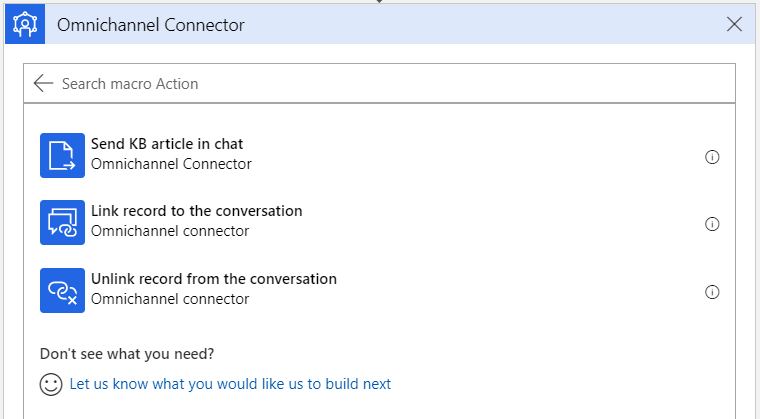
Macros run in the context of the current session and have access to the same slug values as scripts. A single macro can open the customer's account record, fill in the resolution notes from the session context, and save — without the representative touching the form.
Tip
Use the Productivity automation action to auto-fill form fields with slug values. This is particularly useful for post-conversation wrap-up tasks where the same fields need the same data every time.