Manage queue availability
Your queues are created and staffed, but availability and surge conditions are just as important as structure. Contact centers close at night, teams get overwhelmed during peak hours, and customers sometimes reach out when no representatives are available. Operating hours and overflow handling give you control over exactly these situations.
Set operating hours to control queue availability
Operating hours define when a queue is actively accepting and distributing work. Without an operating hours record, the queue runs 24 hours a day, seven days a week.
When you attach operating hours to a queue, the system only routes work there during the defined schedule. Outside of operating hours, unified routing applies the overflow conditions you configured, typically redirecting the work item or notifying the customer that support is unavailable.
To apply operating hours to a queue:
- Open the queue in the admin center.
- Under Operation hours, select Set operation hours.
- Select an existing operating hours record from the Name field.
- Select Save and close.
You create operating hours records in the Calendars section of the admin center under Operations. Each record defines a weekly recurring schedule and can include holiday entries for specific nonworking days.
Understand operating hours, holidays, and customer service calendars
These three calendar concepts are closely related but serve different purposes. Understanding the distinction before you start configuration helps you avoid mismatched schedules.
| Calendar type | Purpose | Where to configure |
|---|---|---|
| Operating hours | Defines when a queue is active. Controls routing availability and triggers overflow when outside of hours. | Calendars > Operating Hours in the admin center |
| Holiday schedule | Defines specific nonworking dates (such as public holidays) within an operating hours record. The queue treats those dates as outside operating hours. | Inside an operating hours record, using New > Holiday on the calendar |
| Customer service calendar | Defines service availability windows for SLA (service-level agreement) timers in Dynamics 365 Customer Service. Used to calculate response and resolution deadlines on cases. | Service Management in Customer Service Hub |
The key distinction: operating hours (and holiday entries within them) control when routing runs. Customer service calendars control when SLA timers count down. You configure them independently, and they don't need to match—though aligning them simplifies SLA reporting.
For an operating hours record to account for daylight saving time, select the appropriate time zone when setting up the schedule. Dynamics 365 handles the clock adjustment automatically for time zones where daylight saving time applies.
Handle work items that can't be assigned immediately
Even with a well-designed queue, there are situations where work can't be assigned immediately: all representatives are at capacity, no one with the required skills is available, or work arrives when the queue is closed.
Overflow handling lets you configure what happens in these scenarios, both before a work item enters a queue (pre-queue) and after it's been waiting in the queue too long (in-queue).
Pre-queue overflow
Pre-queue checks happen after route-to-queue rules evaluate but before the work item formally enters the queue. Three conditions can trigger a pre-queue overflow action:
- Out of operation hours: The queue isn't currently active.
- Work item limit exceeds: The number of open work items in the queue reached a threshold you define (between 1 and 100). (Voice and Messaging)
- Average wait time (voice only): The predicted customer wait time exceeds a threshold you set.
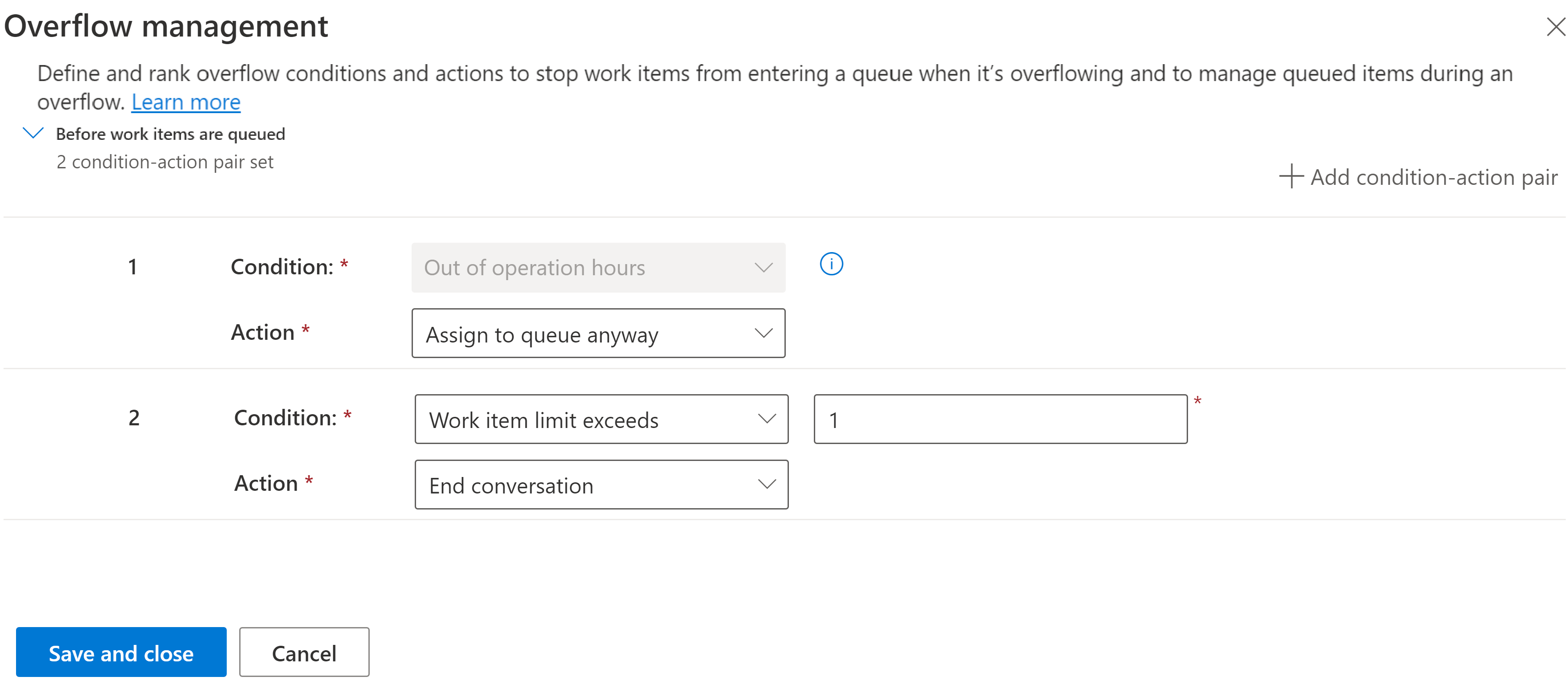
Available pre-queue actions depend on the channel:
| Channel | Available actions |
|---|---|
| Voice | Assign to queue anyway, direct callback, end call, transfer to a different queue, transfer to an external number, voicemail |
| Messaging | Assign to queue anyway, end conversation, transfer to a different queue |
| Record | Assign to queue anyway, transfer to a different queue |
In-queue overflow
In-queue overflow triggers when a work item has been waiting in the queue longer than a defined threshold, handling situations where representatives are unavailable or declined notifications.
Configure this by setting a Waiting time in queue exceeds condition in the queue's overflow settings. When triggered, the work item transfers to another queue, ends the conversation, or triggers a callback, depending on the channel type.
Important
If a work item is routed to the fallback queue because of an error or unmatched route-to-queue rules, overflow settings for the fallback queue are ignored. The work item is assigned directly to prevent it from getting stuck.
Use AI-powered playbooks for immediate overflow (preview)
Time-based and volume-based overflow conditions share a limitation: the customer still waits until a threshold is reached, even when no eligible representatives are available within that window.
A preview feature addresses this. Using AI-powered playbooks in conversation orchestration, you can configure overflow to trigger immediately when no representative meeting the assignment criteria is available—before any wait time accrues. The playbook evaluates the condition If no service representative is available and runs the configured action right away. Supported actions include transfer to queue, end conversation, direct callback, voicemail, and transfer to an external number.
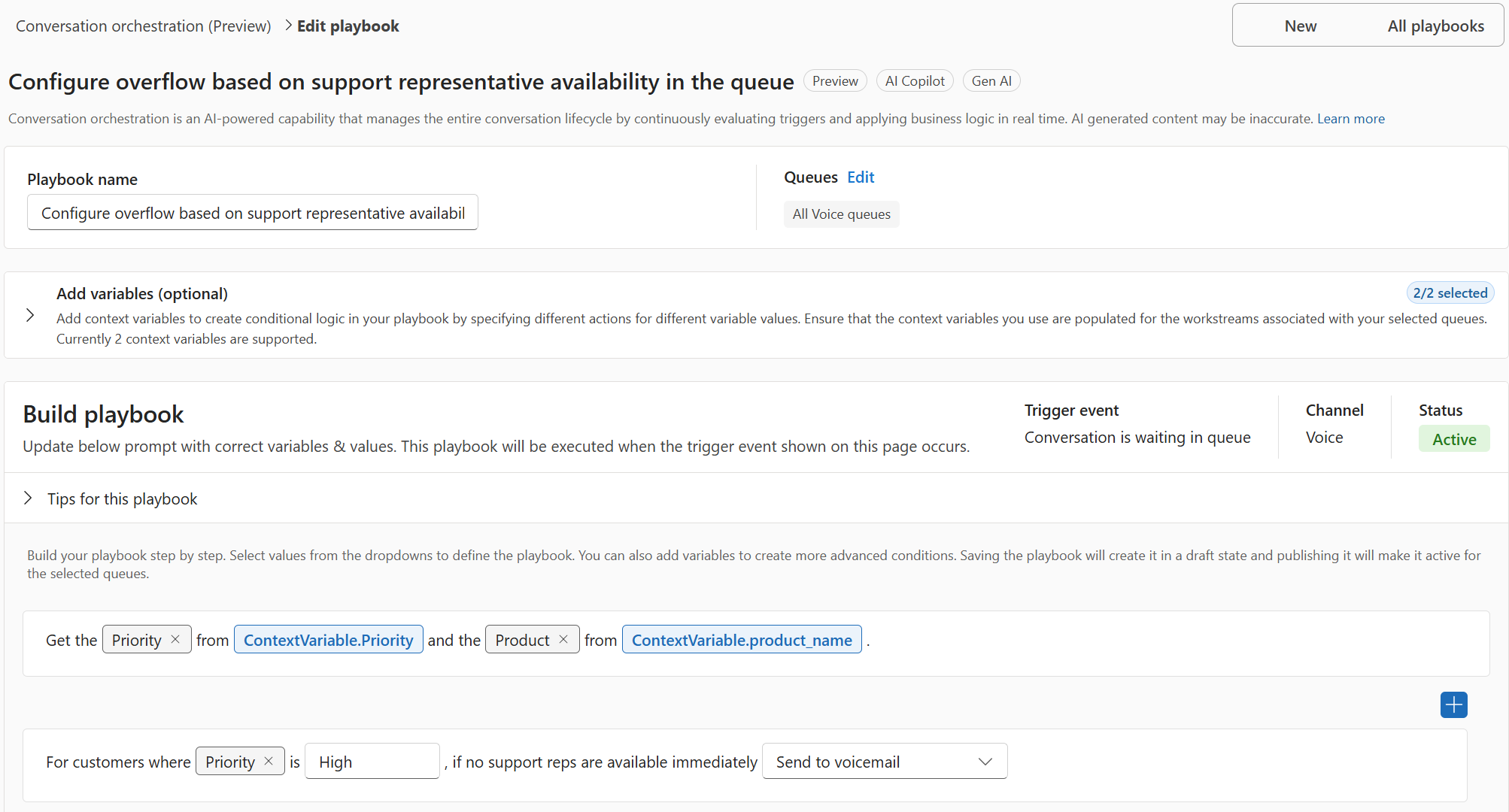
Immediate overflow can run alongside your existing time-based and volume-based conditions. For example, you might offer an immediate callback when no representatives are available, while keeping a 10-minute wait-time condition as a fallback for situations where a representative becomes available but doesn't accept the notification.
Note
Immediate overflow is configured in Conversation orchestration, not in the queue's overflow settings. Learn more about configuring conversation orchestration.
With availability and overflow configured, you're ready to control how work is prioritized and assigned once it's inside the queue.