Create and assign configuration profiles
Device configuration profiles allow you to manage settings on enrolled devices without requiring Group Policy or manual configuration. Configuration profiles define what settings should be applied to devices, and Intune enforces those settings automatically.
In this unit, you learn how to create, configure, and assign device configuration profiles, with a focus on Windows device management and security considerations for iOS/iPadOS and Android platforms.
What are configuration profiles?
Configuration profiles are collections of device settings that you create in Intune and deploy to groups of devices or users. These profiles control device behavior, security settings, features, and functionality.
Common use cases for configuration profiles:
- Configure Wi-Fi and VPN connections
- Enable BitLocker drive encryption
- Configure Windows Firewall rules
- Set password requirements and screen lock settings
- Configure email and certificate settings
- Customize device restrictions (block camera, removable storage, etc.)
- Deploy trusted certificates and SCEP/PKCS profiles
Benefits of configuration profiles:
- Centralized management: Configure thousands of devices from a single console
- Consistency: Ensure all devices have the same settings
- Automation: Settings apply automatically when devices enroll or check in
- Flexibility: Different profiles for different groups (sales, finance, executives)
- Compliance: Enforce security standards across the organization
Intune supports multiple configuration profile types, each designed for different scenarios and platforms.
Settings Catalog
The Settings catalog is the modern approach for configuring devices across platforms. It provides a searchable list of thousands of settings in a user-friendly interface and supports Windows, iOS/iPadOS, macOS, Android Enterprise, and Android (AOSP).
Advantages:
- Browse and search for specific settings by name
- See setting descriptions and supported OS versions
- No need to know CSP (Configuration Service Provider) paths
- Supports the latest features and settings across platforms
- Easier to create and maintain than custom profiles
When to use:
- For all new configuration profiles across supported platforms
- When you need granular control over specific settings
- When you want to find settings without knowing the CSP path
iOS/iPadOS: Device Restrictions and Settings Catalog
For iOS/iPadOS, you can use the Settings catalog (recommended for new profiles) or the Device restrictions template for comprehensive controls over device features, security, and user experience.
Common iOS/iPadOS settings categories:
- Password: Passcode requirements, Touch ID/Face ID settings
- Built-in Apps: Block or allow Safari, Camera, App Store, iTunes, FaceTime
- Cloud and Storage: iCloud backup, Keychain, Photo Stream restrictions
- Connected Devices: Bluetooth, USB accessories, AirPrint
- Wireless: Wi-Fi, cellular data, personal hotspot restrictions
Android: Device Restrictions and Settings Catalog
For Android Enterprise, you can use the Settings catalog (recommended for new profiles) or the Device restrictions template. Coverage varies by enrollment type (fully managed, corporate-owned work profile, personally owned work profile).
Common Android settings categories:
- Password: Password requirements, biometric authentication
- Work Profile: Work profile settings, app permissions, notifications (critical for BYOD security)
- Security: Encryption, developer options, unknown sources
- Connectivity: Bluetooth, Wi-Fi, USB, mobile networks
Key consideration: Personally owned work profiles provide work profile settings only, maintaining user privacy while securing corporate data.
Templates
Templates are prebuilt profile types for common configuration scenarios. Intune provides templates for device restrictions, email, Wi-Fi, VPN, certificates, and more.
Common templates:
- Device restrictions: Block features like camera, Bluetooth, removable storage
- Email: Configure email accounts (Exchange, Gmail, Outlook)
- Wi-Fi: Deploy Wi-Fi connection profiles
- VPN: Configure VPN connections (IKEv2, L2TP, PPTP, automatic VPN)
- Trusted certificate: Deploy root and intermediate CA certificates
- SCEP certificate / PKCS certificate: Deploy client authentication certificates
- Endpoint protection: Configure antivirus, firewall, and encryption settings
- Identity protection: Configure Windows Hello for Business
When to use:
- For common scenarios like Wi-Fi, VPN, or email configuration
- When you prefer a guided wizard experience over searching for settings
- For backwards compatibility with older profiles
Custom profiles (OMA-URI)
Custom profiles allow you to configure settings not available in the Settings catalog or templates by specifying OMA-URI (Open Mobile Alliance Uniform Resource Identifier) settings directly.
When to use:
- For advanced settings not yet in the Settings catalog
- When you need to configure CSPs directly
- For settings documented in Microsoft docs but not exposed in the UI
Note
Microsoft recommends using the Settings catalog for new profiles whenever possible. Custom profiles should only be used for settings not available in the catalog.
Create a configuration profile
Let's walk through creating a Windows configuration profile using the Settings catalog.
Step 1: Start creating a profile
- Sign in to the Microsoft Intune admin center (https://intune.microsoft.com)
- Navigate to Devices > Manage devices > Configuration
- Select Create > New policy
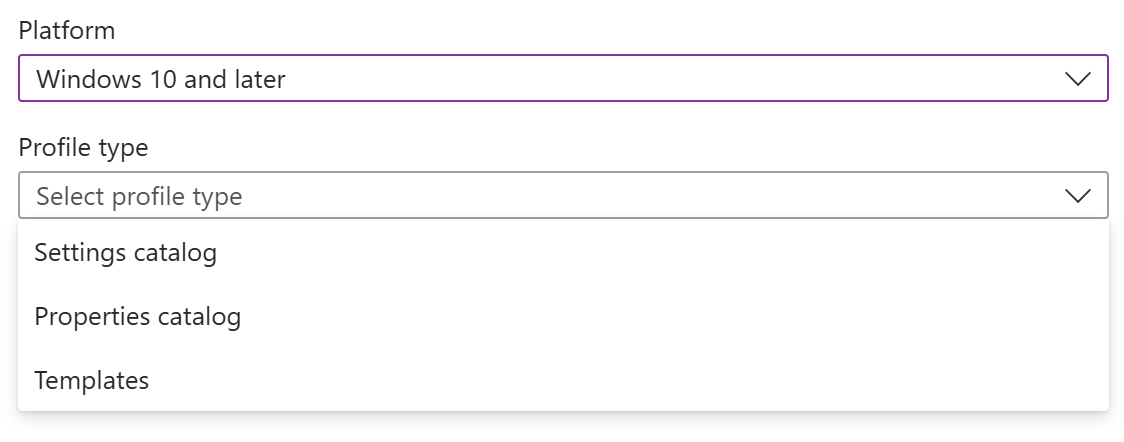
- Choose:
- Platform: Windows 10 and later
- Profile type: Settings catalog
- Select Create
Note
For iOS/iPadOS, select Platform: iOS/iPadOS and Profile type: Settings catalog (recommended) or Templates > Device restrictions. For Android, select Platform: Android Enterprise and Profile type: Settings catalog (recommended) or Templates > Device restrictions, then choose your enrollment type.
Step 2: Provide basic information
- On the Basics page, enter:
- Name: Descriptive name (e.g., "Windows - BitLocker Encryption")
- Description: Optional but recommended (e.g., "Enables BitLocker with 256-bit XTS-AES encryption for all fixed drives")
- Select Next
Step 3: Configure settings
Windows Settings catalog approach:
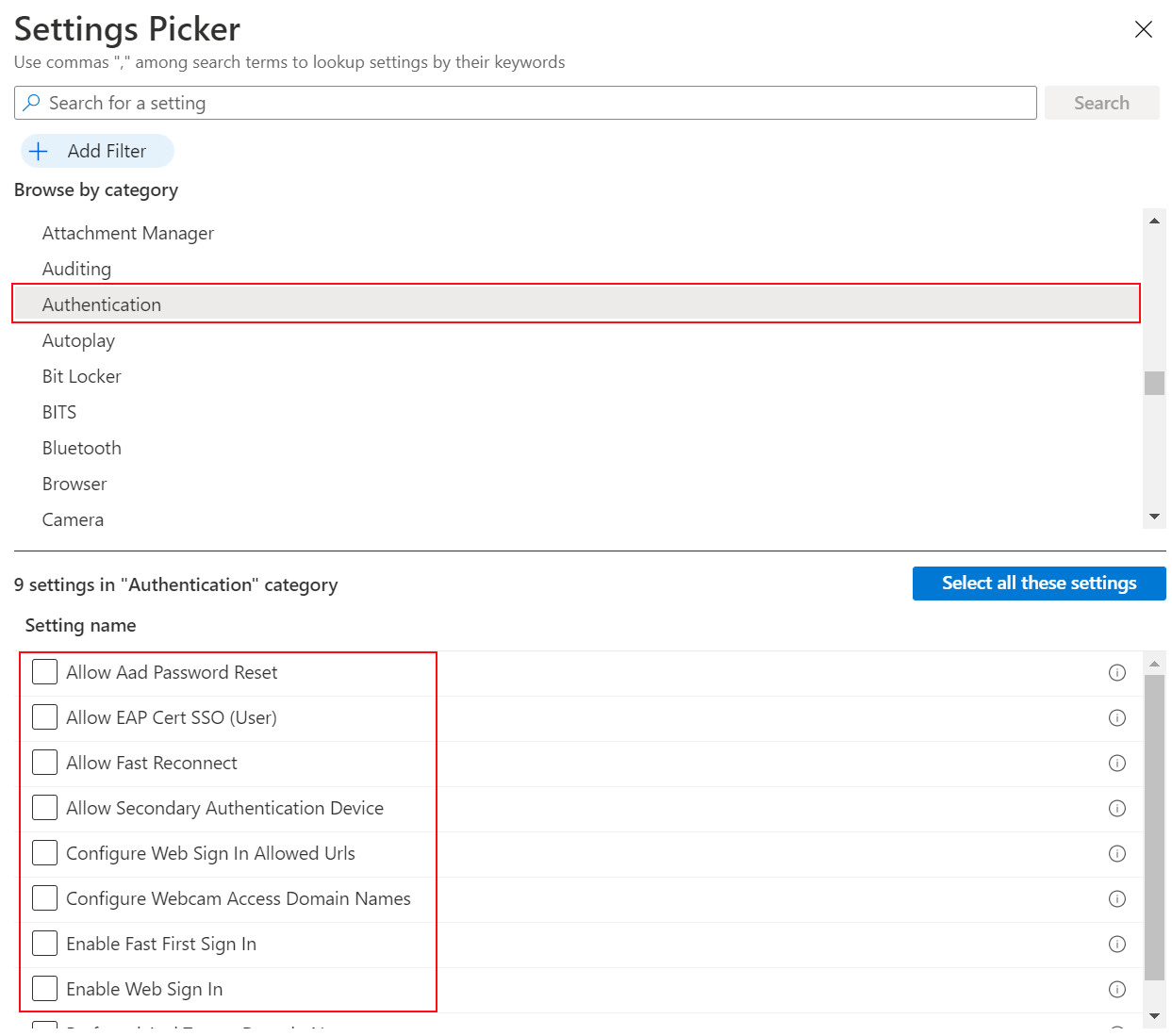
The Settings catalog uses a search-first approach because modern device management involves thousands of possible settings. Why this matters: Instead of memorizing where "BitLocker" settings live in a hierarchy, you search for "encryption" and find all related settings across different Windows components.
Key design decisions:
- Encryption method choice (XTS-AES 256-bit vs 128-bit): Stronger encryption (256-bit) protects data better but may impact older hardware performance. Most organizations choose 256-bit for new devices and 128-bit for legacy hardware.
- Multiple related settings: BitLocker isn't one setting—it's device encryption requirements, encryption methods for different drive types, and recovery key storage. Group related settings in one profile for easier troubleshooting.
- Search vs browse: Searching finds settings across categories ("password" returns results from BitLocker, Windows Hello, Account Protection). Browsing by category helps discover related settings you didn't know existed.
For iOS/iPadOS and Android (Device Restrictions):
iOS/iPadOS common security settings:
- Password requirements: Alphanumeric, minimum 8 characters, Touch ID/Face ID
- Built-in apps: Block Camera if needed for data security
- iCloud: Configure backup and sync restrictions
Android common security settings:
- Work profile password: Numeric minimum 6 digits
- Work profile restrictions: Block copy/paste between profiles, require encryption
- Device experience: Block screen capture in work profile
For detailed platform-specific configuration steps, see Configure iOS/iPadOS device settings and Configure Android Enterprise device settings.
Step 4: Configure assignments
After defining which settings to apply, you must specify which devices or users receive the profile. Intune provides multiple targeting mechanisms that work together to ensure the right policies reach the right devices.
User and device groups
Why user vs device groups matters: This decision affects where settings apply:
- Device groups (BitLocker, firewall, certificates): Settings persist regardless of who logs in. Use this when: Security must be consistent across all users of a device (shared workstations, kiosks, or any device-level security setting).
- User groups (email, OneDrive, app configurations): Settings follow the user across devices. Use this when: The setting is personal to the user's work experience and should apply wherever they sign-in.
Common mistake: Assigning device-level security to user groups means settings only apply when that user logs in. On shared devices, other users won't get the security settings.
Exclusion groups: Critical for phased rollouts. Exclude pilot groups or known incompatible devices (e.g., exclude Windows 10 devices from a Windows 11-specific profile). This prevents support tickets and allows testing before broad deployment.
Applicability rules (Windows only)
Why OS filtering matters: Not all Windows settings work on all versions. BitLocker algorithm improvements in Windows 11 aren't available in Windows 10. Applicability rules prevent policy errors and user confusion.
Strategic uses:
- Version-specific features: Deploy Windows 11-only features without impacting Windows 10 devices
- Edition-based security: Require BitLocker on Enterprise edition (where it's available) but not Pro
- Preventing errors: Settings that don't apply gracefully fail on incompatible devices—this causes support tickets
Alternative for mobile platforms: iOS/iPadOS and Android don't support applicability rules, so use assignment filters checking OS version properties instead. This achieves the same outcome through a different mechanism.
Assignment filters for advanced targeting
Assignment filters provide more granular control than groups alone. Why this matters: You might have a "Sales Department" group, but only want to apply expensive BitLocker policies to high-storage devices within that group. Filters solve this without creating dozens of niche groups.
When to use filters vs dynamic groups:
- Dynamic groups: For stable, reusable collections (all Windows 11 devices, all corporate-owned phones)
- Filters: For policy-specific conditions (apply this VPN profile only to Sales laptops with 512 GB+ storage)
Strategic use cases:
- Storage-based targeting: Apply BitLocker only to devices with sufficient storage (avoid filling small drives with encryption overhead)
- Manufacturer targeting: Apply Dell BIOS settings only to Dell devices, not HP or Lenovo
- Naming conventions: Target devices with specific patterns ("CORP-" prefix for corporate-owned, vs. BYOD without prefix)
- Geographic targeting: Apply regional VPN servers based on device location properties
Filter rule syntax: Filters use OData filter expressions like (device.deviceTotalStorage -ge 256000000000) for devices with 256GB+ storage. The filter evaluates in real-time during policy application—no 24-hour wait like dynamic groups.
Include vs exclude filters:
- Include: "Only apply if filter matches" (allow list approach provides specific targeting)
- Exclude: "Don't apply if filter matches" (block list approach applies broadly except specific cases)
Combined with group assignment, this creates powerful targeting: Assign to "All Devices" group, but include filter for "Windows 11 Enterprise only" = Every Windows 11 Enterprise device gets the policy automatically.
Step 5: Review and create
- On the Review + create page, verify all settings
- Select Create to deploy the profile
The profile is now assigned and will apply to targeted devices at their next check-in (default 8-hour interval, or when users manually sync).
Manage and monitor configuration profiles
After deploying profiles, monitoring helps identify deployment issues and understand policy effectiveness.
Note
After deployment, you can use Copilot in Intune to summarize the current status of a specific profile. Open an existing profile and in Copilot Chat enter: Summarize deployment status for this BitLocker configuration policy or select the provided suggestion. Copilot returns succeeded, pending, error, and conflict counts with a plain-language interpretation.
Understanding deployment status
Why monitoring matters: Configuration profiles fail silently—users don't see error messages, devices just don't get the settings. Without monitoring, you might believe BitLocker is deployed organization-wide when 30% of devices haven't received it.
| Status | Meaning | Common Causes or Details |
|---|---|---|
| Succeeded | Setting applied successfully | Device received the profile, evaluated it, and successfully configured the setting. This is your goal state. |
| Failed | Setting couldn't be applied | OS version too old for the setting, conflicting profiles setting different values, or setting dependencies not met (e.g., requiring TPM that doesn't exist). |
| Pending | Profile sent but device hasn't reported results yet | Device hasn't checked in (8-hour default interval), or setting requires reboot that hasn't happened. |
| Conflict | Multiple profiles configure the same setting with different values | Windows can't apply both "Screen timeout: 5 minutes" and "Screen timeout: 15 minutes"—one will win (last applied), but you won't know which. |
Device vs user vs per-setting status:
- Device status shows overall success/failure per device (useful for "which devices need attention?")
- User status shows results per user (useful for user-targeted profiles like email)
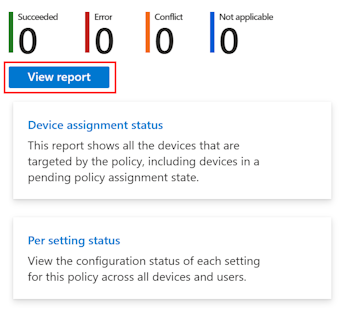
- Per-setting status shows which specific settings failed (essential for troubleshooting—tells you WHAT failed, not just that something failed)
Tip
In the Device and user check-in status blade, select Per setting status and then open Copilot. Enter List settings with conflicts and explain resolutions. Copilot can identify overlapping profiles and recommend merging or scope adjustments. Always validate conflicts manually before removing a profile.
Configuration profile best practices
- Use descriptive names: Include platform, setting type, and target group (e.g., "Windows - BitLocker - All Devices")
- Start with Settings catalog: Use Settings catalog for new profiles instead of custom OMA-URI settings
- Test with pilot groups: Assign profiles to test groups before deploying to all devices
- Keep profiles focused: Create separate profiles for different setting categories (one for BitLocker, one for Wi-Fi, etc.)
- Use filters for advanced targeting: Leverage assignment filters for granular control based on device properties
- Monitor profile status: Regularly check deployment status and address failures promptly
- Document profile purpose: Add clear descriptions explaining what each profile does and why
- Avoid conflicts: Ensure multiple profiles don't configure the same setting with different values
- Use applicability rules: Target specific OS versions or editions to avoid unsupported settings
- Layer policies strategically: Apply broad policies to all devices, then specific policies to subgroups
Tip
Use Copilot prompts such as Show me configuration profiles with the highest number of errors or Explain why the firewall profile failed on some devices to accelerate root-cause analysis. Copilot surfaces conflicted settings and common remediation actions (update OS, adjust applicability rules, consolidate profiles). Treat Copilot responses as advisory—verify with the detailed reports before acting.
Contoso's configuration profiles
At Contoso, the IT team creates configuration profiles to standardize device settings and security across all platforms, with a primary focus on Windows devices.
| Profile | Platform | Key Settings | Assignment |
|---|---|---|---|
| BitLocker Encryption | Windows | XTS-AES 256-bit, OS + fixed drives | All Windows Devices |
| Wi-Fi Corporate | Windows | WPA2-Enterprise, certificate auth | All Windows Devices |
| VPN Configuration | Windows | IKEv2, vpn.contoso.com | Sales Team |
| Firewall Rules | Windows | Enable all profiles, block inbound | Finance Team + filter (Win11 Enterprise) |
| Passcode Requirements | iOS/iPadOS | Alphanumeric, 8 chars, Touch ID/Face ID | All iOS Devices |
| Work Profile Security | Android | 6-digit numeric, encryption, no screenshots | All Android Devices |
With these profiles deployed, Contoso has standardized device settings across the organization with detailed Windows management and essential security controls for mobile platforms.
In the next unit, you learn how to create compliance policies to enforce security requirements and identify noncompliant devices.