Plan a workspace deployment
Organizations deploy Security Copilot workspaces to segment usage by team, compliance boundary, or operational need. Before creating workspaces, you evaluate capacity requirements, data residency constraints, and role assignment strategies. Planning ensures each workspace aligns with organizational policies while providing teams the resources and access they need.
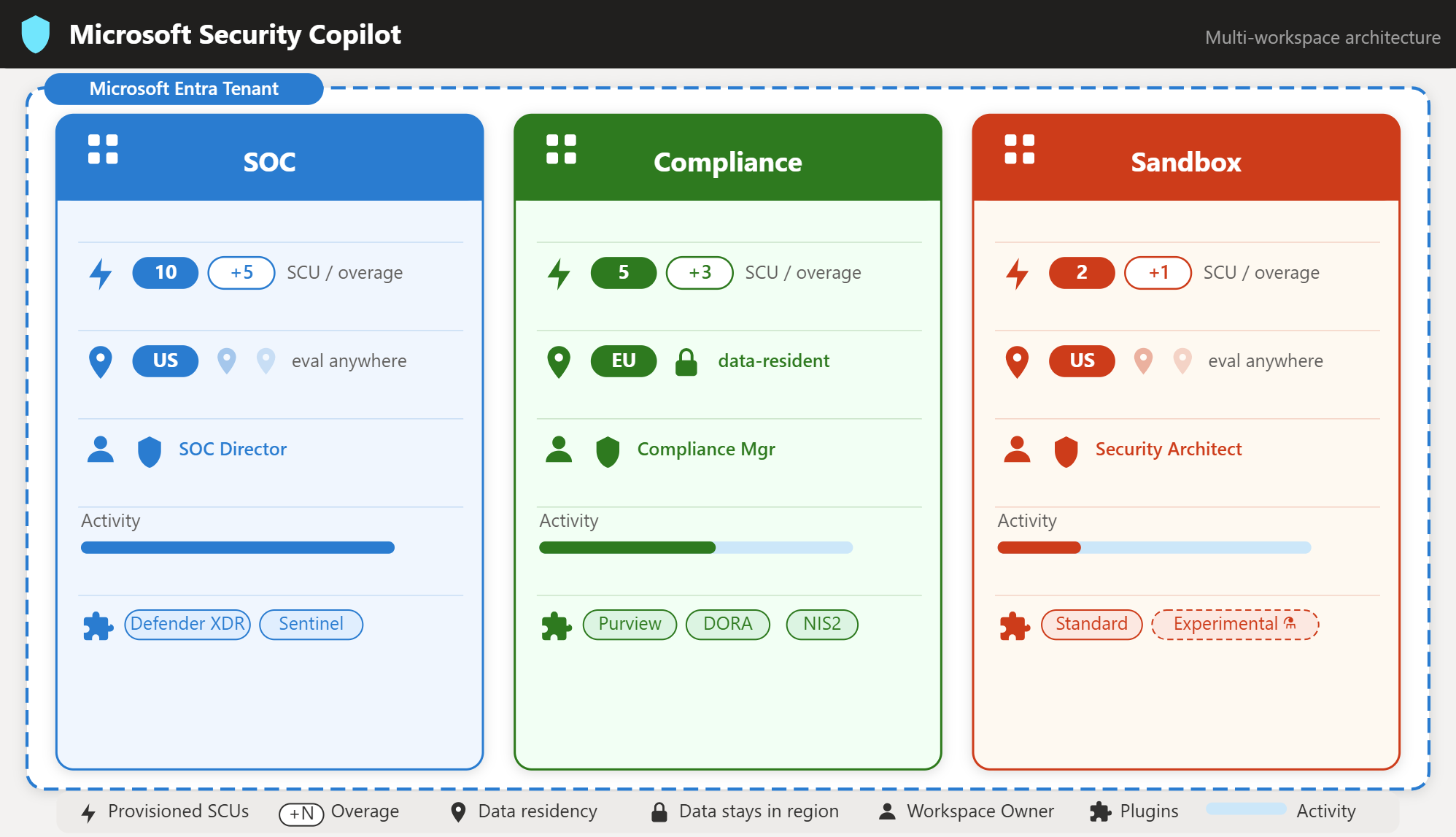
In Contoso's scenario, the Security Operations Center (SOC) team requires high capacity for continuous threat hunting, the compliance team needs EU data residency, and the architecture team wants an isolated sandbox. These diverse requirements demand careful planning before you deploy resources.
Understand workspace scope and architecture
A workspace is a tenant-scoped environment where users, agents, and automations operate. Each workspace maintains independent session history, capacity allocation, role assignments, and configuration settings. All user interactions—manual prompts, agent-triggered responses, and automated workflows—occur within a workspace boundary.
| Workspace Element | Scope | Example Use Case |
|---|---|---|
| Session data | Per workspace | EU compliance team sessions remain in EU geo |
| Capacity (SCUs) | Per workspace | SOC workspace has 10 SCUs; sandbox has 2 SCUs |
| Role assignments | Per workspace | SOC lead is Owner of SOC workspace only |
| Plugin configuration | Per workspace | Sandbox enables experimental plugins |
| Agent routing | Tenant-wide setting | Defender XDR agent routes to SOC workspace |
Unlike a single shared environment, workspaces provide segmentation. With a single default workspace, all teams share capacity, roles apply organization-wide, and compliance boundaries are difficult to enforce. With multiple workspaces, each team gets dedicated capacity, workspace-specific owners configure settings independently, and data residency aligns with regional requirements.
Plan capacity requirements
Security Copilot workspaces are powered by Security Compute Units (SCUs). The capacity model you use determines how you configure and pay for these units.
Pay-as-you-go capacity requires an Azure subscription. You configure hourly SCUs through the Azure portal or during workspace creation. With pay-as-you-go, you set a baseline (for example, 5 SCUs) that runs continuously and optionally configure overage units that activate during usage spikes. You pay for provisioned capacity by the hour plus any overage usage. This model offers precise control—you increase capacity before anticipated load and scale down during off-hours.
Microsoft 365 E5 inclusion capacity provides 400 SCUs per month per 1,000 E5 licenses. With the inclusion model, a default Security Copilot Capacity appears in your tenant automatically. You don't create hourly capacity; instead, usage deducts from the monthly SCU allocation. Unused SCUs don't roll over. This model simplifies budgeting—you use existing E5 investments without separate Azure billing.
Provisioned SCUs represent your baseline capacity—units that remain allocated continuously. Overage SCUs provide elasticity—extra units that activate automatically when provisioned capacity is exhausted. Consider your usage patterns: steady workloads benefit from higher provisioned SCUs with minimal overage; spiky workloads suit a lower baseline with generous overage. Overage units are billed only when consumed.
| Scenario | Provisioned SCUs | Overage SCUs | Rationale |
|---|---|---|---|
| SOC operations (24/7) | 10 | 5 | High baseline for continuous threat hunting; overage handles incident surges |
| Compliance audits (periodic) | 5 | 3 | Moderate baseline for ongoing monitoring; overage for quarterly audit peaks |
| Sandbox testing (intermittent) | 2 | 1 | Low baseline for experimentation; minimal overage for POC demonstrations |
Select data residency and prompt evaluation locations
Security Copilot requires two geographic location decisions during workspace creation: data storage location and prompt evaluation location.
Data storage location determines where Security Copilot stores session data at rest—prompts, responses, and workspace configuration. Options include Australia (ANZ), Europe (EU), Switzerland (CH), United Kingdom (UK), and United States (US). This setting is immutable after workspace creation. For compliance-driven scenarios like Contoso's EU compliance team, selecting the correct data storage location at creation is critical.
Prompt evaluation location determines where GPU resources process prompts. You can match the data storage location or select "evaluate anywhere with available capacity." Evaluating anywhere improves responsiveness by routing to the least-busy datacenter but can process prompts outside your chosen data region. Evaluating in a specific region maintains stricter geographic control but can encounter higher latency during regional peak usage.
For Contoso's compliance workspace, both settings use EU to ensure data remains within European boundaries. For the SOC and sandbox workspaces, data storage uses US but prompt evaluation uses "anywhere" for optimal performance.
Identify required roles and permissions
Creating and managing workspaces requires specific Azure and Security Copilot roles. Understanding role requirements before deployment ensures you have appropriate permissions and can assign access to the right people.
For workspace creation, you need a supported Security Copilot role (Security Administrator, or a Microsoft Entra/Purview role such as Compliance Administrator, or Purview Organization Management). To set capacity during creation, you also need Azure Owner or Contributor access to the Azure subscription where capacity resources are created.
For workspace configuration, workspace Owners can configure settings, assign roles, manage plugins, and deploy agents within that specific workspace. The workspace Owner role is workspace-specific—being Owner of one workspace doesn't grant ownership of others. Azure Contributor access to the capacity resource enables associating or switching capacity allocations.
For workspace usage, workspace Contributors can use Security Copilot features—submit prompts, run promptbooks, view session history—but can't configure workspace settings or manage access. Contributors represent your typical end users.
| Role Type | Example Role | Scope | Required For |
|---|---|---|---|
| Security Copilot | Owner | Per workspace | Configure workspace settings, assign roles |
| Security Copilot | Contributor | Per workspace | Use Security Copilot features |
| Microsoft Entra | Security Administrator | Tenant | Create workspaces, enable audit logging |
| Azure RBAC | Owner or Contributor | Subscription/Resource Group | Configure capacity resources |
Contoso's deployment plan assigns the SOC Director as Owner of the SOC workspace, the Compliance Manager as Owner of the compliance workspace, and the Security Architect as Owner of the sandbox workspace. Each owner can independently configure their workspace without affecting others.
Plan for multi-workspace management
With multiple workspaces, you establish patterns for navigating between workspaces, monitoring aggregate usage, and maintaining consistency across environments.
Workspace owners and contributors assigned to multiple workspaces use the workspace switcher in the Security Copilot portal breadcrumb. The workspace name shown in the breadcrumb reflects the current active workspace.
Integrated Microsoft Security agents (Defender XDR, Purview, Intune, Microsoft Entra) route traffic to a designated workspace per product. This tenant-wide setting determines which workspace receives embedded experience interactions. Assigning agents thoughtfully ensures operational teams access Security Copilot seamlessly from their primary security portals.