Create a Security Copilot workspace
Creating a Security Copilot workspace establishes the foundation for team-specific operations. The creation process configures capacity resources, sets data storage geography, and defines sharing preferences. Decisions made during creation—particularly data storage location—are immutable, making careful configuration essential.
You can create a workspace from two entry points: select the current workspace name in the portal breadcrumb and choose New workspace, or navigate to Owner settings > Manage workspaces and select New workspace. Both paths lead to the same creation workflow.
For Contoso, you create three workspaces: one for the SOC team with US data storage and high capacity. The second for the compliance team with EU data storage for regulatory compliance. The third for the architecture team as a sandbox with minimal capacity for safe experimentation.
Configure workspace fundamentals
The workspace creation process requires four core configuration decisions: workspace name, capacity association, data storage location, and data sharing preferences.
Workspace name must be unique within your tenant and follow Azure resource naming conventions. Names can contain alphanumeric characters, hyphens, and underscores but can't include spaces or special characters. Descriptive names aid navigation—"Contoso-SOC-Workspace" clearly identifies ownership and purpose.
Capacity association connects your workspace to Security Compute Units. Select from available capacity resources in your subscription, or select Create new capacity inline. Creating new capacity requires selecting an Azure subscription then associating capacity to a resource group. Next, you name the capacity resource, and specify the number of available and overage Security Compute Units (SCUs).
Note
Capacity resources can only be used in one workspace at a time. If all existing capacity is already allocated, you must create new capacity.
Data storage location determines where Security Copilot stores workspace session data at rest. Options include Australia (ANZ), Europe (EU), Switzerland (CH), United Kingdom (UK), and United States (US). This setting is immutable after workspace creation—verify it carefully before proceeding.
Prompt evaluation location determines where GPU resources process prompts. You can match the data storage location or select Evaluate anywhere with available capacity to route prompts to the least-busy datacenter globally, improving responsiveness at the cost of strict geographic control.
Data sharing preferences control whether Microsoft can use prompts and responses to improve the service. Organizations with strict data governance policies typically opt out for production workspaces and opt in for sandbox environments.
Create a workspace
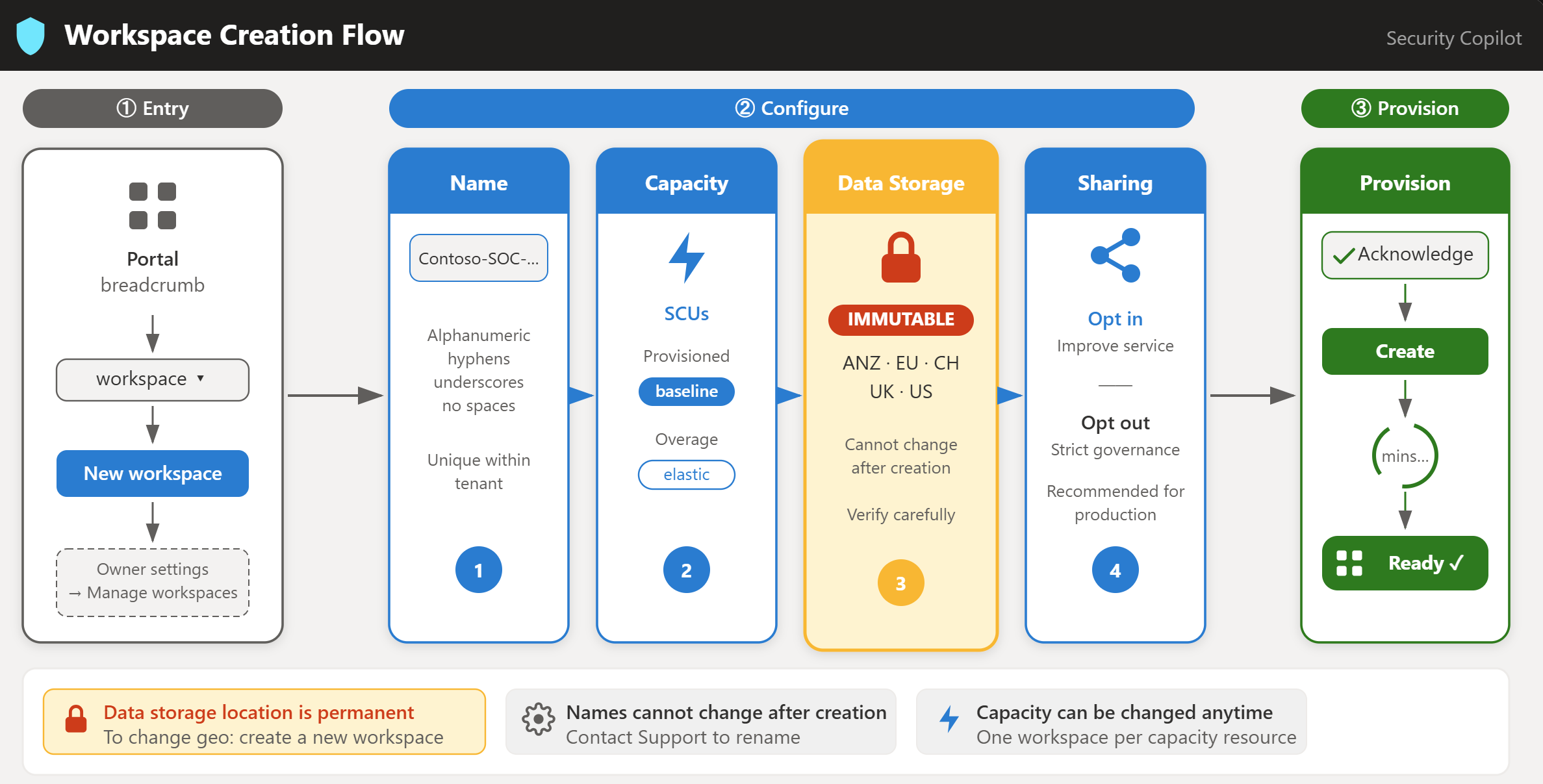
The steps are the same for each workspace—only the configuration values differ. Use this procedure and the Contoso values table to create all three workspaces.
- Sign in to Security Copilot at
https://securitycopilot.microsoft.com. - Select the workspace name in the breadcrumb, then select New workspace.
- Enter the workspace name.
- Select Create new capacity and configure the capacity settings (subscription, resource group, capacity name, prompt evaluation location, provisioned SCUs, overage SCUs).
- Review the estimated monthly cost, then return to workspace creation.
- Select the data storage location.
- Set the prompt evaluation location.
- Set the data sharing preference.
- Acknowledge the terms and conditions, then select Create.
Workspace creation takes several minutes as Security Copilot configures resources.
| Setting | SOC workspace | Compliance workspace | Sandbox workspace |
|---|---|---|---|
| Workspace name | Contoso-SOC-Workspace | Contoso-Compliance-EU | Contoso-Sandbox |
| Resource group | RG-SecurityCopilot-Prod | RG-SecurityCopilot-Compliance | RG-SecurityCopilot-Dev |
| Capacity name | Capacity-SOC | Capacity-Compliance-EU | Capacity-Sandbox |
| Provisioned SCUs | 10 | 5 | 2 |
| Overage SCUs | 5 | 3 | 1 |
| Data storage location | United States | Europe (EU) | United States |
| Prompt evaluation | Evaluate anywhere | Europe (EU) | Evaluate anywhere |
| Data sharing | Opt out | Opt out | Opt in |
Setting both data storage and prompt evaluation to EU for the compliance workspace ensures all data—at rest and during processing—remains within European boundaries.
Verify workspace creation
After creation completes, verify each workspace appears in the breadcrumb dropdown. Selecting a workspace switches your active context—the breadcrumb always reflects your current workspace.
Data storage location is permanent. To change geographic storage, you must create a new workspace. Capacity association can be changed at any time, but a workspace must always have an assigned capacity to function. Workspace names cannot be changed after creation. To rename a workspace, contact Microsoft Support for assistance.
Now that your workspaces are created, you're ready to configure access by assigning roles and setting up workspace-level owner settings and plugins.